


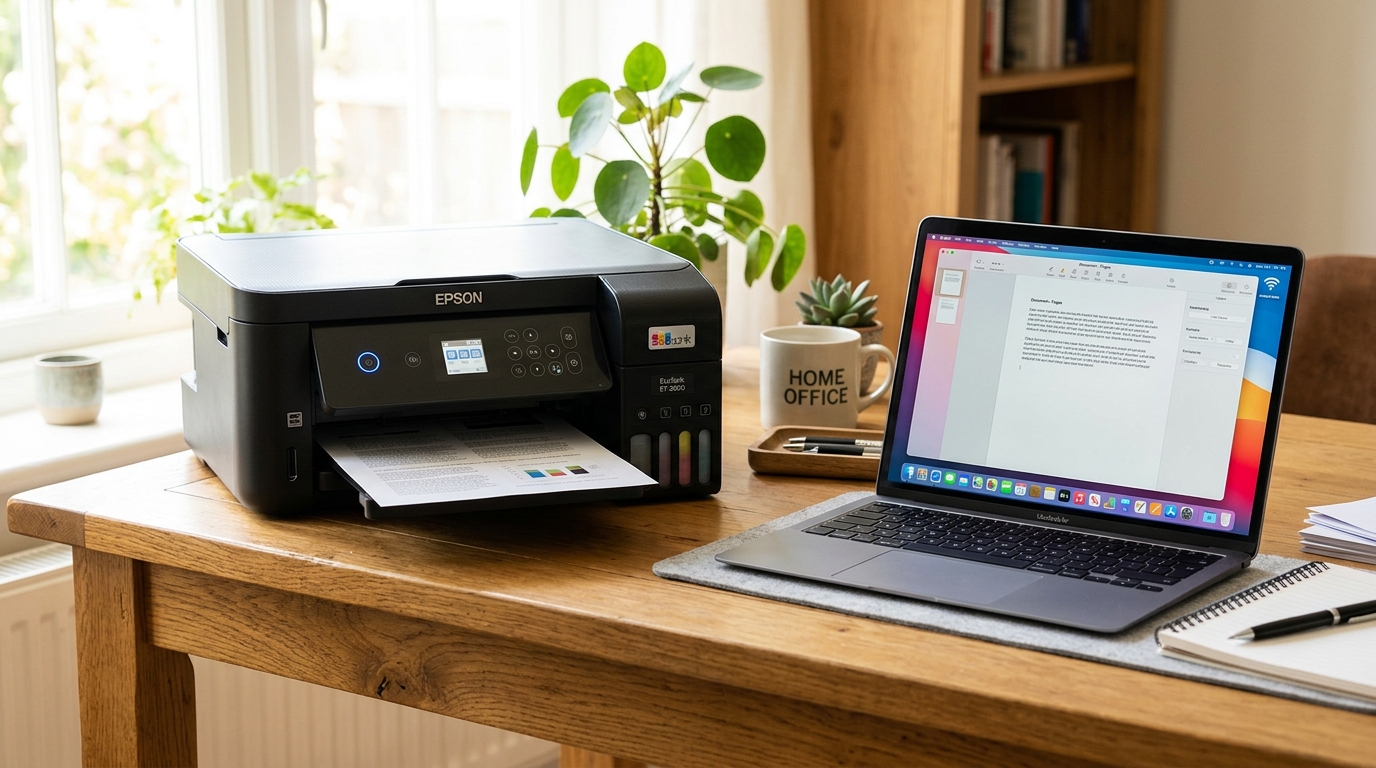
Introduction to Epson EcoTank Wi-Fi Setup
The Epson EcoTank series, known for its cartridge-free printing. Furthermore, Incredibly low cost per page, has revolutionized the home.
Furthermore, Small office printing market. Models like the ET-2800 offer an impressive array of features, but one of the most critical is their wireless connectivity.
A stable Wi-Fi connection allows multiple users to print from various devices—laptops, smartphones, and tablets—without the clutter of USB cables.
However, setting up a wireless connection or troubleshooting an existing one can sometimes be a daunting task. Network environments are complex, involving different router configurations, security protocols, and interference sources.
This comprehensive guide will walk you through the initial setup process, explore why connection issues occur, provide a detailed step-by-step troubleshooting methodology. Additionally, Offer advanced solutions for persistent network problems.
By understanding the underlying mechanics of your Epson EcoTank's wireless adapter. Furthermore, How it communicates with your local area network (LAN), you can ensure a reliable, uninterrupted printing experience.
Whether you are dealing with a printer. It Frequently drops its connection, fails to connect after a router change, or simply refuses to be discovered on your network, this guide has you covered.
We will explore the nuances of network bands (2. 4 GHz vs. 5 GHz), DHCP server dynamics, IP address conflicts, and the Epson Connect service. Armed with this knowledge, you will be able to tackle even the most stubborn Wi-Fi issues with confidence.
Why Wi-Fi Connection Issues Happen
Before diving into the fixes, it's essential to understand why your Epson EcoTank printer might struggle to maintain a stable Wi-Fi connection. Several factors contribute to these network hiccups, and diagnosing the root cause is the first step toward a permanent solution.
1.
Modern routers often feature dual-band functionality, broadcasting both 2. 4 GHz and 5 GHz signals.
The 5 GHz band offers faster speeds over shorter distances, while the 2. 4 GHz band provides better range and penetration through walls.
Most Epson EcoTank printers, including the ET-2800, operate exclusively on the 2. 4 GHz band.
If your smartphone or computer is connected to the 5 GHz band, or if your router utilizes "band steering" (combining both bands under one SSID), the devices may fail to discover the printer.
Band steering can be particularly problematic. The router may attempt to force the printer onto the 5 GHz band, resulting in a failed connection or continuous dropping. Separating the bands in your router's administration panel is often necessary to resolve this.
2.
Dynamic Host settings Protocol (DHCP) is the service on your router. It Automatically assigns IP addresses to devices on your network.
Normally, this works seamlessly. However, if a device is disconnected for a while, the router might assign its IP address to another device.
When the original device reconnects, an IP address conflict occurs, knocking one or both devices off the network.
Printers are especially susceptible to this because they enter deep sleep modes to conserve energy. When they wake up, the router might not immediately recognize them, leading to communication failures. Assigning a static (manual) IP address to the printer is a robust workaround for this issue.
3.
Wi-Fi networks use various security protocols, such as WEP, WPA, WPA2, and the newer WPA3. If your router is configured to use a security protocol that your printer does not support, the connection will fail.
Epson EcoTank printers generally support WPA2-PSK (AES), which is the current standard for home networks. However, if your router is set to "WPA3 Only," older printer models will not be able to connect.
Additionally, if you recently changed your Wi-Fi password, the printer will retain the old credentials until manually updated, leading to authentication errors.
4.
Wi-Fi signals are susceptible to physical interference from walls, metal objects, and other electronic devices (like microwaves and cordless phones). If your printer is located too far from the router or is obstructed by dense materials, the signal strength may be insufficient for a stable connection.
Relocating the printer or using a Wi-Fi extender can mitigate these physical barriers.
Understanding these four primary culprits—band incompatibility, IP conflicts, security mismatches, and physical interference—will greatly streamline your troubleshooting process.
Step-by-Step Fixes for Wi-Fi Setup
Now that we have established the theoretical foundation, let's walk through the practical steps to set up or fix your Epson EcoTank's Wi-Fi connection. The following sequence is designed to address the most common issues first, escalating to more involved solutions as necessary.
- Verify Network Requirements:
Ensure your router is broadcasting a 2. 4 GHz network.
If you have a mesh network or a dual-band router with band steering, temporarily disable the 5 GHz band or create a dedicated 2. 4 GHz guest network specifically for the printer.
Make sure your smartphone or computer is connected to this 2. 4 GHz network during the initial setup phase.
- Reset the Printer's Network Settings:
If you have recently changed your router, ISP, or Wi-Fi password, you must clear the printer's old network settings. Navigate to the printer's control panel (the exact menu path varies slightly between the ET-2800).
- Go to Settings or Setup.
- Select Restore Default Settings or System Administration.
- Choose Clear Network Settings or Restore Network Settings.
- Confirm the action and wait for the printer to restart its network adapter.
- Utilize the Wi-Fi Setup Wizard:
The most straightforward method for connecting the printer is via its built-in control panel wizard. This eliminates the need for a computer during the initial handshake.
- On the printer's home screen, navigate to the Wi-Fi Setup or Network Settings icon.
- Select Wi-Fi (Recommended).
- Choose Wi-Fi Setup Wizard.
- The printer will scan for available networks. Select your 2. 4 GHz SSID from the list.
- Enter your Wi-Fi password using the directional pad or touchscreen. Pay close attention to case sensitivity.
- Proceed and wait for the "Setup Complete" message. The Wi-Fi icon on the screen should now appear solid, not flashing.
- Wi-Fi Protected Setup (WPS) Method:
If typing the password on the printer's small screen is cumbersome, you can use WPS, provided your router supports it.
- On the printer, go to Wi-Fi Setup > Push Button Setup (WPS).
- Press the WPS button on your physical router. You typically have a 2-minute window to complete the handshake.
- Press OK or Start on the printer. The devices will negotiate the connection securely without requiring a password.
- Reinstall the Epson Printer Drivers:
If the printer is connected to the network (solid Wi-Fi light) but your computer cannot print, the issue lies with the software, not the network connection itself.
- Go to Control Panel > Devices and Printers (Windows) or System Preferences > Printers & Scanners (Mac) and remove the existing Epson printer entry.
- Visit the official Epson Support website. Furthermore, Download the latest "Drivers. Furthermore, Utilities Combo Package" for your specific model (ET-2750, ET-2800, or ET-4760).
- Run the installer.Wireless connection The installer should automatically scan your local network, discover the printer, and configure the necessary ports.
- Power Cycle the Entire Network:
Sometimes, routers cache stale routing tables or MAC address tables. A complete power cycle can clear these transient anomalies.
- Turn off the printer, computer, and router.
- Unplug the router from the wall outlet and wait at least 60 seconds.
- Plug the router back in and wait for it to fully initialize (all indicator lights stable).
- Turn on the computer and ensure it connects to the network.
- Turn on the printer. It should automatically reconnect to the Wi-Fi.
Advanced Troubleshooting Techniques
If the standard setup steps have failed, we must employ advanced networking techniques to establish communication. These methods require access to your router's administration interface.
Setting a Static IP Address
As discussed earlier, DHCP conflicts are a major source of printer connectivity issues. By assigning a static IP address, you ensure the printer always occupies the same address on the network, preventing conflicts with other devices.
First, print a Network Status Sheet from the printer's control panel (usually under Settings > Network Settings > Print Status Sheet). Note the printer's current IP address (e. g. , 192.
168. 1.
50) and the Default Gateway (e. g. , 192. 168.
1. 1).
The Default Gateway is your router's IP address.
Log in to your router's admin panel using a web browser. Navigate to the DHCP, LAN, or Network Settings section.
Look for an option labeled "DHCP Reservation," "Address Reservation," or "Static IP Allocation. " Add a new rule using the printer's MAC address (found on the Status Sheet).
Furthermore, Assign it an IP address outside the normal DHCP pool (e. g. , 192. 168.
1. 200).
Save the settings and restart the router and printer.
Alternatively, you can set the static IP directly on the printer's control panel.Advanced Network Settings > TCP/IP Setup > Manual Enter the IP address, Subnet Mask (usually 255. 255. 255. 0), and Default Gateway manually.
Disabling MAC Address Filtering
Some users enable MAC address filtering on their routers as an added layer of security. This feature explicitly blocks any device whose MAC address is not on the "whitelist.
" If you have this feature enabled, your Epson EcoTank will be blocked from joining the network, even if you enter the correct password.
Log in to your router, locate the Wireless Security or Access Control section, and check if MAC filtering is active. If it is, add your printer's MAC address to the allowed list, or temporarily disable the feature to test the connection.
Updating Printer firmware (internal software)
Epson periodically releases firmware (internal software) updates that address known bugs, improve network stability, and enhance compatibility with newer routers. Running outdated firmware (internal software) can lead to erratic Wi-Fi behavior.
If you can manage to connect the printer via USB temporarily, or if it has a weak but functional Wi-Fi connection, you can update the firmware (internal software).Settings > firmware (internal software) Update Ensure the printer is not interrupted during this process, as a power failure during a firmware (internal software) flash can brick the device.
Adjusting Router Wireless Modes
Older printers sometimes struggle with newer wireless modes like 802. 11ax (Wi-Fi 6).
While Wi-Fi 6 is designed to be backward compatible with 802. 11n (which the EcoTanks use), implementation varies between router manufacturers.
In your router settings, try changing the 2. 4 GHz wireless mode from "802.
11b/g/n/ax mixed" to "802. 11b/g/n mixed" or simply "Legacy mode.
" This forces the router to use older, more compatible modulation schemes.
Epson Connect and Cloud Printing
Once your printer is successfully connected to your local network, you can leverage Epson Connect for cloud-based printing. This service allows you to print from anywhere in the world by sending an email to a unique address assigned to your printer.
To set this up, your printer must have active internet access. Print a Network Status Sheet and locate the printer's IP address. Type this IP address into a web browser on a computer connected to the same network. This opens the printer's Web Config interface.
Navigate to the Epson Connect Services section and follow the prompts to register the device. You will create an account on the Epson Connect portal, where you can manage allowed senders, customize the printer's email address.
Additionally, Monitor print logs. This is exceptionally useful for remote workers or for printing documents directly from mobile devices without installing specialized apps.
Conclusion
Troubleshooting Wi-Fi connection issues on the Epson EcoTank ET-2800 requires patience and a systematic approach. By understanding the common pitfalls—such as 5 GHz band incompatibility, dynamic IP conflicts.
Additionally, Router security settings—you can isolate the problem rapidly. Always start with the simplest solutions, like power cycling.
Furthermore, Clearing network settings, before diving into router configurations like static IPs. Furthermore, MAC filtering.
With a robust, stable network connection, your EcoTank printer will serve as a reliable workhorse, delivering high-quality, cost-effective prints for years to come.
FAQ: My printer says it's connected, but my computer shows it as "Offline". What do I do?
This is usually an IP address mismatch or a driver issue. The printer may have obtained a new IP address from the router.
FAQ: Can I use my Epson EcoTank on a 5 GHz Wi-Fi network?
No, the majority of Epson EcoTank models, including the ET-2800, only contain 2. 4 GHz network adapters.
FAQ: What does the flashing Wi-Fi light mean on my ET-2750?
A flashing Wi-Fi light typically indicates. It The printer is actively trying to connect to a network or is currently in setup mode (like WPS mode).
FAQ: How do I find my printer's IP address without a screen (or if the screen is too small)?
You can print a Network Status Sheet. On models with a screen, navigate to Setup > Network Settings > Print Status Sheet.
FAQ: Will a Wi-Fi extender fix my printer's connection drops?
If the printer is located far from the router and receives a weak signal, a Wi-Fi extender can help. However, extenders often create a new network name (SSID), such as "YourNetwork_EXT".
