


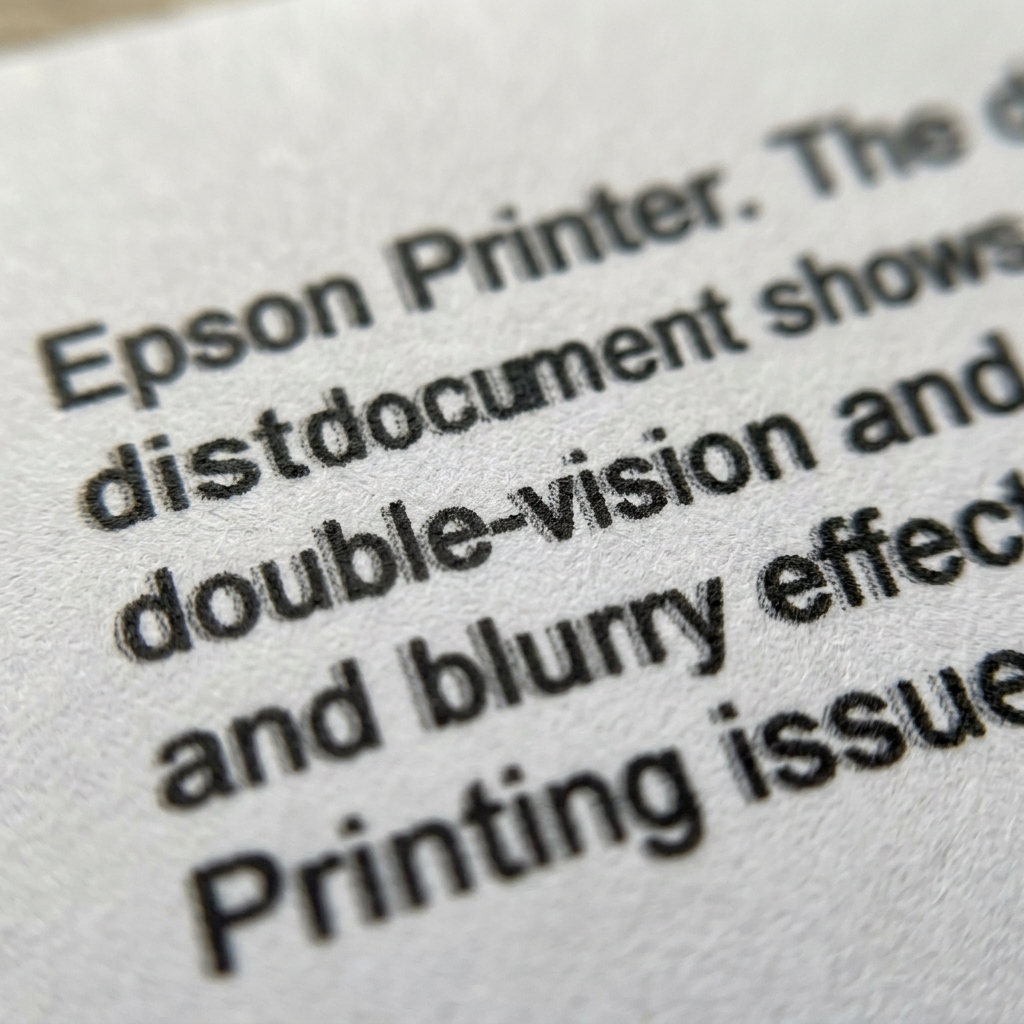
The "3D Text" Phenomenon
It is a highly specific, very common problem: You print a document, and all the black text looks blurry, smeared, or has a distinct "shadow" next to it—almost like looking at a 3D movie without the red-and-blue glasses. Yet, if you print a full-color photograph, it looks absolutely flawless.
Why does this happen only to black text? The answer lies in how Epson engineers their ink delivery systems.
Most Epson printers use a hybrid ink system: Dye-based ink for Cyan, Magenta, and Yellow, and a thicker, weather-resistant Pigment-based ink for Black. Because pigment ink has different physical properties, it requires a physically different channel in the printhead.
When that specific channel fails, only your black text suffers.
Fix 1: Clean the Encoder Strip (The Timing Issue)
The printhead slides back and forth on a metal rail at incredibly high speeds. To know exactly when to fire an ink droplet, it reads a thin, semi-transparent plastic strip running parallel to the rail. This is the Encoder Strip, and it is printed with thousands of microscopic vertical lines.
If a smudge of grease or a misting of rogue ink coats a section of this strip, the printhead's optical sensor loses its place. It fires the black ink a millimeter too early or too late, causing the "double vision" effect. (It affects black more noticeably because text requires razor-sharp contrast compared to blended color photos).
- Unplug the printer and lift the scanner bed or access lid.
- Look closely behind the printhead carriage rail for a thin, clear plastic ribbon. (Do not confuse it with the rubber drive belt).
- Take a lint-free cloth (like a microfiber glasses cloth) and apply a single drop of isopropyl alcohol or glass cleaner.
- Pinch the encoder strip gently with the cloth and wipe from the far left to the right. Do not pull hard, or you risk detaching it from its spring mounts.
- Let it dry for 5 minutes, plug the printer in, and test.
Fix 2: Vertical Printhead Alignment
If the encoder strip is clean, the software timing may be off. Epson printers fire ink while moving left-to-right, and also while moving right-to-left (Bidirectional printing). If the two passes don't overlap perfectly, you get shadow text.
- Go to your printer's control panel (or the printer preferences on your computer).
- Navigate to Maintenance → Printhead Alignment.
- Select Vertical Alignment .
- The printer will print several rows of numbered boxes. Examine the printout and select the number for the box that has the fewest white gaps or overlapping lines.
- If this completely fixes the issue, but it returns a week later, turn off "High Speed Printing" or "Bidirectional Printing" in your driver settings to force the printer to only print in one direction. It is slower, but eliminates alignment shadows entirely.
Fix 3: Dissolving Pigment Deflection
Because the black ink is pigment-based, it is essentially suspended plastic particles. When it dries inside a nozzle, it dries hard.
Sometimes, a nozzle isn't completely blocked (which would cause a white streak), but is partially blocked. This acts like a thumb over a garden hose, spraying the ink sideways at an angle.
This "nozzle deflection" looks exactly like double-vision text on paper.
Standard head cleaning won't fix deflection. You need to dissolve the crust:
- Unplug the printer while the carriage is unlocked and move the carriage to the center.
- Look at the far right side where the carriage normally rests. You will see a small rectangular sponge pad. This is the capping station.
- Take a syringe and drip 2-3 milliliters of Windex (ammonia-based glass cleaner) or specialized printhead cleaner directly onto that sponge pad until it pools up.
- Slide the printhead carriage back to the far right so it parks directly over the soaked sponge.
- Leave it there overnight. The ammonia fumes will rise into the black nozzles and dissolve the hardened pigment.
- The next morning, run one standard head cleaning cycle and print a test page.
The Worst Case Scenario: Printhead Delamination
If you have tried all the above, and the black text is still shadowed (and a nozzle check pattern shows the black grid is wavy and distorted), the printhead has suffered delamination. The physical metal faceplate covering the black nozzles has warped or begun to peel away from the ceramic backing due to internal heat or physical strikes against curled paper.
This is unrepairable, and requires a full printhead replacement.
Why Black Text Prints Blurry with a "Double Vision" Shadow on Epson Printers
When printed black text looks blurry, out of focus, or has a distinct secondary ghost shadow beside every letter while color graphics print crisp and sharp, the issue is isolated to the Pigment Black Bidirectional Timing Alignment or a smudged linear optical timing strip.
Step-by-Step 3-Stage Blurry Text Fix
- Execute Manual Print Head Alignment (Focusing on PGBK):
- Load fresh, bright white copy paper.
- On the printer display: Go to Maintenance > Print Head Alignment > Vertical Alignment.
- Examine the black alignment pattern. Select the numbered box with the cleanest, sharpest vertical lines and zero overlapping shadow edges.
- Clean the Linear Optical Encoder Strip:
Behind the carriage is the clear timing strip. Smudges cause the carriage motor to stutter slightly during bidirectional passes, causing left-to-right dots and right-to-left dots to misalign by 0.2mm (creating double text). Wipe the strip gently with warm distilled water on a microfiber cloth.
- Enable "High Quality" Print Setting in Driver:
In Windows Print Preferences, change Print Quality from "Standard" to "High" and uncheck "High Speed (Bidirectional)". This forces the printer to lay down black text unidirectionally, eliminating ghosting artifacts.
Frequently Asked Questions
Why is only black text blurry while color photos look perfect?
Black text uses the large pigment black nozzle array, which fires larger droplet sizes at higher velocity. Misalignment in bidirectional timing is dramatically more visible on large black text letters than on fine color photo dithering.
Can loose carriage bushings cause double vision text?
Yes. If the carriage guide rail is dry, the carriage rocks slightly as it reverses direction, creating double-line text artifacts.
