


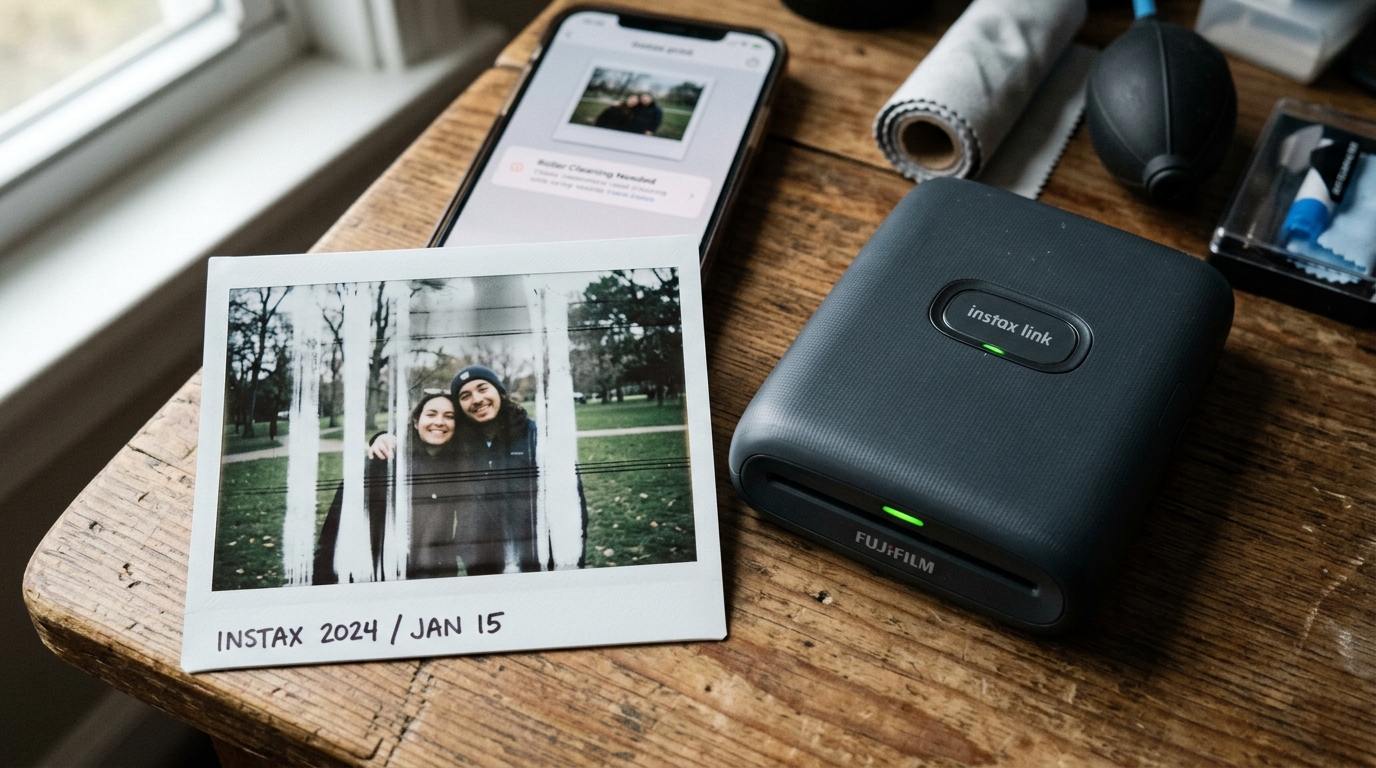
Introduction to Instax Link Print Quality Issues
The magic of an Instax Link printer is watching your digital photos develop into physical realities. However, that magic is quickly ruined when the prints emerge with unsightly streaks, vertical lines, or worst of all, when the film ejects completely blank without any image printing.
These issues plague the Instax Mini Link, Square Link, and Link Wide models and can turn expensive film packs into wasted plastic. This comprehensive guide will dissect the reasons behind print quality degradation and mechanical failures that lead to blank ejections, providing you with practical, step-by-step solutions to restore pristine print quality.
Instax technology is based on instant film chemistry, where rollers crush chemical pods within the film border to spread developer across the image area. It is a precise mechanical and chemical process.
Streaks and lines indicate a failure in the mechanical spreading process, while blank ejections usually point to communication, sensor, or cartridge loading errors. By understanding how the film develops, you can better diagnose and correct these frustrating issues.
Why This Happens: The Root Causes
To effectively fix lines, streaks, and blank ejections, we must first understand the mechanics of the Instax printer and the chemistry of the film itself.
- Dirty Internal Rollers: This is the leading cause of streaks and lines. The metal rollers inside the printer squeeze the developer chemicals across the film. If these rollers become dirty with dust, dried chemicals from a previous bad pack, or debris, they will apply uneven pressure. This uneven pressure results in streaks where the chemicals failed to spread properly.
- Expired or Damaged Film: Instax film contains active liquid chemicals. If the film is expired, has been exposed to extreme heat (like in a hot car), or subjected to freezing temperatures, the chemicals can dry out or separate. This will lead to faded images, weird color casts, or pronounced streaking.
- Film Cartridge Misalignment or Tampering: If a film cartridge is inserted incorrectly, or if the back door is opened while a cartridge is loaded, light exposure will ruin the top films (resulting in blank white prints). Furthermore, opening the door resets the film counter, which can confuse the printer's mechanical sequence, sometimes leading to it ejecting a blank frame thinking it's the black darkslide.
- Low Battery Power: While less common for streaks, a very low battery might not provide enough torque to the roller motors to maintain a consistent speed as the film ejects. This inconsistent speed can cause horizontal banding or uneven development.
- Software/Communication Errors: If a film ejects completely blank (and hasn't been exposed to light), it could be that the printer received the command to eject a film but failed to receive the image data from the app, or the thermal exposure head failed to fire.
Determining whether your issue is mechanical (rollers), chemical (film), or software-related will dictate the path to resolving it.
Step-by-Step Fix
Address these print quality and ejection issues systematically to avoid wasting more film.
- Rule Out Light Exposure: If your film is ejecting completely white (blank), ask yourself: Did the printer door accidentally pop open? Was the cartridge removed and reinserted? If the film is exposed to ambient light, it turns white and is permanently ruined. The only fix is to replace the cartridge. Do not open the door until the cartridge is empty.
- Verify Film Expiration Date: Check the box your film came in. If it is significantly past its expiration date, the chemicals are likely degraded. Replace the film with a fresh, unexpired pack stored at room temperature to see if the streaks disappear.
- Clean the Rollers (Crucial for Streaks): This is the most important step for fixing lines. Open the empty film door (only do this when the cartridge is empty). Look inside for the two metal rollers near the film exit slot. Dampen a Q-tip with a tiny amount of water or isopropyl alcohol. Gently clean the length of the rollers. You may need to turn the printer on and off to get the rollers to rotate slightly so you can clean all sides. Ensure they are completely dry before loading new film.
- Perform a Hard Reset: If the printer is ejecting blank film without being exposed to light, it might be a software glitch. Locate the reset pinhole (usually near the charging port), insert a paperclip, and hold for 5 seconds while the printer is on. This resets the internal logic board.
- Ensure Optimal Battery Level: Charge the printer fully. A printer struggling for power may exhibit erratic behavior, including uneven roller speed or failing to power the exposure head. Never print when the battery LED indicates low power.
- Reinstall the Instax Application: If blank prints persist, the app might be sending corrupted data. Delete the Instax app from your smartphone, restart your phone, and reinstall the latest version from the App Store or Google Play Store. Re-pair the printer.
- Check the Darkslide Ejection: When you insert a new pack of film, the printer should automatically eject the black plastic darkslide. If it fails to do this, the printer mechanism is jammed or confused. Do not try to pry it out. Try resetting the printer; if it still fails, the printer hardware may require servicing.
- Avoid Squeezing the Film: When the film ejects, never pull it or squeeze it. Let it eject fully on its own. Squeezing the film while the chemicals are spreading can cause severe distortion and streaking in the final image.
Advanced Troubleshooting
If streaks or blank prints continue despite basic troubleshooting, consider these advanced scenarios.
Inspect the Exposure Head: The Instax printer works by exposing the film to an LED array before rolling it out. If a section of this LED array is damaged or blocked by dust, you will get consistent unexposed (white) lines on every photo.
While difficult to clean without disassembly, blowing compressed air into the printer cavity (when empty) might dislodge dust.
Examine the Film Cartridge Rollers: Sometimes the issue isn't the printer's rollers, but a manufacturing defect in the plastic film cartridge itself causing friction. If cleaning the printer rollers doesn't help, try a cartridge from a completely different batch or store to rule out a bad run of film.
Firmware Check: Ensure your printer's firmware is up to date via the app. Fujifilm occasionally releases updates to adjust the exposure calibration or fix timing issues that could contribute to poor print quality.
Temperature Extremes: Instax film develops best between 41°F and 104°F (5°C to 40°C). If you are printing in freezing conditions, the chemical reaction slows down immensely and may appear streaky or underdeveloped.
If in a hot environment, it may develop too quickly and appear washed out. Keep the developing film warm (e.g., in an inside pocket) if printing in the cold.
FAQ
Why did my film come out completely black?
A completely black film usually indicates that it was never exposed to the image data, but the chemicals still spread. This is almost always a failure of the internal LED exposure head or a severe mainboard failure in the printer.
Can I clean the rollers while a film pack is inside?
No. Opening the door exposes the film to light, ruining it.
Are faint vertical lines normal?
Very faint vertical lines can sometimes be seen in areas of flat, solid color (like a blue sky) due to the nature of the LED exposure process, but prominent, disruptive streaks are a sign of dirty rollers.
Does shaking the film help it develop better?
No! Despite the old song, you should never shake Instax film.
Why did my printer eject two photos at once?
This is extremely rare and usually indicates a severe mechanical malfunction where the pick-up arm failed to separate a single sheet. The printer will likely need professional repair or replacement.
