


Introduction
The Fujifilm Instax Link Wide is a fantastic portable printer that allows you to bring your digital smartphone photos to life on large, high-quality instant film. Unlike traditional instant cameras, the Link Wide relies entirely on a Bluetooth connection to communicate with your smartphone via the dedicated Instax Link Wide app.
While this wireless setup offers incredible convenience and creative control, it can also be a source of frustration when the Bluetooth connection fails, the printer refuses to pair, or the app cannot locate the device. Whether you are unboxing your printer for the first time or experiencing sudden connectivity drops just before printing a cherished memory, dealing with Bluetooth issues is a common hurdle.
This comprehensive setup and troubleshooting guide is designed to walk you through the correct initial connection process, explain why Bluetooth communication sometimes fails between your phone and the printer, and provide a detailed step-by-step resolution path to ensure you achieve a stable, reliable connection every time you want to print.
Why This Happens
Bluetooth technology, while universally used, is susceptible to various environmental, software, and hardware-related interferences. When your Instax Link Wide fails to connect to your smartphone, the root cause usually falls into one of the following categories:
1. OS Permissions and Privacy Settings: The most common reason the Instax Link Wide app cannot find the printer is due to restricted permissions on your smartphone.
Both iOS and Android have strict privacy controls regarding Bluetooth and Location services. For the app to scan for and connect to nearby Bluetooth Low Energy (BLE) devices like the printer, it must have explicit permission to access Bluetooth.
On Android devices, Location services must also be enabled and granted to the app, as Android bundles BLE scanning under location permissions.
2. Bluetooth Cache and Pairing Conflicts: Smartphones remember previously connected Bluetooth devices.
Sometimes, the Bluetooth cache becomes corrupted, or the phone gets confused if it has previously paired with the printer but the connection was interrupted. Furthermore, if you attempt to pair the printer directly through your phone's main Bluetooth settings menu rather than exclusively through the Instax Link Wide app, it can create a connection conflict that prevents the app from recognizing the device.
3. Battery Levels and Power States: The Instax Link Wide requires a sufficient battery charge to broadcast a strong Bluetooth signal and operate its mechanical printing components.
If the printer's battery is critically low (often indicated by a flashing red LED), the Bluetooth module may power down or become unstable. Similarly, if your phone is in a strict "Low Power Mode" or "Battery Saver Mode," it may throttle Bluetooth scanning to conserve energy.
4. Firmware and App Outages: Software bugs are inevitable.
If you are using an outdated version of the Instax Link Wide app, it may not be fully compatible with the latest iOS or Android operating system updates. Conversely, the printer itself has internal firmware that Fujifilm occasionally updates via the app to improve Bluetooth stability; missing these updates can lead to connection drops.
Step-by-Step Fix
To establish a flawless connection or troubleshoot a failing one, follow these step-by-step instructions. This process ensures all permissions are correct and clears any conflicting data.
- Prepare the Printer and Phone: Ensure your Instax Link Wide printer is fully charged. Connect it to power using the provided USB cable until the LED indicator turns solid white or green (depending on the exact state). On your smartphone, disable "Low Power Mode" or "Battery Saver." Ensure your phone's main Bluetooth toggle is turned ON.
- Forget Previous Pairings (Crucial Step): Go into your smartphone's main Bluetooth settings menu. Look for any devices named "INSTAX-XXXX" (where XXXX is the unique serial number of your printer). If you see it listed under paired devices, tap the info icon or gear icon next to it and select "Forget This Device" or "Unpair." You must NOT pair the printer through this menu; pairing must happen inside the app.
- Verify App Permissions: This is where most connections fail.
- On iPhone (iOS): Go to Settings > Scroll down to the 'Link WIDE' app. Ensure that 'Bluetooth' is toggled ON. Also, ensure 'Local Network' is ON if applicable.
- On Android: Go to Settings > Apps > 'Link WIDE' > Permissions. Ensure that 'Location' is set to "Allow only while using the app" and 'Nearby Devices' or 'Bluetooth' is explicitly allowed. Ensure your phone's global Location toggle is also turned on.
- Turn on the Printer: Press and hold the Instax button on the front of the printer for about one second until the LED lights up. It should pulse slowly, indicating it is ready to pair.
- Pair Through the App: Open the Instax Link Wide app on your smartphone. Navigate to the settings menu (usually a gear icon) and select "Bluetooth settings" or "Printer settings." Tap on "Find Printer" or "Connect to Printer." The app will scan for nearby devices.
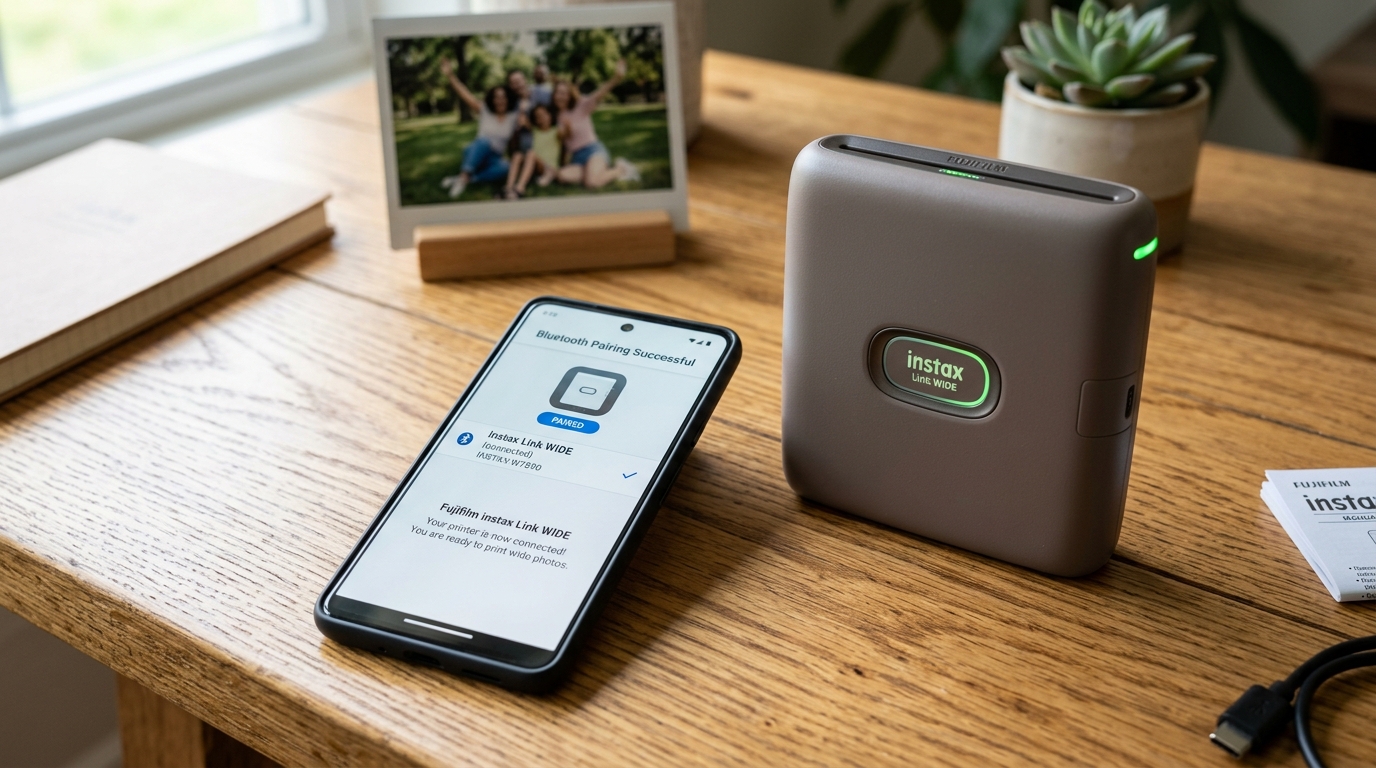
- Select Your Printer: Within a few seconds, "INSTAX-XXXX" should appear on the screen. Tap on it. The app will establish a connection, and the printer's LED should change to a solid color, confirming the pairing is successful.
- Perform a Test Print: Select a photo from your camera roll, make any desired edits in the app, and swipe up to print. Monitor the connection; if the photo transfers successfully, your setup is complete.
Advanced Troubleshooting
If you have followed the step-by-step guide and still cannot connect, it is time to try some advanced troubleshooting techniques to rule out hardware or deep software issues.
Reset Network Settings on Your Phone: If your smartphone's Bluetooth stack is corrupted, simply forgetting the device might not be enough. You can reset your phone's network settings. (Note: This will also erase saved Wi-Fi passwords).
On iOS, go to Settings > General > Transfer or Reset iPhone > Reset > Reset Network Settings. On Android, the path varies but is usually under System > Reset Options > Reset Wi-Fi, mobile & Bluetooth.
After restarting, try the app pairing process again.
Update Firmware and Software: Go to the Apple App Store or Google Play Store and verify that you have the absolute latest version of the Instax Link Wide app installed. Sometimes, connecting to a different smartphone or tablet can isolate the issue.
If you successfully connect using a friend's phone, check the app settings for a "Firmware Update" option for the printer. Updating the printer's firmware from a working device can fix bugs that prevented your primary phone from connecting.
Hardware Reset of the Printer: While the Link Wide doesn't have a traditional reset button, you can perform a soft reset. Turn the printer on.
Using a paperclip or a small pin, locate the small reset hole near the USB charging port. Gently press and hold the hidden button inside for about 5 seconds.
The printer will power cycle. This clears its temporary memory and can resolve frozen Bluetooth modules.
FAQ
Why does the app ask for my Location just to use Bluetooth?
This is a requirement imposed by the Android operating system, not Fujifilm. Because Bluetooth Low Energy (BLE) beacons can theoretically be used to determine your physical location in the real world, Android requires you to grant Location permissions to any app that scans for BLE devices, including your printer.
Can I connect multiple phones to the Instax Link Wide at the same time?
No, the printer can only maintain an active connection with one smartphone at a time. If you want to print from a different phone, you must disconnect or close the app on the first phone, and then initiate the pairing process through the app on the second phone.
What does a flashing red LED on the printer mean?
A flashing red LED indicates an error state. This most commonly means the battery is critically low and needs to be recharged immediately.
Why does the printer disconnect immediately after transferring a photo?
This is actually a normal power-saving feature. To conserve battery life, the printer may enter a low-power sleep state after successfully receiving and printing an image.
My phone sees the printer in the main Bluetooth menu, but the app can't find it. What do I do?
This happens when you pair via the OS menu instead of the app. Go to your phone's Bluetooth settings, select "Forget" or "Unpair" for the Instax printer.
