


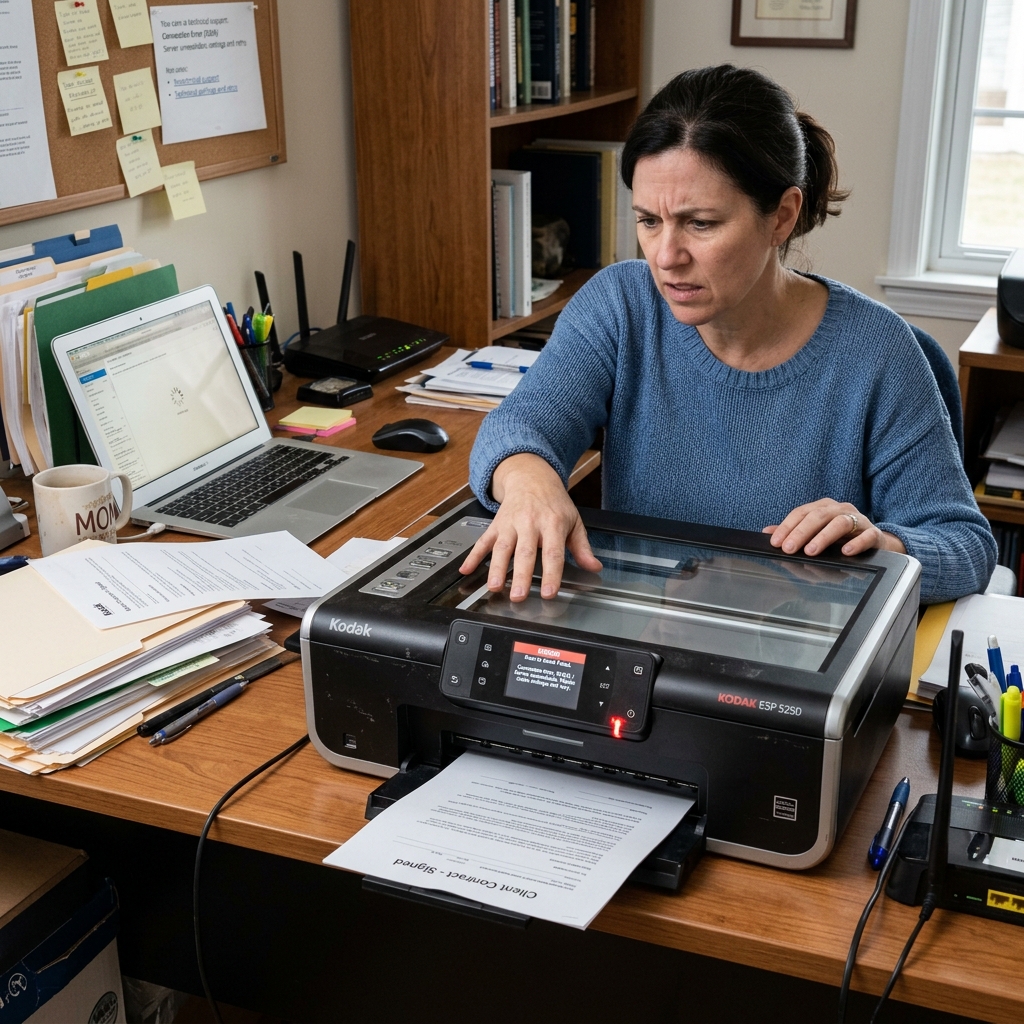
If your. . Kodak All-in-One printer previously scanned documents directly to..
Your email inbox. Has suddenly stopped working, you are not alone.
This feature broke for millions of printer owners worldwide when Google, Microsoft, and Yahoo permanently disabled "Less Secure Apps" (Basic Authentication) for their email services. Kodak printers that relied on sending scans through a plain username/password.....
SMTP login can no longer authenticate with these modernized servers. The good news is that you can restore the functionality using App Passwords — special 16-character tokens that bypass the need for modern OAuth2 authentication.
Why Scan to Email Stopped Working
When you. . Configured "Scan to Email" on your Kodak printer,.
You entered your Gmail. Outlook email address.
Password into the printer's SMTP (Simple Mail Transfer Protocol) settings. The printer used this login to send the scanned document as an email attachment.
This worked because email providers allowed Basic Authentication — a simple username + password handshake.
In 2022, Google removed support for Basic Authentication entirely, requiring all third-party apps to use OAuth2 — a modern token-based system. Since Kodak printers cannot perform OAuth2 handshakes (they lack the firmware..... (internal software) and display interface), the SMTP login permanently fails with an authentication error.
Solution A: Generate a Google App Password (Gmail Users)
Google provides a workaround called App Passwords — unique 16-character codes that allow legacy devices to authenticate without OAuth2:
- On your computer , navigate to https://myaccount.google.com/security.
- Important: You must have 2-Step Verification enabled on your Google account. If it is not enabled, turn it on first under the "Signing in to Google" section.
- Once 2-Step Verification is active, search for "App passwords" in the Security settings page.
- Under "Select app", choose Other (Custom name) and type "Kodak Printer".
- Click Generate . Google will display a 16-character password (e.g.,
abcd efgh ijkl mnop). - Copy this password immediately — it will only be shown once.
Solution B: Generate a Microsoft App Password (Outlook/Hotmail Users)
- Navigate to https ef="https://account.microsoft.com/security">https://account.microsoft.com/security.
- Enable Two-Step Verification if not already active.
- Go to Security > Advanced security options > App passwords.
- Click Create a new app password.
- Microsoft will generate and display a one-time password. Copy it.
Entering the App Password into Your Kodak Printer
Now configure the printer's SMTP settings with the new App Password:
- On the Kodak printer control panel, navigate to Network Settings > Email Settings (or Scan Settings > Scan to Email).
- Enter the following SMTP parameters:
| Setting | Gmail Value | Outlook Value |
|---|---|---|
| SMTP Server | smtp.gmail.com | smtp-mail.outlook.com |
| Port | 587 | 587 |
| Security / Encryption | TLS (or STARTTLS) | TLS (or STARTTLS) |
| Username | your.email@gmail.com | your.email@outlook.com |
| Password | The 16-character App Password (not your regular Gmail password) | The App Password (not your regular Outlook password) |
- Save the settings and send a test scan to your own email address to verify.
Related Kodak Troubleshooting Guides
Technical Diagnostics for Kodak Scan-to-Email SMTP Failures
When Kodak all-in-one printers (ESP 7250, ESP 9250, HERO. . 7.1,...
HERO 9.1) fail to send scans via email, the issue is almost always tied to modern email security protocols. In recent years, major email providers (Google Gmail, Microsoft Outlook/Office 365,.....
Yahoo) disabled legacy Basic Authentication (plain username/password) in favor of OAuth 2.0. Because legacy Kodak printer firmware (internal software) only supports standard SMTP.....
Basic Auth, email connections are rejected at the server level.
How to Configure Kodak Scan-to-Email with Modern Email Providers
- Creating a Dedicated App Password (For Gmail & Yahoo):
- Log into your Google or Yahoo account settings via a web browser.
- Navigate to Security > 2-Step Verification (must be enabled).
- Click on App Passwords.
- Generate a new app password named "Kodak Printer". Google will generate a 16-character code (e.g.,
abcd efgh ijkl mnop). - Use this 16-character code as your SMTP password inside the Kodak printer settings, NOT your regular account password.
- Accessing the Kodak Embedded Web Server (EWS):
- Find your printer's IP address on the Network settings sheet.
- Enter the IP address into a web browser on your computer.
- Navigate to Settings > Email / Scan to Email Settings.
- Configuring Correct SMTP Server Parameters:
Provider SMTP Server Port & Encryption Gmail smtp.gmail.comPort 587(STARTTLS) or Port465(SSL)Outlook / Hotmail smtp.office365.comPort 587(STARTTLS)Yahoo Mail smtp.mail.yahoo.comPort 465(SSL) or Port587
Frequently Asked Questions
Why does the printer say "Authentication Failed" with my correct Gmail password?
Google blocks standard login attempts from third-party legacy devices. You must generate an App Password in your Google Account Security settings and enter that specific code into the printer.
Can I scan to my computer instead if email remains blocked?
Yes. You can scan directly to your PC via USB or Wi-Fi using the Kodak Home Center software or the native Windows Scan app via standard WIA/TWAIN drivers.
