


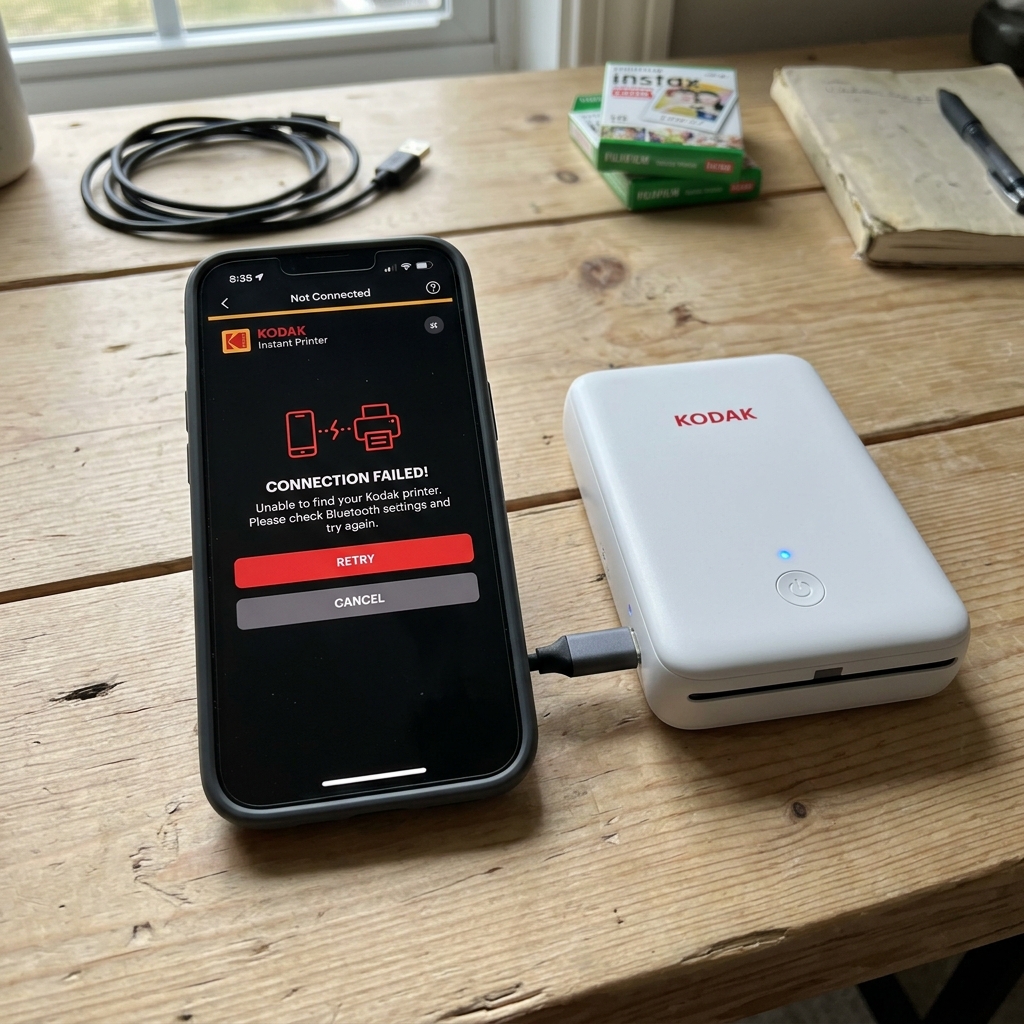
The Kodak Photo Printer app (also known as the Kodak Instant Printer app) is the primary interface for controlling portable Kodak printers like the Dock Plus, Mini 2 Retro, Mini 3 Retro, and Mini Shot.
When the app fails to detect or connect to your printer, the issue is almost always related to missing operating system permissions rather than a hardware defect.
Modern Android and iOS versions require apps to have both Bluetooth and Location permissions to scan for nearby Bluetooth Low Energy (BLE) devices. Let's walk through the configuration steps for each platform.
Why Location Services Are Required for Bluetooth
This is counterintuitive for many users: why does a printer app need my location? The answer is technical rather than privacy-related.
Bluetooth Low Energy (BLE) scanning returns the unique MAC addresses of nearby devices, which can be used to triangulate a user's physical position. To prevent abuse of this capability, both Google (Android 6.0+) and Apple (iOS 13+) mandate that any app performing BLE scans must have active Location Services permission — even if the app has no interest in your actual location.
Android Configuration
- Open Settings > Location and ensure the main toggle is On.
- Navigate to Settings > Apps > Kodak Photo Printer (or Kodak Instant Printer).
- Tap Permissions .
- Ensure the following permissions are set to "Allow" or "Allow all the time":
- Location (must be "Allow all the time" or "Allow only while using the app")
- Nearby devices (Android 12+)
- Camera (for photo selection)
- Storage / Photos and videos
- Go back to Settings > Connected devices > Bluetooth. If your Kodak printer appears in the Previously connected devices list, tap the gear icon next to it and select Forget.
- Open the Kodak app and tap Connect Printer. The app should now discover the device.
iOS Configuration (iPhone / iPad)
- Open Settings > Privacy & Security > Location Services. Ensure the master toggle is On.
- Scroll down to the Kodak app entry and set Location access to "While Using the App".
- Go to Settings > Privacy & Security > Bluetooth. Ensure the Kodak app toggle is On.
- Navigate to Settings > Bluetooth. If the Kodak printer appears under My Devices, tap the (i) icon and select Forget This Device.
- Open the Kodak app and allow it to scan for the printer.
Common Pitfalls
| Symptom | Root Cause | Fix |
|---|---|---|
| App says "No printers found" | Location Services or Nearby Devices permission denied | Grant both permissions and restart the app. |
| App connects but prints fail | Another phone is already paired to the printer | Kodak printers support only one active BLE connection. Disconnect the other device first. |
| App crashes on launch | Corrupted app cache or outdated app version | Clear the app cache (Android) or delete and reinstall the app (iOS). |
| Printer shows in Bluetooth but not in app | System-level pairing interferes with app-level BLE | Forget the device in system Bluetooth settings and let the app handle pairing. |
Related Kodak Troubleshooting Guides
Why the Kodak Instant Printer App Fails to Discover or Connect
The Kodak Instant Printer / Kodak Photo Printer companion app (for Kodak Mini 2, Mini 3 Retro, and Dock Plus 4PASS models) establishes a bidirectional Bluetooth Classic and BLE communication channel to transmit bitmap image packets. When the app sits on an infinite "Searching for Printer..." spinner, the root cause is usually OS permission restrictions, stale Bluetooth bonding keys in the phone's cache, or the printer's power-saving auto-shutoff timer.
Complete Troubleshooting Checklist for iOS & Android
- Grant All Required Runtime App Permissions:
- On Android (Android 10 - 14): Go to Settings > Apps > Kodak Photo Printer > Permissions. Ensure Location / Nearby Devices is set to "Allow all the time" or "Allow while using app" with Use precise location enabled. Under Photos and Videos, select "Always allow".
- On iOS (iPhone / iPad): Go to Settings > Kodak App. Ensure Bluetooth, Local Network, and All Photos access are toggled ON.
- Clear the Mobile Bluetooth Stack Cache:
- On Android: Settings > Apps > System Apps > Bluetooth > Storage > Clear Cache and Clear Data. Restart the smartphone.
- On iOS: Toggle Airplane Mode ON for 15 seconds, then toggle OFF.
- Perform a Hardware Pin-Hole Reset on the Kodak Printer:
Locate the pin-hole reset switch near the charging port. Use a paperclip to hold the switch for 5 seconds until the power LED flashes yellow/green. This clears the printer's volatile pairing table.
- Direct In-App Pairing (Do Not Pair Through Phone Bluetooth First):
For many 4PASS Kodak models, pairing directly through the phone's native Bluetooth settings menu causes a handshake conflict with the app. Open the Kodak app, tap the printer icon in the top corner, and let the app itself discover and pair the printer.
Frequently Asked Questions
Why does the Kodak app crash immediately when I select a photo?
App crashes during photo selection are typically caused by HEIC image format decoding errors or huge RAW files. Convert the photo to standard JPEG format or edit it in your native gallery before printing.
Does the Kodak app require an active internet or cellular connection to print?
No. Local photo printing over Bluetooth is entirely offline.
