


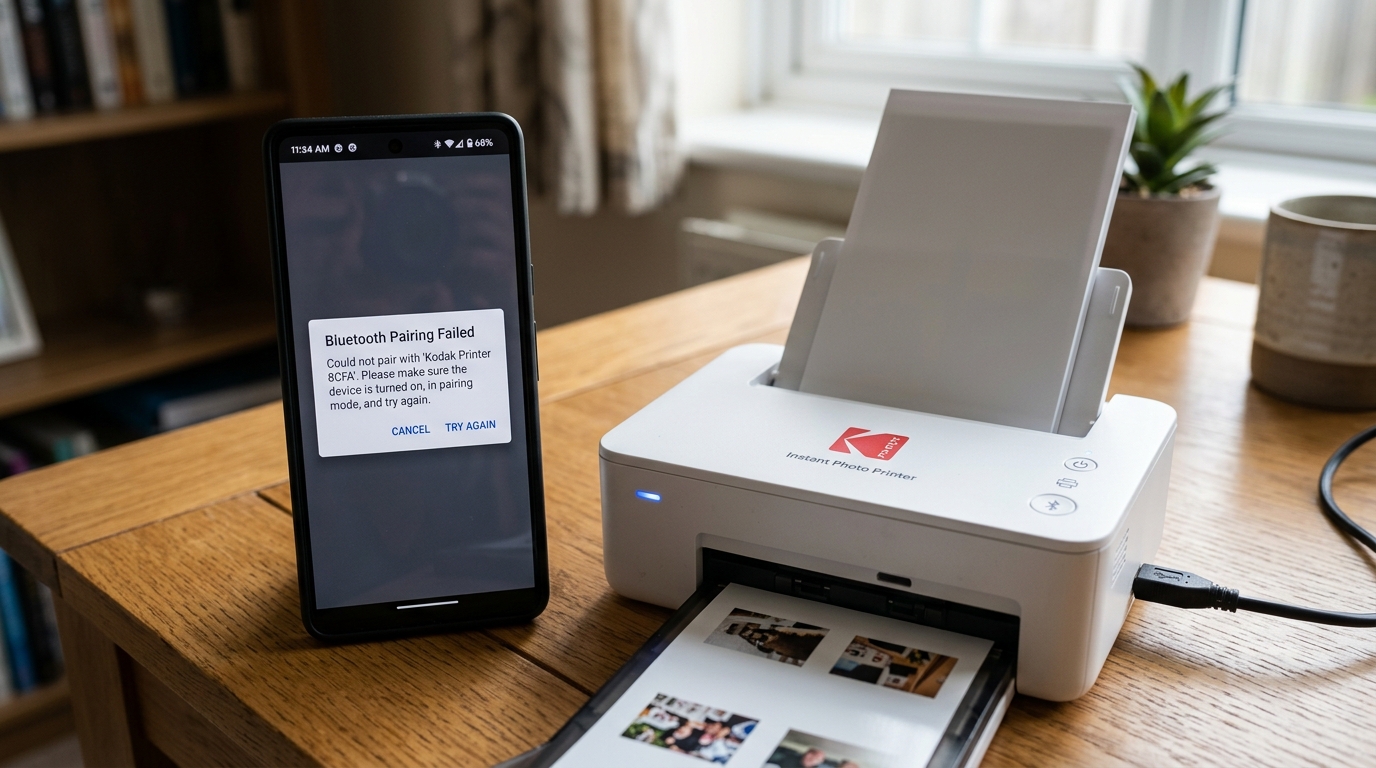
Portable photo printers (like the Kodak Step, Smile, and Dock series) rely strictly on Bluetooth to communicate with your mobile device. When pairing fails, you will see errors like "Device Not Found," "Pairing Rejected," or the printer will simply fail to appear in the Kodak app.
This is rarely a hardware failure. Instead, it is usually caused by outdated Bluetooth cache profiles in your phone, missing app permissions (specifically Location Services), or the printer remaining locked to a previously connected phone.
Let's walk through the resolution process for iOS and Android.
The Location Services Requirement (Android & iOS)
The most common reason a Kodak printer fails to appear in the search scan is missing OS-level permissions. On both Android and iOS, modern privacy rules group Bluetooth device scanning under **Location Services**.
If location is turned off, the Kodak app is blocked by the operating system from scanning for Bluetooth devices.
- On iOS: Go to Settings > Kodak App. Ensure **Bluetooth** and **Location** (set to "While Using the App") are both enabled.
- On Android: Go to Settings > Apps > Kodak App > Permissions. Ensure **Location** (with "Use precise location" enabled) and **Nearby Devices** are allowed.
Step-by-Step Bluetooth Cache Reset
If permissions are verified but the device fails to pair, you must clear the corrupted pairing profiles from both the phone and the printer.
📱 Reset Steps for Apple iOS
- Go to Settings > Bluetooth.
- Locate your Kodak printer and tap the "i" icon.
- Tap Forget This Device .
- Turn Bluetooth off, wait 10 seconds, and turn it back on.
🤖 Reset Steps for Google Android
- Go to Settings > Connected Devices > Bluetooth.
- Tap the gear icon next to your Kodak printer.
- Tap Forget or Unpairstrong> or Unpair.
- Go to Settings > Apps > System Apps > Bluetooth > Storage. Tap Clear Cache.
Step 3: Reset the Printer Hardware Bond
Kodak printers are programmed to bond with a single device. If you recently connected the printer to a friend's phone or a tablet, the printer will refuse to pair with a new device until the existing bond is broken.
- Turn the printer on.
- Locate the physical reset pinhole on the printer body.
- Insert a paperclip or SIM ejector tool into the pinhole, press down, and hold for **5 seconds**. The status lights will blink, indicating the internal Bluetooth pairings have been cleared.
- Ensure the other phone has its Bluetooth disabled so it doesn't automatically re-bond.
Step 4: Connect via the Kodak App (Not OS Settings)
Many users make the mistake of trying to pair the printer directly through the phone's system Bluetooth settings menu. This can cause communication errors. The correct method is to pair within the app:
- Open the **Kodak Step** or **Kodak Instant Printer** app.
- Ensure the printer is turned on (solid power light).
- Tap the **Printer icon** or "Connect" button inside the app.
- Let the app scan. Select your printer model from the list.
- A pairing request prompt will appear on your screen. Tap **Pair** to finalize.
Related Kodak Troubleshooting Guides
Why Bluetooth Pairing Fails on Kodak Portable Photo Printers
Kodak portable printers (including Kodak Mini 2, Mini 3 Retro, Step, and Dock Plus) utilize Bluetooth Classic and Bluetooth Low Energy (BLE) protocols to pair with mobile devices. When Bluetooth pairing fails or the printer constantly disconnects, the cause is typically Bluetooth cache corruption, missing GPS location permissions on Android, or background battery optimization killing the Kodak app process.
Comprehensive Bluetooth Pairing Checklist & Recovery
- Enable Android Location (GPS) Permissions:
On Android 6.0 through Android 14, Google requires Bluetooth scanning apps to have active Location Services (GPS) enabled. If location is disabled or set to "Only while using app," the Kodak app cannot discover nearby Bluetooth Low Energy beacons.
Enable Location on your phone and grant the Kodak app "Precise Location" permission.
- Forget & Re-Pair in System Bluetooth Settings:
Go to your phone's Settings > Bluetooth. Look for devices named
KODAK-Instant-XXXXorKODAK Step-XXXX. Tap the gear icon or "i" next to the printer and select Forget This Device. Turn your phone's Bluetooth toggle OFF for 10 seconds, then turn it back ON. - Reset the Printer's Bluetooth Module:
Locate the pin-hole reset button on the side or rear of your Kodak printer. With the printer turned ON, press and hold the pin-hole button with a paperclip for 5 seconds until the power LED flashes or changes color. This purges the printer's internal paired device memory.
- Disable Battery Optimization for the Kodak App:
Modern Android and iOS power management systems frequently terminate background Bluetooth connections. In your phone's App Settings, find the Kodak app (Kodak Photo Printer or Kodak Step Prints), tap Battery, and set it to Unrestricted / Do Not Optimize.
Frequently Asked Questions
Can multiple phones be connected to a Kodak portable printer simultaneously?
No. Kodak portable printers support a 1-to-1 active Bluetooth connection.
What is the default Bluetooth PIN if prompted on my phone?
If your phone prompts for a pairing PIN code, enter 0000 or 1234.
