


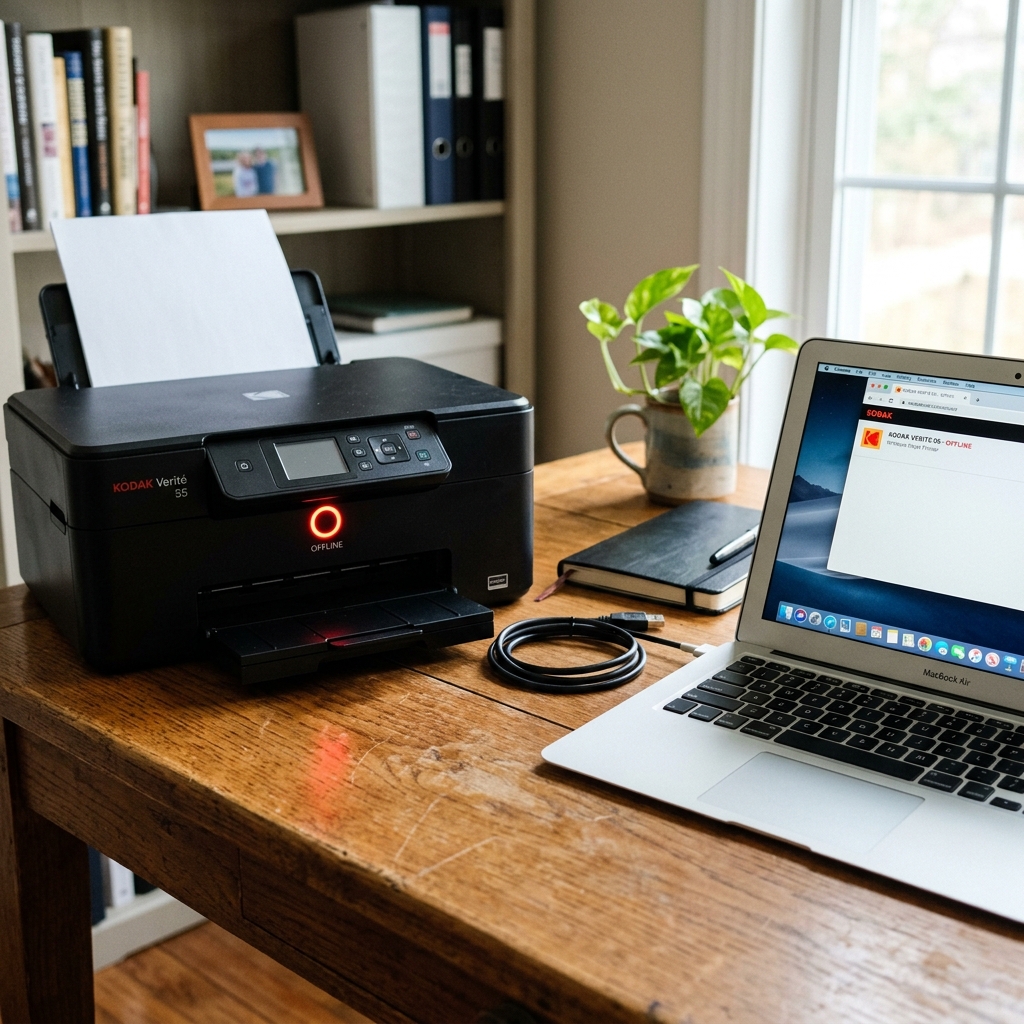
The Kodak Verite printer series (including the popular Verite 55, 55 Eco, 50. 65 models) represents a major departure from legacy ESP and Hero inkjet models.
Manufactured by Funai Electric under the Kodak brand, Verite printers were designed. For a mobile-first experience, relying heavily on the Kodak Verite App for settings.
When these printers show an "Offline" status on computers or fail to pair with smartphones, the issue. Is typically linked to a broken pairing token in the app or DHCP address conflicts on the router.
Let's look at the troubleshooting flow to bring the printer back online.
Understanding Verite App Token Locks
Unlike standard printers that connect directly to a router. Broadcast a generic print service, Kodak Verite printers use an encrypted handshake token with the **Kodak Verite App**.
If the printer's internal IP address shifts (which happens frequently on dynamic DHCP routers), the pairing token breaks. The printer will appear offline on your device, even if the wireless LED on the printer chassis is solid green.
Step 1: Perform the Verite Power-Drain Cycle
To force the Verite wireless adapter to clear its cached routing table. Request a fresh IP handoff from your router:
- With the printer turned on, press the **Power** button and wait for the lights to turn off completely.
- Unplug the power cord from the wall outlet and the back of the printer.
- Unplug your wireless router from its power source.
- Wait **60 seconds**.
- Plug the router back in, and wait 2-3 minutes for the Wi-Fi network to boot up completely.
- Plug the printer back in and power it on. Wait for the green Wi-Fi indicator to stop blinking and turn solid.
Step 2: Reset Wireless Setup via the Verite App
If the printer remains offline, you must re-run the network. Setup wizard inside the mobile app to refresh the pairing token:
- Open the **KODAK Verite Printer App** on your smartphone or tablet.
- Tap the **Menu/Settings** icon in the corner of the screen.
- Select **Printer Wi-Fi Setup** (or Add Printer).
- Choose **Yes, the printer is already connected to my network** if the Wi-Fi LED is solid green. Let the app scan for the device.
- If the scan fails, select **Setup new printer**. Follow the prompts to connect your phone to the printer's broadcast SSID (e.g.,Verite_Print_XXXX) to transfer your home Wi-Fi credentials directly.
Step 3: Assign a DHCP Reservation (Static IP)
To prevent the printer from dropping offline in the future when. Your router rotates DHCP leases, you should lock the printer's IP address:
- Print a network settings sheet from the printer: Press. Hold the **Information (i)** button on the printer panel for 3 seconds. Note the MAC Address and the current IP Address (e.g.,
192.168.1.15). - Log into your router's administration portal by entering the gateway address (e.g.,
192.168.1.1) in a browser. - Navigate to the **DHCP Server** or **IP Reservation** section.
- Click Add New, enter the printer's MAC address, and assign it a permanent IP address (e.g.,
192.168.1.200). Click Save. - Restart the printer to apply the permanent IP address.
Step 4: Update Verite Print Drivers on Windows
If the printer works from your phone but shows offline on a Windows PC:
- Open **Printers & Scanners** on your computer.
- Select the Verite printer and click **Remove**.
- Go to the official Verite download page and install the **Kodak Verite Printer Driver Software Package** (do not use generic Windows update drivers, as they lack Funai's network communication layer).
- Run the installer and choose "Network Connection". The installer will search the network for the printer's MAC address and set up the connection port correctly.
Related Kodak Troubleshooting Guides
Architecture of the Kodak Verité Wireless System
The Kodak Verité line (Verité 55, 55 Mega, 55W, 65, 65 Plus). Was engineered with a unique one-touch "NFC / One Touch Connect" wireless subsystem.
Unlike older ESP and HERO models, Verité printers use high-yield integrated cartridge heads (Verité 5 / 5XL). When a Verité printer shows "Offline" in Windows or fails to join your local.
Network, the internal Wi-Fi profile has become desynchronized from the router's dynamic routing tables.
Step-by-Step Verité Network Reconnection Workflow
- The One-Touch Wireless Connection Protocol:
- Turn on the Kodak Verité printer.
- Press and hold the Wi-Fi button the printer control panel for 3 seconds until the blue Wi-Fi LED begins flashing rapidly.
- Within 2 minutes, press and hold the WPS button your wireless router for 3 to 5 seconds.
- The blue Wi-Fi light on the Verité will stop flashing and turn solid blue when successfully paired.
- Fixing the "Printer Offline" Status in Windows 10/11:
- Open Control Panel > Devices and Printers.
- Right-click your Kodak Verité printer > See what's printing.
- Click the Printer menu at the top left.
- Ensure "Use Printer Offline" is unchecked.
- Go to Printer Properties > Ports tab. Verify the printer is assigned to a Standard TCP/IP Port matching the printer's current IP. Address, NOT a WSD (Web Services for Devices) port which is notorious for dropping offline.
- Using the Kodak Verité Mobile App:
Download the official KODAK Verité Printer App from the iOS App Store or Google Play Store. The app includes an automated Wi-Fi settings wizard. Uses your mobile device to inject network credentials directly into the Verité via Wi-Fi Direct.
Frequently Asked Questions
Does the Kodak Verité printer support 5GHz Wi-Fi?
No. 11b/g/n wireless adapters.
How do I perform a factory network reset on a Kodak Verité printer?
Turn the printer on. Press and hold the Information (i) button and the Cancel (X) button simultaneously for 5 seconds.
