


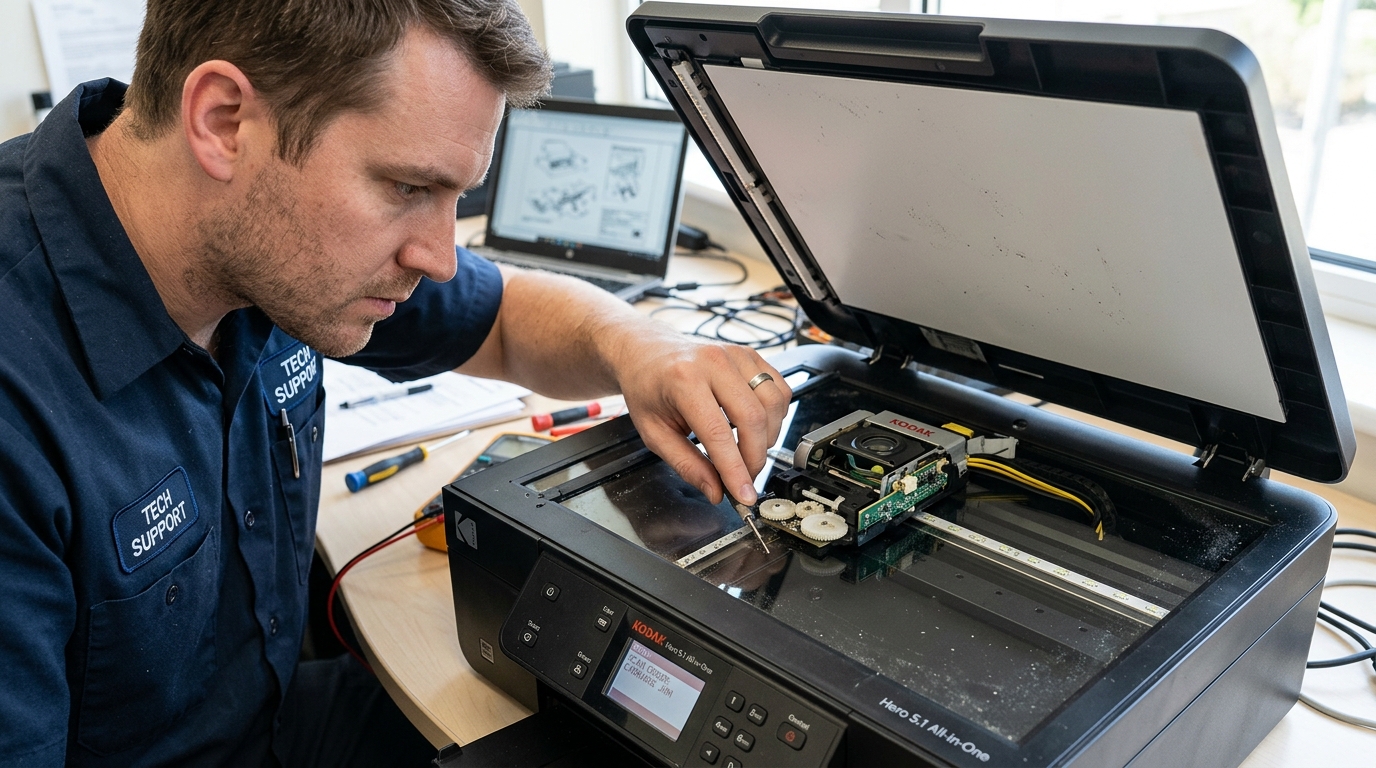
Kodak ESP and Hero All-in-One printers include a built-in flatbed scanner (and on some models, an Automatic Document Feeder). When the scanner stops working — either refusing to respond to the "Scan" button on the printer panel.
Or failing to appear in scanning software on your computer — the issue. Is typically related to a broken communication pathway between the printer and the PC.
KODAK Home Center application have degraded on modern Windows versions. Let's diagnose and restore the scan capability.
Understanding WIA vs TWAIN Scanning Protocols
Windows communicates with scanners using two different driver protocols:
- WIA (Windows Image Acquisition): A modern Microsoft-native protocol. app.
- TWAIN: An older, vendor-specific protocol. Home Center software used TWAIN to access scanner features. TWAIN drivers must be manually installed and are often incompatible with modern applications.
If your Kodak scanner worked previously but stopped after a Windows update, the TWAIN driver was likely removed or replaced by Windows Update with a basic WIA driver that lacks full feature support.
Phase 1: Verify the WIA Service Is Running
The Windows Image Acquisition service must be active for any scanner to function:
- Press Windows Key + R, type
services.msc, and press Enter. - Scroll down to find Windows Image Acquisition (WIA).
- Check the Status column. Running.
- If it is stopped, right-click it and select Start.
- Double-click the service, set the Startup type to Automatic, and click OK.
- Also verify that Shell g>Shell Hardware Detection is running, as WIA depends on this service.
Phase 2: Check Firewall and Network Discovery
If your Kodak printer is connected via Wi-Fi, the scan-to-computer function requires open network ports between the printer and your PC:
- Open Windows SecuritySecurity (or your third-party firewall application).
- Navigate to Firewall & network protection > Allow an app through firewall.
- Look for KODAK AiO Home Center or KODAK Network Scanner in the list. Ensure both Private and Public checkboxes are checked.
- If neither is listed, click Allow another app, browse to
C:\Program Files (x86)\Kodak, and add the Home Center executable. - Also verify that Network Discovery is turned on: Open Control Panel > Network and Sharing Center > Advanced sharing settings > Turn on network discovery.
Phase 3: Scan from the Computer Instead of the Printer
The "Scan" button on the printer panel relies on a software listener running on your computer (the Kodak Home Center agent).
- Instead of pressing the physical Scan button, open scanning software on your computer.
- Open the Windows Fax and Scan application (search for it in the Start menu).
- Click New Scan . Select your Kodak scanner from the device dropdown list.
- Choose the scan source (Flatbed or Document Feeder), set your resolution and color mode, and click Scan.
Phase 4: Use the Modern Windows Scan App
If Windows Fax and Scan does not detect your Kodak scanner, try the modern Windows Scan app from the Microsoft Store:
- Open the Microsoft Store and search for "Windows Scan" (published by Microsoft Corporation).
- Install and launch the apphref="/kodak/connectivity-issues/kodak-instant-printer-app-not-connecting" title="Fix Kodak Instant Printer App Not Connecting to Printer">app.
- The app will automatically detect WIA-compatible scanners on your network or USB connection.
- Select your Kodak scanner="/kodak/error-codes-alerts/kodak-printer-error-6102" title="How to Fix Kodak Printer Error 6102 Document Feeder Jam">scanner, choose the file format (PDF, JPEG, PNG), and click Scan.
Phase 5: Reinstall the Scanner Driver Manually
If no scanning application detects your Kodak device:
- Open Device Managerf="/rollo/connectivity-issues/rollo-printer-usb-not-detected-disconnecting-port-fix" title="Fix Rollo Printer USB Not Detected & Keeps Disconnecting">Device Manager (right-click the Start button and select Device Manager).
- Expand the Imaging Devices category.
- If your Kodak scanner appears with a yellow warning triangle, right-click it and select Update driver > Search automatically for drivers.
- If the scanner does not rivers-software-firmware/canon-ij-scan-utility-not-working" title="Fix Canon IJ Scan Utility Not Working (Windows & Mac)">scanner does not appear at all, click Action > Scan for hardware changes to force Windows to re-detect connected devices.
