


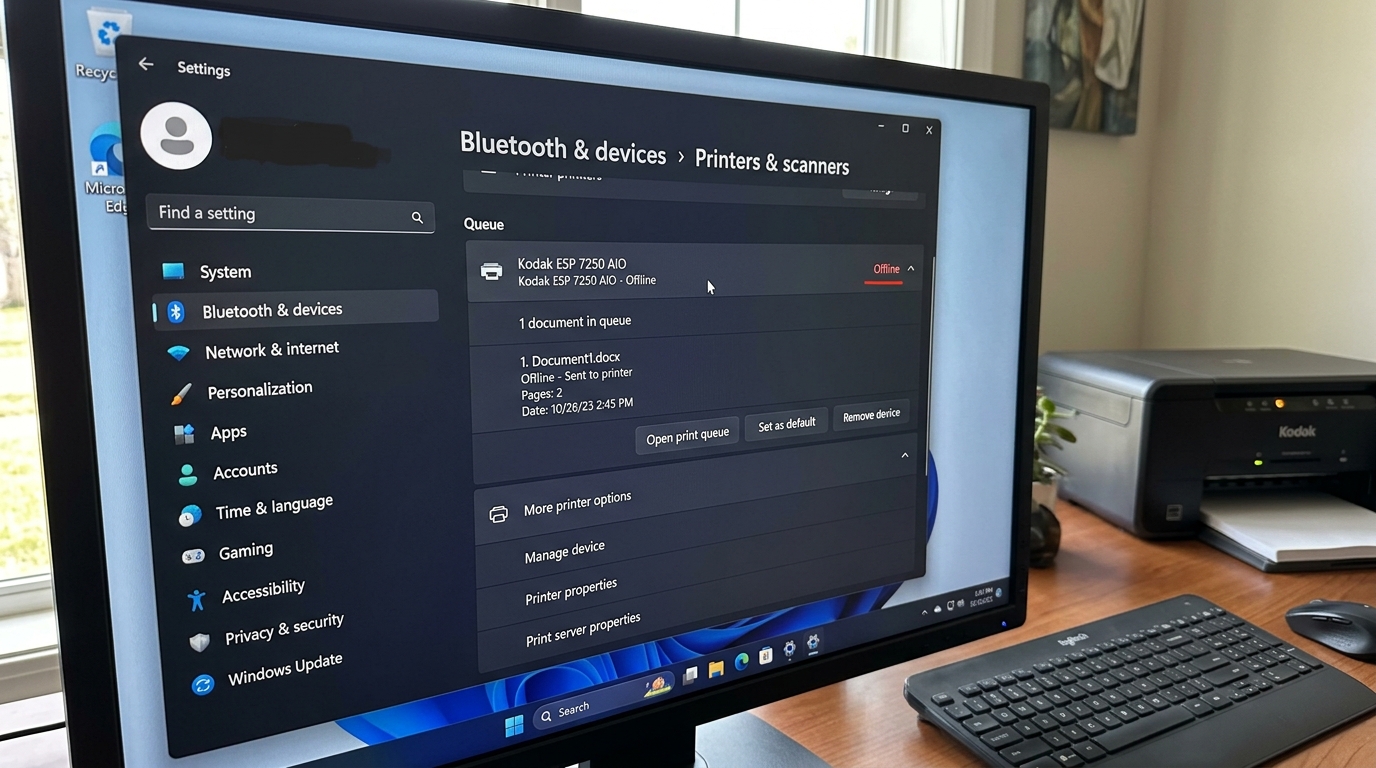
Discontinued Kodak printers (ESP and Hero series) frequently encounter communication drops on Windows 11, displaying a persistent "Offline" status even when physically powered on and connected. This happens because Windows 11 utilizes modernized network discovery protocols (like WSD) and tightened security policies that are incompatible with Kodak's legacy print servers.
Resolving this requires a systematic audit of your operating system's print subsystems.
Phase 1: Local Subsystem Verification
Before modifying network ports or drivers, ensure that the Windows Print Spooler service has not cached a stalled print job, which locks communication with the printer.
- Press the Windows Key + R, type services.msc in the Run dialog, and press Enter.
- Scroll down to locate the Print Spooler service.
- Right-click Print Spooler and select Stop.
- Open File Explorer and navigate to: C:\Windows\System32\spool\PRINTERS. Delete all files in this folder to clear the corrupted print queue.
- Return to the Services window, right-click Print Spooler, and select Start.
Phase 2: Disable Windows "Offline" Overrides
Windows 11 will automatically place a printer in offline mode if it fails to receive an instantaneous status reply. You must manually disable this override:
- Go to Settings > Bluetooth & Devices > Printers & Scanners.
- Select your Kodak printer from the list and click Open print queue.
- In the queue window, click the Printer menu at the top.
- Verify that Use Printer Offline is unchecked. If it has a checkmark next to it, click it once to disable the offline state.
- Also ensure that Pause g>Pause Printing is unchecked.
Phase 3: The TCP/IP Port Configuration Bypass
Kodak printers connected over Wi-Fi often drop offline because Windows 11 installs them using Web Services on Devices (WSD) ports. WSD ports are highly unstable for legacy hardware. Replacing the WSD port with a static Standard TCP/IP port is the most reliable long-term solution.
| Connection Type | Default Port Config | Recommended Technical Port |
|---|---|---|
| Wi-Fi Connection | WSD Port (e.g., WSD-3a8f...) | Standard TCP/IP Port (Static IPv4 Address) |
| USB Connection | USB001 / USB002 | Virtual USB Printer Port (Verify Device Manager) |
Step-by-Step Standard TCP/IP Setup:
- Find your printer's IP address: On your Kodak printer control panel, navigate to the Network Settings menu and print a Network Configuration Page (or view the Wi-Fi status screen). Note the IPv4 Address (e.g., 192.168.1.45).
- Go to Printers & Scanners, select your Kodak printer, and click Printer properties.
- Select the Ports tab and /strong> tab and click Add Port....
- Select Standard TCP /IP Port from the list and click New Port....
- Follow the wizard. In the 'Printer Name or IP Address' field, enter the exact IPv4 address you noted from the printer. Click Next.
- Windows will attempt to query the printer. If prompted for device type, select 'Generic Network Card' or leave it as default.
- Once created, ensure the checkmark is selected next to the new TCP/IP port. Click Configure Port....
- Crucial Legacy Setting: In the port settings window, uncheck the box labeled SNMP Status Enabled. Click OK, then click Apply.
Phase 4: Virtual USB Port Reset
If your Kodak printer is connected via USB and shows offline, the virtual print port has likely locked up:
- Unplug the USB cable from the computer.
- Right-click the Start button and select Device Manager.
- Expand the Universal Serial Bus controllers section.
- Locate USB Printing Support . If you see a yellow warning triangle, right-click it and select Uninstall device.
- Plug the USB cable back into a different USB port (preferably a USB 2.0 port rather than a blue USB 3.0 port, as legacy Kodak USB controllers prefer the older standard).
- Windows will automatically reinstall the virtual USB driver, resolving the hardware block.
Related Kodak Troubleshooting Guides
Why Kodak Printers Randomly Drop Offline in Windows 11
Windows 11 utilizes the modern Web Services for Devices (WSD) discovery protocol by default for network printers. Older Kodak ESP and HERO printers (designed before WSD was standardized) do not respond reliably to WSD keep-alive polling packets.
When Windows 11 sends a polling query and the printer does not respond within 3 seconds, Windows instantly marks the printer status as "Offline", blocking all incoming print jobs.
Fixing the Offline Bug: Switching from WSD to Standard TCP/IP Port
- Locate the Printer's Current Local IP Address:
Print a Network Configuration page from the printer control panel or look at your router's connected devices table (e.g.,
192.168.1.145). - Open Classic Print Properties in Windows 11:
- Press Windows Key + R, type
control printers, and press Enter. - Right-click your Kodak printer and select Printer Properties (not standard "Properties").
- Click on the Ports tab at the top.
- Press Windows Key + R, type
- Create a New Standard TCP/IP Port:
- Click the Add Port... button.
- Select Standard TCP/IP Port from the list and click New Port....
- The Add Standard TCP/IP Printer Port Wizard will launch. Click Next.
- In the Printer Name or IP Address field, type your Kodak printer's exact IP address (e.g.,
192.168.1.145). The Port Name will auto-fill. - Click Next and allow Windows to detect the port. Click Finish and Close.
- Verify the new TCP/IP port is checked with a checkmark, then click Apply.
- Disable "Use Printer Offline" Toggle:
In the Devices and Printers window, double-click your Kodak printer. Click the Printer menu at the top-left corner and ensure there is NO checkmark next to "Use Printer Offline" or "Pause Printing".
Frequently Asked Questions
Why does the printer go offline every time I reboot my Wi-Fi router?
If your router assigns dynamic IP addresses via DHCP, the printer gets a new IP when the router restarts, breaking the old port mapping. Log into your router admin panel and set a permanent DHCP Reservation for the printer's MAC address.
Can I connect via USB to avoid all offline issues?
Yes. A direct USB 2.0 cable connection completely bypasses all network polling, WSD timeout drops, and Wi-Fi interference.
