


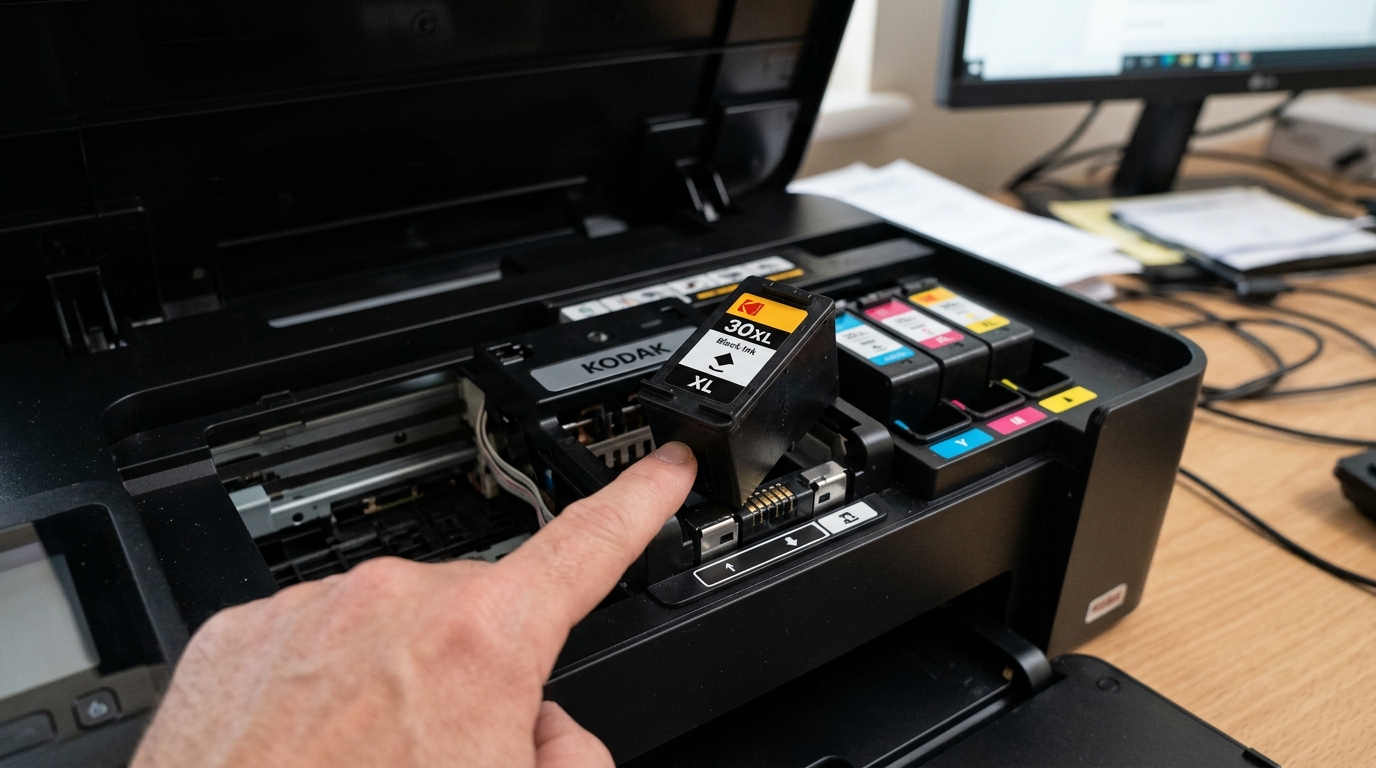
Kodak printers are highly sensitive to cartridge microchip contacts. If you install a new cartridge (whether original Kodak or a third-party compatible tank) and the printer displays a "Cartridge Not Recognized" or "Ink Missing" error, the printer's chip reader cannot communicate with the cartridge.
Here is how to clean, reset, and resolve ink cartridge recognition issues.
Anatomy of the Ink Cartridge Contact
Each Kodak ink cartridge has a small, green circuit board containing gold-plated contacts (the smart chip). The printer carriage has corresponding gold spring pins that press against these contacts. If there is even a tiny alignment shift, oxidation, or ink residue on these boards, the chip reading will fail.
| Component | Function | Cleaning Method |
|---|---|---|
| Gold Cartridge Chip | Stores ink level & serial number | Rub gently with a pencil eraser (Fix 1) |
| Carriage Contact Pins | Reads cartridge data | Wipe lightly with a dry microfiber cloth (Fix 2) |
| Cartridge Locking Tab | Secures the cartridge in place | Ensure the tab clicks fully into position (Fix 3) |
Fix 1: The Pencil Eraser Trick
Over time, the gold plating on the cartridge chip can develop a fine layer of oxidation that prevents the carriage pins from making clean electrical contact. To clean it:
- Remove the unrecognized ink cartridge from the printer.
- Locate the gold contact pads on the green chip.
- Use a clean, standard pencil eraser (the pink or white rubber type) to **gently rub** the gold contacts back and forth. Rub lightly until the gold pads look shiny and bright.
- Use a dry, lint-free cloth to wipe away any rubber crumbs or dust left behind.
- Reinstall the cartridge and push down until it clicks into place.
Why this works: the rubber eraser is mildly abrasive. It safely strips away microscopic oxidation and grease without scratching or lifting the delicate copper traces off the circuit board.
Fix 2: Clean the Carriage Contact Pins
If the cartridge chip is clean but the error persists, the carriage contacts inside the printhead may have ink splatters on them.
- Remove the ink cartridges.
- Use a flashlight to look down into the empty cartridge slots. You will see small gold pins at the back of each slot.
- If you see dried ink on these pins, use a dry, lint-free microfiber cloth wrapped around your finger to gently wipe them clean. **Do not use cotton swabs (Q-tips)**, as the fibers can get caught on the spring pins and cause contact failure.
Fix 3: Verify the Cartridge Click
Kodak ink cartridges must sit perfectly level in the printhead. If one end is slightly raised, the chip pins will misalign.
- When inserting the cartridge, slide it in at a slight angle and press down firmly on the front of the cartridge.
- Ensure you hear the **physical plastic click** of the locking tab.
- Gently nudge the top of the cartridge; it should not wobble or shift.
Bypassing Third-Party Cartridge Locks
Because Kodak printers are discontinued, many users rely on third-party compatible cartridges. Sometimes, the printer's firmware rejects these chips. To bypass:
- Install the third-party cartridge. If the error appears, press **OK** or **Cancel** on the printer control panel to see if it allows you to bypass the warning.
- If it locks the printer, perform a hard power reset: unplug the power cord for 60 seconds with the cartridge installed, then power back on to force a fresh chip scan.
Related Kodak Troubleshooting Guides
Why Kodak Printers Display "Ink Cartridge Not Recognized"
Each Kodak ink cartridge incorporates a small smart microchip on its rear or side that communicates cartridge model, color coding, batch validation, and estimated ink volume to the carriage interface. When the printer displays "Cartridge Missing", "Not Recognized", or an orange warning LED, the communication circuit between the smart chip and the carriage sensor board has failed.
Exhaustive Fix for Unrecognized Cartridges
- Clean the Smart Chip Contacts with Isopropyl Alcohol:
Remove the unrecognized cartridge. Locate the copper/gold contact pads on the cartridge. Skin oils, dust, or dried ink droplets create an insulating barrier. Wipe the contacts thoroughly with a microfiber cloth moistened with 99% isopropyl alcohol. Allow 2 minutes to dry.
- Inspect and Clean the Carriage Spring Contact Pins:
Look inside the printhead carriage slot where the cartridge sits. You will see small, flexible gold-plated wire pins. Inspect for dried ink accumulation or pins that have been bent down flat. Clean with a dry cotton swab.
- Verify the Cartridge Locking Latch:
When inserting Kodak Series 10 or 30 cartridges, push downward firmly until you hear and feel a distinct mechanical snap / click. If the plastic retaining tab is weak or unlatched, the cartridge will sit 1mm too high, breaking contact with the microchip reader.
- Third-Party Chip Incompatibility Workaround:
Remanufactured or third-party compatible cartridges often feature recycled smart chips that have reached their maximum write cycles. If the printer rejects a third-party cartridge, installing a genuine Kodak cartridge will instantly verify whether the fault lies in the printer hardware or the third-party microchip.
Frequently Asked Questions
Can I bypass the "Cartridge Not Recognized" error to print in black only?
No. Kodak desktop printers require both valid black and color cartridges with communicating microchips installed to operate.
Why does the printer recognize the cartridge but still show empty ink?
The chip contains the serial number and page estimate. Once a chip records that its ink volume has been fully consumed, refilling the cartridge with liquid ink will not reset the digital chip counter unless a dedicated chip resetter is used.
