


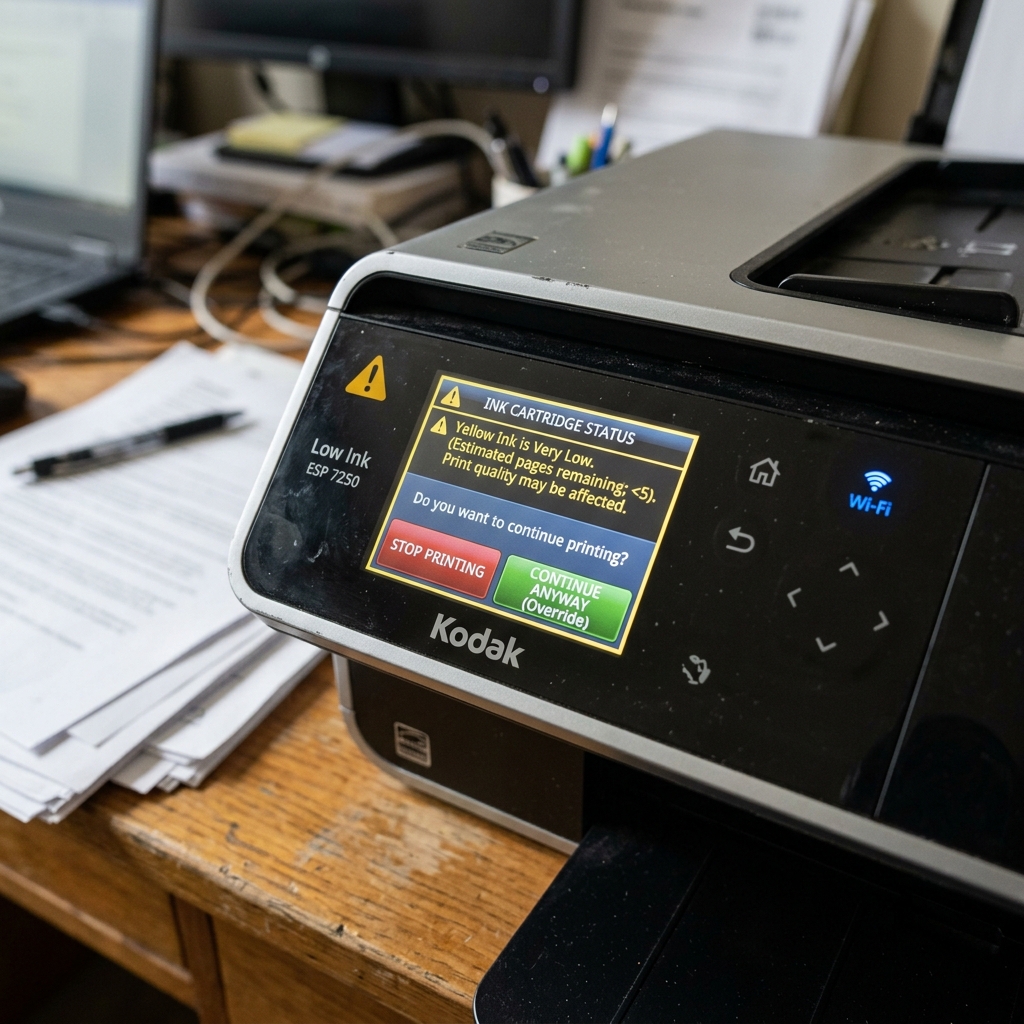
Kodak inkjet printers use an electronic ink monitoring system. When the ink supply drops below a pre-set threshold, the printer displays a low ink warning.
This warning can escalate to a full print block on some models. The printer refuses to print until the cartridge is replaced.
Usable ink often remains inside the reservoir. This guide explains how to bypass these warnings and keep printing.
Understanding Kodak's Ink Level Detection
Some printers use optical sensors to directly measure ink levels. Kodak printers estimate remaining ink using a page-count algorithm. The onboard chip tracks printed pages and estimated ink usage. The warning is a statistical estimate, not a direct measurement. Cartridges often contain more ink than the algorithm predicts.
Method 1: Dismiss the LCD Warning
The low ink warning is a dismissible alert on most Kodak ESP printers:
- Press the OK or Continue buttonr Continue button when the warning appears on the LCD screen.
- The printer will clear the warning and resume the print job.
- The warning may reappear before each new print job. Simply dismiss it each time.
- Continue printing until you notice visible quality degradation. This indicates the cartridge is genuinely running dry.
Method 2: Bypass the Computer Software Dialog
A software dialog box may appear before each print job on your computer:
- Look for options labeled "Continue Printing" or "Print Anyway" when the dialog appears.
- Check the "Don't show this message again" box if your driver offers it. This permanently stops the warning.
- Select "Print in Black Only" if only one color cartridge is low. This continues printing documents without color.
Method 3: Reset the Cartridge Page Counter
The onboard chip retains the original page count if you refilled a cartridge. It may report empty even though the cartridge is full:
- Remove the cartridge from the printer.
- Locate the gold electrical contacts on the face of the cartridge.
- Cover the smallest contact pad with a small piece of opaque tape. This is the ink level reporting pin.
- Reinstall the cartridge into the printer. The printer may display "Unknown Ink Level" but will allow printing to continue.
Method 4: Use Grayscale Mode to Bypass Color Warnings
Use this method if the color cartridge is low but you need text documents:
- Open the print dialog on your computer by clicking File then Print.
- Click Printer Properties or Preferences.
- Look for a setting labeled "Color" or "Output Color".
- Change the setting from Color to Grayscale or Black & White.
- Click OK and print your document. The printer will bypass the color ink level check.
When to Actually Replace the Cartridge
Watch for physical signs that the ink is genuinely depleted:
- Faded or light text: Characters appear washed out instead of solid black.
- Horizontal white lines: Gaps appear in solid color fills.
- Missing colors: One color drops out entirely from photos.
- Streaking: Vertical lines appear as the printhead draws air instead of ink.
Related Kodak Troubleshooting Guides
How to Override and Bypass Low Ink Warnings on Kodak Printers
Kodak printers monitor ink levels through optical drop-counting microchips. The printer displays continuous warning prompts when ink reaches an estimated 10% capacity.
Step-by-Step Low Ink Override Workflow
- The On-Screen Confirmation Override:
Press the OK or Continue button when the dialog appears on the LCD screen. The printer will acknowledge the low ink and continue executing incoming print jobs.
- Disabling the Kodak Status Monitor in Windows:
- Open the Windows System Tray near the clock.
- Right-click the Kodak Printer Status Monitor icon.
- Select Properties / Preferences.
- Uncheck "Show low ink pop-up alerts". This prevents annoying full-screen interruption dialogs.
- Physical Inspection of the Cartridge Ink Window:
Genuine Kodak Series 10 and 30 cartridges feature a translucent plastic casing. You can remove the cartridge and gently rock it to visually confirm remaining ink.
Frequently Asked Questions
Can I continue printing if the printer says "Ink Cartridge Depleted"?
The printer firmware will lock printing once a cartridge is marked completely empty. This prevents the thermal nozzle resistors from burning out.
Does overriding low ink warnings damage the printer?
Printing with low ink is completely safe as long as ink is visibly flowing. Replace the cartridge immediately once you see text fading to prevent air locks.
