


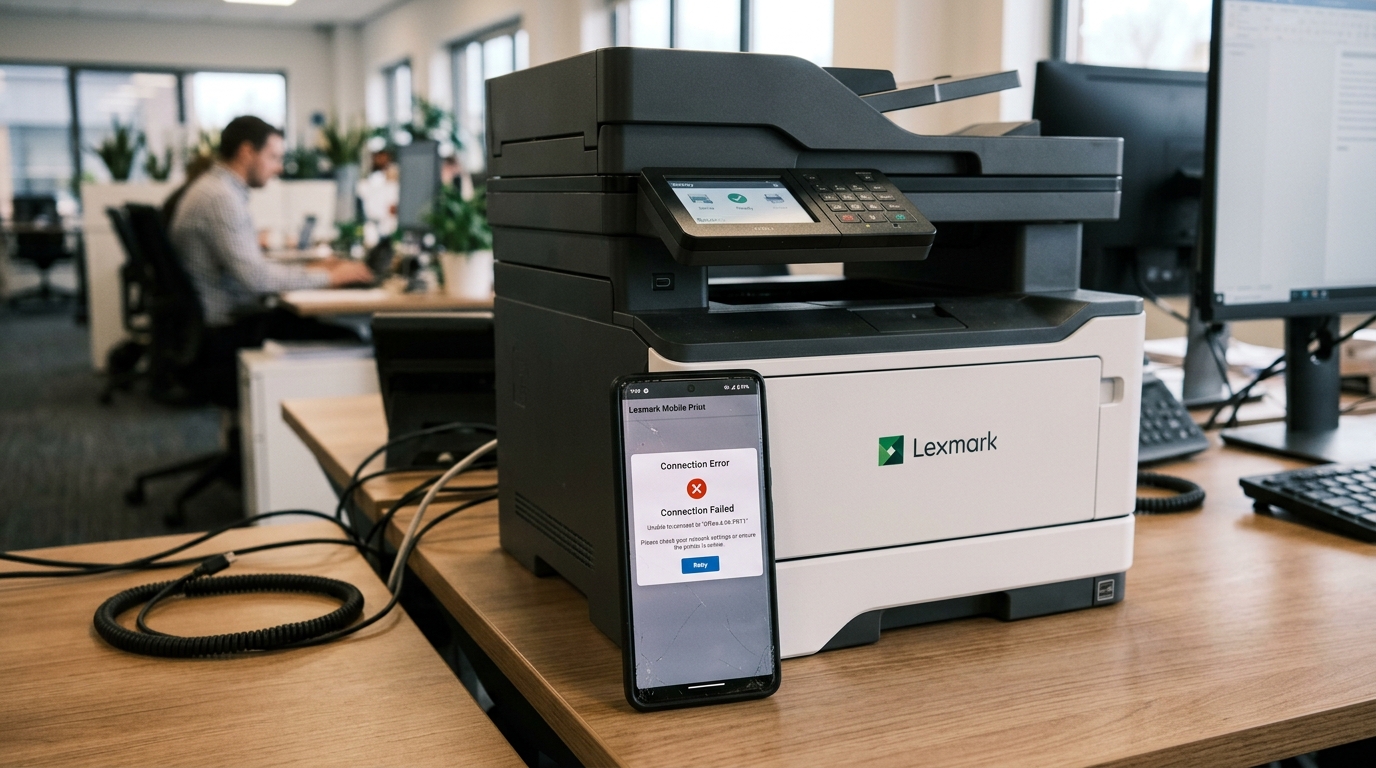
The Lexmark Mobile Print App is an essential tool for modern workplaces, designed to simplify the process of printing from iOS. Android devices directly to Lexmark network printers.
By leveraging technologies such as mDNS (Multicast DNS), AirPrint, Mopria. Enterprise Mobile Device Management (MDM) solutions, the app allows users to seamlessly discover and connect to printing resources on the local network.
However, network complexities, security policies. Mobile OS updates can sometimes lead to app management errors, device discovery failures, or synchronization issues.
Understanding the underlying architecture of mobile printing is crucial for IT administrators. End-users alike to troubleshoot and resolve these frustrating interruptions quickly and effectively.
Why This Happens
Lexmark Mobile Print App management errors typically stem from a combination of network isolation, permission restrictions, MDM missettingss,. Outdated device firmware (internal software).
In enterprise environments, wireless networks are often segmented into different VLANs (Virtual Local Area Networks) to separate guest traffic, mobile devices. Core infrastructure like printers and servers.
Because discovery protocols like Bonjour (mDNS) and WS-Discovery rely on multicast packets. Typically do not cross subnet boundaries by default, the mobile app may fail to "see" the printer even if both devices are technically on the same corporate network.
Another common cause involves Mobile Device Management (MDM) policies. Organizations using solutions like Microsoft Intune, VMware Workspace ONE (AirWatch), or Jamf Pro often deploy managed app settingss to push printer IPs.
Settings directly to the Lexmark app. If the XML or JSON settings payloads contain syntax errors, reference unreachable IP addresses, or if the MDM token has expired, the app will throw management errors.
Fail to initialize the pre-configured printers. Furthermore, recent updates in mobile operating systems (such as iOS 14+.
Android 11+) have introduced stricter privacy controls, particularly around "Local Network" access. If the Lexmark app is not explicitly granted permission to scan the local network, it will be completely blocked from discovering nearby printers, regardless of the network topology.
Finally, outdated printer firmware (internal software) or mobile app versions can lead to compatibility issues. 3). 0, the connection will be dropped by the mobile OS for security reasons, resulting in an unhelpful management. Connection error within the app.
Step-by-Step Fix
- Verify Local Network Permissions:On iOS devices, navigate to Settings > Privacy > Local Network. Ensure the toggle next to the Lexmark Mobile Print App is turned on. On Android, check Settings > Apps > Lexmark Print > Permissions, and ensure location and network permissions are granted.
- Check Network Connectivity and Subnets: Ensure that your mobile device and the Lexmark printer are connected to the same network. , Mobile VLAN and Printer VLAN), ensure. Your network administrator has configured an mDNS gateway or Bonjour forwarding rule on the wireless controller or router to allow multicast discovery packets across subnets.
- Update Printer firmware (internal software): Access the Lexmark printer's Embedded Web Server (EWS) by typing its IP address into a desktop web browser. Navigate to Settings > Device > Update firmware (internal software). Download the latest firmware (internal software) file from the Lexmark support site. Upload it to the printer to ensure compatibility with the latest mobile security standards.
- Validate MDM settings Payloads: If the app is managed via MDM, verify the Managed App settings payload. Ensure that the keys and values match Lexmark's official documentation. Common keys include
com.lexmark.mobile.serversorcom.lexmark.mobile.printersA single typo in the XML or JSON payload can cause the app to fail upon launch. - Enable mDNS and IPP on the Printer: In the Lexmark EWS, navigate to Settings > Network/Ports > TCP/IP and ensure that mDNS is enabled. Also, check the IPP settings (Settings > Network/Ports > IPP) and ensure. IPP is enabled on port 631, as mobile print services rely heavily on IPP.
- Clear App Cache and Data: On Android devices, go to Settings > Apps > Lexmark Print > Storage, and tap "Clear Cache" and "Clear Data". This resolves issues caused by corrupted local settings files. On iOS, delete and reinstall the app from the App Store.
- Check Firewall and Port Restrictions: Ensure that enterprise firewalls are not blocking the necessary ports. The Lexmark app requires UDP port 5353 for mDNS discovery, TCP port 631 for IPP, TCP port 9100 for raw printing. TCP ports 80/443 for EWS access and secure communication.
- Disable VPN or Security Software:Active VPN connections, ad-blockers,. Mobile security apps can route traffic away from the local network, preventing the app from communicating with local printers. Temporarily disable these services to test connectivity.
- Re-enroll the Device in MDM: If management errors persist on a managed device, the MDM certificate or token may have expired. Unenroll the mobile device from the MDM portal and re-enroll it to push a fresh, valid settings profile.
- Use Manual IP Addition:If discovery continues to fail but the network allows routing to the printer, open the Lexmark app, choose to add a printer manually. Enter the static IPv4 address of the Lexmark printer. This bypasses the need for mDNS discovery entirely.
Advanced Troubleshooting
If the basic steps do not resolve the issue, deeper network analysis is required. IT administrators should perform a packet capture using Wireshark to analyze the mDNS traffic.
Filter the capture for udp.port == 5353 to verify that the mobile device is broadcasting discovery requests and that the Lexmark printer is responding with the correct DNS-SD records (specifically, _ipp._tcp.local and _pdl-datastream._tcp.local). If requests are sent but no responses are received, the issue lies within the wireless access point's multicast routing settings.
1x authentication logs if your network utilizes RADIUS for port-based network access control. Sometimes, a printer may temporarily lose network access during re-authentication cycles, causing the mobile app to report the printer as offline.
Adjusting the EAP timer settings or the machine certificate expiration parameters can stabilize the connection. , the Intune Company Portal app) to identify parsing errors in the pushed settings profile.
Ensuring that the SSL certificates installed on the Lexmark printer are issued by a Certificate Authority (CA) trusted by the mobile device is also critical for environments enforcing strict TLS verification.
Furthermore, evaluating the impact of network topology on printer discovery cannot be overstated. When implementing solutions like Cisco Meraki, Aruba, or Ubiquiti UniFi, administrators must explicitly configure Bonjour gateway services or mDNS reflectors.
Without these services, the multicast packets sent by a smartphone in the "Employee-WiFi" subnet will be dropped by the router before they can reach the "Office-Printers" subnet. By reviewing the router's multicast routing tables, administrators can confirm whether the necessary IGMP snooping.
Multicast forwarding rules are active and correctly associating the respective VLAN interfaces.
In environments with rigorous security policies, SSL/TLS inspection (often performed by next-generation firewalls like Palo Alto or Fortinet) can intercept. Decrypt traffic between the mobile device and the printer.
Because the Lexmark Mobile Print App may employ certificate pinning. Strict validation, this "man-in-the-middle" inspection can break the secure handshake.
Adding an exclusion or bypass rule for the printer's IP address in the firewall's SSL inspection policy can immediately resolve persistent connection drops. Secure communication warnings.
FAQ
Why does the Lexmark app say "Printer not found" even though I am on the same Wi-Fi?
This usually happens. "Local Network" permissions are disabled on your smartphone, or because your Wi-Fi network employs "Client Isolation" (common on guest networks), which prevents devices from communicating with one another.
How do I find the IP address of my Lexmark printer to add it manually?
You can print a Network Setup Page directly from the printer's control panel. Navigate to Settings > Reports > Network Setup Page.
Can I use the Lexmark Mobile Print App without an internet connection?
Yes, the app only requires a local network connection to communicate with the printer. As long as your phone.
What does the "Invalid settings Payload" error mean in a managed app?
This error indicates. The Mobile Device Management (MDM) server has pushed a settings file to the Lexmark app that contains syntax errors or invalid parameters.
Is it necessary to have a dedicated print server for the mobile app to work?
No, the Lexmark Mobile Print App can communicate directly with the printer (peer-to-peer) using its IP address or Bonjour discovery. However, for large enterprise environments, Lexmark Print Management (LPM) servers can be utilized to queue jobs.
