


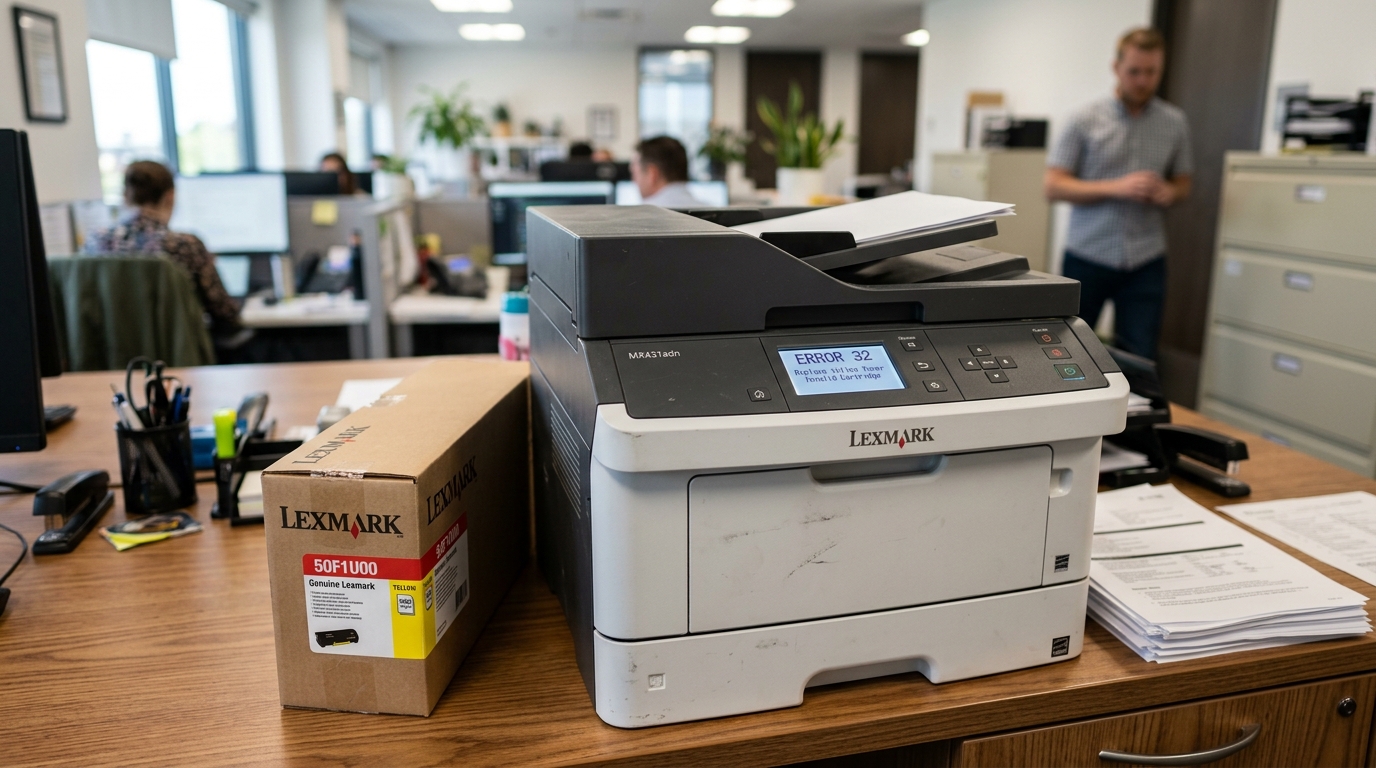
Introduction
Lexmark laser printers are renowned for their robust performance. High-yield printing capabilities, making them a staple in many office environments. xx Cartridge Error," can abruptly halt workflow and cause significant frustration.
These errors essentially indicate. The printer's internal systems fail to recognize the installed toner cartridge as valid, compatible, or functional.
Error 32 typically points to a compatibility issue, often arising when a third-party, remanufactured, or incorrect regional cartridge is installed. Lexmark employs sophisticated microchips on their toner cartridges that communicate with the printer to verify authenticity, track toner levels.
Ensure regional compliance. Error 88, on the other hand, usually signifies a hardware communication failure between the printer and the cartridge chip,.
Could be due to a defective chip, dirty contacts, or improper installation. Understanding the distinction between these errors is crucial for effective troubleshooting.
While Lexmark strongly advocates for the use of genuine, original equipment manufacturer (OEM) cartridges to ensure optimal print quality. Prevent these errors, many users opt for aftermarket alternatives to reduce costs.
This often leads to a cat-and-mouse game where printer firmware (internal software) updates can render previously working third-party cartridges unrecognized. In this comprehensive guide, we will dissect the root causes of Lexmark toner errors 32 and 88.
We will provide a structured, step-by-step approach to resolve these "cartridge not recognized" issues, covering everything from simple reseating techniques to dealing with firmware (internal software) complexities. By following these methods, you can often bypass these errors, restore printing functionality.
Make informed decisions about your toner purchasing strategies.
Why This Happens
The "Cartridge Not Recognized" errors (32. 88) on Lexmark printers are primarily driven by the intricate electronic handshake required between the printer and the toner cartridge.
Every modern Lexmark toner cartridge is equipped with a small smart chip. This chip contains vital information, including the cartridge's serial number, yield capacity, region code.
A cryptographic signature verifying it as a genuine Lexmark product. When a cartridge is inserted, the printer reads this chip.
If the printer cannot read the chip due to dirt or physical damage (often resulting in Error 88), communication fails. The printer halts.
More commonly, if the printer reads the chip but the data does not match its expected parameters—such as an incorrect region code. A missing cryptographic signature—it triggers Error 32.
This is extremely prevalent when using compatible or remanufactured cartridges. Aftermarket manufacturers attempt to reverse-engineer these chips, but Lexmark frequently releases firmware (internal software) updates for their printers.
These updates often include new security protocols designed to detect. Block non-OEM chips, instantly turning a working third-party cartridge into an "unsupported" one.
Furthermore, regional coding is strictly enforced; a genuine Lexmark cartridge purchased in Europe will likely trigger an error if installed in a printer purchased in North America. Finally, simple human error, such as failing to fully seat the cartridge.
Forgetting to remove the protective shipping tape from the chip contacts, can simulate a critical failure. Understanding this dynamic—the balance between hardware communication.
Firmware (internal software) security—is essential for diagnosing and resolving these frustrating toner errors.
Step-by-Step Fix
- Power Cycle the Printer: The simplest fix is often a reboot. Turn the Lexmark printer off, unplug it from the wall outlet, wait for 60 seconds, plug it back in. Turn it on. This can clear temporary memory glitches causing false error codes.
- Remove and Reseat the Cartridge: Open the printer's access door. Carefully remove the problematic toner cartridge. Wait a few seconds, then firmly reinsert it, ensuring it clicks securely into place. Close the door and wait for the printer to initialize.
- Clean the Chip Contacts: Remove the cartridge again. Locate the smart chip—a small green or gold circuit board usually on the side or bottom of the cartridge. Gently wipe the chip with a dry, lint-free cloth or a cotton swab lightly dampened with isopropyl alcohol. Ensure it is completely dry before reinstalling.
- Inspect Printer Contacts:While the cartridge is out, look inside the printer cavity for the corresponding metal contact pins. Connect to the cartridge chip. If they appear dirty. Bent, carefully clean them with a dry swab or gently realign them if obviously bent (proceed with caution).
- Check for Protective Tape:Ensure you have removed all packaging materials from the new cartridge, specifically any orange plastic clips. Clear tape covering the smart chip or the toner roller.
- Verify Cartridge Compatibility: Double-check the cartridge box and your printer model. , 50F1H00). Also, confirm it is the correct region; an EU cartridge won't work in a US printer.
- Address firmware (internal software) Updates (If using Third-Party Toner):If you recently updated your printer's firmware (internal software). Your third-party cartridge stopped working, the update likely blocked the aftermarket chip. You may need to purchase a new cartridge with an updated chip from your supplier,. Switch back to genuine Lexmark toner.
- Disable firmware (internal software) Updates (Preventative):>> If you rely on compatible toners, it is highly recommended to disable automatic firmware (internal software) updates on your Lexmark printer. Access the printer's web interface (EWS) via its IP address, navigate to Settings Network/Ports firmware (internal software) Update. Disable automatic checking.
- Try a Different Cartridge: If the error persists after cleaning and reseating, the chip on that specific cartridge is likely defective. Try installing an old, empty genuine cartridge if you have one; if the error changes to "Toner Low," the printer is fine. The new cartridge is the problem.
- Contact Supplier/Lexmark: If a brand new genuine Lexmark cartridge throws this error, it may be defective; contact Lexmark support for a replacement. If a third-party cartridge fails, contact the retailer for a refund or a replacement with an updated chip.
Advanced Troubleshooting
For IT professionals managing a fleet of Lexmark printers, advanced troubleshooting of toner errors often involves navigating the complexities of printer firmware (internal software). Network management.
When Error 32 (Unsupported Cartridge) plagues multiple machines simultaneously, it almost always points to a recent, automated firmware (internal software) update pushed across the network. Lexmark, like many manufacturers, uses firmware (internal software) updates not only to patch security vulnerabilities but also to update their cartridge authentication protocols.
To manage this in an enterprise environment where cost-saving compatible toners are used, administrators must exert strict control over firmware (internal software) versions. This involves disabling automatic updates at the device level.
Blocking the printer's access to Lexmark's update servers at the firewall level. If an update has already been applied, causing widespread errors, downgrading the firmware (internal software) is technically difficult and often unsupported by Lexmark.
May be the only solution short of replacing all toner inventory. In such cases, contacting the third-party toner supplier is crucial, as they continually develop revised chips to bypass the new firmware (internal software) blocks; acquiring replacement stock with these updated chips is usually the most viable path forward.
Error 88 (Cartridge Error), indicating a hardware communication failure, can sometimes require invasive diagnostics if cleaning the contacts fails. Repeated Error 88s across multiple different cartridges strongly suggest a failure within the printer itself, specifically the contact assembly.
The main controller board. Inspect the spring-loaded pins inside the printer that interface with the cartridge chip.
If these pins are permanently depressed, broken,. Heavily corroded due to toner dust accumulation, the printer will never establish a connection.
Replacing this contact assembly is a complex hardware repair requiring specific service manuals and parts. Furthermore, persistent toner dust buildup inside the machine can cause short circuits leading to erratic error codes.
A thorough professional cleaning using a specialized toner vacuum (never a standard vacuum,. Can cause static discharge and explosions) may resolve deeply rooted hardware communication issues.
Managing Lexmark toner errors effectively requires a balanced approach: rigorous maintenance of the physical hardware contacts. Strategic management of firmware (internal software) updates to align with your organization's consumable purchasing policies.
FAQ
Can I bypass the Lexmark Error 32 without buying a new cartridge?
Generally, no. Error 32 is a hard lock indicating the firmware (internal software) refuses to accept the chip's cryptographic signature.
Why did my compatible cartridge work yesterday but gives an error today?
This is almost certainly due to an automatic firmware (internal software) update occurring overnight. The printer downloaded a new list of acceptable chip signatures from Lexmark.
Is it legal to use third-party cartridges in my Lexmark printer?
Yes, it is entirely legal. The Magnuson-Moss Warranty Act in the US (and similar laws elsewhere) prohibits manufacturers from voiding your hardware warranty simply for using aftermarket consumables.
How do I find my Lexmark printer's IP address to disable updates?
>>You can usually find the IP address by printing a Network Setup Page from the printer's control panel menu (often under Settings Reports Network). Alternatively, check your router's list of connected devices,.
