


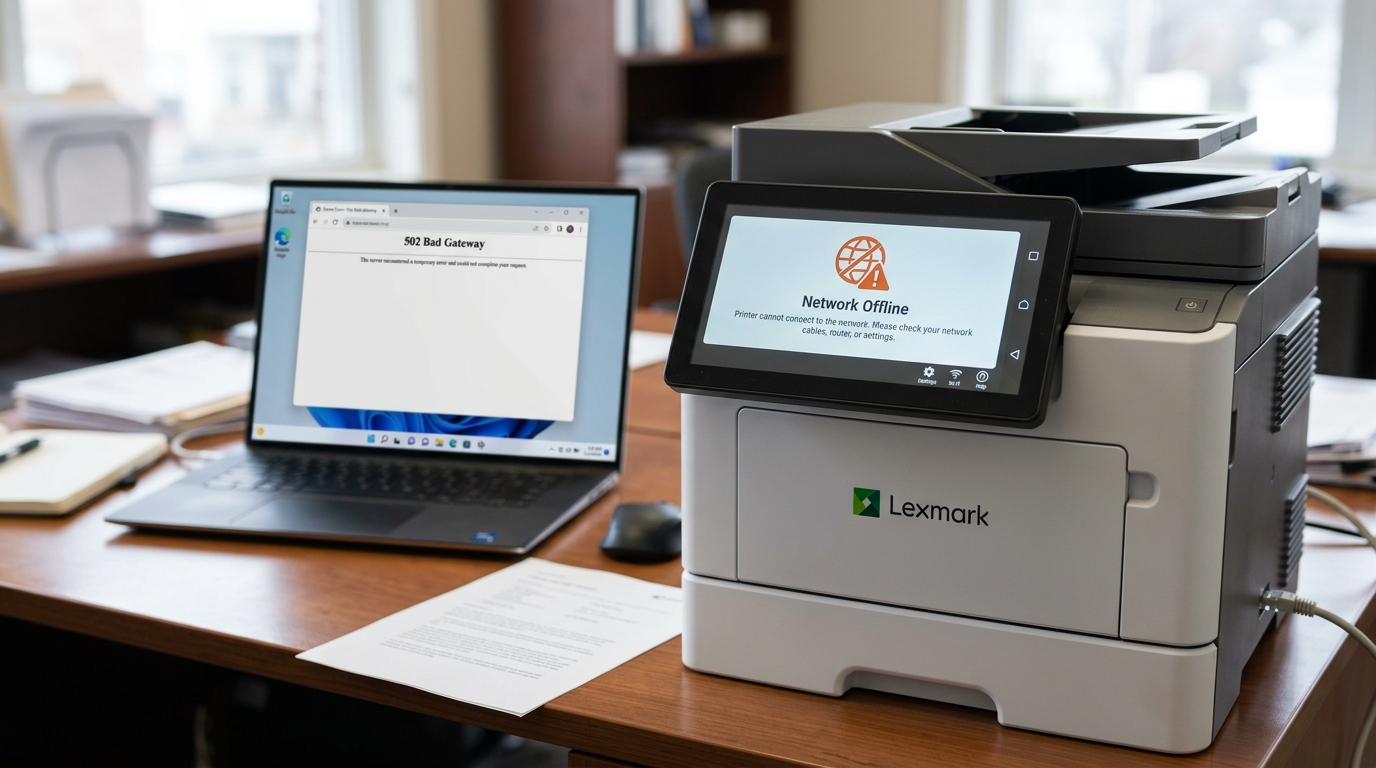
Introduction to Lexmark Network Errors on Windows 11
Lexmark printers are renowned for their durability and enterprise-grade features, but users frequently encounter frustrating "Offline" statuses and persistent network errors when connecting them to Windows 11 PCs. These issues often manifest suddenly—one day the printer works perfectly, and the next, it stubbornly refuses to communicate over the Wi-Fi or Ethernet network.
Navigating Windows 11's network stack and Lexmark's Embedded Web Server (EWS) can be daunting, but resolving these connectivity drops is entirely manageable when you understand the underlying protocols at play. This guide will help you permanently fix Lexmark offline errors.
Why This Happens
The "Offline" status in Windows 11 is rarely a hardware failure on the printer's end; rather, it is a communication breakdown between the Windows Print Spooler and the Lexmark device. A primary cause is Windows 11's reliance on WSD (Web Services for Devices) ports.
WSD is designed to automatically discover and manage network devices, but it is notoriously flaky. When the printer goes to sleep or its IP address changes even slightly, the WSD port loses track of the device, marking it as offline.
Another major factor is DHCP (Dynamic Host Configuration Protocol) leases. If your router assigns a new IP address to your Lexmark printer after a router reboot or lease expiration, Windows 11 will still try to send print jobs to the old IP address.
Furthermore, SNMP (Simple Network Management Protocol) status check feature in Windows can falsely report the printer as offline if the network drops a single packet during a status query. Lastly, aggressive Windows 11 firewall settings or third-party antivirus software can block the specific ports Lexmark uses for network communication.
Step-by-Step Fix
To establish a rock-solid connection, we need to bypass WSD and assign a static TCP/IP connection through the Embedded Web Server.
- Find the Printer's IP Address: On the Lexmark printer's physical control panel, navigate to Settings > Network/Ports > Network Overview. Note down the IPv4 address (e.g., 192.168.1.50).
- Access the Embedded Web Server (EWS): Open a web browser on your Windows 11 PC and type the IP address into the address bar. Press Enter. This will load the Lexmark EWS interface.
- Set a Static IP Address: In the EWS, go to Settings > Network/Ports > TCP/IP. Change the IPv4 allocation method from 'DHCP' or 'Auto' to 'Manual' or 'Static'. Input the IP address, subnet mask, and gateway (usually your router's IP). Save the changes. This prevents the router from ever changing the printer's IP.
- Add a Standard TCP/IP Port in Windows: On your PC, go to Settings > Bluetooth & devices > Printers & scanners. Click on your Lexmark printer and select 'Printer properties'. Navigate to the 'Ports' tab and click 'Add Port...'.
- Configure the Port: Select 'Standard TCP/IP Port' and click 'New Port...'. Enter the static IP address you just assigned to the printer. Windows will detect the port. Make sure it is selected in the Ports list.
- Disable SNMP Status Enabled: While still on the 'Ports' tab, select your new TCP/IP port and click 'Configure Port...'. Uncheck the box that says 'SNMP Status Enabled'. This stops Windows from falsely marking the printer offline based on SNMP packet drops. Click OK.
- Restart the Print Spooler: Press the Windows Key + R, type 'services.msc', and press Enter. Scroll down to 'Print Spooler', right-click it, and select 'Restart'. This clears out any stuck jobs and forces Windows to recognize the new port configuration.
Advanced Troubleshooting
If you have configured a static TCP/IP port and the printer still drops offline, you may need to look at network isolation features. Many modern routers, especially mesh networks (like Eero or Google Nest), have "AP Isolation" or "Guest Network" features.
If your PC is on the 5GHz band and the printer is on the 2.4GHz band, some routers will not allow them to communicate. Ensure both devices are on the same subnet and that AP Isolation is disabled in your router's administrative settings.
Additionally, check the Lexmark driver version. Windows 11 often installs a generic "Microsoft IPP Class Driver" which lacks full support for Lexmark's proprietary communication protocols.
Go to the official Lexmark support website, download the specific "Universal Print Driver" (UPD) or model-specific driver for Windows 11, and install it. During installation, choose to update the existing driver for your printer.
If you are in an enterprise environment, ensure that ports 9100 (Raw printing), 515 (LPD), and 631 (IPP) are not blocked by your corporate firewall or network switch configurations, as Lexmark relies heavily on these for EWS and network printing.
FAQ
What is a WSD port and why is it bad?
Web Services for Devices (WSD) is an auto-discovery protocol. While convenient for initial setup, it is highly unstable for long-term use.
How do I know if my firewall is blocking the printer?
Temporarily disable the Windows Defender Firewall (or your third-party antivirus firewall) and try printing. If the printer immediately comes online and prints, you need to create an exception rule for the printer's IP address and port 9100.
Can I use a static IP outside my DHCP range?
Yes, and it is recommended. 50.
Why is the EWS asking for a password?
Lexmark printers often have a default administrator PIN or password for security. Check the back of the printer for a sticker containing the PIN, or try common defaults like 'admin' or leaving it blank.
