


The Quick Answer
ChromeOS updates frequently break printer configurations. Learn why it happens and the 5-minute rebuild to get your Munbyn printing again.
Few things feel more unfair than this one. Your label printer worked perfectly on Friday.
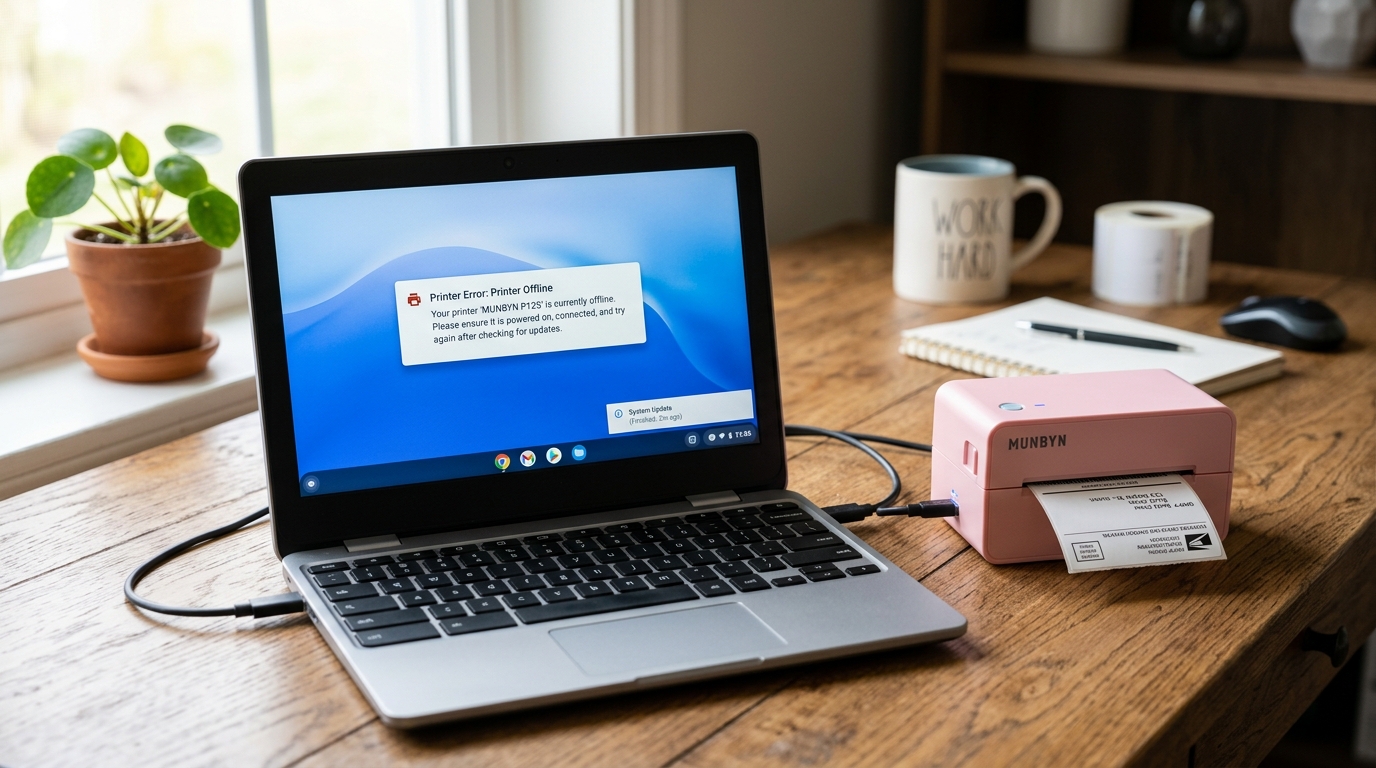
Over the weekend your Chromebook quietly updated itself, and Monday morning — nothing. If your Munbyn printer stopped working after a Chromebook update, you've hit one of the most reported and least explained problems in the Chromebook world, and I want you to hear this first: your printer is fine.
Nothing burned out over the weekend.
ChromeOS updates have a habit of resetting or breaking printer configurations, and Munbyn setups get caught in it constantly because they rely on either a Chrome extension or a manually added USB printer — both of which updates love to disturb. Here's how I walk customers through it, in order.
Quick-Fix Summary
Fast version:
- Restart the Chromebook fully — shut down, not just close the lid.
- Remove and re-add the printer in Settings → Print and scan.
- Reinstall the Munbyn Chrome extension if you print through it.
- Re-select the paper size — update resets often wipe your 4x6 choice.
- Try the other printing path (extension vs. native) as a workaround.
First, Understand What the Update Actually Broke
A ChromeOS update doesn't damage anything. What it does is rebuild parts of the system — including the printing subsystem and, sometimes, extension permissions.
Your saved printer entry can survive the update looking intact while pointing at plumbing that no longer exists underneath it. The extension can remain installed while its permission to talk to USB devices got quietly revoked.
That's why the printer icon is still there, the extension is still there, and nothing works. You're not going to "fix" the old configuration. You're going to rebuild it, which takes about five minutes.
Fix 1: The Full Shutdown
Close every tab, then shut the Chromebook down completely — click the clock, hit the power icon, choose Shut down. Wait ten seconds. Power back on with the Munbyn already connected and switched on.
Why this works: ChromeOS finishes applying parts of an update on the next full boot, and a Chromebook that only ever sleeps may be running half-migrated system services. A true shutdown lets the update finish settling.
It's the simplest fix on this page and it resolves a surprising share of post-update printing failures on its own.
Fix 2: Remove and Re-Add the Printer
Don't try to repair the old printer entry — replace it.
- Open Settings → Print and scan → Printers (search "print" in settings if the menu moved; updates rearrange furniture).
- Find your Munbyn in the saved printers list and remove it.
- With the printer connected by USB and powered on, wait a moment — it should appear under available printers.
- Click Set upg>Set up (or Save) next to it. If ChromeOS asks for a make and model, pick your exact Munbyn model if listed; if it isn't, choose a Generic option with PostScript or IPP Everywhere.
Why this works: Re-adding forces ChromeOS to build a fresh printer configuration on top of the new post-update printing system, instead of trusting a stale entry wired into the old one. This is the core fix — the equivalent of reinstalling a driver on Windows — and it's what Google's own support forums quietly recommend after every wave of update complaints.
Fix 3: Reinstall the Munbyn Extension
If you print through Munbyn's Chrome extension rather than the native print dialog:
- Open the puzzle-piece extensions icon in Chrome, click Manage extensions.
- Remove the Munbyn extension entirely — don't just toggle it off and on.
- Restart the Chromebook.
- Reinstall the extension fresh from the Chrome Web Store, and approve every permission it requests, especially anything about USB devices.
Why this works: Updates can strip an extension's device permissions while leaving the extension installed, producing that infuriating "installed but deaf" state. A full remove-and-reinstall forces the permission prompts to appear again so you can grant them under the new rules.
Toggling off and on doesn't trigger the prompts — that's the mistake customers make right before declaring the extension broken.
Fix 4: Re-Select Your Paper Size (My Uncommon Tip)
Here's the sneaky one that catches people after they've fixed the connection: the printer works again, but labels print tiny in a corner, or the job clips halfway. Everyone assumes the update broke something deep. It didn't — it just reset your paper size.
In the Chrome print dialog (Ctrl+P), click More settings and check Paper size. Post-update, it often snaps back to Letter. You need the 4x6 label size — and on Chromebooks it frequently hides under the cryptic name "oe w288h432".
That gibberish is actually just math: Chrome measures paper in points, 72 points to the inch. 288 points is 4 inches, 432 points is 6 inches. w288h432 = 4x6. Once you know that, the scary option becomes the obvious one.
Why this works: Your label size choice lives in the printer configuration the update rebuilt, so it reverts to defaults silently. Re-selecting it takes five seconds — but only if you know the 4x6 option is wearing a disguise.
Now you do, and you're ahead of most Chromebook owners and, frankly, a few support agents.
Fix 5: Switch Printing Paths as a Workaround
If one route stays broken after an update, the other often still works. Extension users: try the native path — add the printer in Settings → Print and scan (Fix 2) and print with Ctrl+P. Native-path users: try the extension. ChromeOS updates rarely break both roads at once.
Why this works: The extension and the native print system are separate plumbing. When an update breaks one and Munbyn or Google hasn't shipped the patch yet, the other path keeps your orders shipping while you wait.
In a small business, a working workaround today beats a perfect fix next week.
When to Call a Professional
Get help when: the printer won't appear in Print and scan on the Chromebook but works on another computer (report it — with your ChromeOS version number from Settings → About ChromeOS — to Munbyn support, and consider posting in Google's Chromebook Help community, because widespread update breakage gets patched faster when it's reported);
or the printer won't print a self-test page anywhere (hold FEED while powering on — if that fails, the problem predates the update and it's hardware). Avoid a full Powerwash (factory reset) unless support specifically recommends it;
it's rarely necessary for printing issues and wipes far more than it fixes.
FAQ
Why did the Chromebook update break my Munbyn printer?
Updates rebuild parts of the ChromeOS printing system and can reset extension permissions. Your old printer configuration ends up pointing at plumbing that no longer exists. Removing and re-adding the printer builds a fresh, working configuration.
Do I need to do this after every ChromeOS update?
Not every update — most minor ones change nothing. But after major version updates, expect to occasionally re-add the printer or re-grant extension permissions. Five minutes, once in a while, is the tax Chromebook owners pay.
What is "oe w288h432" in the Chrome print dialog?
That's your 4x6 label size in points: 288 points wide (4 inches) by 432 points tall (6 inches). Select it whenever you're printing shipping labels.
Can I roll back the ChromeOS update instead?
Not practically — ChromeOS doesn't offer a user-friendly downgrade, and blocking updates costs you security patches. Rebuilding the printer setup is faster and safer than fighting the update.
So when your Munbyn printer stopped working after a Chromebook update, skip the panic and run the rebuild: full shutdown, remove and re-add the printer, reinstall the extension with fresh permissions, and re-select that w288h432 paper size.
Twenty minutes from "broken" to shipping again — and next update, you'll fix it in five, because now you know exactly what ChromeOS did.
