


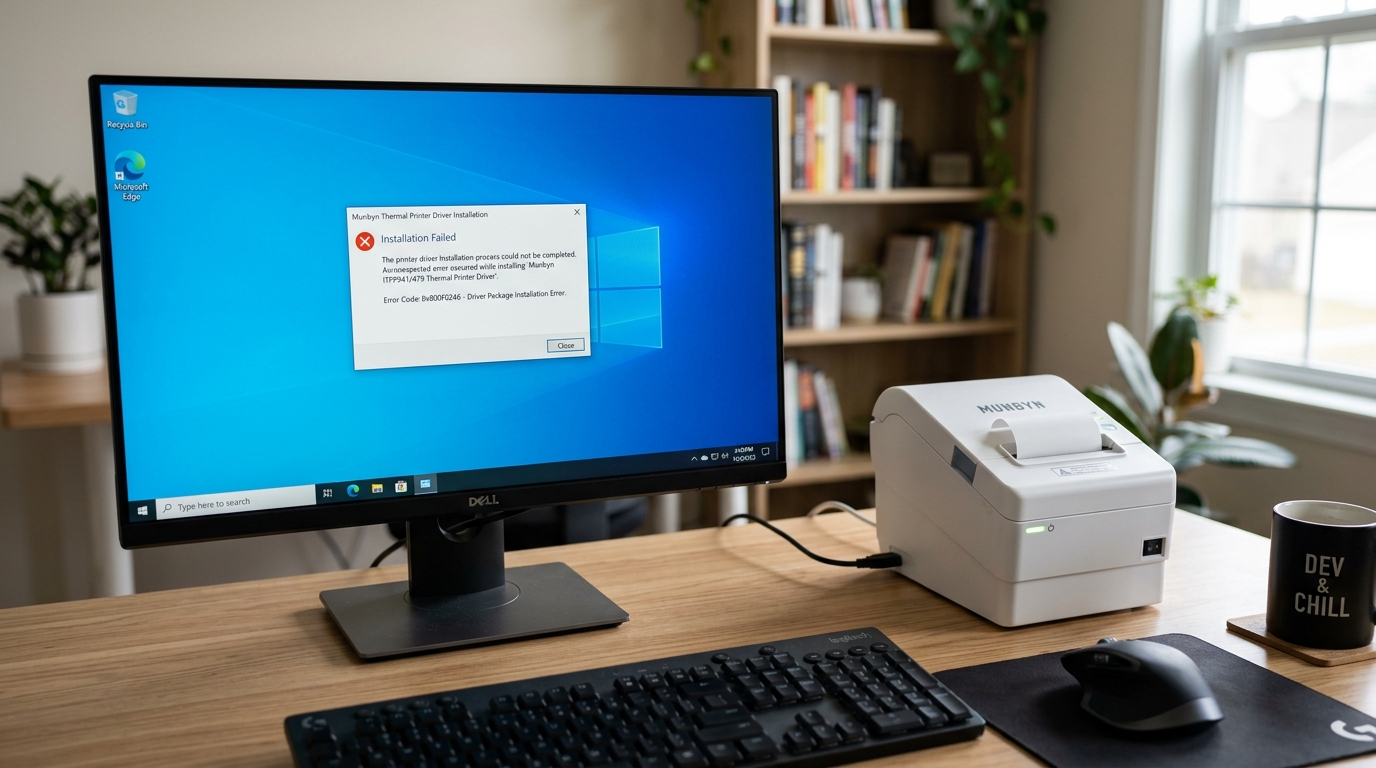
The Quick Answer
If your Munbyn driver won't install on Windows, check for the hidden 'Mark of the Web' unblock checkbox, and make sure the printer is unplugged.
A driver install should be the boring part. Download, double-click, next-next-finish, print.
So when the Munbyn printer driver won't install on Windows — the installer crashes, hangs at a progress bar, "finishes" but no printer appears, or Windows blocks it outright — people assume something is seriously wrong with their PC.
It isn't. In my shop, failed driver installs come down to a short list of Windows security behaviors and setup-order mistakes, and one of them is a single hidden checkbox that I'd bet money you've never seen.
We'll get to that one third, because the first two fixes are even faster.
Quick-Fix Summary
In bench order:
- Unplug the printer, then run the installer — order matters.
- Right-click → Run as administrator on the installer.
- Unblock the downloaded file in its Properties — the hidden checkbox.
- Get past SmartScreen the safe way.
- Pause third-party antivirus for the five-minute install.
- Use Windows' built-in Add Printer as the fallback that almost always works.
Fix 1: Unplug the Printer First
Disconnect the Munbyn's USB cable from the computer entirely. Now run the driver installer. Connect the printer only when the installer tells you to — or after it finishes, if it never asks.
Why this works: The moment Windows detects an unknown printer, it races to install its own generic driver for it. If your real installer runs while that's happening — or after Windows has already claimed the device — the two installations collide, and you get a hung installer or a printer bound to the wrong driver.
Installing with the printer unplugged gives your driver a clear runway. This ordering mistake is behind more "the installer just freezes" complaints than any actual software bug.
Fix 2: Run as Administrator
Don't double-click the installer. Right-click it and choose Run as administrator, then approve the prompt.
Why this works: Printer drivers install files into protected system folders and register services — actions a standard double-click doesn't always have the rights to complete. Without elevation, some installers fail loudly; the sneakier ones finish "successfully" while silently skipping the protected steps, leaving you with a phantom install.
If your install seemed fine but no printer ever appeared, this is a prime suspect. Two extra clicks, and it's the cheapest insurance in Windows.
Fix 3: The Unblock Checkbox (My Uncommon Tip)
Here's the fix almost nobody knows, and it's my favorite on this page because it explains so many "impossible" installs.
Every file you download from the internet gets a hidden tag from Windows called the Mark of the Web — an invisible sticky note reading "this came from outside, be suspicious." For some downloaded installers, that mark makes Windows quietly cripple or block execution, with either a vague error or no message at all.
The cure takes ten seconds:
- Find the downloaded driver ="/dymo/setup-installation/dymo-labelwriter-4xl-5xl-setup-driver-guide" title="DYMO LabelWriter 4XL & 5XL Driver Download & Setup">driver file (usually in your Downloads folder). If it's a ZIP, do this on the ZIP before extracting.
- Right-click → Properties.
- Look at the bottom of the General tab for a security notice: "This file came from another computer and might be blocked."
- Tick the Unblock checkbox/strong> checkbox, click Apply, then OK.
- If it was a ZIP, extract it now, then run the installer as administrator.
Why this works: Unblocking removes the Mark of the Web, so Windows treats the installer as trusted local software instead of an internet stranger. The ZIP detail matters more than people expect: extract a marked ZIP and every file inside inherits the mark — dozens of tiny blocked files, and no Properties dialog will show you all of them.
Unblock the ZIP first and the extracted files come out clean. I check this Properties box on every stubborn installer that crosses my bench, and it's turned more "broken" downloads into working printers than any tool I own.
Fix 4: Getting Past SmartScreen Safely
If a blue "Windows protected your PC" screen appears when you run the installer, that's SmartScreen — and it doesn't mean the driver is malicious. It means Microsoft's reputation system doesn't have enough data on this particular file, which happens constantly with drivers from smaller hardware brands.
Click More info, verify the app name matches what you downloaded, then click Run anyway.
One honest caution from a repair tech: this bypass is only safe when you downloaded the driver from Munbyn's official website yourself. If the installer came from a random driver-download site — the ones plastered in green DOWNLOAD buttons — delete it and get the real one.
Those sites bundle junk, and no printer is worth adware.
Fix 5: Pause the Antivirus
Running Norton, McAfee, Avast, or similar? Temporarily disable its real-time protection, run the installer as administrator, then turn protection back on immediately after.
Why this works: Third-party antivirus watches for programs that write to system folders and install services — which is malware behavior, and also exactly what a printer driver does. Overzealous suspicion can quarantine half-installed driver files mid-setup, producing corrupted installs that fail in confusing ways.
A five-minute pause for a file you got from the manufacturer's own site is a reasonable trade. Forgetting to re-enable it is not, so do that part now, not later.
Fix 6: The Built-In Fallback That Usually Works
If the downloaded installer refuses to cooperate no matter what, go around it — Windows can often install the driver itself:
- Plug in and power on the printer.
- Open Settings → Bluetooth & devices → Printers & scanners → Add device.
- If the Munbyn appears, add it. If nothing usable shows, click Add manually → Add a local printer → pick the USB port → and browse Windows' built-in driver list for your model or a compatible generic thermal/label option.
- Also run Windows Updatef="https://libertyprinterfix.com/munbyn/connectivity-issues/munbyn-printer-offline-windows-11" title="Fix Munbyn offline in Windows 11">Windows Update (including optional driver updates) — manufacturer drivers often ride along there.
Why this works: Windows ships with an enormous internal driver library and pulls more from Windows Update on demand. This path skips the standalone installer — and every SmartScreen, antivirus, and Mark-of-the-Web obstacle attached to it — entirely.
It's not always the fanciest driver version, but it prints labels, and printing labels is the job.
When to Call a Professional
Escalate when the driver installs cleanly on a different Windows PC but never on yours — that points to deeper Windows corruption (worth running sfc /scannow from an admin Command Prompt before anything drastic). Or when every method including the built-in fallback fails: email Munbyn support with your exact Windows version and edition, plus a screenshot of the error.
They can supply alternate driver packages for edge cases. And if the printer isn't even recognized as connected on any machine — no chime, nothing in Device Manager — stop fighting drivers: test another USB cable, then pursue hardware support, because software can't fix a dead cable.
FAQ
Why does the Munbyn installer freeze halfway through?
Usually a collision: Windows was auto-installing its own generic driver for the plugged-in printer at the same time. Unplug the printer, kill the frozen installer, and run it again as administrator with the printer disconnected.
The install "completed" but no printer appears. What happened?
A silent partial failure — typically missing admin rights or a blocked file. Uninstall any half-installed entry in Printers & scanners, unblock the installer file in Properties, and rerun it as administrator.
Is it safe to click "Run anyway" on the Windows protected your PC screen?
Yes, if you downloaded the driver from Munbyn's official website yourself. SmartScreen flags unknown reputation, not confirmed danger. Never click through it for files from third-party driver sites.
Do I need to uninstall the old driver before installing a new one?
For a clean result, yes: remove the printer in Printers & scanners, then install the new driver with the printer unplugged. Stacking drivers works sometimes, but clean installs fail less.
When the Munbyn printer driver won't install on Windows, don't fight the installer harder — outsmart the obstacles: unplug first, elevate the installer, tick that hidden Unblock checkbox, step past SmartScreen with your eyes open, and keep Windows' own Add Printer path as the ace up your sleeve. Six fixes, five minutes each, and one of them ends this today.
