


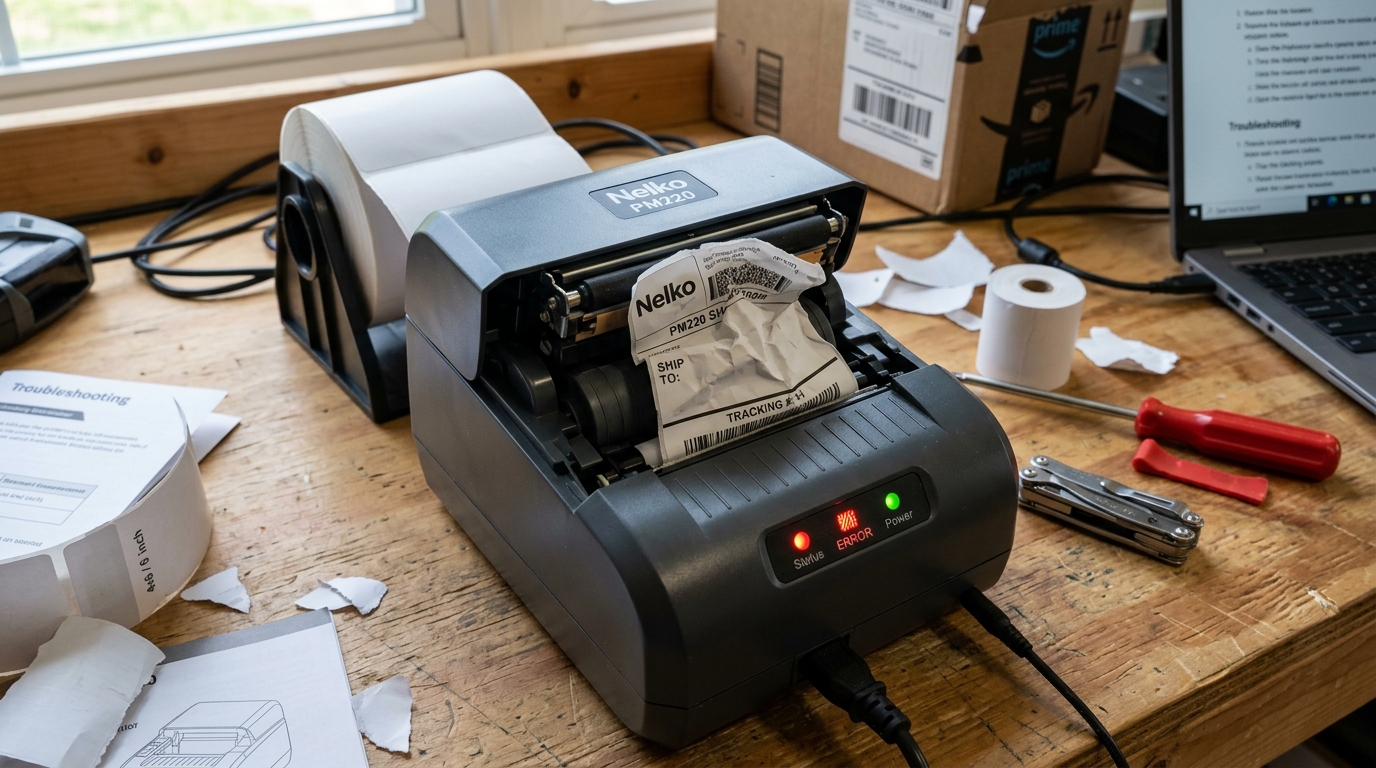
The Nelko PM220 has rapidly gained traction in the logistics, e-commerce,. Small business sectors as a highly capable, cost-effective thermal shipping label printer.
Designed to churn out 4x6 inch shipping labels at impressive speeds, the PM220 is a workhorse. However, when a high-volume shipping environment relies on a single piece of hardware, any downtime is detrimental.
Users frequently encounter a specific matrix of issues with the PM220: mysterious refusal to print despite software connection, chaotic paper jams that crumple labels,. Confusing arrays of flashing LED indicator lights that halt operation.
This comprehensive technical manual is designed to explain the inner workings of the Nelko PM220. We will thoroughly analyze the optical sensor array, the thermal heating mechanics,.
The driver communication protocols that govern the printer. By understanding these systems, you will be equipped to utilize our step-by-step diagnostic procedures to quickly resolve paper feed anomalies, interpret error codes accurately,.
Ensure your shipping manifest prints flawlessly every single time.
Why This Happens: The Architecture of Direct Thermal Shipping Printers
The Nelko PM220, unlike smaller handheld label makers, is a direct thermal printer built for high-throughput, wide-format printing. The architecture involves a massive, 110mm-wide ceramic print head, a high-torque stepper motor,.
A highly sensitive array of optical sensors. When the printer refuses to print or jams, the issue usually lies within the interaction of these three components.
Direct thermal printing relies on chemically treated paper that turns black when subjected to precise heat. Because shipping labels are thick.
Backed by heavy adhesive and release liners, they require significant pressure against the print head. This pressure is maintained by a heavy-duty rubber platen roller and strong spring-loaded latches on the printer lid.
If the lid is not securely clicked shut on both sides, the pressure is uneven. This leads to the paper skewing diagonally as it feeds, eventually crumpling against the internal plastic guides.
Causing a severe paper jam.
Furthermore, the PM220 relies entirely on an optical gap sensor to determine the start and end of each label. This sensor works by shining an infrared light through the paper.
It detects the difference in opacity between the thick label and the thin, semi-transparent backing paper (the gap). If this sensor becomes coated in microscopic paper dust, covered by stray adhesive, or if you are using labels with unusually thick backing paper, the printer becomes "blind." It will continually feed blank labels, fully skip prints, or flash an error light, incorrectly assuming it is out of paper.
On the software side, the PM220 operates via complex USB or Bluetooth serial communication. A print queue stall or a corrupted Windows/Mac driver spooler can easily cause the printer to sit idle with a solid blue light, fully ignoring print commands.
The digital instructions are being garbled in transit.
Step-by-Step Fix: Resolving Feed Issues and Interpreting LED Errors
If your Nelko PM220 is jamming, skipping labels, flashing red lights, or fully ignoring your computer, execute this rigorous, sequential fixing framework to diagnose. Rectify the failure points in the hardware and software stack.
- Decode the LED Indicator Lights: The first step is diagnosing the hardware state. A solid blue or green light indicates normal standby operation. A slow flashing red light almost only means the printer is fully out of paper or the lid is open. A rapid flashing red light indicates a critical error: a severe paper jam, an overheated print head, or a fatal optical sensor failure. A purple or alternating light often indicates the device is in firmware (internal software) update mode or Bluetooth pairing mode.
- Perform an Optical Sensor Calibration (The Most Important Step): 90% of skipping and continuous feeding issues are solved here. Turn the printer OFF. Load your label stack securely between the adjustable green paper guides, ensuring they are snug but not pinching the paper. Close the lid firmly until BOTH sides click loudly. Turn the printer ON. Press and hold the feed button on top of the printer until you hear one beep, then right away release it. The printer will rapidly feed a few blank labels back and forth. It is actively measuring the gap opacity and calibrating its internal memory.
- Clean the Optical Sensor and Print Head: If calibration fails, the sensor is dirty. Turn off the printer, unplug it, and open the lid. Locate the thermal print head (the long glass/ceramic bar). The optical sensor (usually a small, recessed square window near the paper feed path). Dampen a lint-free cloth or cotton swab with 90%+ isopropyl alcohol. Vigorously wipe the print head to remove adhesive buildup. Gently swab the optical sensor window to remove paper dust. Allow it to dry fully before powering on.
- Verify Paper Guide Alignment: Paper jams in wide-format printers are frequently caused by the paper guides being too loose. If the guides allow the 4x6 label to shift left or right by even 2 millimeters, the paper will feed diagonally, catch the edge of the print mechanism,. Accordion jam. Adjust the green sliding guides so they perfectly touch the edges of the label stack without bowing the paper.
- Reset the Print Spooler (Software Fix): If the printer is calibrated, has a solid blue light,. Won't print from your PC, the OS print spooler has crashed. On Windows: Press Win+R, type 'services.msc'. Scroll down to 'Print Spooler', right-click, and select 'Restart'. On Mac: Go to System Settings > Printers & Scanners, right-click (or control-click) your printer list,. Select 'Reset printing system'. Then, re-add the PM220.
- Reinstall Dedicated Drivers: Generic OS drivers often fail to translate complex shipping barcodes correctly, leading to corrupted data that makes the printer freeze. Download the latest specific Nelko PM220 driver package directly from their official support website. Uninstall any existing Nelko devices from your system, reboot, and install the new driver package before reconnecting the USB cable.
- Address Thermal Overload: If you are printing a batch of 200+ labels continuously. The printer suddenly stops and flashes red, it has not jammed; it has overheated. The ceramic print head has safety limits. Turn the printer off, open the lid to allow ambient air circulation,. Wait a minimum of 15 minutes before resuming the print job to prevent permanent damage to the heating elements.
Advanced Fixing: Diagnosing Motherboard Communication Failures
When you have meticulously cleaned the sensors, perfectly calibrated the paper, fully reinstalled the drivers on a fresh computer,. The PM220 still refuses to print a single label (while displaying a solid ready light), you are likely facing a motherboard communication failure.
Exactly, the USB interface controller IC on the printer's mainboard may have failed due to an electrostatic discharge (ESD) event from the computer's USB port, or a power surge from a faulty wall outlet. In this state, the printer's internal self-test will work perfectly (holding the feed button while turning it on usually prints a diagnostic page),.
It is physically incapable of receiving external data. To confirm this, attempt to connect the printer via Bluetooth to a smartphone.
Print a test page via the Nelko app. If it prints via Bluetooth but is dead via USB across multiple computers.
Cables, the USB controller is fried, requiring a motherboard replacement.
Another advanced, hardware-level issue is a failing stepper motor or a degraded drive belt. The PM220 uses a small rubber belt to transfer power from the motor to the platen roller.
Over years of heavy use, this rubber belt stretches, dries out, and cracks. When this happens, the motor spins, but the belt slips over the gears.
This manifests as a loud, high-pitched squealing noise during printing,. The labels will output compressed, as the paper is not moving forward at the correct speed while the print head fires, squishing the barcodes and making them unscannable.
Disassembly and replacement of this drive belt is required to restore function.
FAQ: Frequently Asked Questions
Why is the printer skipping every other label?
This is only an optical sensor calibration error. The printer does not know the exact physical dimensions of the label you have inserted, so it continues feeding until it arbitrarily detects a gap, missing the actual start of the label.
Can I print smaller barcode labels with the PM220?
Yes. The Nelko PM220 features adjustable paper guides.
Why are my shipping labels printing sideways or too small?
This is a software setting mismatch, not a printer error. The PM220 is receiving an image scaled for standard A4 or Letter sized paper.
What causes a solid white line running vertically through my barcode?
A solid white, unprinted vertical line indicates that a specific section of the thermal print head is either extremely dirty or permanently burned out. Clean the glass bar thoroughly with alcohol.
Does the PM220 need ink or toner replacements?
No. The Nelko PM220 is a direct thermal printer.
