


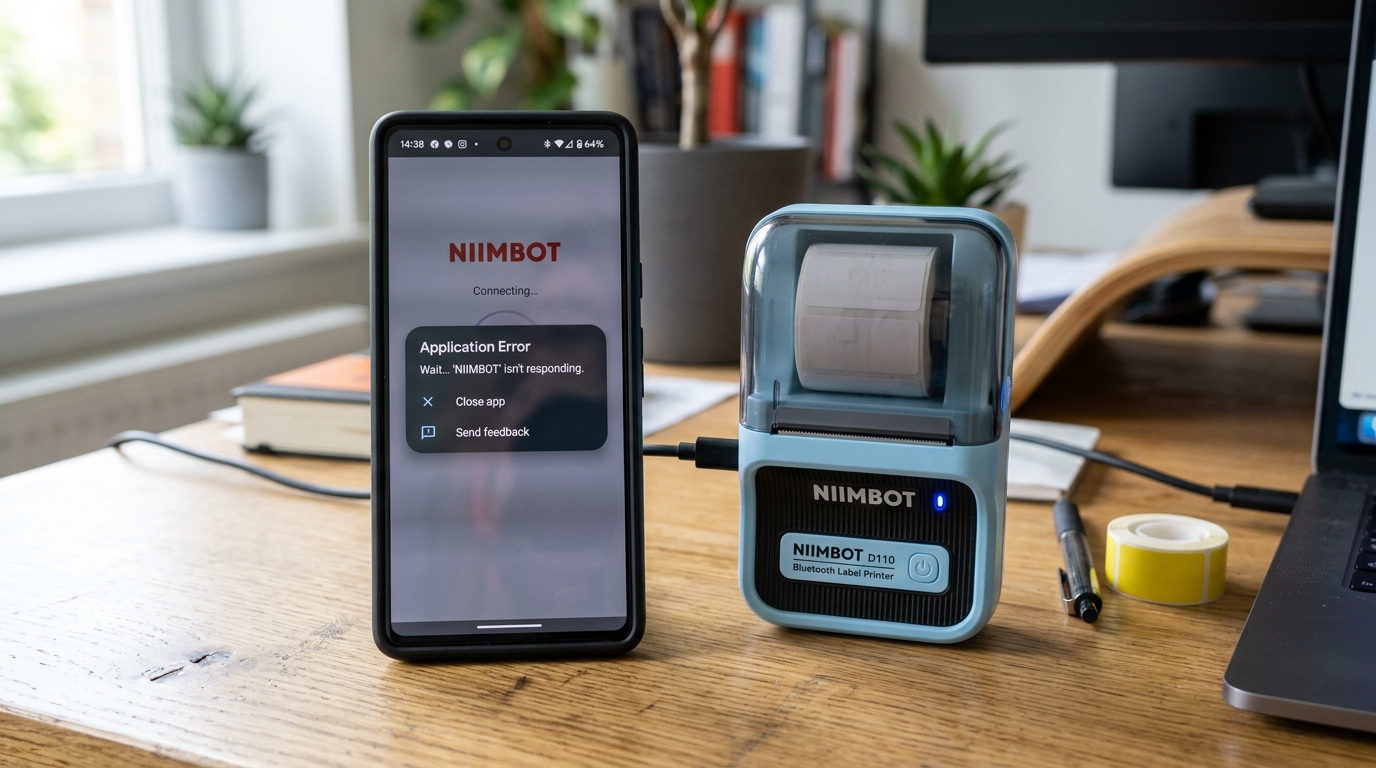
Welcome to the comprehensive troubleshooting guide for resolving Niimbot app crashing, synchronization errors, and permission-related issues. The Niimbot label maker is an incredible tool for organizing everything from home pantry items to small business inventory, relying heavily on a seamless connection between the physical printer.
Your mobile device. However, you might occasionally encounter situations where the Niimbot application abruptly closes, fails to sync.
Your saved label templates, or constantly requests permissions that you believe you have already granted. These interruptions can be immensely frustrating, particularly when you are in the middle of.
A large labeling project or trying to quickly print a shipping label before a deadline. In this extensive article, we will delve deeply into the underlying mechanics of how the Niimbot application communicates with both your smartphone's operating system (whether it is iOS or Android).
The printer hardware itself via Bluetooth. We aim to equip you with not just quick fixes, but a thorough understanding of mobile app memory management, Bluetooth protocol stacks,.
The nuanced permission models of modern mobile operating systems. By following this guide, you will be able to diagnose exactly why your app is crashing, resolve persistent sync errors affecting your account,.
Configure your device's permissions correctly to ensure a stable, uninterrupted, and highly efficient labeling experience every single time you turn on your Niimbot printer. We will explore cache clearing, background app refresh settings, location services requirements for Bluetooth Low Energy (BLE),.
Cloud synchronization conflicts that often lead to these common yet solvable problems.
Why This Happens
Understanding why the Niimbot app crashes or experiences sync errors. Requires a look into the complex interactions between software and hardware.
Why This Happens: Firstly, application crashes are frequently caused by. Memory leaks or corrupted cached data within the app's local storage.
As you design more labels, import custom fonts,. Insert various graphics, the app stores temporary files to speed up rendering.
Over time, these files can become fragmented or corrupted, leading to an unexpected exception. That the app cannot handle gracefully, resulting in a crash to your home screen.
Secondly, synchronization errors usually stem from network instability or token expiration issues between the app and Niimbot's cloud servers. When you log in, the app receives an authentication token that allows it to securely push.
Pull your saved templates. If your connection drops for even a microsecond during a sync payload transmission, or if the token silently.
Expires in the background without renewing properly, the app might throw a sync error or appear to hang indefinitely. Lastly, permission issues—particularly those related to Location and Bluetooth—are a common source of confusion.
Modern operating systems like Android 12+. IOS 13+ have implemented strict privacy controls around Bluetooth because Bluetooth beacons can theoretically be used to track a user's location.
Therefore, an app must explicitly request permission to scan for nearby devices. If a user denies location access, assuming it is unnecessary for a printer, the OS will block the app from discovering.
The Bluetooth Low Energy (BLE) signal emitted by the Niimbot device, resulting in a failure to connect or erroneous permission prompts. Furthermore, battery optimization settings on many Android devices may aggressively kill background processes, leading to disconnected syncs.
App instability when you switch between applications.
Step-by-Step Fix
- Force Close and Clear Cache: On Android, navigate to Settings > Apps > Niimbot > Storage, and tap 'Clear Cache'. On iOS, you may need to offload the app via Settings >. General > iPhone Storage > Niimbot > Offload App, then reinstall it. This resolves corruption in temporary files.
- Update the Application:Open the Google Play Store or Apple App Store, search for 'Niimbot',. Ensure you are running the absolute latest version. Developers frequently release patches addressing memory leaks and crash reports submitted by users.
- Verify Bluetooth and Location Permissions: Go to your phone's main Settings menu. Find the permissions manager. Ensure that the Niimbot app has 'Nearby Devices' (Android 12+) or 'Bluetooth' (iOS) permissions fully granted. Additionally, ensure 'Location' services are set to 'Allow. Using app', as this is a strict requirement for BLE scanning on many devices.
- Resolve Sync Conflicts by Re-Authenticating: Log out of your Niimbot account within the app. Completely close the app, reopen it, and log back in. This forces the application to request a fresh authentication token from. The cloud servers, clearing out stale session data that causes sync loops.
- Disable Aggressive Battery Optimization:If you are on an Android device (especially Samsung, Xiaomi, or OnePlus), go to Settings > Battery > App Battery Management,. Set the Niimbot app to 'Unrestricted' or disable 'Put to sleep'. This prevents the OS from killing the app's background sync processes.
- Perform a Network Reset: If sync issues persist despite logging out, try switching from Wi-Fi to Cellular data, or vice versa. Sometimes, a specific router's firewall or DNS settings can block the exact ports required by the Niimbot cloud infrastructure.
- Factory Reset the Printer (Hardware Side): Turn the printer on. Hold the power button for approximately 10-15 seconds until you hear. A distinct sequence of beeps or see the LED flash rapidly. This clears the printer's internal Bluetooth memory cache, resolving conflicts where the app thinks it is connected. The printer does not.
Advanced Troubleshooting
In more complex scenarios, standard troubleshooting might not suffice. Advanced Troubleshooting for the Niimbot environment involves exploring OS-level developer options and network packet analysis.
If the app continues to crash precisely when rendering specific label templates, you might be. Dealing with a corrupted font file or an oversized image asset embedded in that specific label.
You can attempt to access your account from a different. Device (like a tablet) to see if the template loads there.
If it does, the issue is isolated to your primary phone's rendering engine. Additionally, for severe Bluetooth connectivity drops, you can enable 'Developer Options' on Android.
Turn on 'Enable Bluetooth HCI snoop log'. 4GHz devices in your vicinity, such as microwave ovens or dense Wi-Fi networks.
On iOS, checking the 'Analytics & Improvements' logs under Privacy settings can reveal if the Niimbot app is exceeding its allocated memory footprint (Jetsam event),. Points directly to a need for an app update rather than user error.
If sync errors are entirely localized to your home Wi-Fi network, you may need to log into your router's administration panel. Ensure that standard HTTPS traffic (Port 443) and any specific WebSockets ports used by Niimbot are not being blocked by aggressive built-in network security features like Trend Micro Smart Home Network.
FAQ
Why does the app ask for my location just to print a label?
This is a requirement of the mobile operating system, not a malicious tracking attempt by Niimbot. Because Bluetooth beacons can theoretically be used to determine your physical location (by cross-referencing known Bluetooth devices in an area), Android.
Will clearing the app cache delete my saved label templates?
Clearing the 'Cache' will not delete your saved templates, as these. Are typically stored in the 'Data' section or synced to the cloud.
My app keeps crashing immediately upon opening. What is the fastest fix?
The fastest and most reliable fix for an immediate crash on launch is a. Complete uninstall and reinstall of the application, followed by a reboot of your mobile device.
Can I use the Niimbot printer without making an account to avoid sync errors?
Yes, the Niimbot app generally allows for a 'Guest' or 'Offline' mode where you can design. Print labels without logging in.
