


Introduction
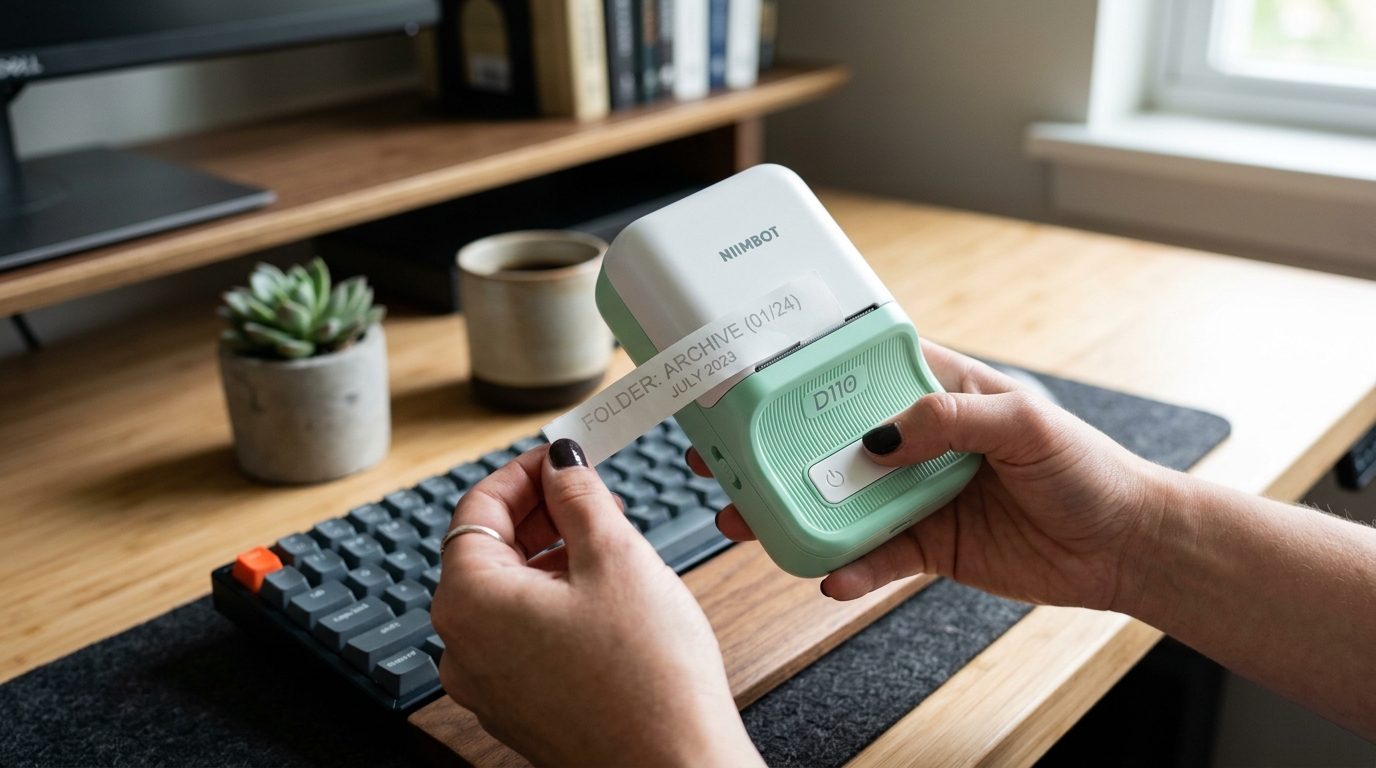
Niimbot label printers are celebrated for their portability, ease of use,. Integration with intuitive mobile applications, making them incredibly popular for home organization, retail pricing, and small business inventory management.
However, users frequently encounter frustrating issues such as misaligned text where the print falls off. The edge of the label, faded printing that is barely legible, or partial labels where the design is truncated.
Because these devices rely on direct thermal printing technology and Bluetooth connectivity to a mobile. App, troubleshooting requires a holistic approach that examines the physical media, the printer's hardware, and the software settingss within the Niimbot app.
Achieving crisp, perfectly aligned labels requires ensuring that the smart sensors within the printer are. Communicating correctly with the label templates on your phone.
This comprehensive guide will explore the common culprits behind these printing defects, offer a detailed step-by-step resolution path,. Provide advanced tips for maintaining the pristine quality of your Niimbot labels.
Why This Happens
The phenomena of misaligned, faded, or partial prints on Niimbot devices are usually caused by. Three distinct factors: physical media misalignment, thermal printhead degradation, or template dimension mismatches in the application.
Misalignment and partial labels most often occur when the label roll is not seated tightly within the printer. If the roll shifts laterally, the optical sensor cannot accurately detect the gap between the.
Labels, causing the printer to start printing too early or too late. , selecting a 12x40mm template for a 15x30mm roll), the design will spill over the edges or print partially. Faded text, on the other hand, is a hallmark of direct thermal printing issues.
This can be caused by a depleted battery lacking the necessary voltage to heat the printhead adequately, a dirty printhead coated with adhesive residue. Dust, or using old, degraded thermal labels that no longer react properly to heat.
Understanding this interplay between the physical roll, the printhead, and the app settings is key to solving these issues.
Step-by-Step Fix
- Re-seat the Label Roll: Open the printer's lid. Remove the label roll and inspect the core. Reinsert the roll, ensuring it sits flush against the left side of the compartment. Follows the specific guides for your model). Pull the first label slightly past the cutter or tear-off bar, ensuring it is perfectly straight. Close the lid firmly until it clicks.
- Clean the Printhead: Power off the printer. Locate the thermal printhead—the thin, usually dark bar that makes direct contact with the paper. Use a cotton swab lightly dampened with isopropyl alcohol (90% or higher) to gently wipe the printhead. This removes invisible adhesive and dust that insulate the heat, causing faded text. Allow it to dry completely.
- Check Battery and Power: Direct thermal printing requires substantial energy to heat the printhead elements. If the battery is low, the print quality will fade significantly. Plug the printer into a high-quality USB charger and let it charge to 100% before attempting to print again. Avoid printing while it is actively charging on a low battery, as voltage fluctuations can affect print darkness.
- Calibrate the Label Gap Sensor: Most Niimbot printers auto-calibrate when the lid is closed. To force a calibration, press the power button once quickly (the exact button sequence varies by model). The printer should feed one blank label and stop exactly on the gap. If it feeds continuously, the sensor is dirty or the paper is not loaded correctly.
- Verify App Settings and RFID: Niimbot rolls often have an RFID chip on the core that tells the app the exact label size. Open the Niimbot app and connect to the printer. Ensure the app recognizes the correct label size automatically. If you are using third-party labels without an RFID chip, you must manually enter the exact width. Height of the label in the app's template settings.
- Adjust Print Density: Within the Niimbot app's print settings, look for the 'Print Density' or 'Darkness' slider. If your text is light but the battery is full and the printhead is clean, increase the density setting. Be careful not to set it too high, as this can cause the text to bleed. The barcode lines to merge.
- Align the Design in the Template: If the text is cutting off, open your design in the app. Ensure all elements (text boxes, icons) are kept well within the designated safe margins on the screen. Avoid placing elements directly on the extreme edges of the template, as minor mechanical shifting. During printing can cause them to fall off the physical label.
Advanced Troubleshooting
If the step-by-step process does not yield perfect labels, you must investigate deeper hardware or compatibility issues. , the first label is fine, but the fifth label is printed on the gap),. The printer's platen roller (the rubber roller that feeds the paper) might be dirty or degraded.
Clean the platen roller with alcohol, rotating it to clean all sides. If the roller is slick and lacks grip, it may need replacement.
For persistent faded printing, consider the environment. Thermal paper degrades quickly if exposed to high heat, direct sunlight, or certain chemicals (like the plasticizers in some tapes).
Try a brand-new roll of authentic Niimbot labels stored in a cool, dark place to rule out media degradation. If you are using third-party labels and experiencing continuous sensor errors, the backing paper might.
Be too opaque for the printer's optical sensor to detect the gap. Niimbot printers are heavily optimized for their built-in labels; third-party labels with different gap thicknesses.
Black mark placements will require manual calibration and often yield inconsistent results. Finally, ensure your Niimbot app and the printer's firmware (internal software) are updated to the.
Latest versions, as updates often contain fixes for Bluetooth transmission errors that can cause partial data to be sent, resulting in half-printed labels.
FAQ
Why does the printer feed multiple blank labels before printing my design?
This is a sensor calibration failure. The printer is looking for the gap between labels but cannot find it.
Can I make the print completely black instead of a dark gray?
Yes, by increasing the 'Print Density' in the Niimbot app settings and ensuring the printer is fully charged. However, direct thermal printing has limits compared to ink or laser.
My text is perfectly centered on my phone screen, but prints too high on the label. How do I fix this?
This indicates an offset error. You can manually adjust the vertical and horizontal offset in the Niimbot app's advanced print settings.
Do I have to use official Niimbot labels?
While official labels guarantee optimal sensor recognition (thanks to the RFID chip). Print longevity, you can technically use third-party direct thermal labels of the same size.
The printer connects to my phone, but fails to send the print job. What should I do?
This is usually a Bluetooth cache issue. 'Forget' the printer in your phone's Bluetooth settings, restart your phone,.
