


Introduction to Niimbot Bluetooth Connection Issues on Android
The Niimbot series of portable, inkless label makers—including popular models like the D11. D110, and B21—have revolutionized mobile organization by offering incredibly convenient Bluetooth printing directly from smartphones.
However, Android users frequently encounter a deeply frustrating roadblock during the initial setup: the Bluetooth connection fails to establish. The printer cannot be found in the app, or the connection drops immediately upon pairing.
This incredibly common issue often leads users to mistakenly believe they have received a defective unit. That the printer's Bluetooth module is broken.
In reality, the vast majority of these connection failures are not hardware defects at all. But rather a direct consequence of how modern Android operating systems handle privacy.
Specifically regarding Bluetooth Low Energy (BLE) and location tracking protocols. Understanding the intersection of Android's permission architecture.
The Niimbot app's requirements is the critical first step to resolving this connectivity impasse. This comprehensive guide will explain the technical reasons behind this requirement, detail the step-by-step process to properly pair your device.
And provide advanced troubleshooting techniques to ensure a stable, uninterrupted link between your Android smartphone and your Niimbot label printer.
Why This Happens: The Hidden Link Between Bluetooth BLE and Location Services
To understand why a label printer cares about your GPS location. We have to look at the evolution of Android's security architecture.
Starting heavily with Android 6.0 (Marshmallow) and becoming even more stringent in Android 10, 11, and 12+, Google recognized a significant privacy loophole. Bluetooth Low Energy (BLE)—the protocol used by Niimbot printers to save battery.
Connect quickly—works by constantly broadcasting and scanning for digital beacons in the immediate vicinity. Because stationary BLE beacons are commonly used in retail stores.
Public spaces to track a user's physical movements (for targeted advertising. Analytics), scanning for Bluetooth devices inherently means you are scanning for data that could reveal the user's exact geographical location.
To close this loophole, Google mandated that any application wanting to scan for BLE devices must explicitly request. Be granted "Location" permissions from the user, and the phone's overarching GPS/Location service must be toggled on.
Therefore, when you download the Niimbot app and deny the location permission. It seems irrelevant to printing a label.
You are unknowingly blocking the app's ability to access the Bluetooth radio stack entirely. The app literally becomes blind to the printer sitting right next to it.
Furthermore, another major point of failure is users attempting to pair. The Niimbot printer through the main Android Bluetooth settings menu.
Niimbot printers utilize an application-level BLE connection, meaning they are designed to interface directly. With the built-in Niimbot app software, not the operating system's generic Bluetooth handler.
Attempting to pair via the OS menu often results in a "Pin Incorrect" error. A connection that drops after five seconds.
Step-by-Step Fix: Establishing a Proper BLE Connection
- Unpair from Android OS (If Applicable): If you previously attempted to pair the printer through your phone's main Bluetooth settings menu, you must undo this. Go to your phone's Settings > Connected Devices > Bluetooth. Find the Niimbot printer in the list of paired devices. Tap the gear icon next to it, and select "Forget" or "Unpair". The printer must not be connected to the OS.
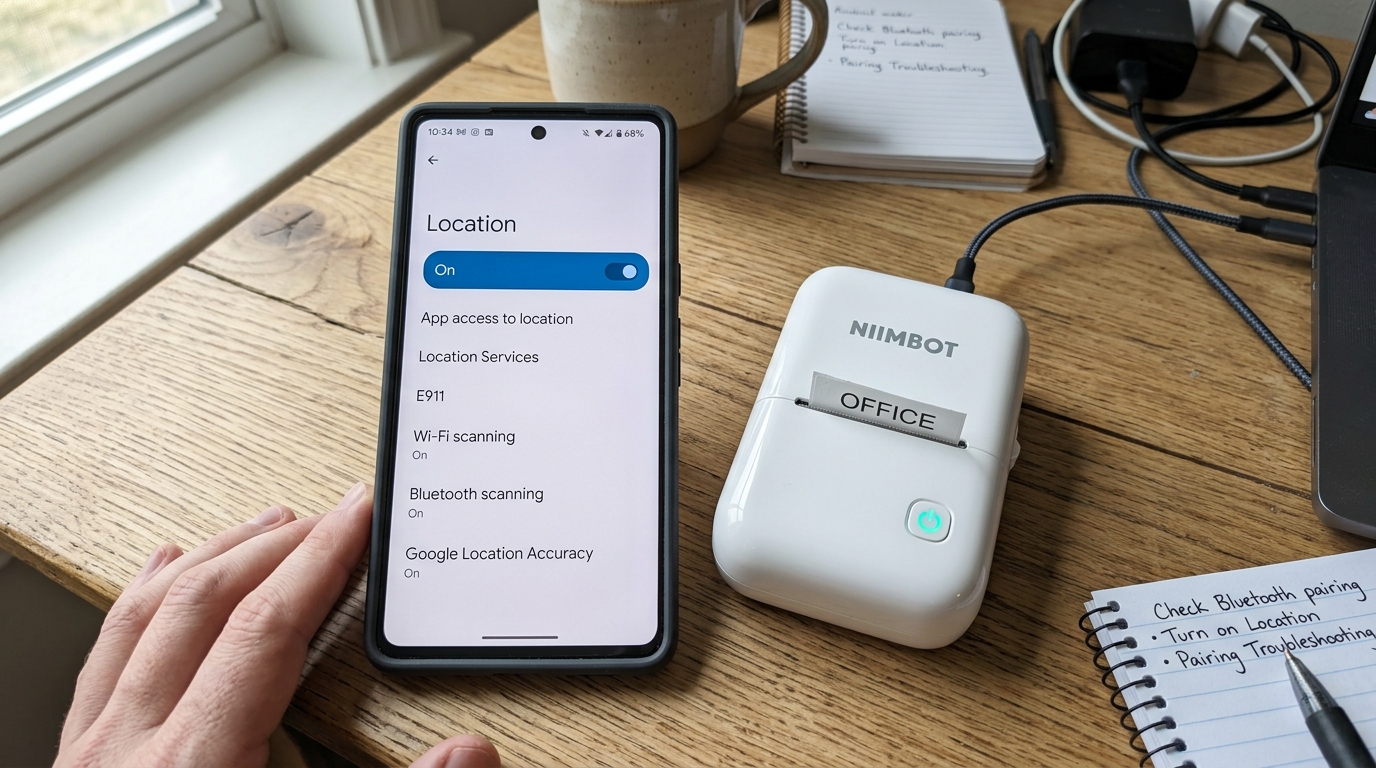
- Enable Global Location Services: Pull down your Android notification shade and ensure that the main "Location" or "GPS" toggle is turned ON. The Bluetooth scanning protocol will not function if the global hardware location service is disabled, regardless of app-specific permissions. Ensure regular Bluetooth is toggled ON as well.
- Grant App Permissions: Open your Android Settings app and navigate to "Apps" or "App Management". Find the Niimbot application in the list. Tap on it, then select "Permissions". Verify that both "Location" and "Nearby Devices" (a new permission in Android 12+) are set to "Allow". "Allow only while using the app". This is the most critical step; without these permissions, the app cannot scan for the printer.
- Prepare the Printer:Turn on your Niimbot printer by holding the power button until you hear the startup chime. The LED indicator lights up (usually flashing blue, indicating it is in pairing mode and broadcasting its BLE signal). Ensure it has sufficient battery charge, as low voltage can weaken the Bluetooth radio signal.
- Connect via the Niimbot App: Launch the Niimbot app on your smartphone. Do not go to your phone's settings. In the app, navigate to the main printing interface. Tap the red "Unconnected" or "Please connect printer" button, usually located in the top right corner of the screen.
- Select and Pair: The app will initiate a BLE scan. Within a few seconds, your printer model (e.g., D11_XXXX) should appear in the list of available devices under the "My Devices" or "Unconnected Devices" tab. Tap on the printer name. The app will negotiate the connection directly.
- Confirm Connection:You should hear a confirmation beep from the printer, the LED should turn solid blue. Green, and the button in the app will change to a green "Connected" status. You are now ready to design and print your labels.
Advanced Troubleshooting: Clearing Caches and Bluetooth Versions
If you have rigorously followed the steps above—ensuring location is on. Permissions are granted—and the printer still will not connect.
You may be dealing with a corrupted Bluetooth cache or aggressive battery optimization. Over time, Android's Bluetooth system cache can become cluttered with conflicting pairing data from headsets.
Car stereos, and smartwatches, causing the BLE stack to crash silently. To resolve this, you need to reset the network settings.
Go to Android Settings > System > Advanced > Reset Options, and select "Reset Wi-Fi, mobile & Bluetooth". Note that this will erase your saved Wi-Fi passwords and unpair all Bluetooth devices, giving you a completely clean slate.
Additionally, Chinese smartphone manufacturers (like Xiaomi, Oppo, and Huawei) utilize extremely aggressive background task killers to extend battery life. These systems may forcefully kill the Niimbot app's background Bluetooth scanning process mid-pairing.
To prevent this, go to Settings > Apps > Niimbot > Battery. And change the setting from "Optimized" to "Unrestricted" or disable battery optimization for this specific app.
Finally, consider hardware limitations. Older Android devices running outdated Bluetooth 4.0 hardware may struggle to maintain a stable connection with newer Niimbot printers utilizing Bluetooth 5.0+ protocols.
While BLE is heavily backwards compatible, severe interference from dense 2.4GHz Wi-Fi networks in your immediate area can drown out the weak BLE signal. Try moving to a different room away from Wi-Fi routers.
Microwaves, and ensure the printer is within 3 feet (1 meter) of the phone during the initial pairing sequence.
FAQ: Frequently Asked Questions
Why does a label app need to know my location? Is it tracking me?
No, the Niimbot app is not maliciously tracking your location. It is a strict technical requirement enforced by the Android operating system.
I paired the printer in my phone's Bluetooth settings, but the app says it's unconnected. Why?
This is the most common error. Niimbot printers do not use standard Bluetooth audio/data profiles; they use a built-in BLE connection managed directly by the software.
My phone finds the printer in the app, but connection fails at 90%. What do I do?
A connection hanging at the final stage usually indicates a battery optimization issue. A minor firmware (internal software) (internal software) glitch in the printer.
Do I need to turn on Location every single time I want to print?
Yes, unfortunately. If you toggle off your phone's global GPS/Location service to save battery.
The app asks for "Nearby Devices" permission. What is this?
Introduced in Android 12, the "Nearby Devices" permission was created by. Google to separate Bluetooth scanning from general GPS Location scanning.
