


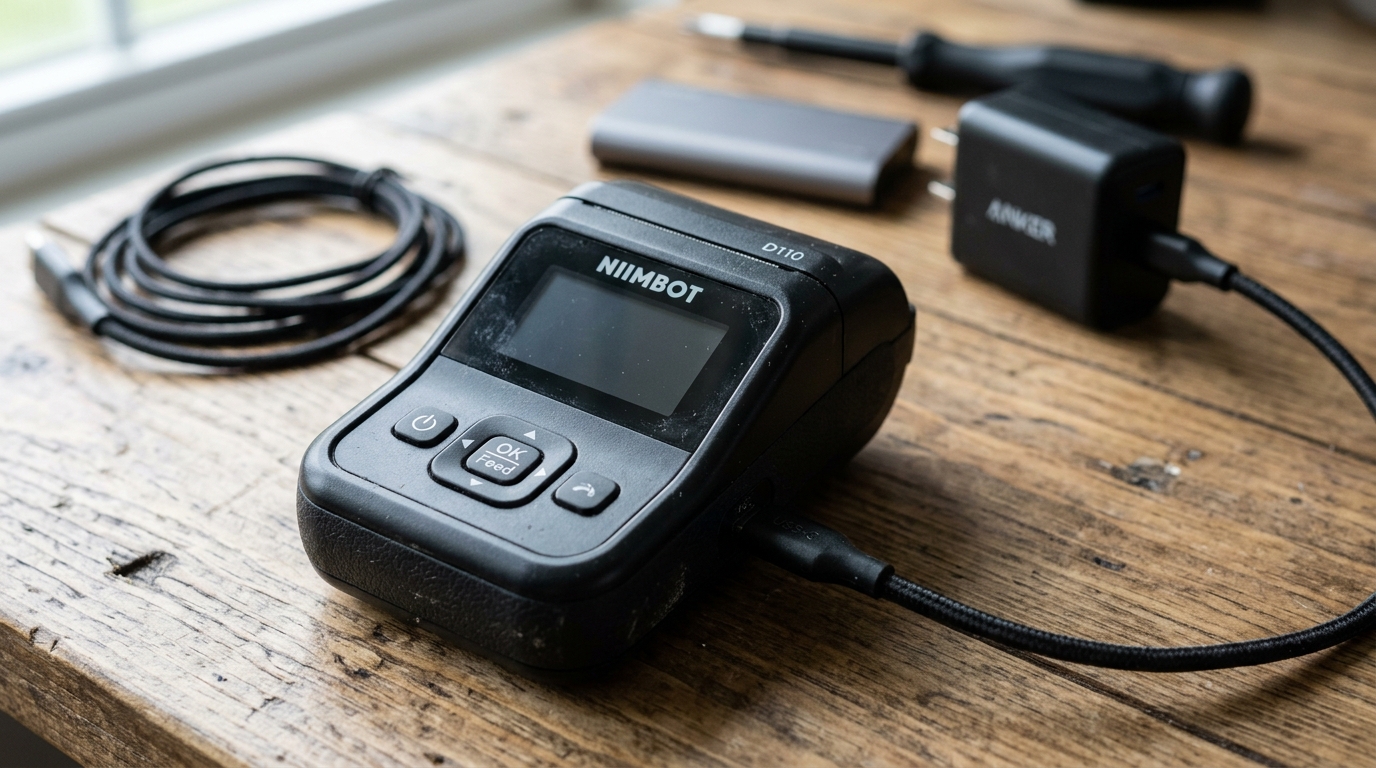
A portable label printer is fundamentally useless if it cannot reliably hold a charge or turn on when required. The Niimbot series—including popular models like the D11, D110, B21.
And B1—rely on internal rechargeable lithium-ion battery cells to provide the necessary high current required by the thermal print head. Unfortunately, power management issues are among the most frequently reported problems by Niimbot users.
These issues range from devices that flatly refuse to turn on, completely ignoring power button inputs, to devices that exhibit incredibly rapid battery drain, dying mere minutes after being unplugged from a charger. In this exhaustive technical guide, we will thoroughly dissect the common causes behind these power failures, differentiate between software glitches, cable faults.
And catastrophic hardware degradation, and provide you with a comprehensive, step-by-step diagnostic framework to resurrect your non-responsive Niimbot printer and optimize its long-term battery health.
Why This Happens: The Physics of Lithium-Ion Batteries and Thermal Printing
To understand why your Niimbot printer is failing to power up or hold a charge, it is essential to understand the demands placed on its power delivery system. Thermal printing is an inherently energy-intensive process.
Unlike inkjet printers that spray liquid, a thermal printer operates by sending significant electrical current through hundreds of microscopic ceramic heating elements embedded in the print head. This process demands a sudden, high-amperage draw from the battery.
Over time, the internal lithium-ion battery undergoes chemical degradation. Every charge and discharge cycle slowly increases the internal resistance of the battery cell.
When the internal resistance becomes too high, the battery can no longer deliver the sudden burst of current required to heat the print head. The voltage drops drastically under load, triggering the printer's internal undervoltage protection circuit.
This abruptly shuts the device off to prevent catastrophic cell damage, even if the battery indicator shows a 50% charge.
Furthermore, charging issues often stem from incompatibilities with modern power adapters. Niimbot printers are generally designed around older, simpler 5V/1A USB charging standards.
Modern smartphones and laptops use smart chargers equipped with Power Delivery (PD) or Quick Charge (QC) protocols. These smart chargers attempt to "negotiate" voltage with the connected device.
If the Niimbot's simple charging circuitry fails to correctly handshake with the smart charger, the charger may refuse to output any power at all as a safety precaution, or worse, default to a voltage that is slightly too high, slowly degrading the printer's power management IC (PMIC). Lastly, environmental factors play a massive role;
leaving a Niimbot in a freezing car or a blistering hot window sill will cause extreme thermal stress to the lithium chemistry, rapidly accelerating capacity loss and potentially causing the battery to swell, physically disconnecting internal solder joints.
Step-by-Step Fix: Resurrecting a Dead Niimbot Printer
If your Niimbot printer is completely unresponsive, flashing abnormal error lights while plugged in, or suffering from severe battery drain, execute the following rigorous troubleshooting steps sequentially to isolate and resolve the root cause.
- Eliminate the "Smart Charger" Variable: Immediately stop using Apple USB-C chargers, high-wattage laptop chargers, or multi-port fast charging hubs. Locate a basic, old-school USB-A wall adapter (the kind that outputs a strict 5V/1A or 5V/2A). Connect the printer using a standard USB-A to USB-C (or Micro-USB, depending on your model) cable. This bypasses complex PD negotiation protocols that often fail.
- Perform a Deep Cycle Charge: If the printer has been unused for months, the battery voltage may have dropped below the "wake up" threshold recognized by the charging circuit. Plug the printer into the basic 5V adapter and leave it completely undisturbed for a minimum of 4 to 6 hours. Ignore the indicator lights entirely during this period. Sometimes, the battery management system (BMS) requires hours of a micro-amp "trickle charge" to safely raise the cell voltage before engaging normal charging speeds.
- Execute a Hardware Hard Reset: Many Niimbot models can become trapped in a software freeze where the microcontroller crashes, leaving the device unresponsive to standard button presses but technically still "on." To force a hardware interrupt, press and hold the power button continuously for at least 15 to 20 seconds. Release the button, wait 5 seconds, and then attempt to power on normally. On some models, simultaneously holding the power and feed buttons achieves this reset.
- Clean the Charging Port Receptacle: Inspect the USB port on the printer using a strong flashlight and a magnifying glass. Pocket lint, dust. And microscopic debris can become highly compacted at the bottom of the port, preventing the charging cable pins from making solid electrical contact. Using a wooden toothpick or a non-conductive plastic spudger, gently scrape out any compacted debris. Never use a metal needle, as this will short the pins and fry the motherboard.
- Test Cable Continuity: USB cables degrade internally, especially near the connector necks. A cable that perfectly charges your smartphone might have a fractured data or power line that prevents the Niimbot from drawing current. Test the setup with at least three completely different USB cables, preferably ones known to support data transfer, as some extremely cheap charging-only cables lack the necessary pins for proper device detection.
- Assess Ambient Temperature Diagnostics: If the printer is cold to the touch (below 10°C/50°F), the lithium-ion chemistry becomes highly sluggish, artificially lowering the voltage output and preventing the device from turning on. Bring the printer into a warm room, allow it to acclimate to a normal room temperature (20°C/68°F) for an hour. And attempt to power it on again. Never apply external heat like a hairdryer, as this can cause the battery to vent or explode.
- Update firmware (internal software) (If Operational): If you manage to get the printer to turn on and connect briefly, immediately check the Niimbot application for a firmware (internal software) update. Manufacturers occasionally release patches that optimize the sleep-state power draw, fixing bugs where the Bluetooth radio remained active while the device was supposedly turned off, causing massive overnight battery drain.
Advanced Troubleshooting: Diagnosing Motherboard and Battery Cell Failures
If all external variables (chargers, cables, temperature, resets) have been eliminated and the device remains dead, you are dealing with an internal hardware failure. The most common advanced issue is a dead internal lithium cell.
The batteries in most Niimbot printers (like the 1200mAh 18650 cell in the B21) are soldered directly to the mainboard or connected via a small JST connector. For users comfortable with electronics repair, disassembling the plastic shell allows access to the battery.
Using a digital multimeter, measure the DC voltage across the red and black battery wires. A healthy lithium-ion cell should read between 3.7V and 4.2V.
If the reading is below 2.8V, the cell is deeply discharged and likely permanently damaged. Replacing the cell with a high-quality equivalent (matching voltage and capacity) will completely rejuvenate the printer.
Another, more terminal issue is failure of the USB charging receptacle itself. The micro-USB or USB-C ports are surface-mounted (SMD) to the motherboard.
Repeated plugging and unplugging, or accidental yanks on the cord, can tear the tiny copper solder pads clean off the fiberglass circuit board. If the port feels physically loose or wiggles when you insert the cable, the internal connections are broken.
While micro-soldering experts can repair this by running jumper wires to trace points on the board, this repair is generally beyond the scope of a standard user, rendering the device e-waste.
FAQ: Frequently Asked Questions
Can I leave my Niimbot plugged in all the time?
It is highly discouraged to leave your Niimbot printer permanently connected to a charger. Unlike advanced laptops, inexpensive portable electronics often lack sophisticated bypass charging circuitry.
Why does the battery drop from 100% to 50% instantly?
This rapid percentage drop is a classic symptom of an aged battery with high internal resistance. The battery percentage in the app is calculated based on voltage.
Is it safe to use a fast charger with my label maker?
While standard USB-C fast chargers are technically supposed to be backwards compatible, real-world experience shows they frequently fail to handshake with simple devices like Niimbots. It is much safer and more reliable to use a standard 5V/1A or 5V/2A charging brick to ensure consistent, safe voltage delivery without stressing the device's power IC.
Does Bluetooth drain the battery when the printer is off?
When powered off completely, the Bluetooth module should draw zero power. However, if you only put the printer into a standby or sleep state via the app rather than holding the physical power button, the Bluetooth radio remains active in a low-power polling state.
What should I do if the printer gets extremely hot while charging?
Unplug it immediately. Excessive heat during charging indicates a critical failure in the battery management system (BMS) or a short circuit within the lithium cell itself.
