


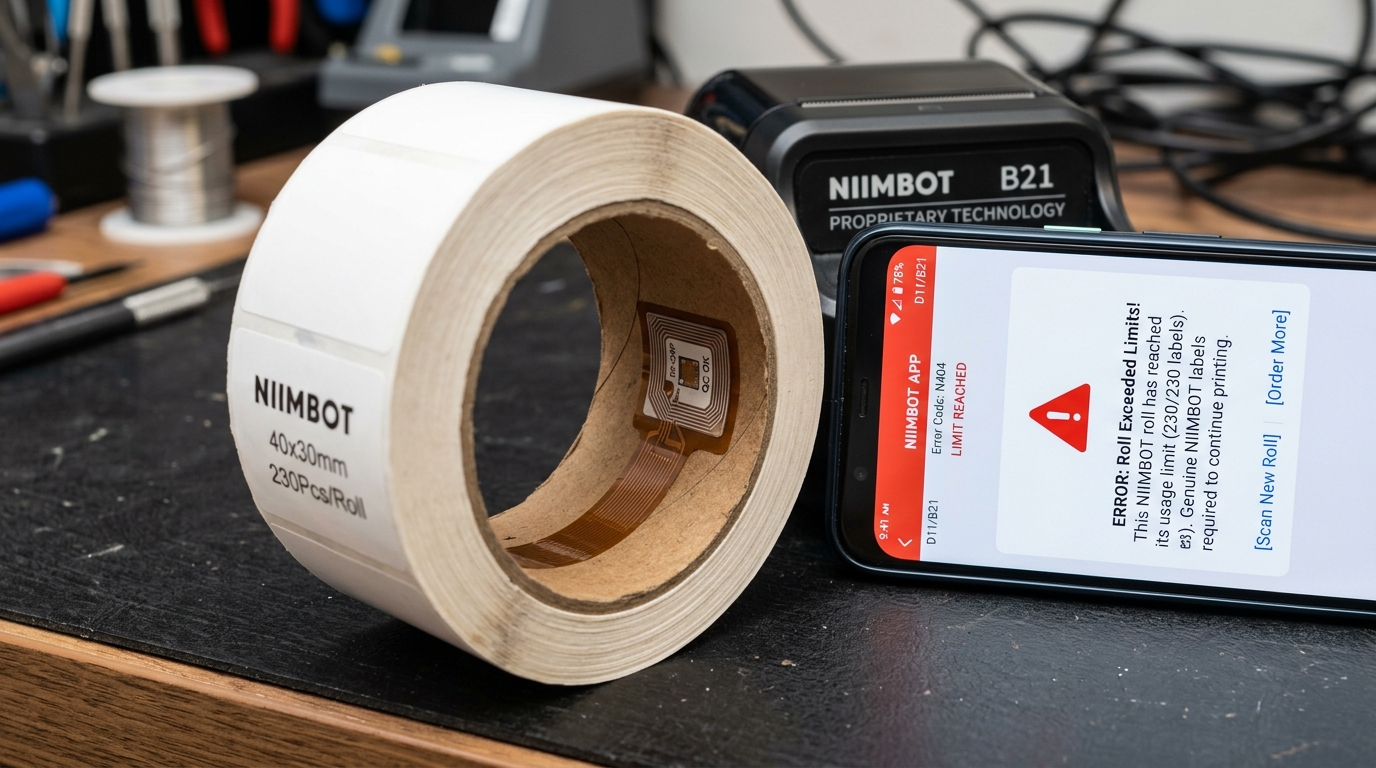
Introduction to Niimbot RFID and Chip Limit Errors
The modern Niimbot ecosystem, encompassing highly popular portable thermal printers like the B21, B3S. And newer iterations of the D11/D110, offers an incredibly polished user experience, largely driven by intelligent hardware features.
Chief among these features is automatic label recognition. By embedding a tiny RFID (Radio Frequency Identification) chip inside the cardboard core of every official roll of label tape, the printer can instantly communicate with the Niimbot app to automatically select the correct template size, paper type.
And even the specific decorative pattern of the labels you installed. However, this convenience comes with a highly controversial trade-off: Digital Rights Management (DRM).
Because the printer relies on this chip to authenticate the media. Users frequently encounter frustrating roadblocks such as "Label Recognition Error," "Unrecognized Paper," or the dreaded "Exceeded Chip Limits" warning.
These errors completely halt printing operations, leaving users confused as to why a seemingly full roll of paper is suddenly being rejected by the machine. This comprehensive guide will pull back the curtain on how Niimbot's RFID technology functions, explain exactly what causes chip limit errors and recognition failures.
And provide step-by-step actionable solutions to troubleshoot sensor alignments, bypass software lockouts, and get your printer functioning again, whether you are using official media or navigating the complexities of third-party alternatives.
Why This Happens: The Mechanics of RFID DRM and Print Counters
To troubleshoot these errors effectively, you must understand the underlying technology architecture of the label roll and the printer. Embedded in the cardboard spool of an official Niimbot label roll is a passive RFID tag.
Located inside the printer's paper bay (usually on the left or right spindle mount) is a small RFID reader antenna. When you insert the roll, the antenna powers the chip and reads its data payload.
This data contains the label dimensions (e.g., 50x30mm), the paper style (e.g., transparent, cable tie, standard white). And crucially, a unique serial number and a pre-programmed total length or label count limit.
The "Exceeded Chip Limits" error occurs because the RFID chip operates as a countdown timer. If a roll physically contains 230 labels, the chip is programmed with an allowance of approximately 230 prints (usually with a small buffer for calibration waste).
Every time you print a label, the Niimbot app and printer write data back to the chip. Decreasing the remaining allowance.
If you unroll a label by hand and cut it, or if the printer jams and you waste labels. The physical count desynchronizes with the digital count on the chip.
When the chip hits zero, the software locks out the roll, even if physical paper remains on the spool. This is designed to prevent counterfeiters from taking an official chipped spool, refilling it with cheap third-party paper.
And using it indefinitely. "Recognition Errors" or "Unrecognized Paper," on the other hand, occur when the printer simply cannot read the chip at all.
This happens if you are using a third-party, non-chipped roll in a printer firmware (internal software)-locked to require chips. If the roll is inserted backward so the chip is out of range of the antenna, or if the RFID antenna inside the printer has been damaged or obscured by metallic debris.
Step-by-Step Fix: Resolving Recognition Errors and Chip Limits
- Verify Roll Authenticity and Orientation: First, ensure you are using a genuine Niimbot-branded label roll. Look at the cardboard core; you should see a small rectangular or circular sticker covering the embedded RFID chip. Next, check the orientation. The chip is usually only on one side of the spool. If you put the roll in backward, the chip will be too far from the printer's internal reader. Flip the roll over, ensuring the labels still feed from the bottom up toward the print head. And snap it securely into the spindles.
- Clean the RFID Reader Area: Power off the printer. Open the paper compartment. Inspect the plastic side walls where the spool mounts. The RFID reader is housed behind this plastic. Check for any metallic dust, foil sticker residue. Or severe dirt buildup that could interfere with the weak radio frequency signal. Wipe the bay down with a dry microfiber cloth.
- Perform a Hard Reboot of the Hardware and App: Sometimes the cache holding the RFID data becomes corrupted. Turn off the printer. Force close the Niimbot app on your smartphone (swipe it away from the recent apps list). Turn the printer back on, reopen the app, and wait for the Bluetooth connection to establish. Listen for the distinct chime or watch the app interface to see if it successfully auto-detects the label size upon startup.
- Address "Exceeded Chip Limits" Physically: If you receive the exceeded limits error, inspect the physical roll. Is it almost entirely empty? If you only have a few labels left, the DRM system has locked out the roll. And there is no software bypass to recover those last few stickers; you must install a brand-new roll. If the roll is completely full and you get this error, the chip itself is defective or corrupted. Contact Niimbot support for a replacement roll under warranty.
- Manual Template Selection Override: If the printer fails to read the chip (Recognition Error). Some models and app versions allow for manual override. Dismiss the error popup in the app. Go to the template selection screen and manually search for and select the dimensions of your paper. Be aware that on newer firmware (internal software) versions, Niimbot has heavily restricted this. And manual entry may still result in a watermark or a refusal to print if no chip is detected.
- Downgrade App or firmware (internal software) (Advanced): For users attempting to utilize third-party. Unchipped paper, the only viable solution is often software-based. Newer versions of the Niimbot app strictly enforce RFID checks. Some advanced users utilize Android APK archives to install older. Legacy versions of the Niimbot app (from 2021 or earlier) which lacked strict DRM enforcement, allowing manual template selection for any paper type without chip verification.
Advanced Troubleshooting: Third-Party Paper and Firmware Lockouts
The battle between third-party label manufacturers and Niimbot's DRM is ongoing and complex. If you purposefully purchased third-party thermal paper to save money, you will almost certainly encounter the "Unrecognized Paper" error.
Depending on the exact model and manufacturing date of your printer, the hardware response varies. Older B21 models might simply flash a warning but still allow you to print if you manually input the template size.
Newer production runs have firmware (internal software) hardcoded to completely disable the thermal print head if an authenticated RFID handshake does not occur. Some users attempt physical hacks, such as carefully peeling the RFID sticker off an empty official roll and taping it to the side of the printer bay.
Allowing them to use third-party paper. However, because of the countdown limit hardcoded into the chip.
This "hack" will only work until the chip's digital counter reaches zero, at which point the system will lock you out again with an "Exceeded Limits" error, regardless of how much physical paper you feed through it. Ultimately, if you rely heavily on third-party media.
You must either find a supplier that clones the Niimbot RFID chips (which is rare and legally dubious), or accept that investing in official media is the required cost of operating within the Niimbot hardware ecosystem. Furthermore, be cautious of firmware (internal software) updates prompted within the app;
updating your printer's firmware (internal software) is the primary method manufacturers use to patch DRM loopholes and block newly discovered workarounds for third-party paper.
FAQ: Frequently Asked Questions
Can I reset the RFID chip to get more prints out of it?
No. The RFID chips used in Niimbot rolls are technically known as write-once or encrypted decrementing counters.
Why does the printer think my brand new roll is empty?
If you insert a brand-new, official roll and immediately get an "Exceeded Limits" error. The most likely culprit is a manufacturing defect where the chip was not properly flashed with the correct count at the factory.
How do I know if my specific printer model requires chipped paper?
As a general rule, all newer models in the B-series (B21. B3S) and the newer iterations of the D-series (D110) utilize RFID technology.
Will using unchipped third-party paper damage my printer?
Physically, no. Standard direct thermal paper from third-party manufacturers will not damage the thermal print head.
The app recognizes the paper, but prints a faint watermark. Why?
This is a specific DRM enforcement tactic used in recent Niimbot software updates. If the app detects paper but determines the RFID chip is cloned.
