


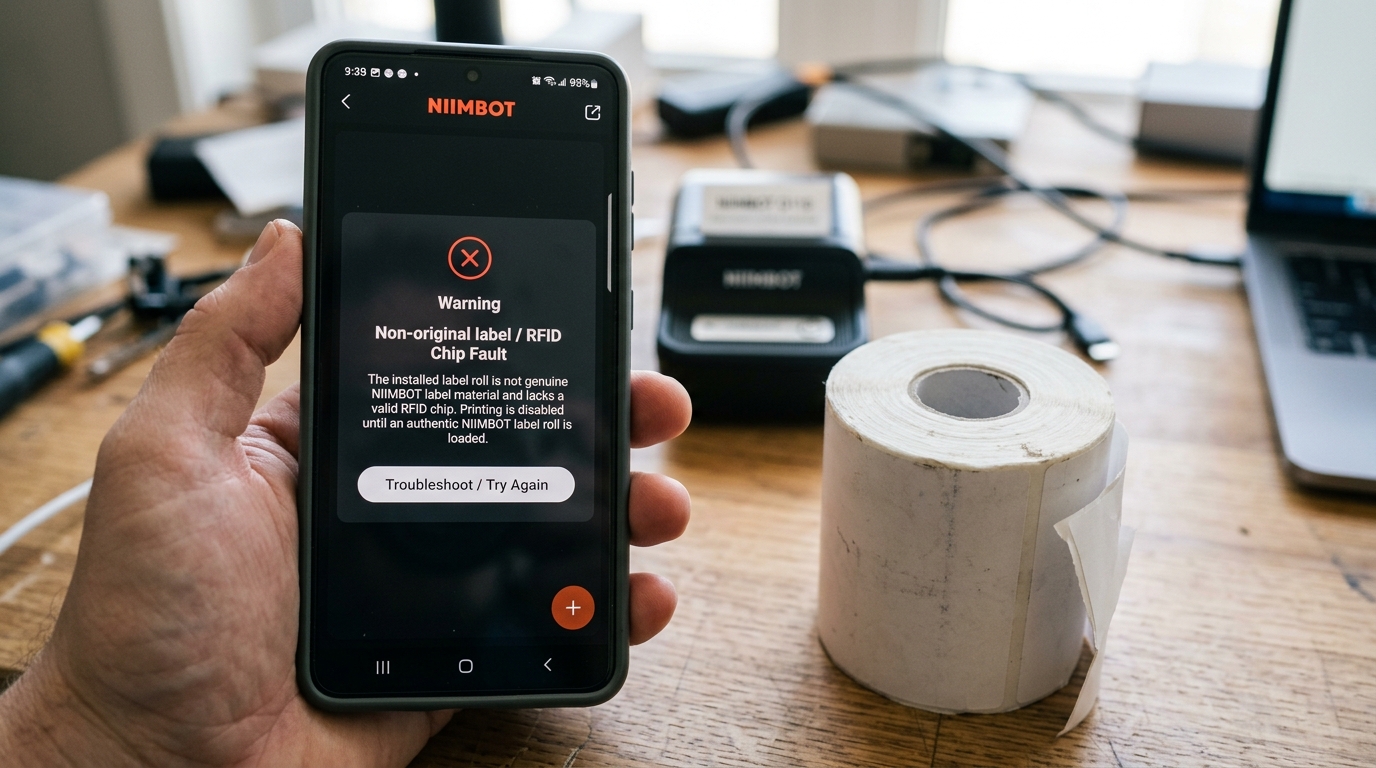
Welcome to this detailed technical deep dive into resolving the frustrating 'RFID Chip Fault', 'Non-Universal Labels'. 'Unrecognized Paper' errors frequently encountered by users of modern Niimbot label printers.
Niimbot has revolutionized the portable labeling industry with their sleek hardware and intuitive mobile software. However, as the brand evolved, they introduced a sophisticated Digital Rights Management (DRM) system into their newer printer models, most notably the B21, B3S.
And newer D110 iterations. This system relies on Radio Frequency Identification (RFID) technology to ensure that users only operate the machine with genuine, Niimbot-branded label rolls.
When you insert a new roll, a small antenna inside the printer attempts to read a microchip embedded in the cardboard core or affixed to the side of the label spool. If this communication fails, or if it detects an unauthorized third-party chip, the printer violently rejects the print job, flashing red lights.
Throwing an 'RFID Chip Fault' error within the mobile app. This built-in lockdown has been a massive source of contention, leaving many users with perfectly good, cheaper generic labels they suddenly cannot use, or worse, leaving them stranded when a genuine Niimbot roll happens to have a defective chip.
In this comprehensive article, we will completely explain this RFID ecosystem. We will explain exactly how the printer interrogates the label core, why the error occurs even with genuine rolls.
Explore the various troubleshooting steps and known workarounds within the community. Whether you are dealing with a damaged official roll or attempting to navigate the complexities of using aftermarket supplies, this guide will provide you with the knowledge to get your Niimbot printer functioning again.
Why This Happens
To effectively combat the RFID error, you must first understand the architecture of this DRM system. Why This Happens: The core of the issue lies in near-field communication.
Every genuine Niimbot label roll (for models supporting this feature) contains a passive RFID tag. This tag holds specific data: the label dimensions, the label style (e.g., clear, patterned, cable wrap).
And a unique cryptographic identifier verifying it as an authentic Niimbot product. When you close the printer lid, the printer emits a small electromagnetic field.
The RFID tag in the roll harvests power from this field. Transmits its data back to the printer's reader antenna.
The first reason you might see a 'Chip Fault' error on a genuine roll is physical misalignment. The RFID reader antenna inside the printer has a very short range (often just millimeters).
If the label roll is not pushed entirely flush against the side of the compartment containing the reader, the signal will be too weak, resulting in a read failure. Secondly, the RFID tags themselves are somewhat fragile.
If a roll was dropped, crushed in transit, or exposed to strong magnetic fields or extreme temperatures, the microchip or its microscopic antenna traces can break, rendering the roll unreadable despite being authentic. Thirdly, the 'Non-Universal Labels' error is the system working exactly as designed by the manufacturer: it is actively detecting.
Blocking third-party, generic thermal paper that lacks the built-in encrypted chip. Niimbot implemented this to ensure consistent print quality (as thermal paper formulations vary) and, more obviously, to secure a continuous revenue stream from consumable sales.
Lastly, firmware (internal software) (internal software) updates pushed through the Niimbot app frequently update the cryptographic keys or add new blocked chip IDs to the system. A generic roll with a 'cloned' chip that worked perfectly yesterday might suddenly trigger a fault today after you update the printer's firmware (internal software) (internal software).
Step-by-Step Fix
- Verify Physical Alignment of the Roll: Open the printer cover. Ensure the label roll is pushed completely flat against the designated side wall of the paper compartment (usually the side opposite the spring-loaded guide). Even a gap of 2 millimeters can cause the RFID reader to miss the chip. Close the lid firmly until it clicks.
- Inspect the Label Core for the Chip: Remove the roll and examine the side or the inner cardboard core. You should see a small, usually circular, sticker containing the RFID circuitry (it looks like tiny metallic spiderwebs). If this sticker is missing, peeled back, or deeply scratched, the chip is physically destroyed. If it is a new, genuine roll, you must request a refund from the seller.
- Clean the Printer's Internal Antenna Area: Sometimes, paper dust or adhesive buildup inside the printer can interfere with the electromagnetic field. Locate the flat plastic area where the side of the label roll rests. Wipe it gently with a dry microfiber cloth or a swab lightly dampened with isopropyl alcohol. Ensure it is completely dry before reinserting paper.
- The 'Chip Transplant' Workaround (For generic labels): If you want to use cheap generic labels, the most common community workaround involves saving the cardboard core (with the working RFID chip) from an empty, genuine Niimbot roll. You then carefully peel the generic labels off their core. Rewind them onto the saved Niimbot core, or tape the old chip to the side of the generic roll. Note: The printer will assume you are using the dimensions programmed into that specific chip. The generic labels must be the exact same size as the original roll to print correctly.
- Avoid firmware (internal software) (internal software) Updates if Using Workarounds: If you are successfully using generic labels with cloned chips or the transplant method, NEVER update the printer's firmware (internal software) (internal software) via the app. Niimbot actively patches vulnerabilities and blacklists cloned chip IDs in these updates. Turn off automatic updates in the app settings to maintain compatibility with your aftermarket supplies.
- Reset the Printer and App Connection: Sometimes the error is a temporary software glitch rather than a physical read failure. Turn the printer off. Force close the Niimbot app on your phone. Turn the printer back on, reopen the app. And allow them to reconnect freshly. This forces the printer to re-interrogate the RFID chip and often clears spurious fault messages on genuine rolls.
- Contact Support for Account/Region Locks: In rare cases, Niimbot enforces region locking via the RFID system (e.g., rolls bought in Asia may not work in a printer bought in Europe). If you are using genuine rolls bought while traveling or imported cheaply. Getting persistent 'Unrecognized' errors, the chips might be geographically incompatible with your printer's firmware (internal software) (internal software) region.
Advanced Troubleshooting
For the truly technically inclined, bypassing the Niimbot RFID system involves analyzing the communication protocol itself. The chips used are typically standard high-frequency (13.56 MHz) NFC/RFID tags, often variants of the NTAG or MIFARE family.
But they contain a built-in cryptographic signature block. While you can use a smartphone with an NFC reader app (like NFC Tools) to scan the side of the label roll, you will generally only be able to read the public UID of the chip.
Perhaps some plaintext metadata regarding label size. The authentication sector is locked.
Some advanced users in the hardware hacking community have utilized devices like the Proxmark3 to sniff the communication between the printer. The chip during the initial read phase.
By capturing this authentication handshake, they attempt to identify the encryption keys used, with the goal of writing fully cloned tags onto blank NTAG213 stickers. However, Niimbot employs rolling codes or challenge-response authentication in newer firmware (internal software) (internal software), meaning a simple static clone of a tag will only work a few times before the printer flags it as a duplicate.
Permanently blacklists that specific tag ID. Therefore, attempting to mass-produce functional generic chips is an ongoing cat-and-mouse game with Niimbot's software engineers.
For the average user facing consistent errors with genuine hardware, downgrading the firmware (internal software) (internal software) to an older, less restrictive version is theoretically possible but highly risky, as it usually requires specific flashing tools. Intercepted firmware (internal software) (internal software) payload files not officially provided by the company, carrying a high risk of permanently bricking the printer.
FAQ
Is it illegal for Niimbot to force me to use their labels?
No, it is not illegal. , Keurig coffee pods, HP inkjet cartridges).
Will the printer track how many labels I have printed from a roll?
Some users suspect that newer Niimbot chips contain a writeable sector where the printer decrements a counter every time a label is printed, eventually rendering the chip 'empty' even if you tape it to a new roll. While older models only read the chip for identification, there is growing evidence that newer firmware (internal software) (internal software) updates attempt to implement this 'print counter' to defeat the chip transplant workaround.
I bought a used printer and it has this error with every roll. Is it broken?
If the printer throws an RFID fault with multiple, brand-new, genuine Niimbot rolls, the internal RFID reader antenna or the associated IC on the mainboard is likely damaged. This can happen from severe drops or liquid damage.
Can I just peel the RFID sticker off and put it on my phone?
While you can peel the sticker off, the printer's reader is located physically inside the paper compartment. Taping the chip to your phone will not work.
