


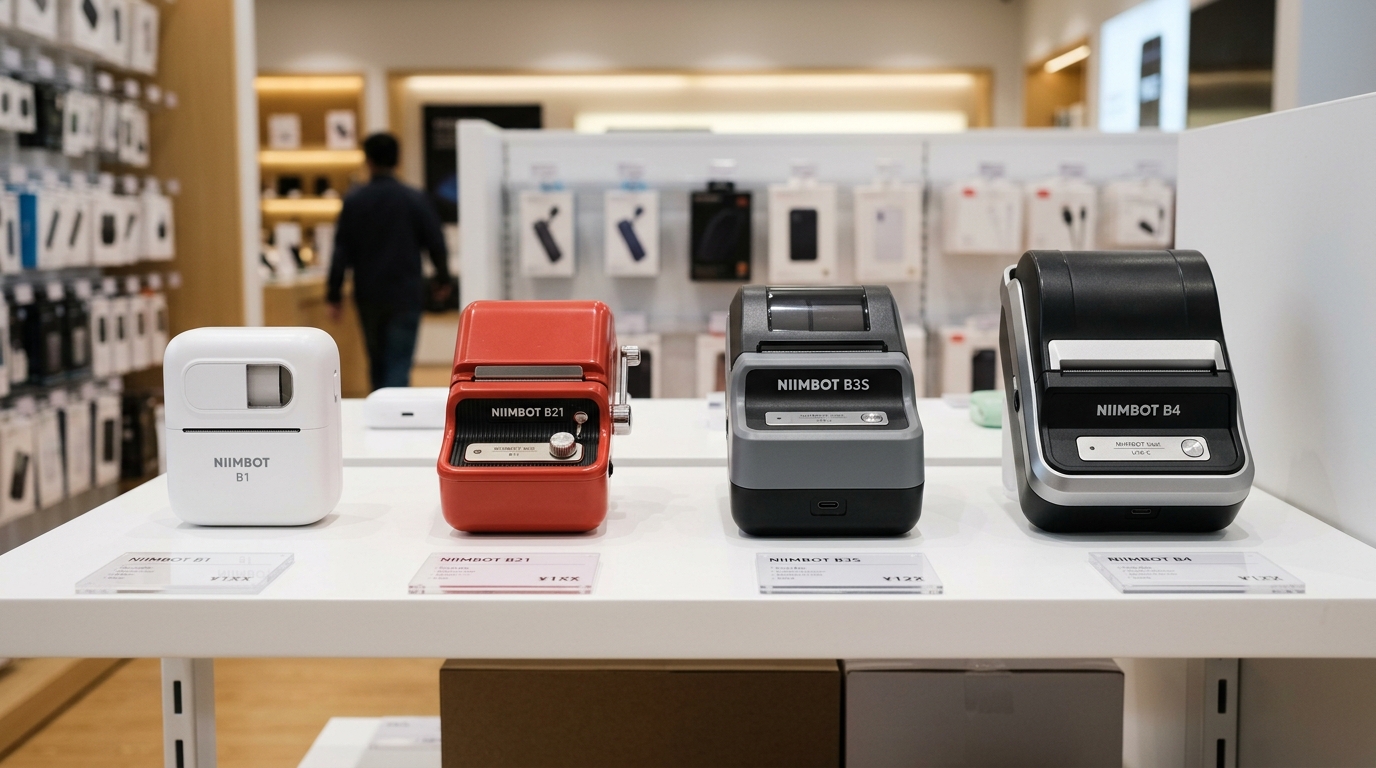
Regarding portable thermal label printing, the Niimbot lineup has established itself as one of the most popular choices for small businesses, home organization. And retail environments.
However, choosing between the Niimbot B1, B21, B3S. And B4 can be an incredibly daunting task due to their varying specifications, distinct form factors, and unique feature sets.
Furthermore, users often encounter specific troubleshooting scenarios depending on the model they are utilizing. This comprehensive guide provides an in-depth comparison of these four leading Niimbot thermal printers, exploring their hardware capabilities, connectivity protocols, battery performance.
And software integration. Additionally, we delve deeply into the most prevalent operational issues users experience across these devices and provide exhaustive, step-by-step diagnostic and resolution strategies to ensure your labeling workflow remains uninterrupted and highly efficient.
Why This Happens: Understanding the Architectural Differences
The operational discrepancies and specific troubleshooting needs of the B1, B21, B3S. And B4 models stem primarily from their internal hardware architectures.
The Niimbot B1 is designed as a minimalist, everyday label maker, utilizing a standard 203 DPI thermal print head optimized for basic text and simple barcodes. In contrast, the B21 features a distinct retro aesthetic but incorporates a more robust feed mechanism to handle specialized jewelry and cable tags.
The B3S and B4 represent the heavy-duty tier, capable of handling significantly wider labels (up to 75mm for the B3S and 110mm for the B4) and integrating more advanced optical sensors for gap and black mark detection. These wider models draw substantially more power during the thermal heating process.
This can lead to rapid battery depletion or thermal throttling if not managed correctly. Furthermore, the varying Bluetooth chipsets across these models mean that pairing stability and range can differ drastically depending on the host device's operating system and ambient radio frequency interference.
Understanding these fundamental architectural differences is crucial. Because it dictates why a B4 might struggle with continuous printing on a low battery (due to the high current draw of its wide print head) whereas a B1 might easily power through a roll of labels under the same battery conditions.
The optical sensors in the B21 are finely tuned for small, intricate labels, making them highly sensitive to dust and debris. This often results in the dreaded "paper out" error even when the roll is full.
By recognizing that these printers are not just differently shaped plastic shells. But rather distinct electromechanical systems with unique power and sensory profiles, you can more effectively diagnose and resolve the issues that arise during daily operation.
Step-by-Step Fix: Resolving Common Print Quality and Connection Issues
If you are experiencing faded prints, skipped labels, or Bluetooth connection drops with your Niimbot printer, follow these precise diagnostic steps. These procedures are applicable across the B1, B21, B3S, and B4 models, with specific caveats noted for each.
- Verify Label Stock Compatibility: Ensure you are using genuine Niimbot thermal paper. Third-party labels often possess a different thermal coating activation temperature. This can result in excessively light or streaky prints regardless of the printer model. The B3S and B4 are particularly sensitive to paper thickness.
- Perform Print Head Maintenance: Turn off the printer and allow it to cool for at least five minutes. Using an isopropyl alcohol wipe (70% concentration or higher), gently clean the ceramic thermal print head element. This removes residue, dust, and adhesive buildup that insulates the heat transfer, a common cause of faded output.
- Recalibrate Optical Sensors: For the B21, B3S, and B4, optical sensor calibration is vital. Remove the label roll, close the lid, and hold the power button for 10 seconds to initiate a hard reset. Open the lid, insert the labels, ensuring they pass under the plastic guides. And press the feed button once to let the printer automatically detect the label gap.
- Reset the Bluetooth Stack: If the printer fails to connect to the Niimbot app, do not simply restart the app. Navigate to your smartphone's Bluetooth settings, completely "Forget" or "Unpair" the Niimbot device. Turn off the phone's Bluetooth radio for 15 seconds, turn it back on. And re-pair directly through the Niimbot application interface, avoiding the native OS pairing menu.
- Optimize Print Density Settings: Open the Niimbot application, navigate to the device settings menu, and adjust the print density (concentration). For older B1 models, increasing this by a factor of 2 can compensate for an aging print head. For the B4 printing large shipping labels, ensure density is set to maximum for optimal barcode scannability.
- Update Device firmware (internal software): Connect your printer to a stable Wi-Fi network via your smartphone and check for firmware (internal software) updates within the Niimbot app. firmware (internal software) patches frequently resolve known bugs related to paper feeding algorithms and Bluetooth connection stability, especially for the newer B4 models.
- Manage Power Output: Never attempt bulk printing while the battery is below 30%. The thermal print head requires a consistent voltage. When the battery drops, the voltage sags under load, leading to progressively lighter prints. Keep the printer plugged into a wall adapter (not a computer USB port) during heavy usage.
Advanced Troubleshooting: Deep Dive into Motor Stalls and Motherboard Diagnostics
When basic maintenance fails to resolve issues with your Niimbot printer, you may be facing more complex electromechanical failures. Motor stalls, particularly common in the B3S and B4 due to their heavy label rolls, often manifest as a grinding noise accompanied by a flashing red error LED.
This is typically caused by excessive tension on the stepper motor. To diagnose this, remove the label roll and manually rotate the platen roller (the rubberized wheel).
It should offer uniform, moderate resistance. If you feel grinding or significant binding, the internal gear train may have stripped teeth or require lubrication with a specialized plastic-safe silicone grease.
In such scenarios, if the device is out of warranty, careful disassembly is required to access the planetary gears.
Another advanced issue involves motherboard failure due to electrostatic discharge (ESD) or power surges from using incorrect charging bricks. The B1 and B21 are particularly susceptible to this if charged with modern "fast chargers" (PD or QC compliant) that fail to negotiate the correct 5V fallback, sending excessive voltage to the charging IC.
If the printer exhibits zero signs of life (no LEDs, no sounds) even after being plugged in for hours, the power management integrated circuit (PMIC) is likely fried. Advanced users with a multimeter can test the voltage across the battery terminals;
a reading below 2.5V indicates a battery that has dropped below its safe threshold and triggered its internal protection circuit, requiring a specialized trickle charge to revive, or a complete battery cell replacement.
FAQ: Frequently Asked Questions
Can I use B21 labels in the B1 printer?
No, the B21 labels utilize an internal RFID chip embedded in the core of the roll which the B21 printer reads to automatically identify the label size and template. The B1 does not possess the necessary RFID reader hardware, meaning it cannot detect these labels correctly, leading to formatting errors and feed jams.
Why does my B3S print barcodes that won't scan?
Unscannable barcodes on the B3S are usually the result of thermal bleeding. If the print density is set too high in the app, the heat spreads beyond the intended black bars, narrowing the white spaces between them.
Is the B4 compatible with Mac or Windows PCs?
Yes, the B4 can be connected to Windows and Mac computers via USB. However, you must download the dedicated Niimbot PC software or appropriate drivers from their official website.
How long should the battery last on the B1?
Under optimal conditions, the B1's 1200mAh lithium-ion battery should yield approximately 4 to 5 continuous hours of printing. This equates to roughly 30 to 40 standard label rolls.
What does the flashing red light mean on the B21?
A rapidly flashing red light on the B21 indicates a critical error state. This is almost exclusively triggered by an open cover sensor, a completely empty paper roll, or a severely jammed label that is obstructing the optical feed sensor.
