


Why This Happens
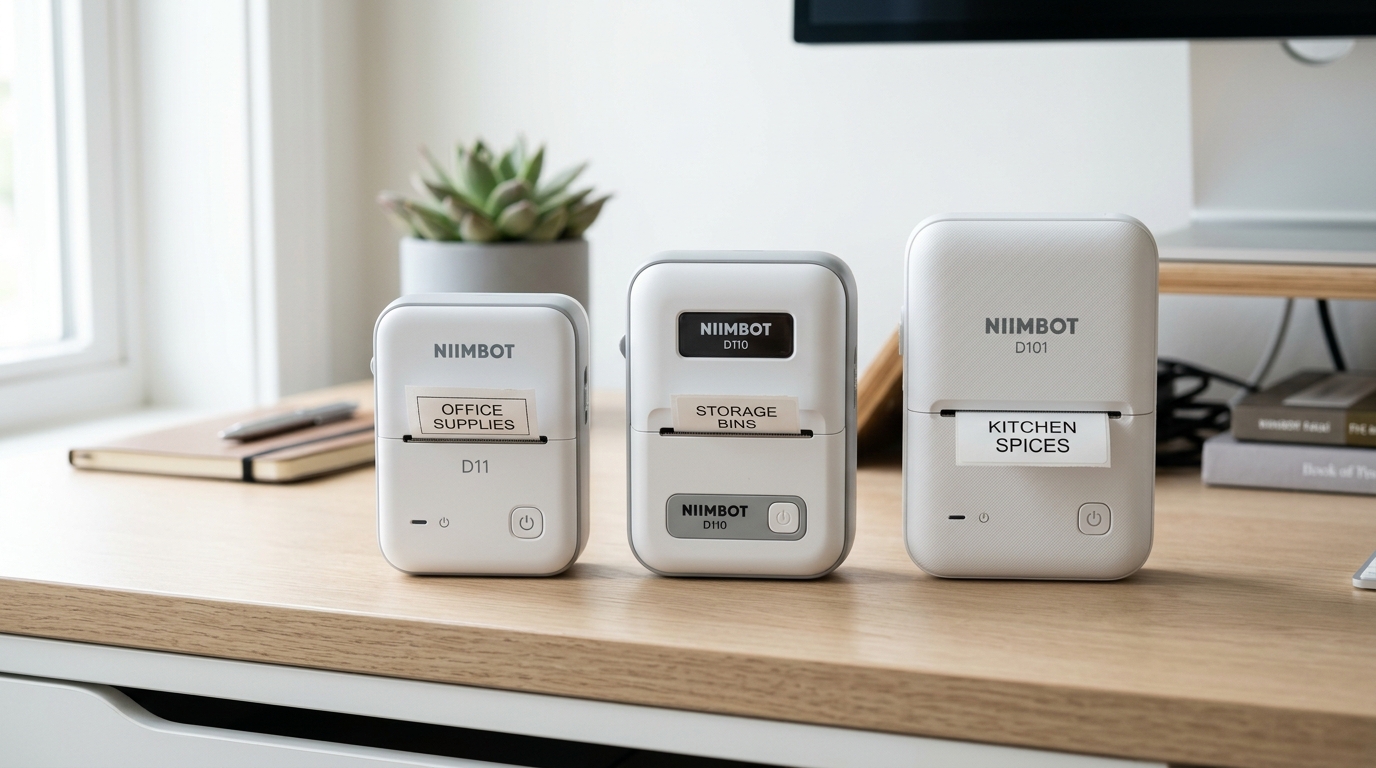
The confusion comes from Niimbot's product lines. They try to capture different budget markets with similar models. The core technology is exactly the same across all three. They all use direct thermal printing controlled by a smartphone app. The differences are in the hardware and capabilities. The D11 is the baseline model. It supports labels up to 15mm wide. It has a sturdy plastic body and a mechanical latch for the door. It is very reliable. However, it is slightly bulkier than newer models. The D110 is the ultra-budget, portable option. It also supports labels up to 15mm wide. But it is much smaller and lighter than the D11. Niimbot removed the mechanical door latch to save space. They used a slide mechanism instead. They also made the battery slightly smaller. It prints the same labels as the D11. Its lighter build may feel less durable for heavy use. Its smaller battery means you must charge it more often. The D101 offers more features. The biggest difference is that the D101 supports wider 25mm labels. This requires a wider print head and a larger internal space. It also uses a different label spool part. The D101 includes a removable plastic spacer to support older, smaller labels. This spacer causes many user problems. You might put a standard 15mm label roll into a D101 without the spacer. If you do, the roll will shift around. This makes the print wander off the edge. It also causes constant paper jam errors. Setup issues usually come from two things. These are Bluetooth permissions and RFID chip reading. The Niimbot app needs exact Bluetooth permissions. It also needs Location Services on Android to find the printer. The printer must read the built-in RFID chip in the label roll. If it fails, the app will not format the canvas correctly. Users often think the printer is broken. But it is just a sensor alignment issue.Step-by-Step Fix
- Physical Preparation and Label Loading: Open the compartment for the D11 and D110. Drop the 12-15mm label roll inside. Make sure the print side faces the shiny metal thermal head. Pull a small amount of label past the tear bar before closing. Crucially, for the D101: Remove the plastic spacer if using wider 20-25mm labels. You must install the spacer into the spool holder for standard 12-15mm labels. This stops the narrow roll from sliding side-to-side.
- App Installation and Permissions: Download the official 'Niimbot' app from your app store. Open the app for the first time. You must give it permission to use Bluetooth. Android users must also grant 'Location Services' permission. Android needs this to scan for Bluetooth devices. It does not track you. Denying these permissions means the printer will not connect.
- Power On and Bluetooth Pairing: Press and hold the power button until the light turns on. Do not pair the printer using your phone's main Bluetooth menu. This will cause a "Connection Rejected" error. Open the Niimbot app instead. Tap the printer icon in the top right corner. Wait for the app to scan. Tap your exact model when it appears to connect.
- Automatic Label Recognition (RFID): The app instantly recognizes the label roll size and type once connected. It uses the built-in RFID chip to do this. The app's canvas will resize automatically to match. The app might say "Unrecognized" or ask you to pick a size. If so, open the printer. Make sure the roll fits snugly against the left side. The RFID reader is there. Close the lid tightly.
- Calibration and Test Print: Double-press the power button quickly. This forces the printer to feed one blank label. It aligns the optical sensor with the gap between the labels. This calibration process stops the first print from being cut off. Create a simple text box in the app. Tap print to confirm perfect alignment.
Advanced Troubleshooting
A common problem with the D-series is poor print quality. You may see faint or broken text. These are direct thermal printers, so they rely on heat. Make sure the battery is fully charged. A low battery reduces the heat on the print head. You can adjust the "Print Density" in the Niimbot app settings. The scale is usually 1 to 3. Increasing this to 3 applies more heat. This results in darker text. It helps when printing complex graphics or barcodes. Printing at maximum density constantly will drain the battery faster. It also shortens the thermal head lifespan. The printer might feed multiple blank labels when you press print. This means the optical gap sensor is dirty or blocked. This sensor spots the change between the label backing and the label. Open the printer and find the small sensor window. It is a tiny glass or plastic square near the rollers. Lightly wet a cotton swab with rubbing alcohol. Gently clean the sensor and the thermal print head. Let it dry completely. Android users might face constant disconnection issues. Check your phone's battery settings if this happens. Strong battery saving features will stop background Bluetooth processes. Go to your phone's settings. Find the Niimbot app. Set its battery usage to "Unrestricted". This ensures a stable two-way connection during long sessions.FAQ
Can I use generic label rolls in my D11/D110/D101?
Technically yes, but it is hard to do. The printers use an RFID chip to identify the label.
Why is the D101 printing halfway off the label?
You are likely using a narrow (15mm) label roll in the D101. You did not use the included plastic spacer.
Is the D110 waterproof?
No, the printer itself is not waterproof. Keep it away from moisture.
My phone sees the printer in Bluetooth settings but it won't connect. Why?
You are trying to pair it like a normal Bluetooth speaker. The D-series uses Bluetooth Low Energy.
