


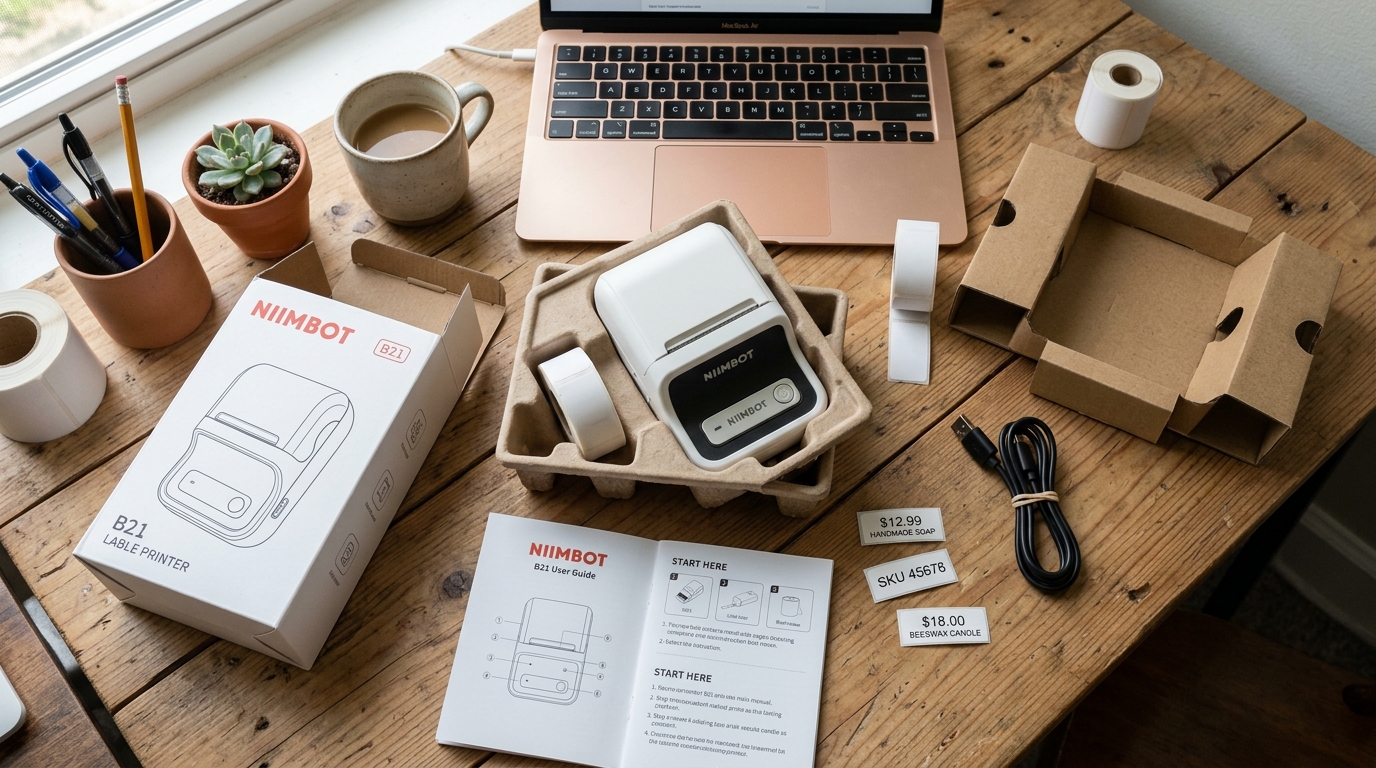
The Niimbot line of thermal label printers has revolutionized small business inventory management, home. Organization, and retail pricing with their compact size, battery-powered portability, and inkless thermal printing technology.
However, setting up a new device, integrating it into a business workflow, or troubleshooting sudden. Connectivity and print quality issues can present significant hurdles for users unaccustomed to thermal printing nuances.
Issues ranging from Bluetooth pairing failures and label alignment problems. To faded prints and confusing app interfaces are common pain points.
This comprehensive guide is designed to explain the Niimbot ecosystem. We will cover the general setup process, explore the intricacies of factory resetting the device to resolve stubborn software glitches, discuss the importance.
Of using the correct cables and power sources, and provide practical advice for leveraging these printers effectively for business pricing and inventory labeling. By mastering these foundational aspects, you can ensure your Niimbot operates reliably and efficiently.
Turning a potential source of frustration into a valuable asset for your organizational needs. Understanding the unique quirks of thermal printing will save you considerable time and money on wasted labels and unnecessary troubleshooting.
Why This Happens
Many of the common issues encountered with Niimbot printers stem from a. Fundamental misunderstanding of thermal printing technology and Bluetooth Low Energy (BLE) connectivity.
Unlike traditional inkjet or laser printers, Niimbot printers do not use ink or toner. They use a thermal printhead that selectively heats specially treated thermal paper to create an image.
If the prints are faded, inconsistent, or missing sections, it is almost always related to the. Thermal paper itself, dirt on the printhead, or insufficient battery power failing to generate the necessary heat.
Using non-genuine or low-quality thermal labels can lead to rapid fading, poor. Contrast, and excessive residue build-up on the printhead, drastically shortening the printer's lifespan.
The printhead requires a very specific temperature profile to activate. The dye in the paper, and low batteries cannot sustain this.
Connectivity problems, particularly Bluetooth pairing failures, frequently occur because users attempt. To pair the printer directly through their smartphone's native Bluetooth settings menu.
Niimbot printers, like many modern smart devices, utilize BLE, which requires. Pairing to be initiated directly from within the dedicated Niimbot mobile application.
Attempting to pair via the OS settings often results in a "Connection Rejected" or "Device Not Supported" error. Furthermore, issues requiring a factory reset usually arise from corrupted internal memory states, which can happen if the printer is powered off.
Unexpectedly during a firmware (internal software) update, or if the connection cache becomes bogged down with conflicting data from multiple paired devices. Finally, cable-related issues are common because while the device uses standard USB-C or Micro-USB ports, the internal charging circuitry requires specific voltage and amperage; using a.
High-wattage fast charger intended for a laptop can sometimes overwhelm the printer's basic power management system, leading to charging failures or erratic behavior that mimics hardware damage.
Step-by-Step Fix
- The Correct Setup Procedure:Start by fully charging your Niimbot printer using the cable provided. In the box and a standard 5V/1A or 5V/2A USB wall adapter. Avoid high-power fast chargers. Once fully charged, load the thermal paper roll. Ensure the paper is oriented correctly—the printable side must face the thermal printhead (usually upwards as it exits the slot). Pull a small amount of paper past the tear-off blade and close. The lid firmly until it clicks to ensure adequate pressure against the printhead.
- App Installation and Pairing: Download the official "NIIMBOT" app from the iOS App Store or Google Play Store. Do not attempt to pair the printer via your phone's standard Bluetooth settings. Open the app, grant the necessary Bluetooth and Location permissions (Location is required by Android. For BLE scanning), and tap the "Unconnected" or "Connect Printer" icon in the top right corner. Turn on the printer, and it should appear in the app's list of discovered devices. Tap it to connect.
- Calibrating the Labels:If your labels are printing off-center or skipping, the printer. Needs to be calibrated to recognize the gap between individual labels. Most Niimbot models auto-calibrate when you close the lid, but you can force calibration. With the printer on and connected, press the power button once quickly. The printer will feed one blank label, detecting the gap and aligning the start position for the next print. This is crucial for avoiding misaligned text.
- Performing a Factory Reset:If the printer is completely unresponsive, failing to connect despite following. The correct app procedure, or behaving erratically, a factory reset is necessary. The exact method varies by model. For many popular models like the D11 or B21, locate the small reset pinhole (usually near the charging port). While the printer is powered on, use a paperclip to press and hold the hidden button inside. The pinhole for 5 to 10 seconds until the printer powers off or the LED flashes rapidly. Alternatively, on models without a pinhole, holding the power button for. 15-20 seconds while turning it on can initiate a hard reset. Check your specific manual to confirm the sequence.
- Cleaning the Printhead: If your prints are faded, streaky, or have white vertical lines running through them, the thermal printhead is dirty. Turn off the printer and open the paper compartment. Locate the thermal printhead—a narrow, horizontal strip of glass or ceramic where the paper feeds out. Dip a cotton swab in high-percentage isopropyl alcohol (90% or higher). And gently wipe it across the entire length of the printhead. Let it dry completely for at least 5 minutes before reloading paper and turning the printer back on. Regular cleaning extends the printer's life significantly.
- Optimizing for Business Pricing: When creating price tags, use the Niimbot app's built-in templates or the spreadsheet import function. For bulk pricing, create an Excel or CSV file containing your product names, barcodes, and prices. The Niimbot app allows you to link specific text boxes and barcode generators on your label design directly to. Columns in your imported spreadsheet, enabling rapid, automated batch printing of hundreds of unique price tags without manual data entry.
- Choosing the Right Cables and Power: Always prioritize the included cable. If it's lost, use a high-quality data-capable USB cable (some cheap. Cables only provide power, preventing firmware (internal software) updates via PC). Never use laptop chargers or high-wattage Power Delivery (PD) chargers. Stick to standard 5V USB Type-A adapters to ensure stable charging and prevent damage to the battery management system. Using the wrong charger is the number one cause of dead Niimbot batteries.
Advanced Troubleshooting
For more complex issues, such as the printer frequently disconnecting mid-print. You may need to explore firmware (internal software) and software conflicts.
First, ensure your Niimbot app is fully updated. Buggy app versions frequently cause connection drops.
Next, check for printer firmware (internal software) updates within the app settings. A firmware (internal software) update can often resolve underlying instability with the Bluetooth module.
If you use multiple Niimbot printers in a business environment, ensure you label them clearly and rename them within. The app to avoid connection confusion, as the default names are often identical and easily mixed up during busy periods.
If the printer refuses to hold a charge or shuts down immediately. When unplugged, the internal lithium-ion battery has likely degraded beyond a usable state.
While Niimbot printers are not generally designed for user-replaceable batteries, technically inclined users can often open the chassis. And replace the standard 18650 or similar cell pack, though this requires soldering skills and voids any warranty.
Finally, if the printer feeds paper continuously without stopping, the optical. Gap sensor is either obstructed by paper dust or has failed entirely.
Use compressed air to blow out the paper path, paying special. Attention to any small windows or lenses near the printhead area.
The sensor relies on seeing light bounce off the backing paper, so dust makes it blind.
FAQ
Why does the app say "Device Not Supported" when I try to connect?
This almost always means you are trying to pair the printer through. Your phone's main Bluetooth settings menu instead of using the Niimbot app.
How long do the thermal prints last before they fade?
Thermal prints are sensitive to heat, light, and friction. Under normal indoor conditions, Niimbot labels can last anywhere from 6 months to 2 years.
Can I print from my Windows PC or Mac?
Yes, many Niimbot models (like the B21 and larger series) support PC connection via USB. You need to download the official Niimbot PC software and the specific Windows or Mac drivers from their official website.
Is it safe to use third-party thermal paper?
While third-party paper might physically fit and print, it is generally not recommended. Many Niimbot printers use RFID chips located inside the core of.
