


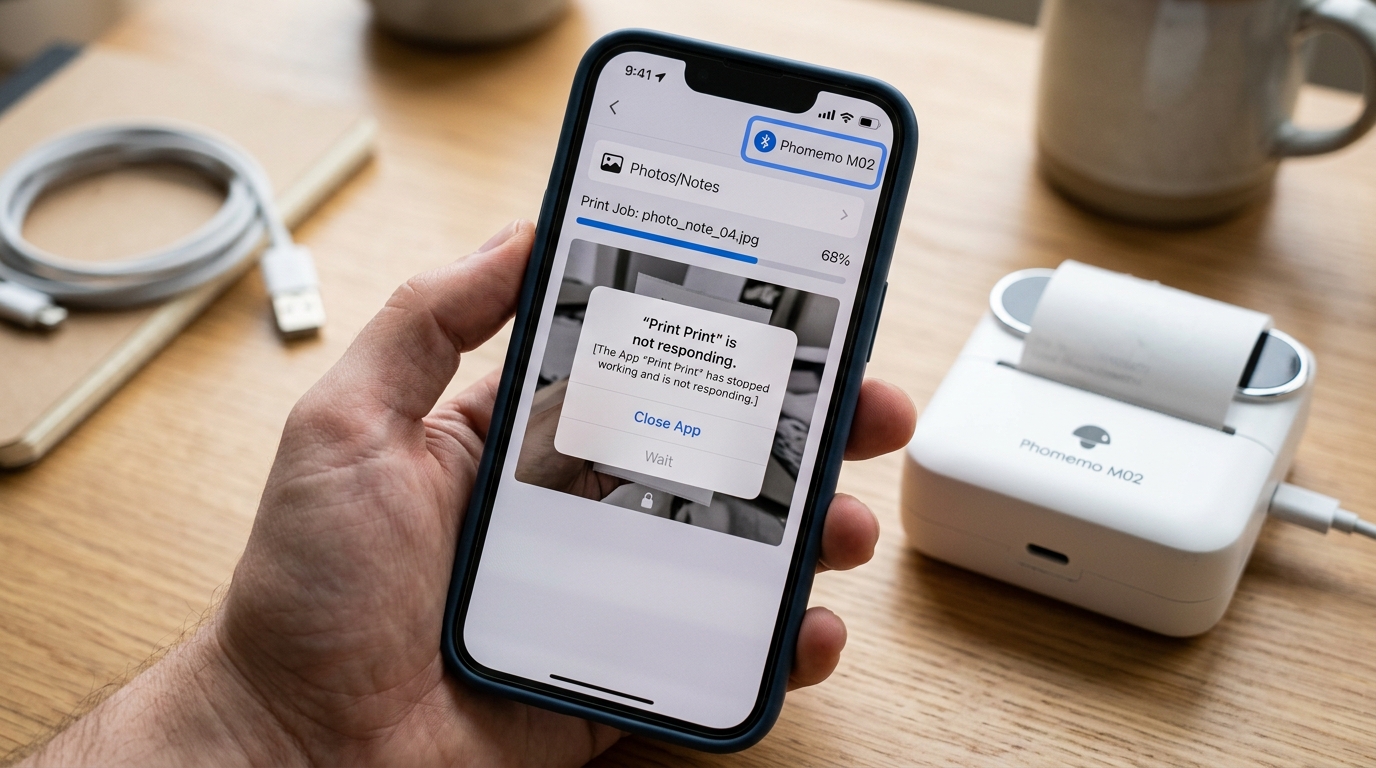
Introduction to Phomemo Printer Connectivity Issues
Phomemo thermal printers, such as the popular M02, T02, and M110 models, have revolutionized personal and small business printing. Their compact size, inkless thermal technology.
Diverse range of adhesive papers make them perfect for journaling, labeling, studying, and crafting. Designed to interface seamlessly with smartphones via the dedicated 'Phomemo' app (available on iOS.
Android), these devices promise a frictionless, portable printing experience.
However, the reality of wireless mobile printing can sometimes fall short of that promise. One of the most prevalent and maddening issues users face is the "Connected but Won't Print" scenario.
Your smartphone's Bluetooth menu shows the Phomemo printer is connected. The Phomemo app recognizes the device.
You select your text or image, press print, and... nothing happens. Sometimes, the app may simply hang endlessly on a "Sending data" screen.
In more severe cases, the entire Phomemo app instantly crashes. Closes out when you attempt to initiate a print job or select an image from your gallery.
These issues effectively turn your portable printer into an expensive paperweight. They disrupt workflow, ruin the creative process, and cause significant frustration.
The root causes are rarely hardware-related; instead, they stem from the complex interplay between your phone's operating system (specifically memory management and Bluetooth protocols), the app's software architecture. The printer's internal firmware (internal software).
This comprehensive troubleshooting guide will break down these technical barriers, offering a structured, step-by-step approach to resolve app crashes, fix stalled print queues. Restore reliable communication between your smartphone and your Phomemo printer.
Why This Happens: The Software and Connectivity Divide
To fix the problem, we must first understand why the connection fails despite appearing active. Bluetooth is a notoriously finicky protocol.
When your phone says "Connected," it merely means the two devices have acknowledged each other's presence. It does not guarantee that the specific data transfer pipeline required by the Phomemo app is open and functioning.
Often, the Bluetooth stack on your smartphone becomes bogged down by multiple connections (smartwatches, headphones, car stereos), leading to corrupted data packets when the app tries to send an image to the printer. The app sends the command, waits for a confirmation from the printer that never arrives.
Eventually times out or crashes.
App crashes, particularly when selecting an image to print, are almost always related to OS-level memory management or permission errors. High-resolution photos from modern smartphones are massive files.
When you select an image in the Phomemo app, the app must load that image into your phone's RAM, compress it, convert it to a monochrome bitmap format. Package it for Bluetooth transmission.
If your phone is running low on available RAM, or if the OS's battery optimization aggressively kills background processes, the conversion fails, resulting in a sudden app crash. Furthermore, if the app does not have the correct, explicit permissions granted (Storage, Local Network, Location), the OS will forcefully terminate it when it tries to access those resources.
Lastly, printer state matters. If the printer's battery drops below 20%, the voltage supplied to the thermal print head.
The Bluetooth radio can become unstable. The logic board may prioritize keeping the Bluetooth connection alive but refuse to engage the high-draw print motor, resulting in the exact "connected but won't print" symptom.
Understanding these three pillars—Bluetooth stack corruption, OS memory/permission management, and hardware power states—guides our troubleshooting strategy.
Step-by-Step Fix: Restoring Print Functionality
- Force Restart the Bluetooth Stack: Do not just tap the Bluetooth icon in your quick settings. Go into your phone's main 'Settings', turn Bluetooth completely OFF. Wait 10 seconds. Turn it back ON. Next, restart the Phomemo printer by holding the power button until it turns off, then turn it back on. This clears minor protocol hiccups.
- Clear the Bluetooth Cache and Re-Pair: If step one fails, the pairing profile is corrupted. Go to your phone's Bluetooth settings, find the Phomemo printer (e.g., "Phomemo_M02"), and select "Forget this device" or "Unpair". Crucial Step: Do not re-pair it from the phone's Bluetooth menu. Open the Phomemo app, go to the connection screen, and pair the printer exclusively through the app's interface.
- Resolve App Crashes by Clearing Data: If the app crashes when you try to print or select a photo, the app's temporary data is likely corrupted.
- Android: Go to Settings > Apps > Phomemo > Storage > select 'Clear Cache' AND 'Clear Data'. This resets the app completely.
- iOS (iPhone): You must uninstall the app entirely. Hold the app icon, select 'Remove App', then go to the App Store and reinstall it fresh.
- Verify OS Permissions and Optimization: Upon reinstalling or clearing data, open the app. When prompted, you MUST allow access to 'Photos/Media', 'Bluetooth', and 'Local Network' (on iOS). On Android, specifically ensure 'Location' permissions are granted (Android requires Location access to scan for Bluetooth Low Energy devices). Furthermore, on Android, go to Battery settings, find the Phomemo app. Set it to 'Unrestricted' or turn off battery optimization for it to prevent the OS from killing the print process.
- Address Hardware Limitations: Plug the Phomemo printer into a wall charger. Ensure it is fully charged (indicated by a solid green or white light, depending on the model). Attempt a print job while the printer is actively charging. If it prints while charging but fails on battery, the internal battery is degraded and failing under load. Finally, open the printer and ensure the paper roll is seated correctly, pulled slightly past the tear-off blade. The lid is firmly snapped shut.
Advanced Troubleshooting: Image Formatting and Firmware (internal software)
If the printer connects and the app doesn't crash. You only get blank pages or half-printed images, you need to look at data processing.
Phomemo printers are monochrome (black and white) thermal devices. They cannot print grayscale smoothly.
If you try to print a highly complex, colorful, low-contrast photograph, the app struggles to dither the image into black. White dots.
This heavy processing can cause the print job to stall. Try printing a simple, high-contrast black text document to isolate the issue.
If text prints perfectly but photos fail, the issue is image complexity. Use the app's built-in editing tools to increase contrast and brightness before printing.
Firmware (internal software) corruption is a rare but possible cause for persistent failure. Some Phomemo models allow firmware (internal software) updates via the app.
Navigate to the 'Profile' or 'Settings' tab within the Phomemo app and look for 'Device Update' or 'Firmware (internal software)'. If an update is available, install it while keeping the phone right next to the printer.
Ensuring both devices are fully charged.
Finally, clean the print head. A dirty thermal head won't cause app crashes.
It will cause faint or missing prints, which users often misinterpret as a software failure. Turn off the printer, open the paper compartment.
Locate the black strip with a thin green or brown line (the print head). Gently wipe it with a cotton swab lightly dampened with rubbing alcohol.
Let it dry completely before attempting to print.
FAQ
Why does the Phomemo app crash instantly when I try to select a photo from my gallery?
This is almost always a permissions issue or a memory limitation. Ensure the app has explicit permission to access your device's storage/photos in your system settings.
Can I print to my Phomemo printer from a PC or Mac instead of my phone?
Some specific models (like the M110 or M220) offer PC/Mac drivers and can connect via a USB cable. However, the vast majority of the smaller consumer models (like the M02 or T02) are designed exclusively for mobile use via the Phomemo app.
Does the printer need a constant Wi-Fi or cellular internet connection to work?
No. The connection between your phone and the printer is entirely via Bluetooth.
My phone says it's paired, but the app says "Not Connected". What do I do?
This happens when the phone's OS Bluetooth stack conflicts with the app's internal Bluetooth scanner. Unpair (Forget) the printer from your phone's main OS Bluetooth settings menu.
