


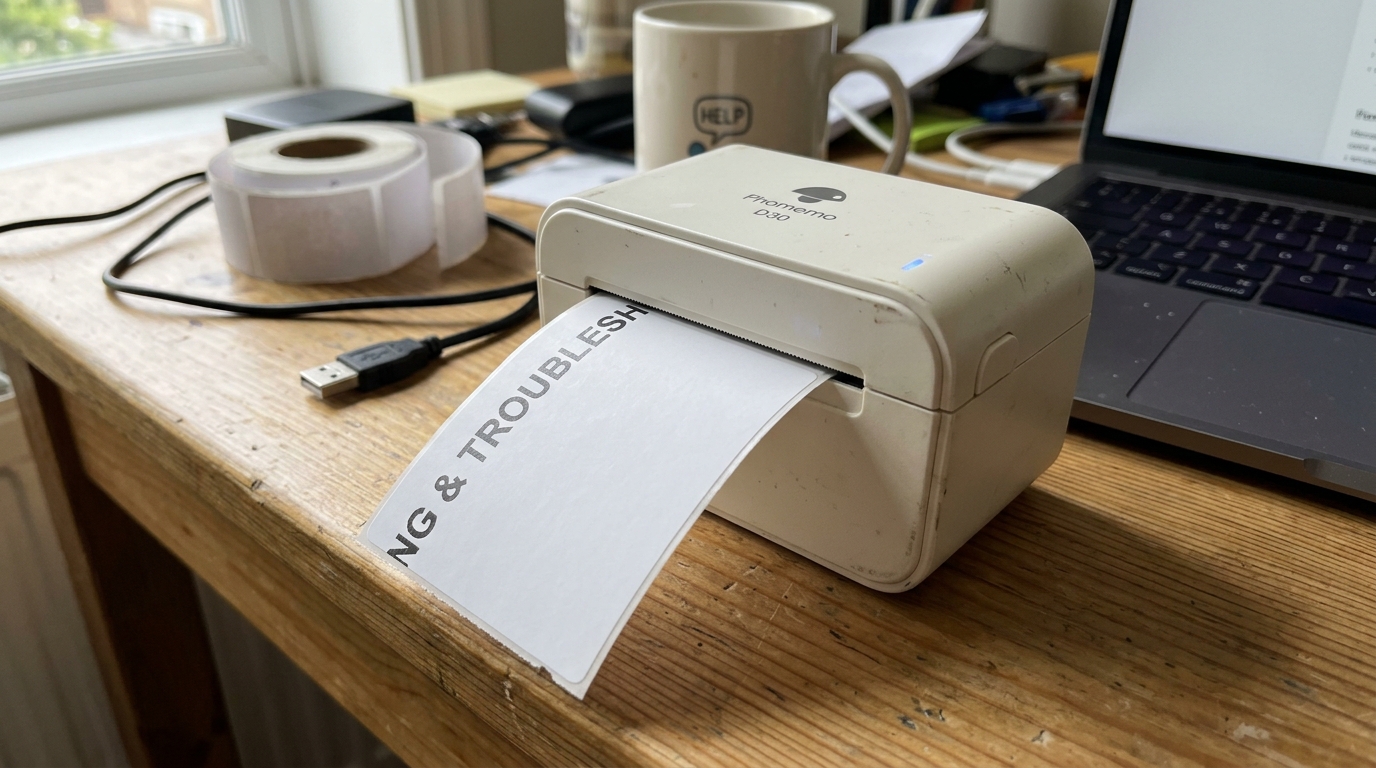
Phomemo Label Off Center, Size Not Recognized, and Roller Guide Fix
Phomemo thermal printers have gained immense popularity for their affordability, compact design, and ease of use, particularly among small business owners, crafters. Organization enthusiasts.
However, a highly common. Frustrating issue users encounter is the printer failing to recognize the correct label size, resulting in prints that are wildly off-center, bleeding off the edge of the label, or printing across the gaps between labels.
This problem completely negates the efficiency of a thermal printer, wasting expensive label rolls. Causing significant delays in shipping or packaging workflows.
Unlike traditional inkjet printers, thermal label printers rely on a combination of physical hardware sensors, precise software settings. Mechanical guides to maintain alignment.
When any one of these three elements is misconfigured, the entire printing process breaks down. This comprehensive troubleshooting guide will dissect the mechanics of how Phomemo printers detect label boundaries, explain why the software often misinterprets dimensions, and provide a rigorous step-by-step methodology to recalibrate the hardware.
Software, ensuring perfectly centered, professional-looking labels every single time.
Why This Happens
The root cause of off-center printing and size recognition failures on Phomemo printers usually boils down to a disconnect between the physical label loaded in the machine. The logical dimensions defined in the printing software or operating system.
Phomemo printers, like most direct thermal label printers, utilize an optical gap sensor located along the paper feed path. This sensor emits a small beam of light to detect the physical gap, notch, or black mark between individual labels on a continuous roll.
This is how the printer hardware knows where one label ends and the next begins. If the adjustable paper guides inside the printer are not holding the roll snugly, the paper will drift laterally as it feeds over the roller, causing the sensor to miss the gap or the print head to lay down the image diagonally.
From a software perspective, the problem is often worse. When you hit print in an application (like Shopify, Etsy, Adobe Reader, or the Phomemo App), the software sends a canvas size to the printer driver.
If your shipping platform generates a 4x6 inch label, but your Mac or Windows print dialog defaults to A4 or Letter size, the printer driver attempts to scale. Crop a massive document onto a tiny thermal label.
This results in the printer outputting only a small, off-center quadrant of the intended image. Furthermore, if you switch between different label sizes (e.g., moving from a 4x6 shipping label to a 2x2 barcode label) without running the hardware recalibration sequence, the printer's internal memory retains the gap measurements of the previous roll, leading to catastrophic alignment failures.
Step-by-Step Fix
- Audit the Physical Hardware: Begin by opening the main lid of the Phomemo printer. Remove the label roll completely. Inspect the main rubber feed roller (platen roller) for any sticky adhesive residue from previous jams. Clean it gently with a lint-free cloth lightly dampened with isopropyl alcohol.
- Set the Paper Guides Precisely: Reload the label roll. This is the most critical physical step. Adjust the plastic paper guides on either side of the roll. They sit completely flush against the edges of the backing paper. They must be tight enough to prevent any side-to-side wiggling. Loose enough that the paper feeds freely without buckling or binding.
- Perform the Hardware Recalibration: You must force the printer to re-measure the label gaps. Close the lid with the paper feeding out slightly. Depending on your Phomemo model (e.g., PM-246 Pro), press. Hold the main feed button on the top of the printer until you hear one distinct beep, then release it immediately. The printer will feed several blank labels back and forth. It is actively using its optical sensor to measure the exact length of the new label. Do not interrupt this process.
- Verify OS Print Settings (Windows/Mac): The hardware is now calibrated, but the software must match. Open the document you wish to print (e.g., a PDF in Adobe Acrobat). Click Print. Do not just hit the print icon; open the full system print dialog.
- Define the Exact Paper Size: In the print dialog, locate the "Paper Size" or "Page Setup" dropdown. Never leave this on "Default" or "Letter." If you are printing standard shipping labels, you must explicitly select "4 x 6 in" or "100mm x 150mm". If this size is not listed, you must go into your OS Printer Settings. Create a "Custom Paper Size" with these exact dimensions.
- Disable Scaling and Margins: Look for options related to "Scale to Fit," "Fit to Page," or "Shrink Oversized Pages." Ensure these are turned OFF or set to "Actual Size" or 100%. Thermal labels have no unprintable margins. Setting margins to anything other than zero will force the image off-center.
- Check Platform-Specific Settings: If you are printing directly from a web browser (e.g., eBay or Shopify), the browser's own print dialog often attempts to inject headers and footers (like the URL. Date). You must uncheck the box for "Print Headers and Footers" in the browser print settings, as this extra text pushes the main label image down. Off-center.
- Clean the Optical Sensor: If recalibration fails, the gap sensor might be dirty. Unplug the printer, open it. Locate the small glass or plastic sensor node beneath the paper path (refer to your manual for the exact location). Gently wipe it with a dry cotton swab to remove paper dust.
- Update the Driver: Visit the official Phomemo website and ensure you have the absolute latest driver installed for your operating system. Old drivers often suffer from rendering bugs that incorrectly translate PDF coordinates to the thermal print head.
- Print a Test Page: Print a single label. If it is still slightly off, you can use the advanced driver settings (under "Printer Properties" -> "Advanced" or "Halftone") to adjust the vertical. Horizontal offsets by a few millimeters to dial in the absolute perfect centering.
Advanced Troubleshooting
If you have meticulously followed the steps above. The printer continues to print off-center or feed continuously without stopping, the issue may be related to the label media itself.
Some cheap, generic thermal labels use a backing paper that is too dark or too thick, preventing the optical sensor's infrared light from penetrating the gap properly. The printer effectively sees a solid, continuous strip of paper.
Test the printer with a roll of official Phomemo brand labels or a high-quality alternative to rule out media incompatibility. Additionally, some specialty labels (like circular stickers) use black marks on the back of the paper rather than physical gaps for alignment.
You must go into the advanced printer driver settings on your computer. Change the "Sensor Type" or "Media Type" from "Gap/Web" to "Black Mark." Failure to instruct the printer on what type of sensor index to look for will result in complete alignment failure.
Finally, if the print is centered. Skewed diagonally, the internal platen roller may be worn out on one side, or the print head pressure springs may be uneven.
This uneven pressure pulls the paper faster on one side than the other. Inspect the roller for uneven wear; if it is smooth or indented on one side, the hardware component must be replaced.
FAQ
Why is my Phomemo printer feeding blank labels endlessly?
Endless feeding occurs because the printer's optical sensor cannot detect the gap between the labels,. It keeps feeding paper searching for the end of the page.
Can I print a 4x6 label on a smaller Phomemo printer like the M110?
No. Printers like the Phomemo M110 or D30 are narrow-format label makers designed for barcodes, address stickers.
How do I fix blurry or faint prints on my Phomemo?
Faint prints are usually caused by two factors: a dirty thermal print head or the print density setting being too low. First, unplug the printer, open it, and wipe the black thermal element with an alcohol pad.
Why does the label print sideways across multiple stickers?
This happens when the dimensions in your software are flipped. For example, the software is trying to print a portrait 4x6 image onto a roll that is loaded landscape, or vice versa.
