


Introduction
A Phomemo printer that feeds paper. Produces entirely blank output is one of the most common and perplexing issues users face.
You've connected the app, designed your label, pressed print. Heard the motor whir, and watched the paper spool out—only to find absolutely nothing printed on it.
This problem can halt your workflow, whether you're organizing your pantry. Printing shipping labels for a small business, or creating study notes.
The frustration is compounded by the fact that the printer appears to be functioning mechanically. Perfectly; the issue lies entirely in the thermal transfer process.
To understand why this happens, we must first understand how thermal printing works. Unlike traditional inkjet or laser printers that apply liquid ink.
Dry toner to the surface of the paper, thermal printers use heat. They require specially treated thermal paper.
The printhead, a tiny strip of microscopic heating elements. Rapidly heats up and cools down as the paper passes over it.
When heat is applied to the thermal paper, a chemical reaction occurs in the coating. Causing it to turn black (or sometimes blue, depending on the paper type).
Therefore, for an image to appear, three things must happen correctly: the printhead must get hot. It must make direct contact with the paper, and the correct side of the thermal paper must be facing the heat source.
This comprehensive guide will explore every potential reason why your Phomemo printer is dispensing blank paper. We will cover the most common culprit—paper orientation—in detail, explaining how to correctly identify the printable side of thermal paper.
We will also address issues related to paper type. Printhead contact, and software glitches that can send empty data to the printer.
By systematically checking these elements, you can quickly identify the source of the problem and get back to printing. We will move from the simplest and most likely solutions (like flipping the paper roll) to more complex hardware diagnostics.
Let's explore the mechanics of thermal printing to solve this blank paper mystery once and for all.
Let's begin by examining the physical properties of the paper itself. As this is where the vast majority of printing failures originate.
Why This Happens
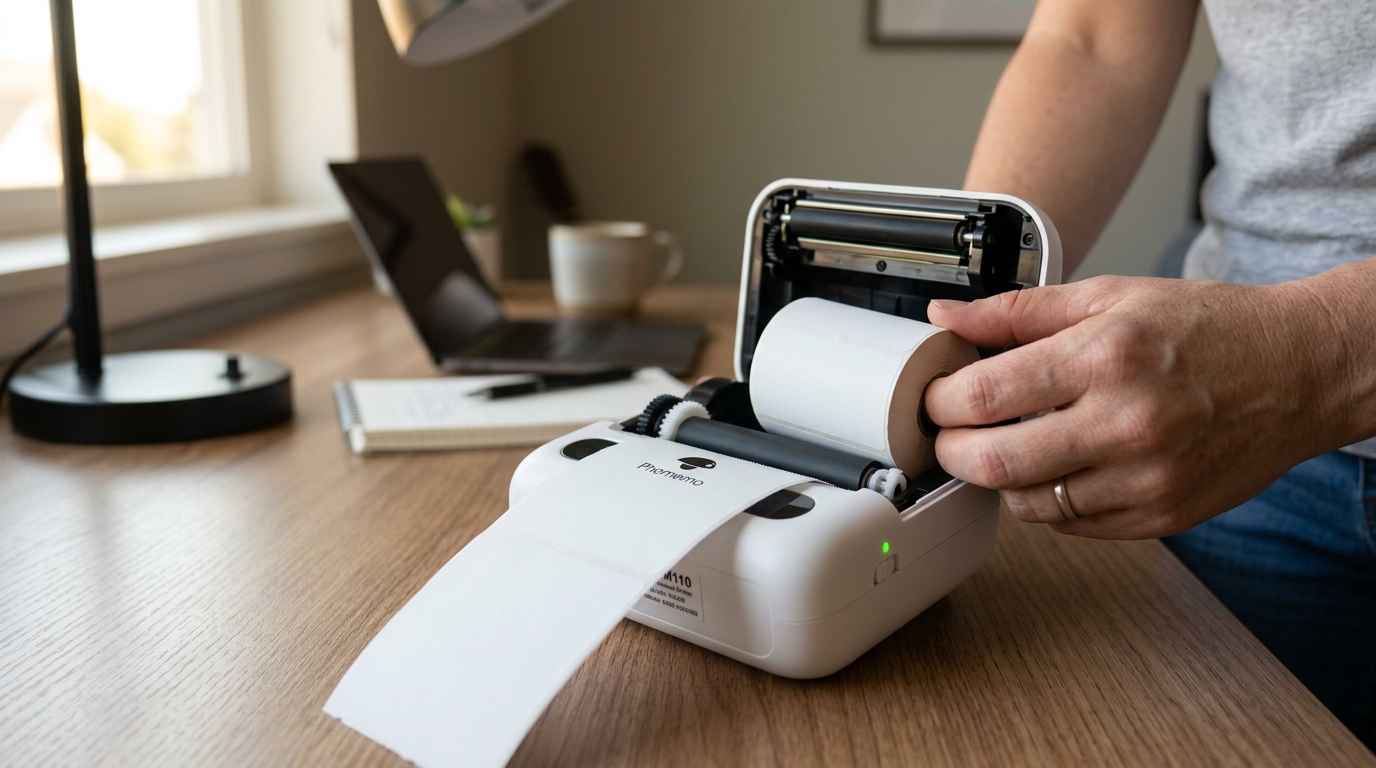
The number one reason a Phomemo printer (or any thermal printer) outputs blank paper is. That the roll is installed upside down.
Thermal paper only has the heat-sensitive chemical coating on one side. The other side is just plain paper backing.
The printhead in a Phomemo printer is typically located on the top part of the clamshell mechanism. If the paper feeds from the bottom of the roll facing up.
The plain backing makes contact with the hot printhead, resulting in no chemical reaction and a completely blank output.
Another significant cause is using the wrong type of paper. While it might look and feel similar.
Regular receipt paper or standard printer paper will not work in a direct thermal printer. You must use direct thermal labels or thermal continuous paper.
If you accidentally loaded non-thermal paper, the printhead will heat up. But no image will appear because the paper lacks the necessary chemical coating.
Additionally, using old or degraded thermal paper can cause problems; if exposed to extreme heat. Sunlight during storage, the chemical coating can be neutralized, rendering the paper useless.
Finally, the issue could be mechanical or software-related. If the printer's lid isn't closed tightly.
The printhead won't make sufficient pressure against the paper, resulting in faint or blank prints. On the software side, if the app sends a print command with a blank canvas.
Or if there's a communication error that drops the data payload while still triggering the feed mechanism, the result will be a blank label.
Step-by-Step Fix
- Check Paper Orientation (The "Scratch Test"): This is the most crucial step. Remove the roll of paper from the printer. Take your fingernail or a coin and lightly scratch the surface of the paper.
- If a dark grey or black line appears where you scratched, that is the thermal side.
- If nothing happens, you scratched the backing.
- Reload the Paper Correctly: Open the printer lid. Insert the roll so that the thermal side (the side that turned black when scratched) will face the printhead. In most Phomemo models (like the M02, D30, M110), the paper should feed from the top of the roll. Pulling forward towards you, so the printable side is facing UP towards the lid where the printhead is located.
- Ensure Proper Closure: Pull a small amount of paper out so it extends slightly past the cutter or tear bar. Close the lid firmly until you hear a distinct "click" on both sides. A loose lid prevents the printhead from pressing firmly against the paper.
- Verify Paper Type: Ensure you are actually using Direct Thermal paper. If you bought generic labels online. Verify the listing explicitly says "Direct Thermal" and not "Thermal Transfer" (which requires a ribbon).
- Test Print: Turn the printer on. Most Phomemo printers can print a self-test page by double-clicking the power button. This bypasses the app and tests the hardware directly. If the test page prints correctly, the issue is with your app or Bluetooth connection.
- Check the App Canvas:If the test page prints but your custom labels are blank. Ensure your design in the Phomemo app actually contains elements (text, images) and that they are colored black. White text on a white background will print blank.
Advanced Troubleshooting
If you have verified the paper orientation and type,. The printer still outputs blank paper even on a self-test, you may be dealing with a hardware failure.
The most severe issue is a dead printhead. The printhead is a ceramic bar with microscopic heating elements.
If the internal wiring to this bar is damaged, or if the heating elements have burned out (rare. Possible after heavy use or power surges), the printer will not be able to generate the heat required to activate the paper.
A dead printhead typically requires replacing the entire printer, as the part is often not user-serviceable or cost-effective to replace.
Another potential hardware issue is a faulty mainboard failing to send the electronic signals to the printhead. Even though it's sending signals to the feed motor.
This is difficult to diagnose without a multimeter and circuit schematics. However, before declaring the hardware dead, try a factory reset if your model supports it. (often involving holding the power button for an extended period or pressing a recessed reset button with a pin).
This can clear any corrupted internal state preventing the print logic from executing.
Finally, inspect the printhead itself. Unplug the printer and open it up.
Look at the glass-like strip on the lid mechanism. Is it completely covered in a thick layer of adhesive residue or paper dust?
While a dirty printhead usually causes faint prints. Lines, severe buildup could theoretically insulate the heat entirely, leading to a blank print.
Clean it thoroughly with a lint-free cloth and high-concentration isopropyl alcohol (90%+).
FAQ
I scratched the paper, but neither side turned black. What does this mean?
This means you are not using direct thermal paper. It might be regular paper, or thermal transfer paper (which requires an ink ribbon).
It prints, but the text is extremely faint, almost invisible. Is this the same issue?
Faint text is usually caused by a low battery, a dirty printhead, or low print density settings in the app. It's different from a completely blank print, which is usually orientation.
Can I use Dymo or Zebra labels in my Phomemo printer?
It depends on the size and the indexing method. If they are direct thermal labels and fit physically, they might work.
The app shows my design, but it feeds a blank label anyway. Why?
If the self-test page (double click power) prints fine, the issue is the app or connection. Try restarting your phone, clearing the app cache, or completely reinstalling the Phomemo app.
