


Introduction
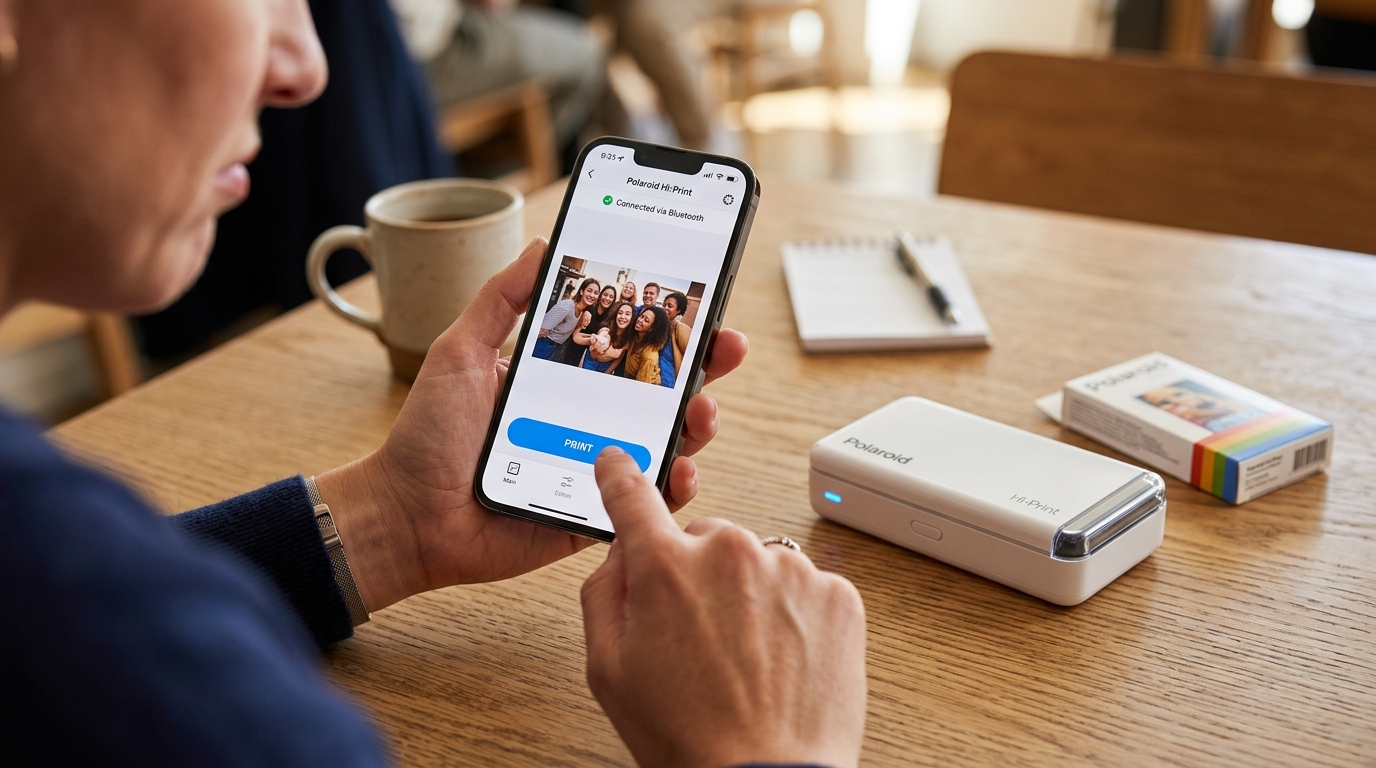
Dealing with a Polaroid Hi-Print printer that successfully pairs with your smartphone. But Stubbornly refuses to print—or worse, continuously disconnects—can be an incredibly frustrating experience.
This pocket-sized dye-sublimation printer is designed for quick, on-the-go photo printing, bringing digital memories into the physical world with vibrant colors and a sticky back. However, the seamless experience is often interrupted by Bluetooth communication breakdowns, firmware (internal software) glitches, or app-related anomalies.
When your device pairs but won't print, it indicates a breakdown in the data transfer protocol rather than the initial handshake. This comprehensive guide will walk you through the intricate details of diagnosing, understanding.
And Resolving these persistent connection issues, ensuring your Polaroid Hi-Print returns to its reliable, photo-producing state.
Why This Happens
The Polaroid Hi-Print relies on Bluetooth Classic and Bluetooth Low Energy (BLE) to communicate with your mobile device. The initial pairing often uses BLE for discovery.
But The actual transmission of a high-resolution image requires a stable, higher-bandwidth connection. Several factors can cause this specific failure mode where pairing is successful but printing fails or the connection drops repeatedly.
Firstly, Bluetooth cache corruption on your smartphone can cause the device to remember the printer. But Fail to negotiate the data transfer protocol.
Secondly, aggressive battery optimization settings on modern Android. And IOS devices can forcibly suspend the Polaroid Hi-Print app in the background, severing the connection right as the print job is being spooled.
Thirdly, environmental interference from other wireless devices operating on the 2.4GHz band (like Wi-Fi routers, microwaves. Or Other Bluetooth peripherals) can cause packet loss, leading the printer to abort the transfer.
And Disconnect to prevent corrupted prints. Lastly, outdated firmware (internal software) on the printer itself or an outdated app version can contain bugs related to memory management during the image rendering phase, causing a crash and subsequent disconnect.
Step-by-Step Fix
- Perform a Hard Reset of the Printer: Locate the tiny reset pinhole on the side or bottom of your Polaroid Hi-Print. Using a paperclip, gently press and hold the hidden button for exactly 10 seconds while the printer is powered on. You should see the LED indicators flash or turn off. This clears the printer's volatile memory and flushes any stuck print jobs or corrupted Bluetooth pairing states.
- Clear Smartphone Bluetooth Cache (Android) or Forget Device (iOS): On Android, navigate to Settings > Apps > System Apps > Bluetooth, and clear the storage cache and data. On iOS, go to Settings > Bluetooth, find the Polaroid Hi-Print, tap the 'i' icon, and select 'Forget This Device'. Restart your phone immediately after doing this to ensure the Bluetooth stack initializes cleanly.
- Disable Battery Optimization for the App: To prevent the operating system from killing the print spooler, go to your phone's battery settings. Find the Polaroid Hi-Print app and set its background usage to 'Unrestricted' (Android) or disable 'Low Power Mode' and ensure 'Background App Refresh' is enabled (iOS).
- Reinstall the Polaroid Hi-Print App: Delete the app entirely from your device. This removes any corrupted local cached images or faulty configuration files. Download the latest version fresh from the Google Play Store or Apple App Store.
- Re-Pair in a Clean Environment: Move away from major sources of 2.4GHz interference. Turn on the printer, open the newly installed app, and initiate the pairing process directly through the app's interface rather than the phone's native Bluetooth menu, as the app handles the specific BLE and Classic Bluetooth handshakes required for data transfer.
- Update Printer firmware (internal software): Once paired and holding a stable connection, immediately check the app settings for a firmware update. If an update is available, ensure your printer has at least a 70% battery charge and keep the phone directly next to the printer during the entire update process.
- Test with a Minimal Image: Before printing a complex, highly edited photo, try printing a small, basic image (like a solid color square or a low-resolution icon) to verify that the data pipeline is functional without overloading the printer's memory buffer.
- Check the Paper Cartridge: Sometimes, a mechanical jam or an improperly seated cartridge can masquerade as a connection issue. The printer might disconnect as a failsafe if it detects a motor stall. Remove the cartridge, inspect for any exposed or wrinkled ribbon, and reinsert it firmly until it clicks.
- Charge to 100% with a High-Quality Cable: A degraded battery failing to deliver the peak current required for the thermal print head can cause a sudden voltage drop, leading the printer's microcontroller to reset and disconnect. Charge the printer fully using a certified 5V/2A wall adapter and a high-quality USB cable.
- Try a Different Mobile Device: If all else fails, isolate the issue by attempting to pair and print using a completely different smartphone or tablet. If the second device works flawlessly, the issue lies deeply within the Bluetooth hardware or OS-level configurations of your primary device.
Advanced Troubleshooting
If the standard steps do not resolve the issue, we must delve deeper into diagnostic procedures. One advanced method involves analyzing Bluetooth HCI (Host Controller Interface) snoop logs on Android.
By enabling Developer Options and turning on 'Enable Bluetooth HCI snoop log', you can capture the exact packets exchanged between your phone and the printer. After attempting a print and experiencing a disconnect, you can extract this log file and analyze it using a tool like Wireshark.
Look for L2CAP connection timeouts or sudden Disconnect Complete events with specific error codes (like 0x08 for Connection Timeout or 0x13 for Remote User Terminated Connection). This can definitively tell you whether the phone or the printer is initiating the drop.
Another advanced consideration is the specific interaction with Bluetooth profiles. The Polaroid Hi-Print uses SPP (Serial Port Profile) or a built-in GATT characteristic over BLE for data transfer.
Some custom Android ROMs or heavily modified manufacturer skins implement aggressive Bluetooth stack modifications that break standard SPP behavior. Flashing a stock ROM or updating your phone's OS to the latest patch level can sometimes resolve deep-seated stack incompatibilities.
Additionally, if the printer repeatedly disconnects exactly at the same percentage of the print job (e.g., always fails at 30%), this points to a memory buffer overflow on the printer's internal logic board. This Is usually indicative of a hardware failure necessitating a warranty replacement rather than a software glitch.
FAQ
Why does the printer flash red and disconnect?
A flashing red LED followed by a disconnection usually indicates a critical hardware error, such as a paper jam, an empty cartridge. Or A depleted battery unable to sustain the print head's thermal load.
Can I print via USB instead of Bluetooth?
No, the Polaroid Hi-Print is designed exclusively for wireless Bluetooth printing via mobile devices. The micro-USB port is strictly for charging the internal battery.
Do I need to pair through the phone settings or the app?
It is highly recommended to pair the printer directly through the Polaroid Hi-Print app. The app handles the necessary protocol handshakes required for the built-in data transfer, whereas pairing through the OS menu might only establish a basic, non-functional profile.
Does having multiple Bluetooth devices connected affect printing?
Yes. Having multiple active Bluetooth connections, such as wireless headphones, smartwatches.
How long does a full charge take, and does it affect connectivity?
A full charge typically takes about 1 hour. Printing with a low battery can cause voltage instability, leading the printer to suddenly reset.
