


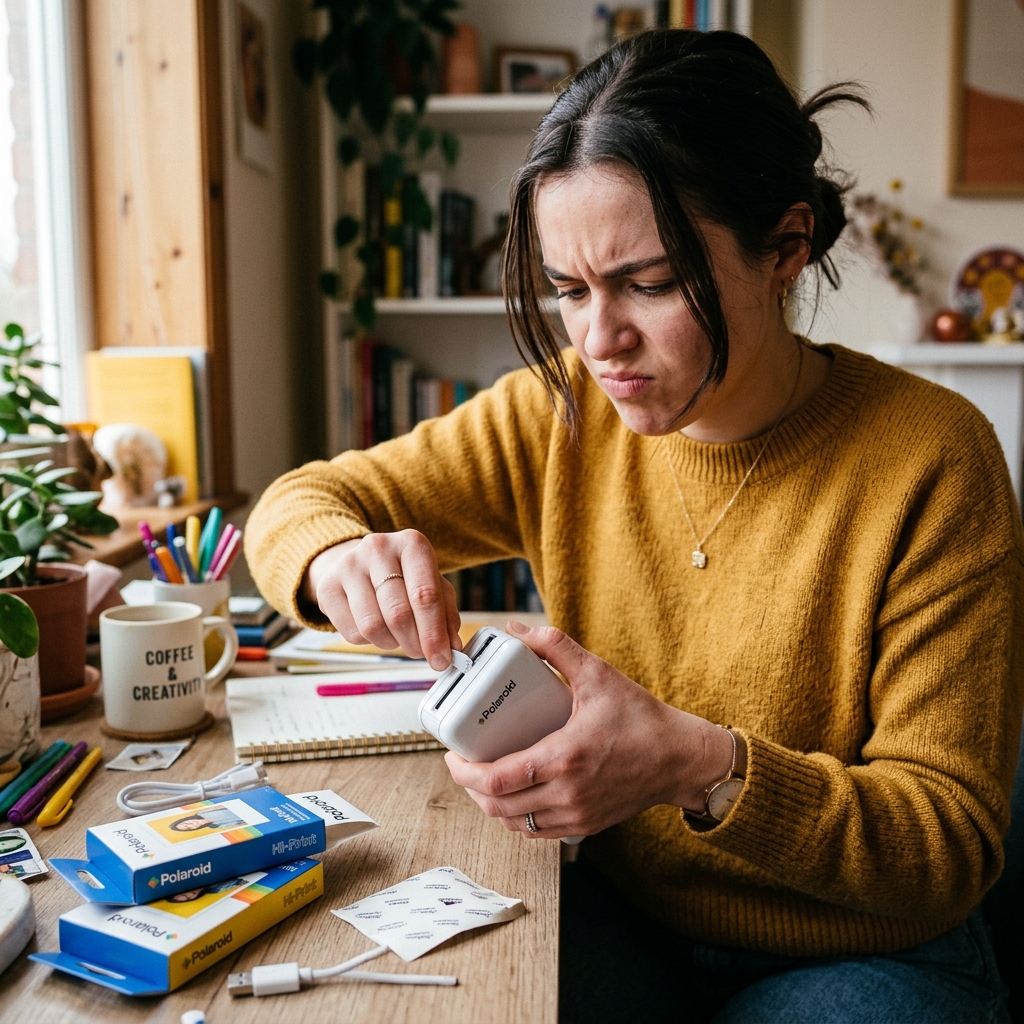
Polaroid Hi-Print: Fix Cartridge Door Won't Open or Close
The Polaroid Hi-Print is a fantastic, compact dye-sublimation printer that allows you to. Turn digital smartphone photos into vibrant, sticky-backed physical prints in seconds.
Its portability and ease of use make it a favorite for journaling, scrapbooking, and capturing memories on the go. However, a mechanical issue that frequently frustrates users involves the side cartridge door.
The all-in-one ribbon and paper cartridges are designed to slide in smoothly,. Many users encounter scenarios where the cartridge door becomes completely stuck—refusing to open when an old cartridge needs replacement,.
Failing to click shut completely when a new cartridge is inserted. Because the Hi-Print relies on precise mechanical alignment for its dye-sublimation process.
Any irregularity with the door will trigger an error in the companion mobile app and prevent the device from printing. Forcing the door can easily snap the delicate plastic hinges or internal locking mechanisms, permanently ruining the printer.
This comprehensive guide will explain the mechanical principles behind the Polaroid Hi-Print's cartridge system, why these jams occur,. Provide safe, step-by-step methods to resolve door issues without damaging your device.
Ensuring you can return to printing high-quality photos seamlessly.
Why This Happens
The cartridge door mechanism on the Polaroid Hi-Print is surprisingly complex, despite its simple appearance. It isn't just a cover; it acts as a functional lever that engages.
The internal motor gears with the spools inside the dye-sublimation cartridge. When you close the door, mechanical pressure pushes the cartridge inward.
Aligning the colored ribbon spools with the printer's internal drive shafts. If the door refuses to close, it is almost always.
The cartridge itself is not seated deeply enough,. The internal drive shafts are misaligned and blocking the spools from engaging.
This often happens if a previous print job was interrupted (e.g., by a dead battery or sudden Bluetooth disconnection). Leaving the internal gears in an active, protruding state rather than their neutral, resting position.
Conversely, if the door refuses to open, it is typically. The printer experienced an error mid-print, and the print head.
The drive gears are still physically locked into the cartridge's ribbon. The device's firmware (internal software) holds the door lock shut to prevent.
User interference while the thermal head is hot and engaged. Additionally, minor physical deformities in the plastic cartridges, accumulated dust in the tracks,.
Simply inserting the cartridge at a slight angle can cause the rails to bind, preventing the door from operating smoothly. Understanding that the door is mechanically linked to the internal print engine is crucial for troubleshooting.
Step-by-Step Fix
- Never Use Force: The most important first step is recognizing that forcing the door will break the device. Put away any screwdrivers, knives, or prying tools. The mechanism is entirely plastic and will snap under pressure.
- Perform a Soft Reset (If Door Won't Open): If the door is stuck closed, the internal mechanism is likely locked. Plug the printer into a reliable USB power source. Press and hold the power button for a full 10-15 seconds. To force a hard reboot of the printer's logic board.
- Re-establish the Bluetooth Connection: Open the Polaroid Hi-Print app on your smartphone. Re-pair the device. Sometimes, simply establishing a connection and checking the printer status in the app will prompt the printer's firmware (internal software) to recognize a stalled state. Automatically retract the print head, unlocking the door mechanism.
- Execute a "Dummy" Print: If the printer is on and connected, but the door is locked (and it has paper inside). Attempt to print a completely blank, white image from the app. This forces the motor to cycle through its full mechanical rotation. As the cycle completes, the gears should return to their neutral home position. Releasing the lock on the cartridge and allowing the door to open easily.
- Check Cartridge Alignment (If Door Won't Close): If you cannot get the door to shut, the new cartridge is likely seated incorrectly. Remove the cartridge entirely. Look down into the slot. You will see small, protruding plastic drive shafts.
- Inspect the Cartridge Spools: Look at the side of the new cartridge. Notice the star-shaped or grooved holes where the spools sit. These must mate perfectly with the drive shafts inside the printer.
- Manually Adjust the Ribbon (Carefully): Sometimes the dye-sub ribbon inside a new cartridge is slightly slack. Causing the spools to be out of alignment with the printer's shafts. Very gently use your fingertip to rotate the spool on the cartridge. Just a fraction of a millimeter to tighten the ribbon. Do not touch the shiny film itself, only the plastic spool edge.
- Re-insert with Even Pressure: Slide the cartridge back into the slot, ensuring it is perfectly straight. Do not push on an angle. Use your thumb to push it firmly until you feel a distinct seating action.
- Close the Door Smoothly: Once seated deeply, swing the door shut. It should click into place with minimal resistance. If you encounter hard resistance, stop immediately, remove the cartridge, and try realigning the spools again.
- Check the Battery Level: A critically low battery can sometimes lack the necessary voltage to complete a mechanical cycle, leaving gears locked mid-rotation. Ensure the device is fully charged before attempting further mechanical resets.
Advanced Troubleshooting
In rare cases where software resets and careful realignment fail. The internal gearing may be physically jammed due to a shredded ribbon.
Dye-sublimation printers use a continuous roll of thin plastic film (cyan, magenta, yellow, and clear overcoat). If the printer jams during a print, this film can tear.
Wrap around the internal heated print head or the drive rollers. If you suspect a torn ribbon is jamming the mechanism.
Preventing the door from opening, shine a bright flashlight into any. Small gaps around the door or the paper exit slot.
If you see crinkled, colored plastic film wrapped around internal components, you have a severe mechanical jam. You can attempt to use fine-tipped, non-marring tweezers to gently grasp.
Pull the torn film out through the paper exit slot. However, you must be incredibly gentle; pulling too hard can bend the delicate thermal print head, rendering the printer useless.
If the film is tightly wound, do not pull it. At this stage, user-level repair is highly risky,.
You should contact Polaroid customer support for a warranty claim. Professional repair, as opening the main chassis of the Hi-Print requires specialized tools and will void the warranty.
To prevent this in the future, always ensure your photo paper is flat, keep the printer in a cool environment (heat softens the ribbon prematurely),. Never attempt to pull a photo out of the printer while it.
Is still moving back and forth during the multi-pass printing process.
FAQ
Why did my Polaroid Hi-Print app say "Cartridge Empty" when it's new?
The "Cartridge Empty" error on a fresh cartridge usually indicates that the NFC (Near Field Communication) chip on the cartridge is not being read by the printer. Or the mechanical spools failed to engage properly.
Can I reuse a cartridge if the paper jammed but there is still ribbon left?
Generally, no. The Polaroid Hi-Print relies on precise synchronization between the paper feed and the colored ribbon sequence (Yellow, Magenta, Cyan, Overcoat).
Does temperature affect the cartridge door mechanism?
Yes. The Hi-Print and its cartridges are made of precision-molded plastics.
What should I do if the door hinge physically breaks off?
If the plastic hinge of the cartridge door snaps, the printer will be unable to function. The door provides the structural pressure necessary to keep the cartridge engaged with the internal drive gears.
