


Understanding the Bravo Two-Step Process
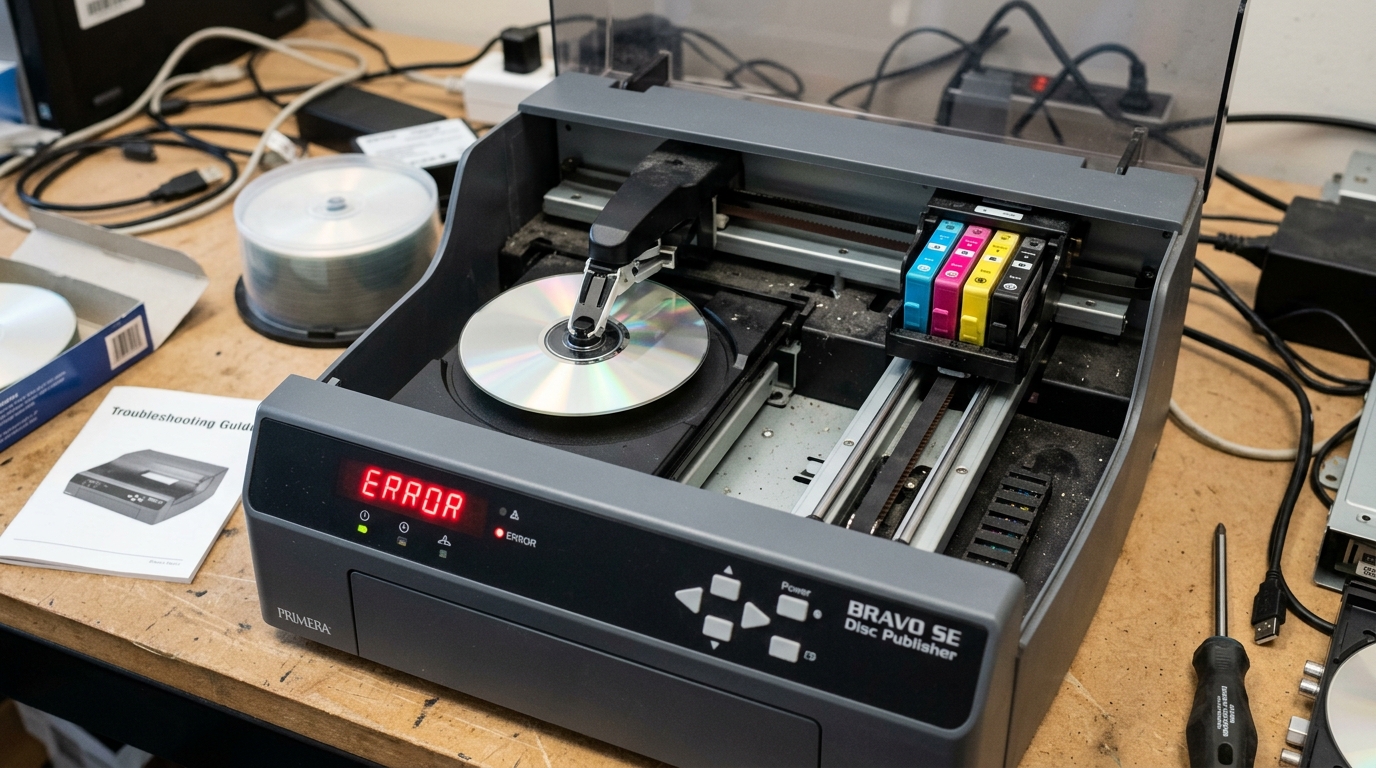
The Primera Bravo series (including the SE, Pro,. 4100) are robotic disc publishers that combine a high-speed optical burner (CD/DVD/Blu-ray) with a thermal inkjet print engine. The PTPublisher software orchestrates this dance: burn first, then move the disc to the print tray.
Why it Burns but Ignores the Print Job
If the robotic arm successfully moves a blank disc to the burner drive, completes the data burn,. Then drops the disc directly into the output binwithout moving it to the inkjet printer tray, the software has silently rejected the print file.
Fix 1: The Inner Hub Dimension Trap
Inkjet printable CDs and DVDs have a white, absorbent coating on the top. However, the exact size of the clear plastic hole in the center (the hub) varies by manufacturer. Some discs are coated all the way to the center (Hub Printable), while others leave a wide clear plastic ring.
- If your design software (like SureThing) is set to print a full-bleed image (e.g., inner diameter of 15mm), but the printer detects you loaded a standard disc (inner diameter of 22mm). The printer knows it will spray wet ink onto clear plastic.
- That wet ink will pool, smear into the drive gears, and ruin the machine.
- Solution:Open your design software, go to Page Setup, and change the template toStandard Non-Hub Printable or manually increase the Inner Diameter setting.
Fix 2: Color Profiling Rejection
If you import a massive, layered Adobe Illustrator PDF in CMYK color mode directly into PTPublisher. The older 32-bit rendering engine might crash silently in the background.
Skipping the print phase. Always export your disc artwork as a flattened, high-resolutionRGB JPG or PNG file before importing it into the Primera software.
Troubleshooting Disc Publishers: Burns Optical Disc But Won't Print Surface
In automated disc publishers (Bravo SE, Bravo 4100, Bravo 4200, Bravo Pro), the system operates in two distinct stages: (1) Optical burning via internal Blu-ray/DVD drives,. (2) Inkjet surface printing via the internal printer engine. When a job completes burning successfully but the robotic arm drops the disc into the reject bin.
Halts without printing, the print engine handoff has failed.
Exhaustive Robotic Handoff & Print Diagnostics
- Inspect the Disc Printer Tray Alignment:
After burning finishes, the robotic picker arm places the disc into the printer tray. Which must slide horizontally into the print chamber. If dust or dropped disc debris blocks the motorized tray gear track. The tray cannot reach its internal optical home limit switch, aborting the print job.
- Check PTStatus for Low Ink Lockouts:
If even one color cartridge is below the 5% threshold. PTPublisher firmware (internal software) will halt before printing to prevent ruining a burned disc with incomplete graphics. Open PTStatus and replace any near-empty cartridges.
- Verify Media Type in PTPublisher:
Ensure your project settings inPTPublishermatch your physical media: selectWaterShield (Glossy)for glossy inkjet printable discs, orStandard Inkjet Printable for matte discs. Selecting thermal media in an inkjet publisher will trigger a sensor mismatch.
- Calibrate the Robotic Arm Pickup Coordinates:
In PTPublisher, go toTools > Calibrate Robotic Arm Follow the on-screen prompts to recalibrate the exact X/Y/Z pickup coordinates for the printer tray, recorder drives, and input/output bins.
Frequently Asked Questions
Can I use regular non-printable CD/DVDs in a Primera Bravo?
No. Standard silver/gold discs do not have an inkjet receptive polymer coating.
Why does the robotic arm drop discs onto the floor?
The rubber suction pads or mechanical robotic gripper fingers on the picker arm can become coated in disc dust. Clean the rubber picker pads with an alcohol wipe to restore suction grip.
