


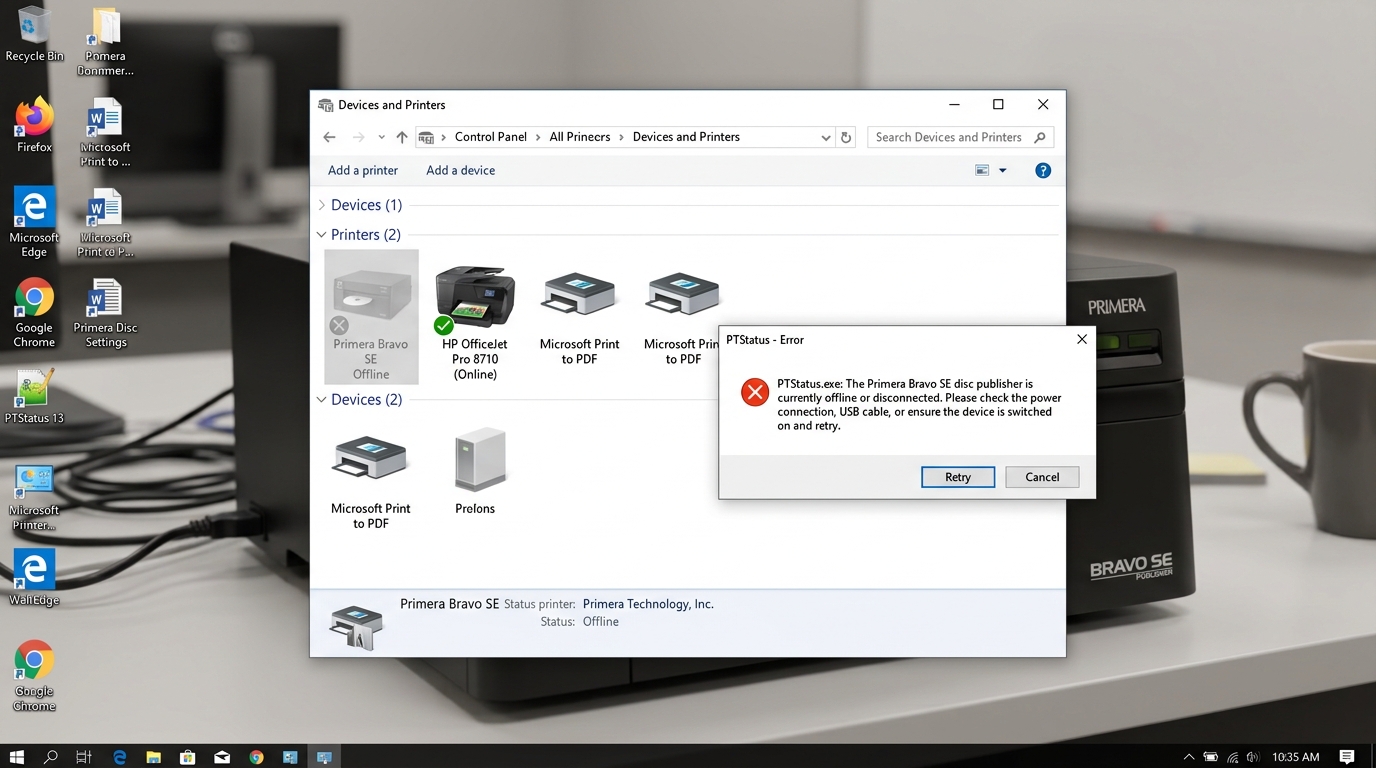
Primera Printer Offline & PTStatus Won't Open Fix
Primera color label printers, such as the LX900, LX910, and LX2000, rely heavily on their built-in status monitoring software, PTStatus. When your Primera printer shows an 'Offline' or 'Error State' in Windows.
And the PTStatus utility refuses to launch or hangs indefinitely, your entire label production line stops. This specific combination of issues almost always points to an underlying communication breakdown between the USB bus, the print spooler.
And the PTStatus background service.
Printers are highly complex electro-mechanical devices that rely on a delicate symphony of software drivers, network protocols. And precision hardware to function correctly.
When one of these components falls out of alignment or encounters an unexpected state, the system halts to prevent physical damage or data corruption, resulting in the issue you are experiencing. Understanding the underlying architecture of your printer's communication stack is essential for effective troubleshooting.
In this comprehensive guide, we will break down the exact sequence of events that leads to this failure. We will explore the mechanical triggers, the software miscommunications, and the network topology issues that contribute to the problem.
By following the systematic diagnostic approach outlined below, you will not only resolve the immediate error but also optimize your printer's settings to prevent future occurrences, ensuring long-term reliability and optimal performance.
Why This Happens
The PTStatus application communicates bidirectionally with the printer to read ink levels, calculate label counts, and interpret error states. If a print job becomes corrupted in the Windows Spooler, it blocks this two-way connection channel.
Consequently, PTStatus tries to query the printer, receives no response, and freezes or fails to open. Furthermore, aggressive antivirus software can sandbox or block the PTStatus executable.
Lastly, connecting a Primera printer through an unpowered USB hub frequently causes voltage drops that result in random offline states.
Additionally, external environmental factors and usage patterns play a significant role. Fluctuations in ambient temperature and humidity can affect paper curl and ink viscosity, leading to internal sensor faults.
Power surges or micro-interruptions can corrupt the volatile memory within the printer, scrambling the active print queue and causing logic board desynchronization.
Step-by-Step Fix
- Open the Task Manager (Ctrl+Shift+Esc), locate any running instances of 'PTStatus.exe' or 'PTStatus2.exe', and forcefully End Task.
- Disconnect the USB cable from the printer and ensure you bypass any USB hubs or docking stations; connect the cable directly to a rear USB port on your PC motherboard.
- Navigate to 'Printers & Scanners' in Windows, select your Primera printer. And clear the print queue by canceling all pending documents.
- Temporarily disable any third-party antivirus software or add an explicit exclusion for the Primera installation folder located in 'Program Files (x86)'.
- Relaunch PTStatus as an Administrator by right-clicking the shortcut and selecting 'Run as administrator'. Reconnect the USB cable only after the software is running.
After completing these specific steps, it is crucial to perform a full power cycle. Disconnect the printer's power cord directly from the wall outlet—do not just use the power button.
Wait at least 60 seconds to allow the internal capacitors to fully discharge. This clears the volatile RAM and forces the printer to initialize all sensors and mechanical components from a cold state when plugged back in.
Advanced Troubleshooting: Deep Dive Diagnostics
When basic fixes fail to resolve the error on your printer, it is time to perform advanced system-level diagnostics. This involves examining the underlying network protocols, the operating system's print spooler mechanisms.
And the printer's internal firmware (internal software) state. Modern printers act as independent network nodes, which means they are susceptible to IP address conflicts, corrupted driver cache.
And faulty routing tables.
In Windows environments, the Print Spooler service is responsible for managing all print jobs and communicating with the printer driver. Often, the spooler's queue becomes corrupted due to a sudden loss of communication or a malformed print job.
This manifests as an offline state or an obscure error code. To manually clear and reset the spooler, you must bypass the GUI and use the Command Prompt with administrative privileges.
First, open the Start menu, type 'cmd', right-click Command Prompt, and select 'Run as administrator'. In the console, execute the command net stop spooler This forcefully halts the spooler service.
Next, navigate to the spooler directory by typing del /Q /F /S "%systemroot%\System32\Spool\Printers\*.*" This command deletes all pending print jobs, effectively clearing the corrupted queue without deleting your printer drivers. Once the directory is clear, restart the service with net start spooler This process often resolves persistent errors that survive a standard reboot.
For macOS users, the Common UNIX Printing System (CUPS) handles background printing operations. When a printer falls into an unrecoverable error state on a Mac, resetting the entire printing system is often the most effective solution.
This clears out all configured printers, scanners, and pending jobs, allowing you to rebuild the connection from scratch.
To perform this reset, open System Preferences (or System Settings on macOS Ventura and later) and navigate to 'Printers & Scanners'. Hold down the Control key and click anywhere in the list of devices on the left side of the window.
A context menu will appear with the option 'Reset printing system...'. Select this option and authenticate with your administrator password.
After the system is reset, it is highly recommended to restart the Mac before re-adding the printer. When adding the printer back, ensure you are using the manufacturer's specific driver rather than the generic AirPrint driver.
This often lacks support for advanced diagnostic communication and ink level reporting.
Network connectivity is the foundation of modern wireless printing. If your printer and computer are on different subnets, or if the router's DHCP lease expires and assigns a new IP address to the printer, the operating system will lose track of the device.
This is commonly referred to as an IP mismatch. To permanently prevent this, you should configure a Static IP address for your printer.
Start by printing a Network settings Page directly from the printer's control panel. Locate the current IP address, Default Gateway, and Subnet Mask.
Open a web browser on a computer connected to the same network and enter the printer's IP address into the address bar to access the Embedded Web Server (EWS). Log in using the administrator credentials.
Navigate to the Network Settings or IPv4 settings page. Change the IP assignment method from 'Automatic (DHCP)' to 'Manual (Static)'.
Assign an IP address that is outside your router's active DHCP pool, but within the same subnet. Save the settings and restart both the printer and the router to establish a stable, permanent connection.
firmware (internal software) acts as the operating system of the printer itself. Manufacturers frequently release firmware (internal software) updates to patch security vulnerabilities, improve compatibility with newer operating systems.
And fix internal software bugs that cause false error codes. Running outdated firmware (internal software) can lead to erratic behavior, including failure to wake from sleep mode, unresponsiveness.
And incorrect ink level readings.
FAQ
Why does my Primera printer go offline after printing one label?
This is often caused by a mismatch between the label size set in your design software (like BarTender) and the physical label size loaded in the printer, causing a media sensor fault.
Can I run a Primera printer without PTStatus?
While you can technically send print jobs via the Windows Spooler, you will lose critical functionality like ink level monitoring, print head alignment. And cartridge reset capabilities, making PTStatus essentially mandatory.
How do I reset the PTStatus connection entirely?
Uninstall PTStatus and the Primera printer driver completely. Reboot the computer, download the latest software suite from the Primera website.
