


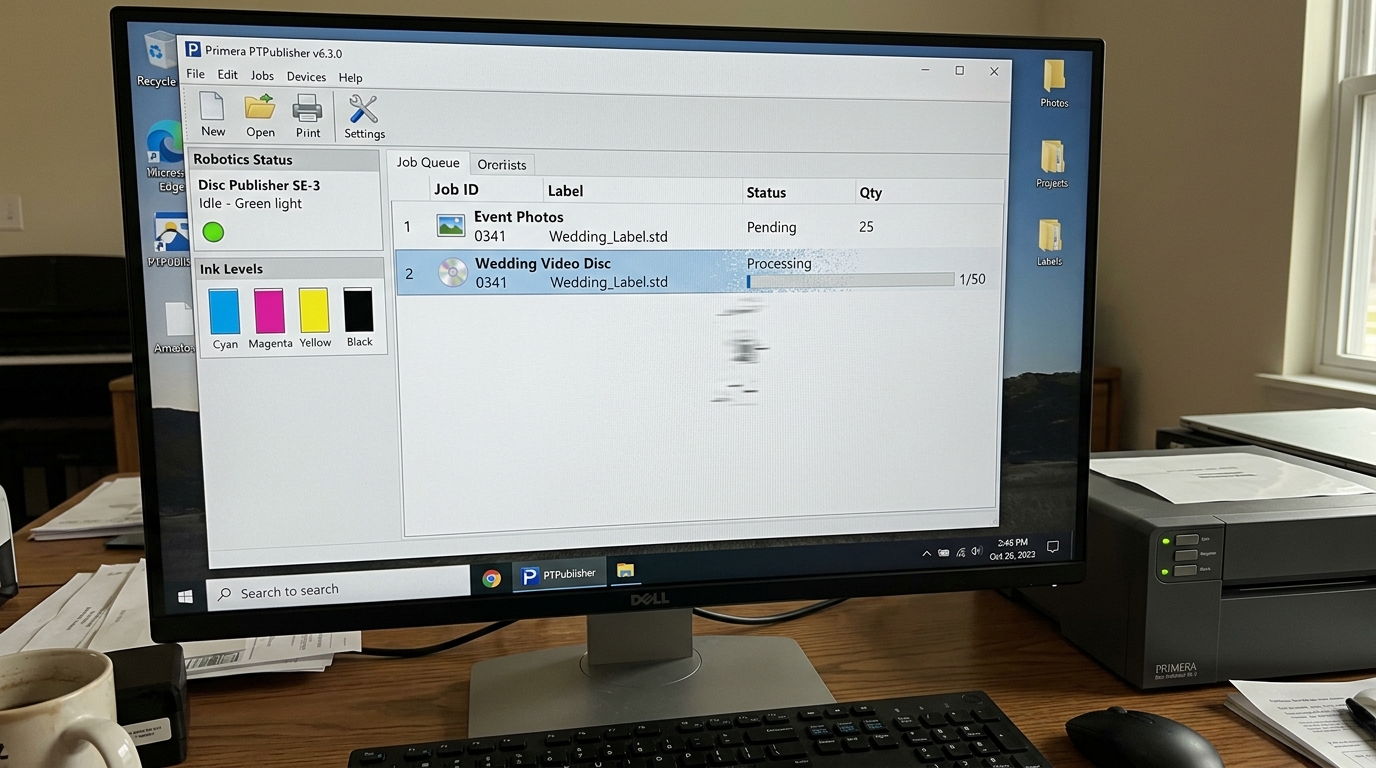
The "Vanishing Print Job" Phenomenon
One of the most frustrating errors in Windows occurs when you click Print. The document appears in the print queue for one second, and then disappears completely. The printer sits silently, doing absolutely nothing, and no error message is generated.
Why it Happens: Port Misalignment
When a print job disappears, the Windows Print Spooler thinks it successfully delivered the file. However, it delivered it to a "black hole" port.
- Open Control Panel > Devices and Printers.
- Right-click your Primera printer and select Printer Properties (not the bottom 'Properties' option).
- Click the Ports tab .
- Look at which box is checked. If it is assigned to
LPT1,COM1, orFILE, Windows is dumping the data into a legacy parallel port that doesn't exist on your PC. - Scroll down and check the box for USB001 (or the highest numbered Virtual printer port for USB). Click Apply. Try printing again.
PTPublisher Not Printing (Bravo Series)
If you are using a Primera Bravo Disc Publisher and the PTPublisher software refuses to burn or print discs:
- Admin Rights: Burning optical media requires direct low-level access to the SATA/USB controllers. Right-click the PTPublisher icon and select Run as Administrator.
- Status Monitor Conflict:If the Status Monitor shows "No Activity" while PTPublisher says it is printing. Ensure no other software (like SureThing Disc Labeler) is holding the printer port open simultaneously.
How to Find Your Primera firmware (internal software) Version
If you are calling Primera Tech Support, they will immediately ask for your firmware (internal software) version. Do not confuse the Software Driver version with the Hardware firmware (internal software).
- Open the PTStatus application.
- Click the Information (i) icon, or navigate to the About tab.
- Look for firmware (internal software) Version: (e.g., v1.23).
- If your firmware (internal software) is heavily outdated. You can download the firmware (internal software) Update Utility from the Primera website to flash the logic board to the newest version.
Why Print Jobs Disappear in PTPublisher Without Printing
When you click "Burn and Print" or "Print Labels" in PTPublisher or Bartender. And The job appears in the Windows print queue for 2 seconds before vanishing completely while the printer sits completely silent, the print spooler has encountered a rasterization exception or firmware (internal software) protocol mismatch.
Step-by-Step Recovery Workflow
- Update PTPublisher to the Latest Certified Build:
Older builds of PTPublisher encounter .NET Framework memory leaks on modern Windows 10/11 64-bit systems. Download the latest PTPublisher installer from primera.com/support and run as Administrator.
- Verify Media Size Matches Between Design Software and Driver:
If your label design software (e.g., BarTender UltraLite) has page dimensions set to 4" x 6". But The Primera Windows printer driver is set to "Default 4x3", the print spooler drops the job due to dimensional layout validation errors. Ensure exact width and height match across software and driver.
- Change Driver Spooling Mode to "RAW":
- Open Control Panel > Devices and Printers > right-click your Primera printer > Printer Properties.
- Go to the Advanced tab > Print Processor.
- Ensure the Default Datatype is set to RAW (not EMF or TEXT).
- Select "Start printing after last page is spooled" to prevent mid-stream packet buffer timeouts.
- Update Printer firmware (internal software) via USB:
Download the standalone Primera firmware (internal software) Update tool for your specific LX or Bravo model. Connect via direct USB cable and flash the latest firmware (internal software) binary to resolve spooler handshake bugs.
Frequently Asked Questions
Can high-resolution graphics cause jobs to disappear?
Yes. If a project contains a massive 300MB uncompressed bitmap image.
Why does the printer discard jobs when the ink is low?
If PTStatus reports any cartridge below 5%. PTPublisher firmware (internal software) will drop automated disc jobs before burning begins to avoid wasting blank optical discs.
