


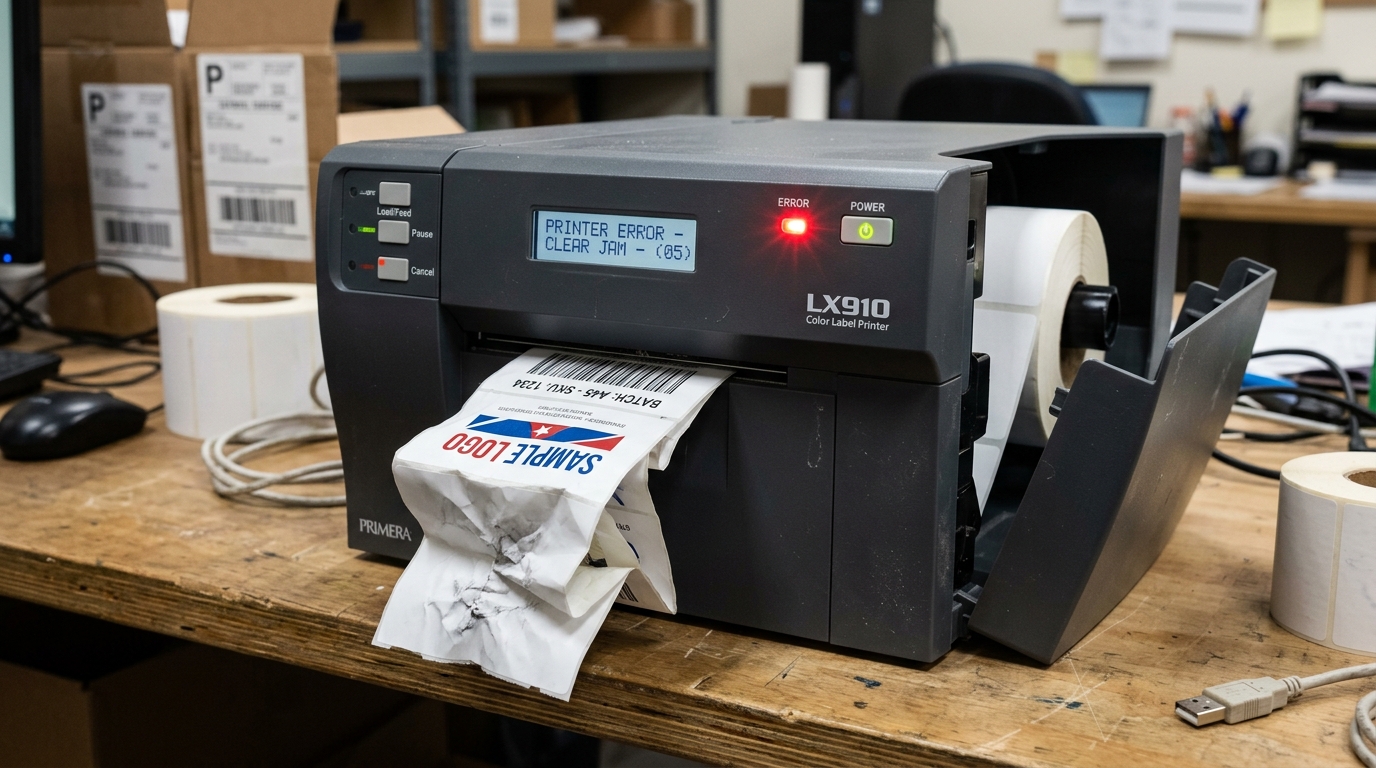
Clearing and Preventing Primera Label Jams
Because Primera printers use wet inkjet technology. The paper path utilizes specialized "pizza wheel" spiked rollers to pull the wet label out without smudging the ink. If a label peels up inside the printer, it creates a disastrous jam.
How to Safely Remove a Jam
- Turn the power off immediately. Continuing to run the motor against a jammed label will strip the nylon drive gears.
- Open the top cover and remove the label supply roll.
- Gently pull the paper backward toward the supply spindle. Do not yank it forward through the front exit slot. As you risk damaging the fragile pizza wheels and the cutter blade.
- If the label is wrapped around the thick black rubber platen roller, use tweezers to carefully peel it away. Never use a knife or razor blade to cut it off; slicing the rubber roller will permanently ruin the printer.
Preventing Future Jams
Jams are almost always caused by adhesive. If a label was previously peeled off inside the machine, it left sticky glue on the rollers.
Every subsequent label will catch on this glue. You must aggressively clean all internal rollers with 99% isopropyl alcohol until they are completely smooth and free of tackiness.
Fixing the "Cut But Not Printed" Error
Many Primera models feature a built-in guillotine or rotary cutter. If the printer feeds a blank label, chops it off. And then refuses to print the image, the driver logic is inverted.
- Open Windows Printers & Scanners > Printing Preferences.
- Navigate to the Cutter Options tab.
- If you are printing a batch of 100 labels, ensure the setting is Cut at end of job or Do not cut.
- If the setting is "Cut after every label" and the label length in the software is shorter than the physical distance from the printhead to the cutter blade. The printer will advance the label to cut it, thereby missing the print zone entirely.
Understanding Label Jams and Guillotine Cutter Errors on Primera LX Printers
Primera color label printers feature an integrated motorized rotary or guillotine cutter blade (e.g., on LX500c, LX900, LX2000, LX3000). When a label cuts but fails to print. Or when labels wrap around the feed platen, adhesive buildup on the cutter blades or media sensor timing drift is responsible.
Step-by-Step Clearing & Cutter Maintenance Workflow
- Power Off and Inspect the Guillotine Cutter Assembly:
Disconnect power. Look into the front label exit slot. If a label has stuck to the stainless steel cutter blade, carefully peel it away using plastic tweezers. Never use metal razor blades or screwdrivers, which nick the precision cutting edge.
- Clean Adhesive Sludge from Cutter Blades:
Label adhesive transfers to the cutter blades over thousands of cuts. Dampen a foam swab with 99% isopropyl alcohol and wipe both the upper moving blade and lower stationary anvil blade until completely free of sticky residue.
- Inspect the Rubber Platen Rollers for Adhesive Wrap:
If a label peeled off its backing inside the printer, it will wrap tightly around the rubber transport platen. Manually rotate the feed roller and carefully peel off any wrapped label stock. Clean the rubber with distilled water.
- Configure Cutter Preferences in Driver:
In Printer Preferences > Cutter Options, choose whether to cut "After Every Label", "After Job Completes", or "After N Labels". Cutting after every label on thick vinyl media accelerates blade wear; setting to "Cut After Job" improves reliability for bulk runs.
Frequently Asked Questions
Why does the printer cut through the middle of the printed label?
If the cut position is offset into the graphic, open the Primera Print Preferences > Alignment tab and adjust the Cut Offset / Stop Position setting (+/- millimeters) to align the cut perfectly with the backing gap.
Are replacement cutter assemblies available?
Yes. The rotary guillotine cutter is a modular.
