


Choosing the Right Disc Publisher: SE vs. Pro
Primera dominates the optical disc publishing market, but choosing between the entry-level SE. The flagship Pro (or 4200 series) depends entirely on your production volume.
The Bravo SE (Standard Edition)
- Capacity: 20 discs per run.
- Hardware: 1 optical burner drive.
- Ink System: Uses a single, combined tri-color (Cyan/Magenta/Yellow) cartridge. If you run out of Cyan, you must throw the whole cartridge away.
- Best For: Small churches, independent musicians, and low-volume data archiving.
The Bravo Pro / 4200 Series
- Capacity: 100 discs per run (using the included Kiosk kit).
- Hardware: 2 optical burner drives operating simultaneously.
- Ink System: Uses 4 separate, high-capacity CMYK ink tanks.
- Best For: Video production houses, software distributors, and high-volume medical imaging centers.
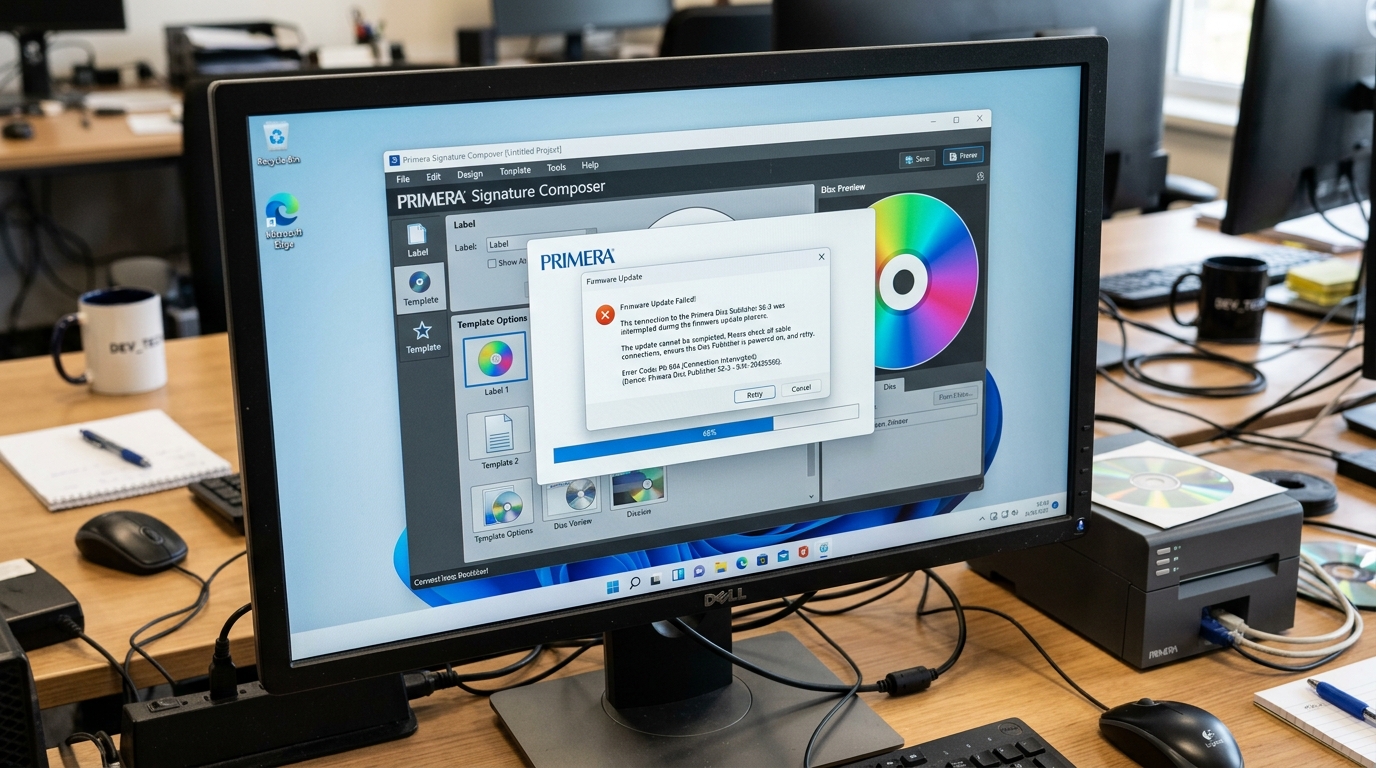
Recovering from a "firmware (internal software) Update Failed" Error
Updating the firmware (internal software) on a robotic publisher is risky. If your Windows PC goes to sleep, or the USB cable is bumped during the flash process. The printer's logic board will be corrupted (bricked). The printer will flash all its lights and refuse to connect to PTStatus.
- Unplug both the Power cable and the USB cable from the back of the printer.
- Wait 60 seconds to let the capacitors drain.
- Bootloader Mode: Press and hold the main button on the front of the printer. While continuing to hold the button down, plug the power cable back in.
- Keep holding the button for 5 seconds, then release. The printer should now be in emergency bootloader mode.
- Plug the USB cable in. Open the Primera firmware (internal software) Update Utility on your PC and run the flash process again. Do not touch the PC until it finishes.
Legacy Signature Composer Troubleshooting
If you are using a 15-year-old Primera Signature series printer and the Signature Composer software won't detect the COM port on a modern Windows 10/11 machine, you must run the software in Compatibility Mode. Right-click the shortcut, select Properties > Compatibility, and check "Run this program in compatibility mode for: Windows XP (Service Pack 3)".
Furthermore, ensure you are using a high-quality USB-to-Parallel or USB-to-Serial adapter with an FTDI chipset. As cheap adapters will drop data packets.
Comparing the Bravo SE vs. Bravo Pro and Recovering Failed firmware (internal software) Updates
The Bravo SE (compact 20-disc desktop publisher) and Bravo Pro / Pro Xi (heavy-duty 100-disc dual-drive workgroup publisher) are engineered for distinct production tiers. During firmware (internal software) updates, power interruptions or host USB timeouts can leave the flash EEPROM in a corrupt state.
Causing the publisher to halt with blinking error lights or unrecognized USB descriptors.
Bravo SE vs. Bravo Pro Technical Comparison
| Specification / Feature | Primera Bravo SE / SE-3 | Primera Bravo Pro / Pro Xi / 4200 |
|---|---|---|
| Disc Capacity | 20 discs standard | 100 discs standard (Expandable with ADL-MAX) |
| Optical Drives | 1 CD/DVD/BD optical burner | 2 independent CD/DVD/BD optical burners |
| Print Engine | Single tri-color cartridge (Integrated head) | 4 separate ink tanks (C, M, Y, K) + semi-permanent head |
| Throughput | ~15-20 discs / hour | ~60-100 discs / hour |
Emergency firmware (internal software) Recovery Protocol
- Force Hardware Bootloader Recovery Mode:
- Disconnect the AC power cable.
- Press and hold the physical Power / Load button on the front panel.
- While continuing to hold the button, plug the AC power cable back in.
- Continue holding for 10 seconds until the status LED enters a slow, steady amber/green recovery flash.
- Execute Standalone firmware (internal software) Flash over Direct USB:
Connect directly via USB 2.0 to a Windows PC. Launch the standalone Primera firmware (internal software) Updater utility. The software will detect the machine in Emergency Boot Mode and re-flash the complete binary ROM.
Frequently Asked Questions
What is Primera Signature / Composer software?
Primera Signature and Disc Composer are legacy label design and disc burning software suites used with early Bravo models, replaced by modern PTPublisher.
Can I upgrade a Bravo SE to hold 100 discs?
No. The Bravo SE physical chassis is fixed at 20 discs.
