


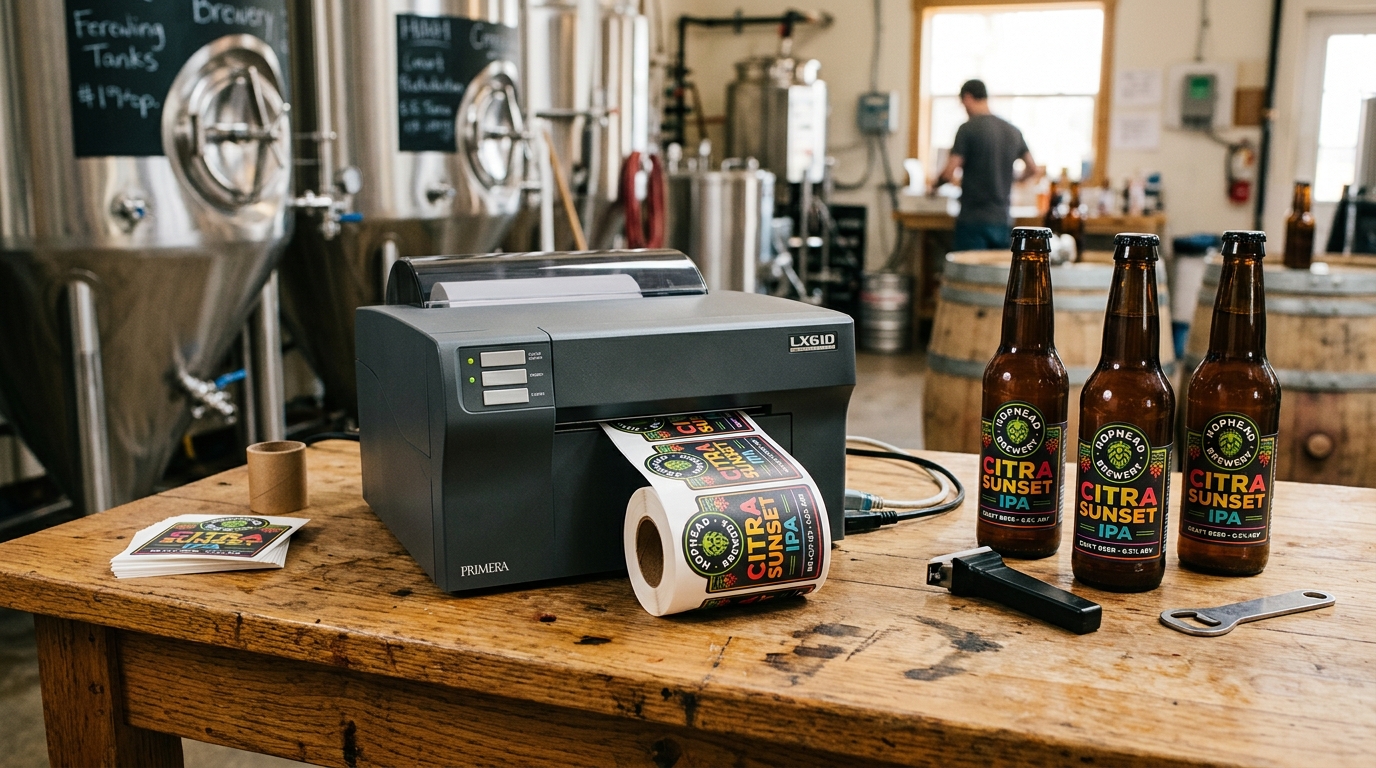
Primera LX610: The Game Changer
The Primera LX610 is unique in the industry. It combines a high-resolution color inkjet printer with a digital contour die-cutter.
Instead of buying pre-cut circles or squares, you load a continuous roll of blank sticker paper, print your design, and the printer physically cuts out any custom shape (stars, jagged logos, ovals) instantly.
LX610 Setup Tips
- PTCreate Pro: To utilize the contour cutter, you must use the included PTCreate software. Do not just hit "Print" from Microsoft Word.
- The Cut Line: In PTCreate, you must define a specific vector path (the "Cut Line"). Ensure the cut line is placed on the dedicated Cut Layer, otherwise the printer will just print a black line instead of physically cutting it.
- Blade Depth: The knife blade is adjustable. If it cuts entirely through the waxy backing paper (causing a massive jam), you must retract the blade slightly using the dial on the blade holder.
Craft Beer & Small Business Setup
If you are a microbrewery, a hot sauce vendor, or a candle maker, the Primera LX series is the perfect fit. However, you must choose the right ink and media combination.
- The Condensation Problem: If you print a beautiful beer label on standard high-gloss paper using Dye ink, the label will bleed and melt the second the can sweats in a cooler.
- The Solution: You must purchase BOPP (Biaxially Oriented Polypropylene) or Polyester label stock. Furthermore, you should use Pigment Ink. Pigment ink acts like liquid plastic, sitting on top of the media and drying completely waterproof.
Church Media & Disc Publishing
Many churches use the Bravo SE or Bravo 4200 to mass-produce weekly sermon CDs or DVDs for elderly congregants or community outreach.
- Media Selection: Do not buy cheap, matte-white inkjet CDs. The ink will soak in and look faded. Purchase "Glossy White" or "WaterShield" inkjet-printable discs. They have a ceramic coating that makes the colors pop and prevents the ink from smudging on wet hands.
- Template Setup: Keep your artwork simple. Do not place critical text over the inner 22mm clear hub, as the printer will not spray ink there.
Complete Setup & Production Guide: Primera LX610 Color Label Printer & Contour Cutter
The Primera LX610 is a groundbreaking dual-function color label printer that combines high-resolution 4800 DPI inkjet printing with a built-in digital die-cutting knife. It enables small businesses, craft breweries, boutique wineries, and church media ministries to print and cut custom-shaped labels on demand without ordering expensive pre-die-cut rolls.
Exhaustive Setup & Production Workflow
- Hardware Unboxing & Blade Installation:
- Remove all orange shipping tape and transport clamps from the cutter carriage.
- Insert the carbide digital cutting knife into the cutter holder. Adjust the blade exposure dial based on media thickness (typically setting 3 to 4 for standard gloss paper; setting 5 to 6 for thick vinyl).
- Install the tri-color ink cartridge and snap the latch closed.
- Loading Continuous Media Rolls:
Load a roll of Continuous (Non-Die-Cut) media onto the roll hub. Thread the leading edge through the guide rails until the feed roller automatically grabs the paper. In the driver preferences, set Sensor Type to
Continuous. - Designing Custom Cut Contours in PTCreate Software:
- Launch the included PTCreate / PTCreate Pro software.
- Import your label artwork (PNG, JPEG, PDF, SVG).
- Use the "Trace Image" tool or vector contour line generator to draw a cut line around your graphic with a 1mm bleed margin.
- Click Print & Cut. The LX610 will print the artwork, advance the roll, and engage the digital drag knife to cut the custom shape with pinpoint precision.
Frequently Asked Questions
How long does a digital cutting blade last on the LX610?
A standard carbide cutting blade lasts for approximately 5,000 to 10,000 cuts depending on media abrasiveness. Replace the blade when cuts exhibit frayed edges or fail to cut cleanly through the face stock.
Can the LX610 print on pre-die-cut label rolls?
Yes. You can switch the driver to Die-Cut Sensor Mode and use standard pre-die-cut labels without engaging the cutting blade.
