


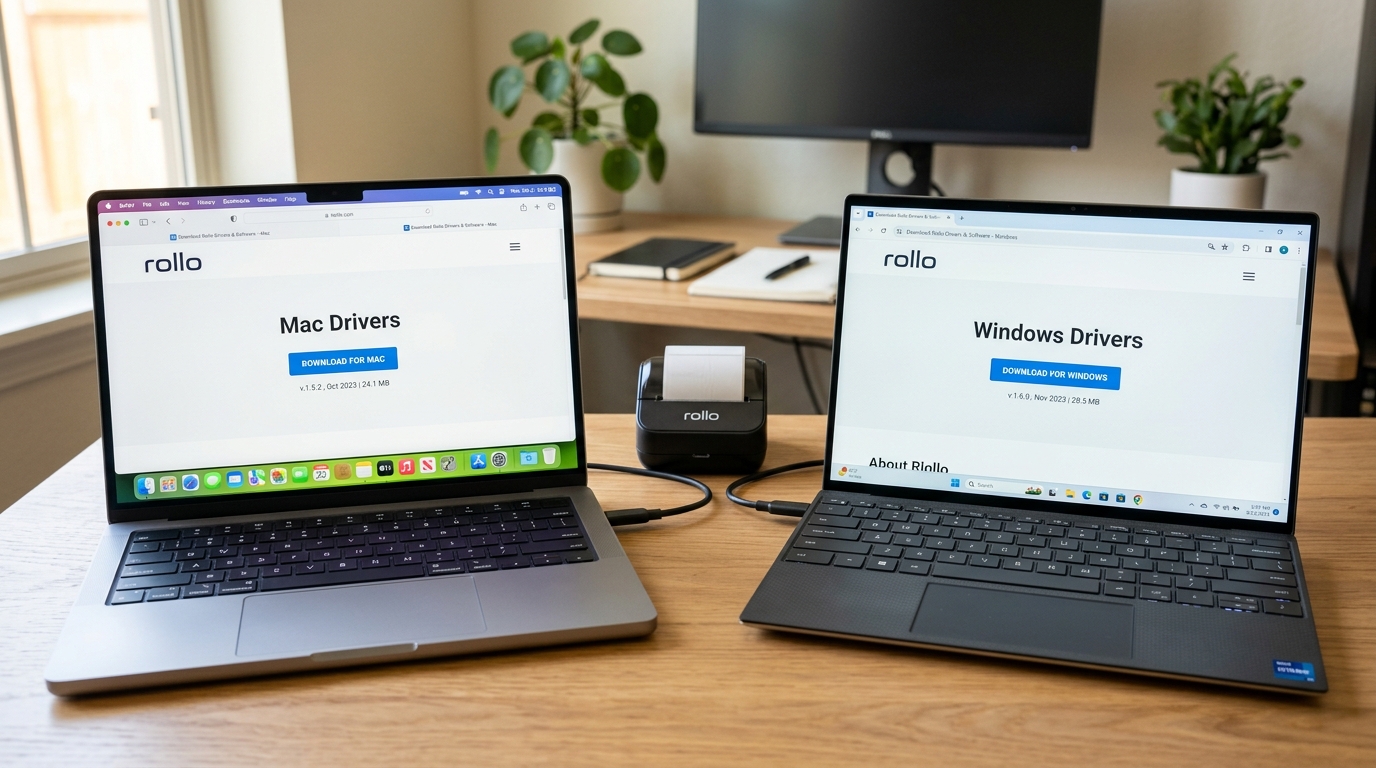
Set up a thermal label printer like the Rollo with specific driver settings. This ensures labels print at the correct size and darkness. Thermal printers connect closely with shipping software. A perfect driver setup is very important.
## Why This Happens Understand the basic parts of the Rollo Label Printer first. This helps with fixing problems. The setup problem does not happen out of nowhere. It is usually the result of a specific event. It can also happen when the system breaks down over time. Let's look at the technical reasons for this issue.Computers often try to install basic USB printing drivers. This happens when a new device is connected. These basic drivers lack the built-in commands needed. These commands adjust heat settings, label gaps, and tear-off points.
Old printer setups can leave broken registry keys and driver files. Your computer might mix these old files during a new setup. This causes a broken setup state. The printer is found but fails to print jobs.
Security settings on modern computers often block unknown drivers. You might miss or close the security prompt during setup. The setup will then fail silently in the background.
## Step-by-Step Fix Now apply practical solutions to fix the issue. Follow these steps carefully. Do not skip any steps. Sometimes the most obvious fix is the right one.- Unplug the Printer: Disconnect the USB cable from the Rollo and your computer. Do this before starting the driver setup. This stops the computer from using basic drivers.
- Download Official Drivers: Go to the official Rollo support website. Download the latest driver package for your computer.
- Run as Administrator: Right-click the downloaded file. Select "Run as Administrator" on Windows. On a Mac, make sure you have admin rights. This lets the installer change system folders.
- Follow On-Screen Prompts: Go through the setup guide. Only connect the USB cable when the software asks you to.
- Configure Label Size: Open Printers & Scanners after setup. Select the Rollo printer. Open Printing Preferences. Set the paper size to 4x6 inches or your specific label size.
The problem might be deeper in the system if setup still fails. Do not panic. The standard steps fix the issue for most users. There are still more things to try.
## Advanced Troubleshooting Use advanced tests when standard steps fail. These steps are for users comfortable with deeper system settings. They are also for checking the Rollo Label Printer hardware.You may need to clear the Print Spooler if setup still fails. Open the Services app in Windows. Find "Print Spooler" and stop the service. Go to C:\Windows\System32\spool\PRINTERS and delete all files. Restart the service.
Mac users might have permission issues. Reset the printing system to clear bad driver settings. Right-click in the Printers & Scanners window to do this. This removes all existing printers from the system.
Use the Device Manager to force uninstall hidden printer copies. Turn on "Show hidden devices". Open the Universal Serial Bus controllers and Printers lists. Uninstall any ghosted Rollo entries.
## FAQ Here are common questions about the Rollo Label Printer and driver setup.Why is my Rollo printer printing blank labels after installation?
This happens because the labels are inserted upside down. Thermal printers only print on the coated side.
Does Rollo work with Chromebooks?
Rollo provides a specific Chrome extension for Chrome OS. You cannot install standard Windows or Mac drivers on a Chromebook.
Why does the installation fail on Windows 11?
Make sure you have the latest Windows 11 driver. Turn off strict Core Isolation/Memory Integrity features temporarily.
Your network setup can also affect your printer. Wireless connections can be disrupted by Wi-Fi channels or physical items.
Microwave ovens can also block data signals. The printer might see this signal loss as a data error.
This causes the device to stop working. Ensure a strong Wi-Fi connection.
Use a direct USB cable during important tasks. This helps avoid these hidden issues.
Power delivery is another commonly missed issue. Printers draw large power spikes during use.
This is true for printers with heavy moving parts. Plugging into a loaded power strip can cause power drops.
These drops might not turn the device off completely. They can still reset internal controls.
This leads to unknown pauses while printing. Plug the printer directly into a wall outlet.
