


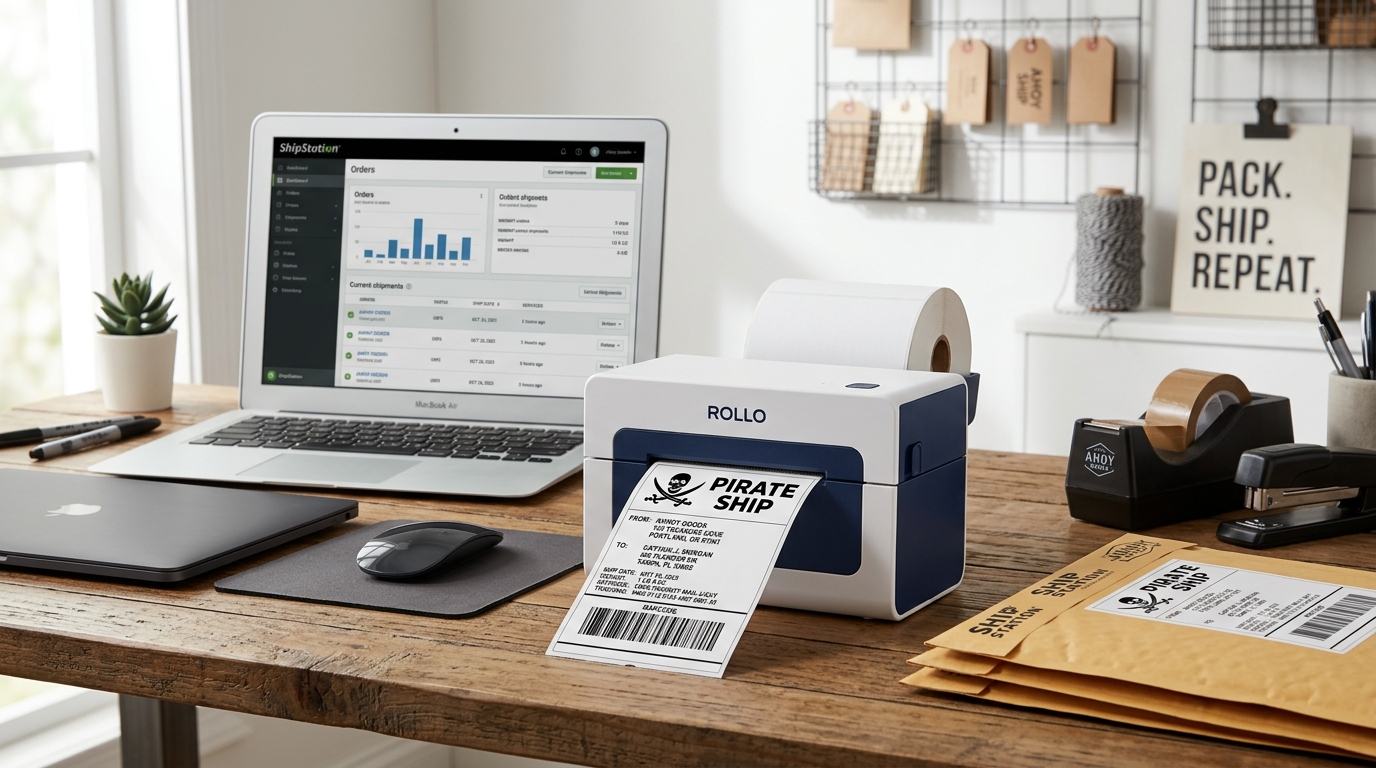
For high-volume e-commerce merchants, third-party shipping software like Pirate Ship and ShipStation are essential tools for batch processing, comparing rates, and streamlining fulfillment. The Rollo thermal printer is the perfect hardware companion for these platforms, offering reliable, ink-free 4x6 label printing.
However, getting your Rollo to communicate seamlessly with cloud-based shipping software requires specific configurations to avoid common pitfalls like misaligned prints, blurry barcodes, or browser plugin errors. While Pirate Ship is incredibly user-friendly and web-based, ShipStation often relies on a local background application (ShipStation Connect) to route print jobs directly to your hardware.
This comprehensive guide will detail the exact steps needed to optimize your Rollo printer for flawless operation with both Pirate Ship and ShipStation, ensuring you can process hundreds of orders without a single paper jam or formatting error.
Why This Happens
The challenges in setting up a Rollo with Pirate Ship or ShipStation usually stem from the handoff between the cloud software, the web browser, and the local operating system's print spooler. Cloud platforms generate shipping labels as PDF files or send raw ZPL (Zebra Programming Language) data.
If Pirate Ship generates a label formatted for an 8.5x11 inch sheet, your Rollo will shrink the barcode to an unreadable size. In ShipStation, if ShipStation Connect is not properly installed, you will be forced to manually download and print each PDF, defeating the purpose of automation.
Furthermore, operating systems often apply default margins to print jobs. Thermal printers require absolute zero margins, as the thermal head spans the exact width of the 4x6 label.
Understanding how to configure the label output format in the software and bypass browser-enforced margins is the key to perfect prints.
Step-by-Step Fix
- Rollo Printer Calibration: Before software setup, ensure your Rollo is physically calibrated. Load 4x6 labels, press and hold the top button until you hear one beep, and release. Let the printer feed and measure the labels.
- Pirate Ship Setup - Step 1: Log into Pirate Ship. Go to Settings > Print Settings. Under "Label Format," select "4x6 PDF" (or 4x6 ZPL if you have a Rollo Wireless model that supports raw commands).
- Pirate Ship Setup - Step 2: When you generate a label, click Print. In the browser print dialog (Chrome/Safari), ensure the destination is the Rollo. Set Paper Size to 4x6, uncheck "Fit to Page", set Scale to 100%, and set all Margins to "None".
- ShipStation Setup - Step 1: Log into ShipStation. Go to Settings (gear icon) > Printing > Printing Setup. Find "Labels" and click "Document Options". Ensure the format is set to "4x6 Thermal".
- ShipStation Setup - Step 2: Download and install "ShipStation Connect" on the computer physically connected to the Rollo. Log into the Connect app with your ShipStation credentials to link your local printer to the cloud.
- ShipStation Setup - Step 3: Back in ShipStation web interface, go to Settings > Printing > Printing Setup. Next to "Labels," click the dropdown and select your Rollo printer under the "ShipStation Connect" header. This enables one-click direct printing.
- Driver Optimization (Windows): Go to Control Panel > Devices and Printers > right-click Rollo > Printing Preferences. Set Paper to 4x6 (100x150mm). Go to Advanced options and set Darkness to 8-10 and Speed to 3-4 in/sec for the crispest barcodes.
- Driver Optimization (Mac): In any Print dialog, select the Rollo, choose "Printer Features" from the dropdown menu, and adjust the Darkness and Print Speed sliders. Save this as a Preset for easy access.
Advanced Troubleshooting
For the absolute fastest and most reliable printing with ShipStation, you should consider bypassing PDF generation entirely and utilizing raw ZPL or EPL commands if your Rollo model supports it (like the Rollo Wireless). Under ShipStation's Document Options, you can set the format to ZPL.
This sends raw text coordinates to the printer rather than a heavy image file, resulting in instant printing and perfectly crisp barcodes, as the printer's internal processor renders the barcode lines. If you experience blurry prints with PDF formats, it is often due to anti-aliasing applied by the PDF viewer.
Switching to a dedicated PDF reader like Adobe Acrobat, rather than the browser's built-in viewer, and selecting "Print as Image" in the advanced print settings can resolve stubborn blurring issues.
General Maintenance and Best Practices
Maintaining your printing equipment goes beyond troubleshooting immediate errors. Establishing a routine maintenance schedule is critical for ensuring the longevity and reliability of your hardware.
Printers, whether laser, thermal, or inkjet, contain numerous moving parts, sensitive electronic sensors, and components that degrade over time through standard wear and tear. Dust, paper fibers, and toner particles accumulate internally, eventually obstructing optical sensors and binding gears, leading to premature failure.
For laser printers, the accumulation of toner dust is a primary concern. Even with high-quality cartridges, microscopic toner particles escape into the chassis.
Periodically utilizing a specialized toner vacuum (which contains a HEPA filter designed to trap fine particulates) to clean the interior can prevent short circuits on the controller boards and prevent sensors from reporting false paper jams. Never use a standard household vacuum or compressed air, as compressed air simply drives the toner deeper into the sensitive laser scanner unit, and household vacuums can create static electricity that damages the motherboard.
Thermal printers require a different approach. Because they rely on direct contact between the thermal printhead and the label paper, any residue on the labels (such as adhesive or dust) transfers directly to the printhead.
Over time, this residue creates a thermal barrier, resulting in faded prints, missing barcode lines, and poor scan rates. Cleaning the thermal printhead regularly—ideally every time you change a roll of labels—with a lint-free cloth or cotton swab lightly moistened with 99% isopropyl alcohol is essential.
Allow the printhead to dry completely before resuming printing.
Environmental factors also play a significant role in printer performance. Printers operate best in climate-controlled environments with moderate humidity.
High humidity can cause paper to absorb moisture, leading to severe curling and frequent paper jams, especially in laser printers where the fuser applies intense heat to the paper. Conversely, extremely low humidity increases static electricity, which can cause multiple sheets of paper to stick together and feed simultaneously, or disrupt the electrostatic transfer of toner to the drum.
Storing your paper and labels in their original packaging until needed helps mitigate these environmental effects.
Furthermore, keeping your printer's firmware updated is a vital, yet often overlooked, maintenance step. Manufacturers regularly release firmware patches that not only fix bugs but also optimize the device's internal algorithms, improving energy efficiency, adjusting thermal control profiles to extend component life, and enhancing compatibility with the latest operating systems and network security protocols.
Always check the official manufacturer's website for updates, and never interrupt the printer during the firmware flashing process to avoid bricking the main controller board.
Implementing these preventative maintenance strategies will significantly reduce the frequency of errors, minimize frustrating downtime, and ensure that your printing infrastructure remains a reliable asset for your business operations for years to come. Consistency is key; a few minutes of proactive care can save hours of troubleshooting and costly repairs in the future.
FAQ
Why is ShipStation Connect not finding my Rollo printer?
Ensure the Rollo is turned on and properly installed in your OS. Restart the ShipStation Connect background app.
Can I print from my phone using Pirate Ship?
Yes, if you have a standard USB Rollo, you will need a third-party app or a wireless print server. If you have the Rollo Wireless, you can print directly via AirPrint or the Rollo app by downloading the PDF from Pirate Ship on your mobile browser.
My labels from Pirate Ship are printing too light to scan. How do I fix this?
The thermal printhead isn't getting enough heat. You need to increase the "Darkness" setting in your Mac or Windows printer preferences/features menu, not within Pirate Ship itself.
Does Pirate Ship charge extra for using a thermal printer?
No, Pirate Ship is completely free to use; you only pay for the actual USPS or UPS postage. You can use any printer you want without additional fees.
Why are the edges of my ShipStation labels being cut off?
This is usually a margin issue. Ensure your OS printer settings have margins set to 0, and verify you are using exactly 4x6 (100mm x 150mm) paper size settings, rather than a similarly sized metric equivalent.
