


Introduction
The Rollo thermal printer lineup is highly regarded in the e-commerce and shipping industry for its reliability, speed, and cost-effectiveness, requiring no ink or toner. When comparing the popular Rollo X1038 (the standard wired USB model) and the Rollo X1040 (the wireless Wi-Fi model), users often assume the only difference is connectivity.
However, navigating the driver settings, specifically print density (darkness) and print speed, is crucial for both models to achieve crisp, scannable shipping labels. Because these printers use direct thermal technology—applying heat to chemically treated paper to create an image—finding the perfect balance between speed and heat is an art form.
If the settings are incorrect, you may end up with faded barcodes that postal scanners cannot read, or overly dark labels where the ink bleeds and smudges. This comprehensive guide will dissect the differences between the X1038 and X1040, explain the physics of thermal print density, and provide step-by-step instructions on how to optimize your driver settings on both Windows and Mac operating systems to ensure perfect labels every time.
Why This Happens: The Physics of Thermal Printing
Direct thermal printers like the Rollo X1038 and X1040 do not use ink cartridges or ribbons. Instead, the print head consists of hundreds of microscopic heating elements.
When these elements heat up and press against the specialized thermal label paper, the heat causes a chemical reaction in the paper, turning it black. The quality of the resulting image is governed by two primary factors controlled by the driver: Print Speed and Print Density (often labeled as Darkness).
Print Speed dictates how fast the paper moves past the thermal print head. A faster speed means the heating elements have less time in contact with any given millimeter of paper.
If the speed is too high, the paper doesn't absorb enough heat, resulting in faded, grey, or incomplete prints. Print Density dictates how hot the elements get.
Higher density means more heat. If the density is too low, the print is faint.
If the density is too high, the heat bleeds outward from the intended area, causing barcodes to become thick and smudged (a phenomenon known as "blooming"), which renders them unscannable. The goal is to find the equilibrium where the speed allows for efficient workflow, while the density provides just enough heat to create a sharp, black image without bleeding.
While the wired X1038 and wireless X1040 share similar print heads, the way their drivers process and send these instructions can vary, especially when printing complex, high-resolution graphics over a Wi-Fi network versus a direct USB connection.
Step-by-Step Fixes for Density and Speed
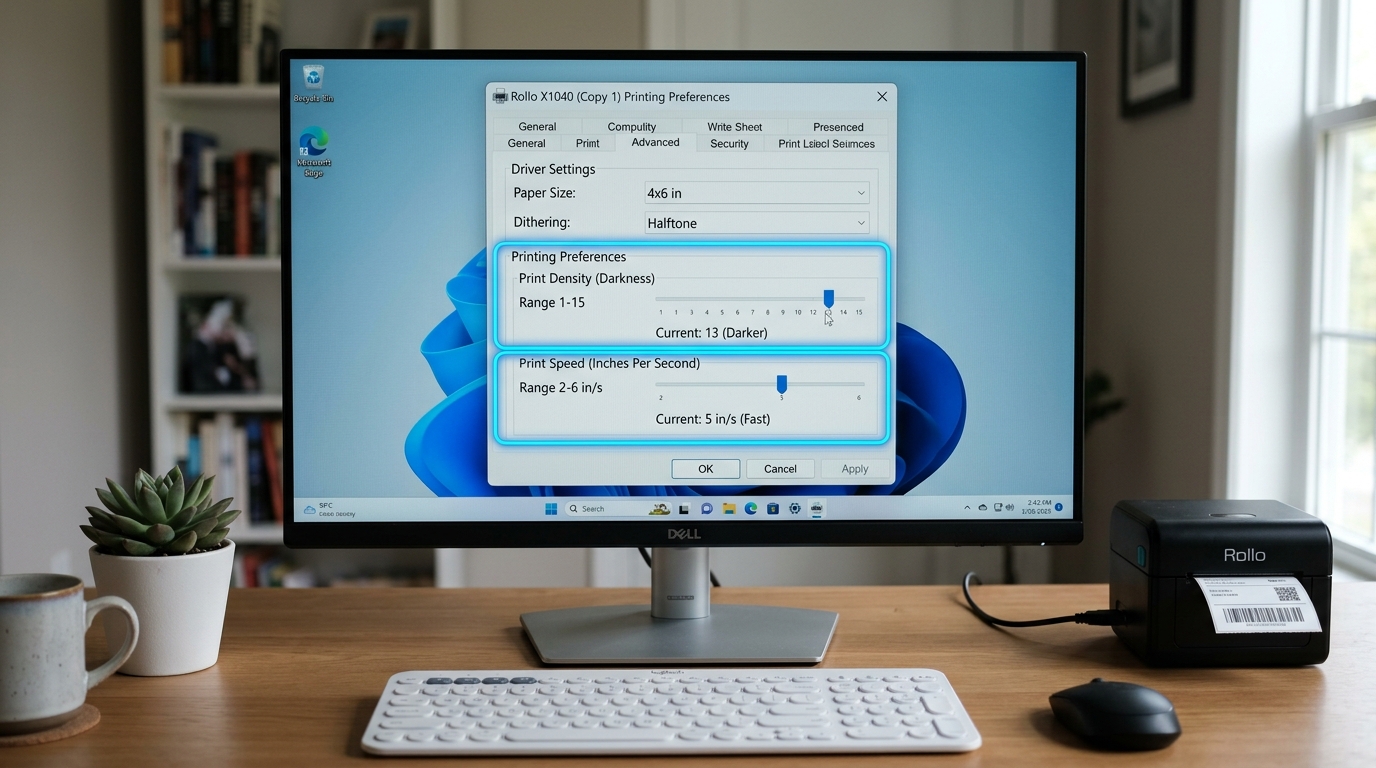
- Access Printer Preferences (Windows): Navigate to your Control Panel, then select "Devices and Printers" (or "Printers & Scanners" in Windows 10/11). Right-click on your Rollo printer (X1038 or X1040) and select "Printing Preferences".
- Access Printer Features (Mac): On macOS, print settings are accessed through the print dialog box of the application you are printing from (e.g., Preview or Chrome). Press Command+P, click "Show Details" if necessary, and select "Printer Features" from the central dropdown menu.
- Locate Density and Speed Settings: In the Windows Printing Preferences, look for the "Options" or "Advanced Settings" tab. You will see sliders or dropdowns for "Darkness" (Density) and "Speed". On Mac, under Printer Features, you will find sliders for "Darkness" and "Print Speed".
- Establish a Baseline: Before making drastic changes, set the Speed to a medium setting (around 4 or 5 in/sec) and the Density/Darkness to a medium setting (usually around 8 on a scale of 1-15, or halfway on the slider). Print a test label.
- Adjust for Faded Prints: If your test label is light, grey, or has broken lines, you need more heat transfer. First, increase the Density setting by one or two increments and print again. If it is still too light, decrease the Print Speed by one increment to give the print head more time to heat the paper.
- Adjust for Smudged or Bleeding Prints: If the barcode lines are too thick, bleeding together, or the text looks fuzzy and over-saturated, the print head is too hot. Decrease the Density setting by two increments. If necessary, slightly increase the Print Speed.
- Test with Real Shipping Labels: Always test your settings using an actual shipping label format (e.g., a PDF from UPS or USPS). Test prints of plain text do not accurately represent how a dense barcode will render. Use a smartphone barcode scanner app to verify that the barcode is easily readable.
- Save Your Settings: Once you find the perfect balance, ensure you save the settings. In Windows, click "Apply" and "OK" in the Printing Preferences window. On Mac, you can save your current configuration as a "Preset" in the print dialog box so you don't have to adjust it every time.
Advanced Troubleshooting: X1038 vs. X1040 Nuances
While the mechanical adjustments for speed and density are similar, troubleshooting connection-related print issues differs between the models. The wired Rollo X1038 is generally immune to data transfer lag.
If an X1038 stutters during printing, it is usually a USB bandwidth issue; try plugging it directly into the motherboard rather than a USB hub. The wireless Rollo X1040, however, relies on Wi-Fi stability.
If the X1040 pauses mid-print (which causes a dark burn line on the label because the hot print head rests on the paper while waiting for data), it indicates a network latency issue. To fix this, ensure your X1040 has a strong Wi-Fi signal, or switch your router to a less congested 2.4GHz channel.
Furthermore, high-density prints require more data to process. If you are experiencing network lag on the X1040, lowering the print density slightly can reduce the spool file size, allowing for smoother, uninterrupted printing over the air.
Another advanced issue is label quality. Not all thermal paper is created equal.
If you max out the density settings on your Rollo and the prints are still faded, the thermal coating on your labels is likely degraded or of poor quality. Thermal labels have a shelf life and are sensitive to light and heat storage conditions.
Always isolate whether the issue is the printer settings or a bad batch of labels by testing with a different brand of paper before assuming the thermal print head is failing.
FAQ
What is the optimal speed for Rollo printers?
For most standard 4x6 shipping labels, a speed of 4 to 5 inches per second (in/sec) is optimal. Printing at the maximum speed of 6 in/sec is possible, but often requires a significant increase in density, which can degrade the life of the print head.
Why is my Rollo X1040 printing slower than my X1038?
This is usually due to network latency. The X1040 must receive the print data over Wi-Fi.
Does increasing density reduce the lifespan of the printer?
Yes. Constantly running the printer at its maximum darkness/density setting forces the thermal elements to operate at peak heat, which can prematurely burn out the print head.
Why are there vertical white lines running through my labels?
Vertical white lines indicate that specific thermal elements on the print head are either dirty or permanently burnt out. First, clean the print head with an alcohol swab.
