


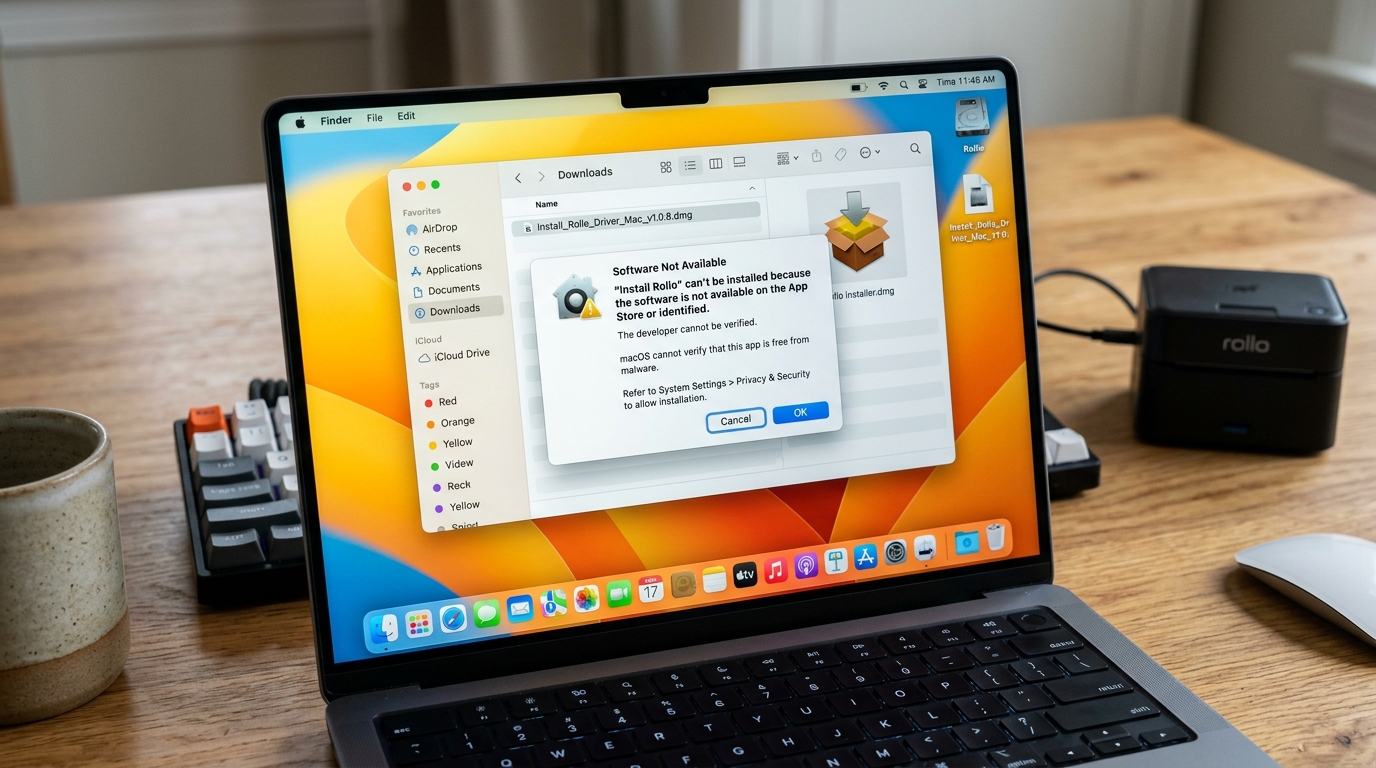
Introduction to the Rollo Mac Driver Issue
When setting up a Rollo thermal printer on an Apple Mac computer, users often encounter the frustrating error message stating that the "software is not available" or "driver is unavailable." This issue can bring shipping operations to a grinding halt, especially for small business owners who rely heavily on printing shipping labels for platforms like Shopify, Etsy, Amazon, and eBay.The Rollo printer is a robust, inkless thermal printer favored for its speed and cost-effectiveness. But Apple's continuous updates to macOS (including Big Sur, Monterey, Ventura, and Sonoma) frequently introduce new security protocols and driver signing requirements that can disrupt the seamless installation process.
Understanding the root causes of this software unavailability and knowing the exact steps to rectify it will save you countless hours of troubleshooting.This comprehensive guide provides an in-depth analysis of the macOS printing architecture, CUPS (Common UNIX Printing System). And the specific adjustments required to force the Mac operating system to recognize and communicate effectively with your Rollo printer without compromising system security.
Why This Happens: The Technical Breakdown
The "Software not available" error is primarily a symptom of macOS's Gatekeeper security feature and its evolving driver framework. Historically, macOS relied on kernel extensions (kexts) for hardware drivers.
However, recent macOS versions have deprecated kexts in favor of System Extensions to improve system stability and security.When you plug in the Rollo printer via USB, the Mac operating system attempts to automatically identify the device via its USB vendor ID (VID). And product ID (PID), then searches Apple's Software Update servers and the local driver store for a matching driver.
If the Rollo driver is not pre-installed or if the downloaded driver package lacks the proper Apple Developer cryptographic signature recognized by the current macOS version, the system blocks the installation, resulting in the "software not available" prompt. Furthermore, CUPS, the open-source printing system developed by Apple for macOS and other UNIX-like operating systems, requires a valid PPD (PostScript Printer Description) file to translate standard print jobs into the raw raster data the thermal printhead can understand.
If the PPD is missing, corrupted, or installed in an incorrect directory (/Library/Printers/PPDs/Contents/Resources/), CUPS fails to initialize the printer queue, exacerbating the problem. Finally, USB-C adapters and hubs can sometimes strip or alter the USB descriptor packets, confusing the Mac's hardware enumerator.All these factors combined create a perfect storm where the operating system sees the hardware.
But refuses to bind a software interface to it.
Moreover, another significant factor contributing to this issue involves the transition from Intel-based Macs to Apple Silicon (M1, M2, M3, M4 chips). The underlying architecture transition means that older driver binaries compiled exclusively for x86_64 architectures will not run natively on ARM64 processors without Rosetta 2 translation.
While Rosetta 2 is highly efficient, kernel-level drivers and specific hardware interaction binaries sometimes struggle with translation layers, leading to silent failures during driver setup.Consequently, the operating system defaults to a generic printer class driver. Which lacks the specific thermal control commands needed for Rollo, prompting the system to eventually declare the correct software unavailable when you attempt to print specialized formats like 4x6 shipping labels.
Step-by-Step Fix
- Disconnect and Clean Up: Begin by unplugging the Rollo printer's USB cable from your Mac.Navigate to "System Settings" (or "System Preferences" on older macOS versions), go to "Printers & Scanners", select any existing Rollo printer entries. And click the minus (-) button to remove them. Next, hold down the Control key, click anywhere in the printer list, and select "Reset printing system...". This action will clear all CUPS queues and resolve any corrupted spool files. Note: This removes all printers, so you will need to re-add them later.
- Download the Official Driver: Open Safari or Google Chrome and navigate directly to the official Rollo support website. Download the latest macOS driver specifically designed for your operating system version. Ensure you are not downloading a legacy driver intended for macOS Catalina or earlier unless you are actually running that version.
- Bypass Gatekeeper Temporarily: Locate the downloaded .pkg installer file in your Downloads folder. Instead of double-clicking it, hold down the Control key and click (or right-click) the file, then select "Open" from the context menu. You will see a warning prompt indicating that the developer cannot be verified. Click "Open" again to authorize the installation. This bypasses the strict Gatekeeper check for this specific file.
- Execute the Installation: Follow the on-screen prompts in the installation wizard. When prompted for a destination, ensure you select your main Macintosh HD. You will be required to enter your Mac's administrator password or use Touch ID to authorize the installation of new software components into the system directories.
- Reconnect and Add the Printer: Once the installation is successful, plug the Rollo printer back into your Mac, preferably using a direct USB port rather than a hub if possible. Return to "Printers & Scanners" in System Settings. Click the "Add Printer, Scanner, or Fax..." button.
- Select the Correct Software: In the Add Printer dialog, you should see the Rollo printer listed under the "Default" tab. Select it. In the "Use" dropdown menu at the bottom, DO NOT leave it on "Generic PostScript Printer" or "Auto Select". Choose "Select Software...". In the ensuing list, search for "Rollo" and select the Rollo Printer driver. Click "OK", then click "Add".
- Configure Default Settings: Finally, set the default paper size to 4x6 inches to avoid formatting issues.You can do this by opening a document, going to File -> Print, selecting the Rollo printer. And under "Paper Size", managing custom sizes or selecting the pre-defined 4x6 label size. Save this as a preset for future use.
Advanced Troubleshooting
If you have followed the standard step-by-step fix and continue to experience issues, we must delve deeper into the UNIX underpinnings of macOS. Sometimes, the CUPS web interface provides more granular control than the standard System Settings GUI.
To access this, open the Terminal application (found in Applications/Utilities) and type the command cupsctl WebInterface=yes. Press Enter.
This command enables the hidden local web server for printer management. Next, open your web browser and navigate to http://localhost:631.
From this interface, click on the "Printers" tab to view all installed queues. If the Rollo is listed, check its status.
If it says "Paused" or "Filter failed", the issue lies with the PPD file or the raster filter. A "Filter failed" error almost always indicates that the built-in binary used to convert PostScript to Rollo's thermal raster format is either missing executable permissions or is incompatible with your system architecture.
To fix permission issues, you can run a disk utility first aid or use terminal commands to 'chmod +x' the specific filter binaries located in '/Library/Printers/Rollo/'.
Another advanced diagnostic step involves checking the system logs. Open the "Console" application and search for "cupsd" or "Rollo".
Look for error messages that occur at the exact time you attempt to print or add the printer. These logs can reveal if a security policy is actively blocking the driver or if there's a USB communication timeout.
If you are using a USB hub, particularly a cheap unpowered hub, the Mac might not be providing enough current to reliably negotiate the USB connection, leading the OS to drop the device before the driver can attach. Always test with an Apple-branded USB-C to USB-A adapter if you are on a modern MacBook Pro or Air.
Additionally, checking the Apple System Profiler (About This Mac -> More Info -> System Report -> USB) can confirm if the hardware is physically detected; if the Rollo does not appear in the USB device tree, the issue is hardware-related (cable, port, or printer motherboard), not software.
In extremely rare cases, third-party antivirus software or endpoint security solutions (like CrowdStrike, SentinelOne. Or sophisticated firewall applications) might flag the Rollo printing spooler as suspicious activity, silently quarantining the necessary background processes.
Disabling these temporarily can help isolate the root cause.If disabling the security software resolves the issue, you will need to add exceptions or whitelists for the '/usr/libexec/cups/' directory. And the specific Rollo driver binaries to ensure permanent functionality.
Frequently Asked Questions (FAQ)
Why does my Mac keep saying the Rollo printer is offline?
This typically occurs due to a disruption in the USB connection or a corrupted print queue. macOS will mark a printer as offline if it fails to communicate with it after several attempts.
Do I need to install Rosetta 2 for the Rollo driver to work on M1/M2/M3 Macs?
Older versions of the Rollo driver were compiled for Intel (x86_64) architecture. And strictly required Rosetta 2 to function on Apple Silicon Macs.
How can I calibrate my Rollo printer from a Mac?
Calibration is a hardware function, not strictly controlled by the Mac software, but it's essential when changing label sizes. To calibrate the Rollo printer, ensure it is powered on and loaded with your labels.
Can I use a generic thermal printer driver if the Rollo one fails?
While macOS includes generic text and PostScript drivers, these will NOT work for the Rollo thermal printer. Thermal printers require specific raster data commands to heat the correct elements on the printhead.
