


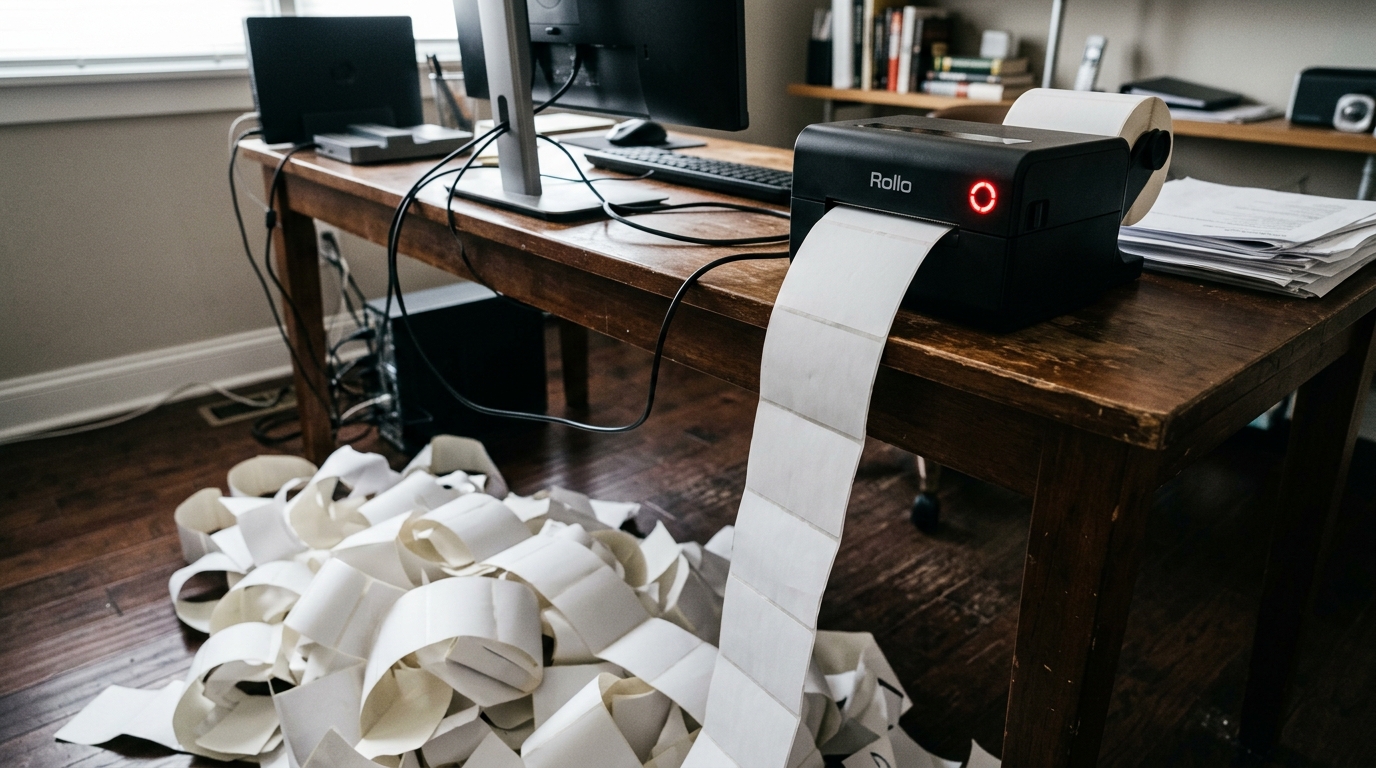
Introduction to Rollo Printer Errors: Beeps and Endless Printing
The Rollo thermal shipping label printer is a favorite among e-commerce sellers for its speed, cost-effectiveness, and ink-free operation. Designed to integrate seamlessly with platforms like Shopify, Etsy, and Amazon, it is typically a robust workhorse.
However, when things go wrong, the Rollo printer's minimalist design—lacking an LCD screen—can make troubleshooting incredibly stressful. Two of the most alarming.
Disruptive issues users face are the printer refusing to stop printing (often churning out miles of blank labels or repeating the same label endlessly) and the printer emitting a series of cryptic warning beeps, accompanied by a flashing LED light. These symptoms indicate significant communication breakdowns between your computer and the printer, sensor calibration failures, or critical hardware errors.
In this comprehensive guide, we will decode the meaning behind the Rollo printer's beeps, explain why your printer has gone rogue with endless printing. Provide concrete, step-by-step solutions to regain control of your shipping station.
Understanding the root cause requires recognizing that the Rollo printer acts largely on commands sent from the host computer's print spooler. Relies heavily on its internal optical sensors to understand label dimensions.
When a massive print queue gets stuck, or if the printer driver is sending corrupted data, the printer may blindly execute a command to continuously feed labels. Similarly, the beeping sounds are not random; they are diagnostic codes programmed into the firmware (internal software) to communicate specific hardware states, such as paper out, cover open, or thermal head overheating.
By learning to translate these audible and visual cues. By mastering the calibration and print queue management processes, you can quickly silence the alarms, stop the waste of expensive labels, and return to fulfilling orders efficiently.
Why This Happens: The Root Causes of Beeping and Runaway Printing
The nightmare scenario of a Rollo printer that won't stop printing is almost exclusively a software and communication issue. This typically occurs when a print job becomes corrupted in the operating system's print spooler (either Windows or macOS).
The computer repeatedly sends a garbled set of commands that the printer misinterprets as a command to advance the feed roller indefinitely. Another common cause is incorrect label size settings in the driver.
If you are printing a 4x6 label. The software is configured for an 8.5x11 page, the printer will continuously feed labels trying to accommodate the massive 'virtual' page size, resulting in a string of blank or partially printed labels.
Until the corrupted data is cleared from the computer's memory, turning the printer off. On will not solve the problem, as the computer will simply resend the bad data upon reconnection.
Beeping errors, on the other hand, are hardware and sensor-driven alerts. The Rollo printer uses an optical sensor located near the feed mechanism to detect the gap or black mark between labels.
This tells the printer exactly where one label ends and the next begins. If this sensor is dirty, covered in adhesive residue, or simply hasn't been calibrated to the specific type of labels you are using, it will fail to detect the gap.
The printer will feed a few labels, realize it cannot find the registration mark. Halt with a red flashing light and a series of beeps (usually two short beeps).
Continuous, rapid beeping often indicates a more severe hardware state, such as the print head overheating from excessive continuous use, or the printer lid not being securely latched, preventing the thermal head from making contact with the paper.
Step-by-Step Fix: Stopping Runaway Printing and Silencing Beeps
Follow these detailed steps to stop the printer from wasting labels, clear corrupted data. Resolve the hardware errors causing the diagnostic beeps.
- Halt the Runaway Printer: The immediate priority is to stop wasting labels. Immediately press the power switch on the back of the Rollo printer to turn it off. Do not try to hold the feed button, as this will not override a corrupted print spooler.
- Clear the Print Queue (Windows): The corrupted data must be deleted from your computer. Go to Settings > Devices > Printers & scanners. Click on the Rollo printer and select 'Open queue'. Select all pending documents, right-click, and choose 'Cancel'. If the documents say 'Deleting'. Remain stuck, you must restart the Print Spooler service via the Windows Services app (services.msc).
- Clear the Print Queue (Mac): Go to System Preferences > Printers & Scanners. Select the Rollo printer and click 'Open Print Queue'. Click the 'X' next to every pending print job to delete them. If jobs are stubbornly stuck, restarting your Mac is the most reliable way to clear the local spooler cache.
- Perform a Hard Reset:While the printer is powered off, unplug the USB cable from the computer. Unplug the power cable from the wall. Wait 60 seconds. This drains residual power and clears the printer's volatile memory. Plug the power cord back in and turn the printer on, leaving the USB disconnected for now.
- Clean the Optical Sensor: Open the printer lid. Locate the small optical sensor near the paper path (it looks like a small glass eye). Use a cotton swab lightly dipped in rubbing alcohol to clean the sensor. Adhesive build-up here is the leading cause of "two-beep" gap detection errors.
- Ensure Proper Lid Closure: Check the thermal printhead area for any stuck labels. When closing the lid, press down firmly on both sides simultaneously until you hear two distinct clicks. If the lid is slightly ajar on one side, it will trigger an open cover error beep.
- Run Automatic Label Identification (Calibration): This is the most crucial step for fixing gap errors. With the printer on and labels loaded, press and hold the top circular feed button until you hear one single beep, then immediately release it. The printer will feed a few labels back and forth to 'learn' their size and gap distance.
- Verify Driver Settings: Reconnect the USB cable. Before printing again, open the Rollo printer preferences on your computer. Ensure the paper size is explicitly set to match your labels (e.g., 4" x 6"). Ensure the media type is set to "Labels with Gaps" (not continuous receipt paper).
- Print a Test Page: Do not immediately print an old shipping label. Instead, use the operating system's built-in feature to print a generic test page. If this prints correctly and stops precisely at the tear-off point, the issue is resolved.
- Check for Overheating:If the printer was running continuously before you stopped it. Emits rapid, continuous beeps, the thermal head has likely overheated. Turn the printer off and let it cool down for at least 15-20 minutes before resuming operation. Thermal printers require cool-down periods during massive batch runs.
Advanced Troubleshooting: Decoding Specific Beep Patterns and Driver Reinstallation
If the standard calibration and cleaning do not resolve the beeping, you must decode the specific pattern. A solid red light with no beep usually indicates a critical motherboard failure.
A flashing red light with two beeps means the printer is out of paper or cannot detect the gap (requiring sensor cleaning. Recalibration as outlined above).
A flashing red light with continuous beeping means the print head is overheated. If you receive two beeps even after rigorous cleaning.
Calibration, the optical sensor itself may have failed, or the labels you are using may have backings that are too thick or opaque for the sensor's infrared light to penetrate. Testing with a different brand of high-quality thermal labels is the best way to isolate this variable.
If the runaway printing issue returns immediately upon printing a new label, the problem lies deep within the printer driver installation. The driver files may have become corrupted.
You must perform a completely clean installation. First, remove the printer from your OS settings.
Then, in Windows, use the 'Print Server Properties' menu to remove the Rollo driver package completely from the system repository. On a Mac, reset the printing system entirely (Control-click in the Printers list and select 'Reset printing system').
Once all traces of the old driver are gone, download the latest driver package directly from the official Rollo website, reboot your computer. Install the driver fresh before reconnecting the printer via USB.
FAQ: Rollo Printer Troubleshooting Questions
Why did my printer suddenly print 50 blank labels in a row?
This happens when the printer loses its calibration and fails to detect the gap between labels. It thinks it is printing on one continuous, infinitely long label.
What does it mean when the red light flashes and it beeps twice?
" The printer either doesn't have paper loaded, the paper is loaded incorrectly, or the optical sensor is dirty. Cannot 'see' the gap between the labels.
How do I permanently clear a stuck print job that won't delete?
In Windows, if clicking 'Cancel' doesn't work, you must force restart the print spooler. msc", find "Print Spooler" in the list, right-click it, and select "Restart".
Can changing the brand of labels cause beeping errors?
Absolutely. Different label brands use different thicknesses of paper and backing materials.
Why does the printer beep continuously when I print a large batch?
Continuous, rapid beeping indicates an overheating warning. The thermal printhead gets extremely hot during operation.
