


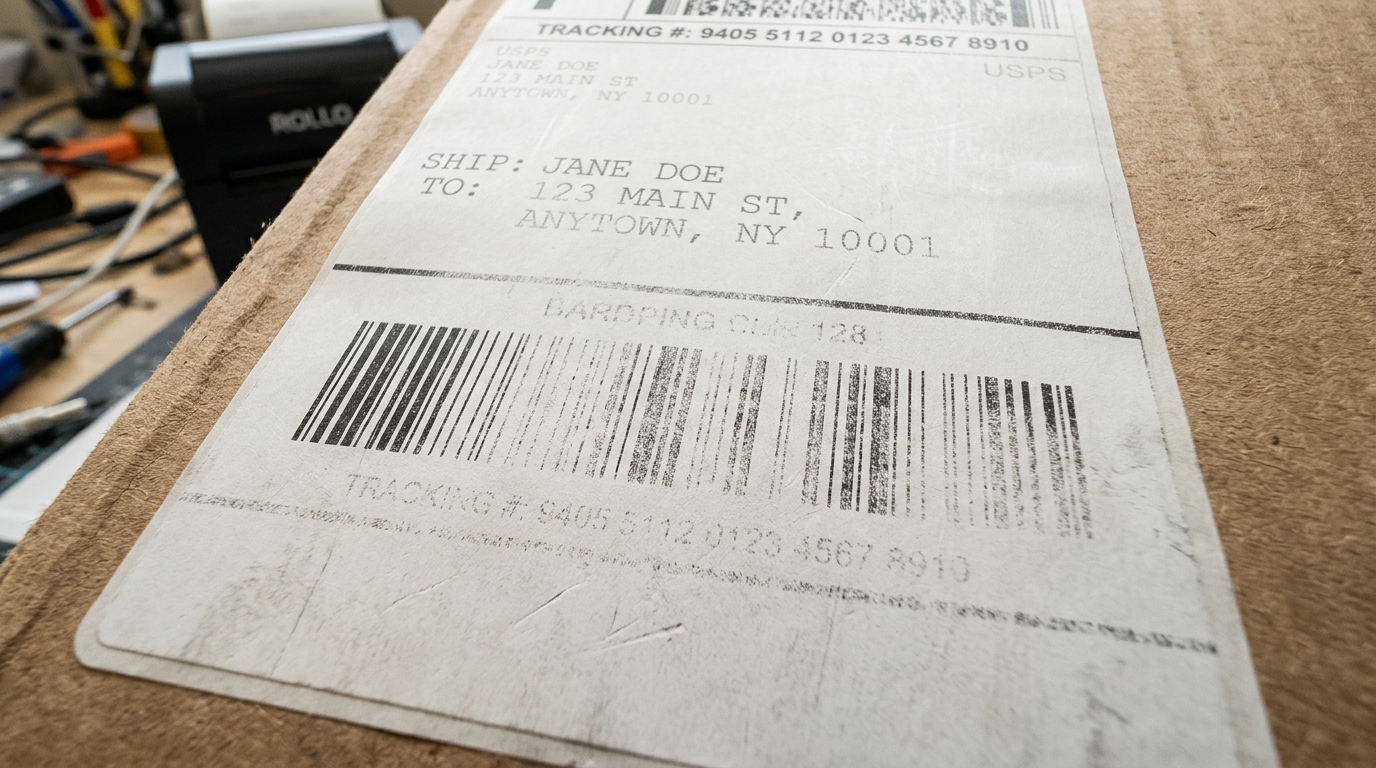
Producing clear, crisp, and easily readable shipping labels is essential. When your Rollo printer begins outputting blank labels, faint text, or uneven print density, it significantly disrupts your workflow.Maintaining any professional printing equipment requires a comprehensive understanding of both the hardware limitations.
The software environment it operates within.Small businesses, e-commerce shippers,. Office environments alike rely heavily on the consistent output of these devices to maintain operational efficiency.When a disruption occurs, the ripple effects can be surprisingly severe, leading to missed shipping deadlines, dissatisfied customers,.
Wasted physical resources. A methodical approach to diagnosing and resolving these technical anomalies is absolutely essential.We often find that users rush to replace hardware when the actual.
Issue is a minor settings mismatch or a neglected routine maintenance task.By taking the time to systematically rule out variables—starting with the simplest. Moving toward the more complex—you can often restore full functionality without incurring significant costs or downtime.
It is also vital to recognize the role that environmental factors play in hardware performance.Dust, humidity, extreme temperatures,. Poor power quality can all introduce subtle, intermittent problems that are notoriously difficult to track down.Establish a clean, stable workspace for your printer, ensure it is plugged directly into a reliable power source rather than a heavily loaded surge protector,.
Invest in high-quality consumable materials (like labels, ribbons, or film) to minimize the risk of hardware stress.Regularly reviewing official manufacturer documentation. Keeping your drivers up to date can preempt many software-related conflicts before they manifest as physical printing errors.Understanding the communication bridge between your computer's operating system, the specific application sending the print job,.
The printer's internal firmware (internal software) is key to mastering its operation.
Why This Happens
The most frequent culprit for faint or uneven prints is a dirty thermal print head. The environment around a shipping station is often dusty, and the labels themselves shed microscopic paper fibers and adhesive residue.Over time, this debris bakes onto the print head, forming an.
Insulating layer that prevents the heat from reaching the label paper. Furthermore, proactive maintenance is significantly more cost-effective than reactive troubleshooting.Implementing a simple weekly or monthly cleaning schedule can dramatically extend the lifespan of critical components like thermal print heads, platen rollers,.
Motor assemblies.Many printer failures are cumulative; a tiny speck of adhesive or dust might not cause an immediate jam,. Over time, it attracts more debris, eventually forming a solid mass that physically impedes operation or blinds optical sensors.The tools required for this routine maintenance are usually inexpensive and readily available: isopropyl alcohol, lint-free cloths, compressed air (used cautiously),.
Sometimes a soft-bristled brush.Documenting your specific settings settings—including paper sizes, density levels, speed adjustments,. Margin offsets—can also save hours of frustration if a system update or accidental reset wipes your preferences.If multiple users have access to the printer, ensure everyone is trained on the correct procedures for loading media, clearing jams,.
Recognizing the early warning signs of hardware fatigue.A shared understanding of the equipment prevents user-induced errors, such as. Forcefully pulling a jammed label or adjusting mechanical guides too aggressively.Finally, when you encounter an issue that defies standard troubleshooting, do not hesitate to leverage the diagnostic tools often built into the printer's driver software, or to consult specialized online communities.
Support forums where experienced technicians share their specific, undocumented fixes for persistent problems. Always prioritize safety when interacting with internal components, especially those that generate high heat or involve moving gears.
Understanding the intricate dance between mechanical force, thermal transfer, and digital instruction sets is critical.Whether the root cause lies in physical friction, software misconfiguration, or consumable degradation, identifying. The specific failure point allows for a targeted, permanent fix rather than a temporary workaround.
Step-by-Step Fix
- Clean the Thermal Print Head: Turn off and unplug the Rollo printer.Use an alcohol prep pad or a lint-free cloth lightly dampened with. 90%+ isopropyl alcohol to gently wipe the entire length of the print head. \n
- Adjust Print Density and Speed (Windows): Navigate to Printers & Scanners > select the Rollo > Manage > Printing Preferences. Increase the Darkness setting significantly and decrease the Print Speed. \n
- Adjust Print Density and Speed (Mac): Open a document, go to Print. Click on Printer Features. Increase Darkness to the maximum and reduce the speed to 3 or 4 in/sec. \n
- Verify Label Quality and Type: Ensure you are using Direct Thermal labels. Try a brand-new roll from a different batch or supplier. \n
- Check the Power Supply: Ensure you are using the original Rollo power adapter. Test the printer on a different electrical outlet. \n
- Perform a Factory Reset and Re-calibrate: Turn the printer off. Hold the top button, turn the printer on, and release when the light turns red. After it resets, hold the button again until you hear one beep. \n
- Update or Reinstall Drivers: Completely uninstall the Rollo printer drivers from your computer, reboot, and download the newest version from the official Rollo website.
Advanced Troubleshooting
If cleaning the print head. Maximizing the darkness settings do not resolve the issue, you must inspect the platen roller.
The platen roller is the rubber cylinder located directly beneath the print head. Its job is to provide even pressure.If the platen roller is nicked, cut, warped, or heavily coated in adhesive residue,.
It will create low-pressure spots where the label doesn't make full contact with the heat. If all these measures fail, consider the possibility of a deep firmware (internal software) corruption.
In some rare instances, the internal memory of the printer becomes scrambled due to power fluctuations during a print job.Attempting a 'hard' factory reset, often requiring a specific sequence of button presses while powering the unit on, can clear this corrupt data. Restore the device to its baseline factory state, ready to be cleanly configured once more.
FAQ
Why are there white lines running down the middle of all my labels?
Vertical white lines are the classic symptom of a dirty print head. A speck of dust or adhesive is blocking the heat elements in that specific spot.
I increased the darkness to maximum, but it's still faint. What next?
If density is maximized and the print head is clean, the issue is likely your labels. Try a fresh roll from a different brand.
Can I use regular paper in a Rollo printer?
No. Rollo printers use direct thermal technology, requiring special heat-sensitive paper.
Why are only parts of the label faint, while other parts are dark?
Uneven printing usually points to an issue with the platen roller. It might be dirty, causing uneven pressure, or the printer lid might not be securely latched.
