


Introduction
The Rollo thermal label printer is a workhorse for e-commerce entrepreneurs, small businesses, and busy shipping departments. Renowned for its speed and reliability, it is typically a plug-and-play device.
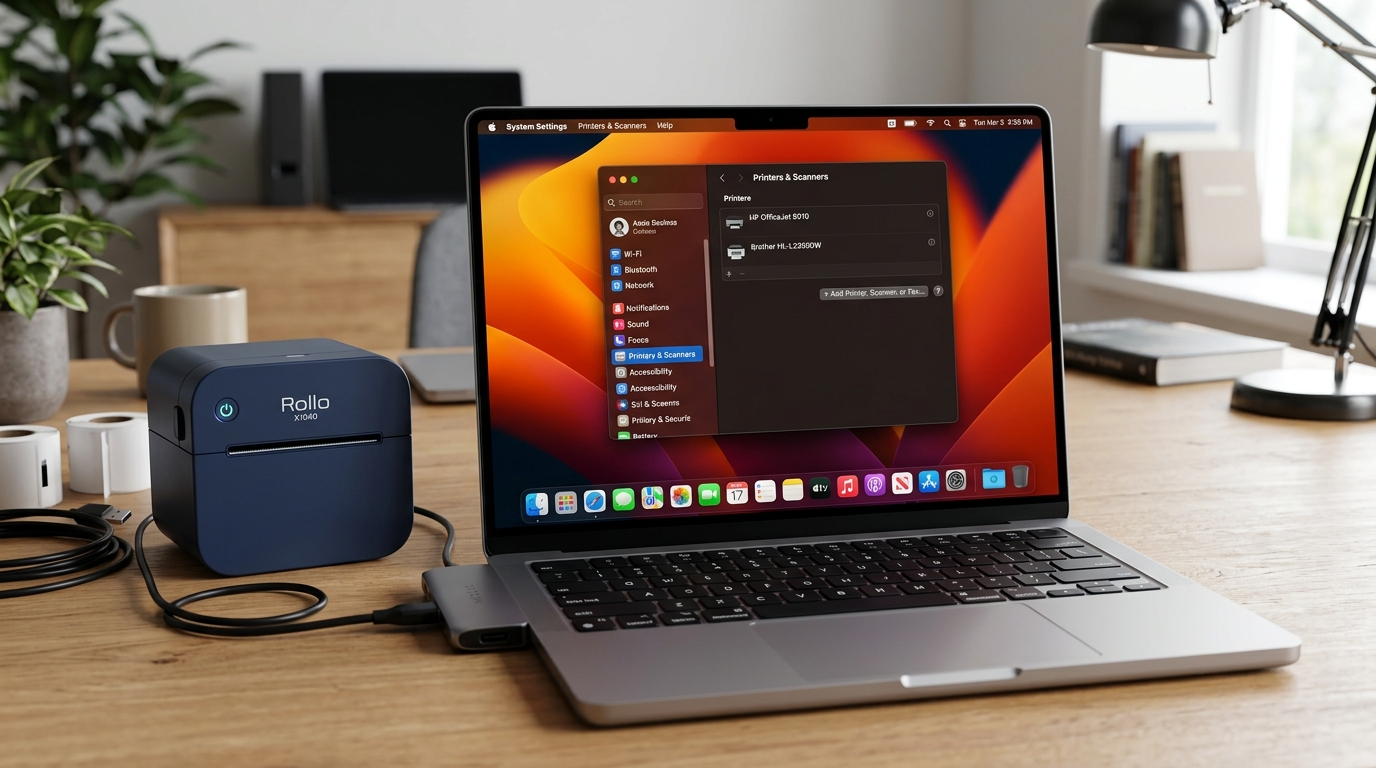
However, a significant number of Mac users operating on newer operating systems, specifically macOS Ventura and macOS Sequoia, have encountered a maddening issue: the Rollo printer completely fails to show up in the Printers & Scanners settings. You plug in the USB cable, the printer turns on, but your Mac acts as if nothing is connected.
This invisible printer syndrome severely halts shipping operations, causing order backlogs and immense frustration. This extensive troubleshooting guide is engineered to solve the exact problem of the Rollo printer not being recognized by modern macOS environments.
We will navigate through the complexities of Apple's recent changes to USB security, driver architecture (specifically the shift away from kernel extensions), and CUPS (Common UNIX Printing System) management.
The transition to Apple Silicon (M1, M2, M3, M4 chips) alongside major macOS architectural overhauls in Ventura and Sequoia has drastically altered how macOS handles third-party peripherals. Legacy drivers that functioned perfectly on macOS Monterey or earlier frequently fail silently on newer systems.
By thoroughly understanding the interaction between Rollo's drivers, Apple's security protocols, and system settings, this guide will provide you with a definitive, step-by-step resolution. We will cover everything from basic connection checks to advanced terminal commands, ensuring your Rollo printer is back online and churning out shipping labels efficiently.
Why This Happens
The primary reason your Rollo printer is not showing up on macOS Ventura or Sequoia is rooted in Apple's stringent security frameworks and the deprecation of older driver architectures. macOS now requires explicit user consent for new USB accessories to communicate with the system.
If you missed or dismissed the "Allow accessory to connect" prompt when you first plugged in the Rollo printer, macOS will actively block the connection, making the printer entirely invisible to the system's hardware detection routines.
This feature, designed to prevent malicious USB devices, often catches legitimate peripherals in its net.
Secondly, driver incompatibility is a major hurdle. Older Rollo drivers were built using kernel extensions (kexts), which Apple is aggressively phasing out in favor of system extensions for stability and security.
If you migrated your data from an older Mac or upgraded your OS without updating the Rollo driver, the legacy driver will fail to load in Ventura or Sequoia. Without a functional driver to bridge the communication gap, the macOS CUPS system cannot recognize or enumerate the hardware.
Furthermore, USB hub and adapter issues are prevalent, especially with modern MacBooks that only feature USB-C ports. The Rollo printer uses a traditional USB Type-B to Type-A cable.
Utilizing cheap or faulty USB-C to USB-A dongles, or routing the connection through unpowered multi-port docks, can result in signal degradation or insufficient power delivery. The printer might receive enough power to turn on, but the data lines fail to establish a stable handshake with the Mac's logic board, resulting in the device not appearing in the system profiler.
Step-by-Step Fix
- Check USB Accessory Security Settings: This is the most common fix for Ventura and Sequoia. Go to Apple Menu > System Settings > Privacy & Security. Scroll down to the "Security" section. Look for the setting "Allow accessories to connect." Change this from "Ask every time" or "Ask for new accessories" to "Always" temporarily. Unplug the Rollo USB cable, wait 5 seconds, and plug it back directly into the Mac. If a prompt appears asking to allow the accessory, click "Allow."
- Bypass USB Hubs: Eliminate adapters as the point of failure. Connect the Rollo printer directly to a port on your Mac. If you only have USB-C ports, use a high-quality, direct USB-C to USB-B cable (bypassing the need for a dongle entirely). If the printer is recognized directly, your hub or dongle is faulty.
- Completely Uninstall Old Drivers: Before installing new drivers, you must obliterate the old ones to prevent conflicts. Open Finder, press Cmd+Shift+G, and go to
/Library/Printers/. If you see a "Rollo" folder, drag it to the trash. Next, go to/Library/Printers/PPDs/Contents/Resources/and delete any file named "Rollo.ppd" or similar. Empty the trash and restart your Mac. - Download and Install Latest macOS Drivers: Visit the official Rollo website and navigate to their support/downloads section. Download the specific driver package labeled for macOS (ensure it mentions Ventura/Sequoia or Apple Silicon compatibility if applicable). Run the installer package and follow the prompts, authorizing the installation with your Mac's administrator password.
- Reset the Mac Printing System: This clears out corrupt printer queues and CUPS glitches. Go to Apple Menu > System Settings > Printers & Scanners. Hold down the Control key and click anywhere in the empty space of the printer list (or right-click). Select "Reset Printing System." Confirm the action. This will delete all installed printers.
- Add the Printer Manually: After resetting, ensure the Rollo is powered on and connected. Click the "Add Printer, Scanner, or Fax" button. The Rollo should now appear in the list. Select it. Ensure the "Use" dropdown menu automatically selects the "Rollo Printer" driver, not "Generic PostScript Printer." Click Add.
- Run a Mac Hardware Diagnostic (System Information): If it still isn't showing up, verify if the Mac sees the hardware at all. Hold the Option key, click the Apple Menu, and select "System Information." Look under the "Hardware" dropdown and select "USB." Check if "Rollo Printer" is listed on the right panel. If it is listed here but not in Printers & Scanners, it's a driver issue. If it's not listed here, it's a hardware/cable/port issue.
Advanced Troubleshooting
If the printer remains stubbornly invisible, we must explore command-line troubleshooting. The CUPS system can sometimes hang or fail to load driver profiles correctly.
Open the Terminal app (Applications > Utilities > Terminal). Type cupsctl WebInterface=yes and hit enter to enable the hidden CUPS web interface.
Open a web browser and go to http://localhost:631. Navigate to the "Printers" tab.
If you see the Rollo printer listed there but in a "paused" or "error" state, you can force resume it from this interface. You can also view the CUPS error log via the "Administration" tab to diagnose specifically why the driver is failing to load.
In rare cases, aggressive third-party antivirus or firewall software (like Norton, McAfee, or Little Snitch) on macOS can block local communication protocols essential for printer discovery. Temporarily disable these security suites completely and attempt to add the printer again.
If successful, you will need to add an exception or whitelist rule for the printer spooler processes and the Rollo driver binaries within your security software.
Finally, consider the firmware of the Rollo printer itself. While Rollo printers are generally robust, extreme static discharge or power surges can corrupt the internal logic board firmware, causing the USB controller to fail.
In this state, the printer might turn on and feed paper using the physical button, but it will be dead to any computer. Test the printer on a completely different computer (preferably a Windows machine, to rule out macOS entirely).
If the Windows machine also fails to detect the USB connection, the printer's logic board is likely damaged and requires hardware replacement.
FAQ
Why does my Rollo print blank labels on Mac after updating?
If the printer connects but prints blank labels, the driver is likely configured with incorrect paper size or density settings. In the print dialog, ensure the paper size is explicitly set to 4x6 (or your specific label size) and adjust the print density/darkness settings in the printer features menu.
Do I need to update my Mac to fix this?
Not necessarily, but ensuring you are on the latest point release of Ventura or Sequoia (e.g., macOS 14.5 or 15.1) is recommended. Apple frequently issues minor updates that include silent patches for USB communication and system framework bugs affecting peripherals.
Will a wireless Rollo fix the USB connection issue?
The Wireless Rollo uses Wi-Fi instead of USB, bypassing the macOS USB security prompts and cable issues entirely. If your USB ports are unreliable or you require mobility, upgrading to the wireless model will circumvent these specific hardwired connection problems.
How do I know if my USB cable is bad?
The easiest way to diagnose a bad cable is substitution. Use a known-working USB cable (like one from a standard desktop printer) to connect the Rollo.
