


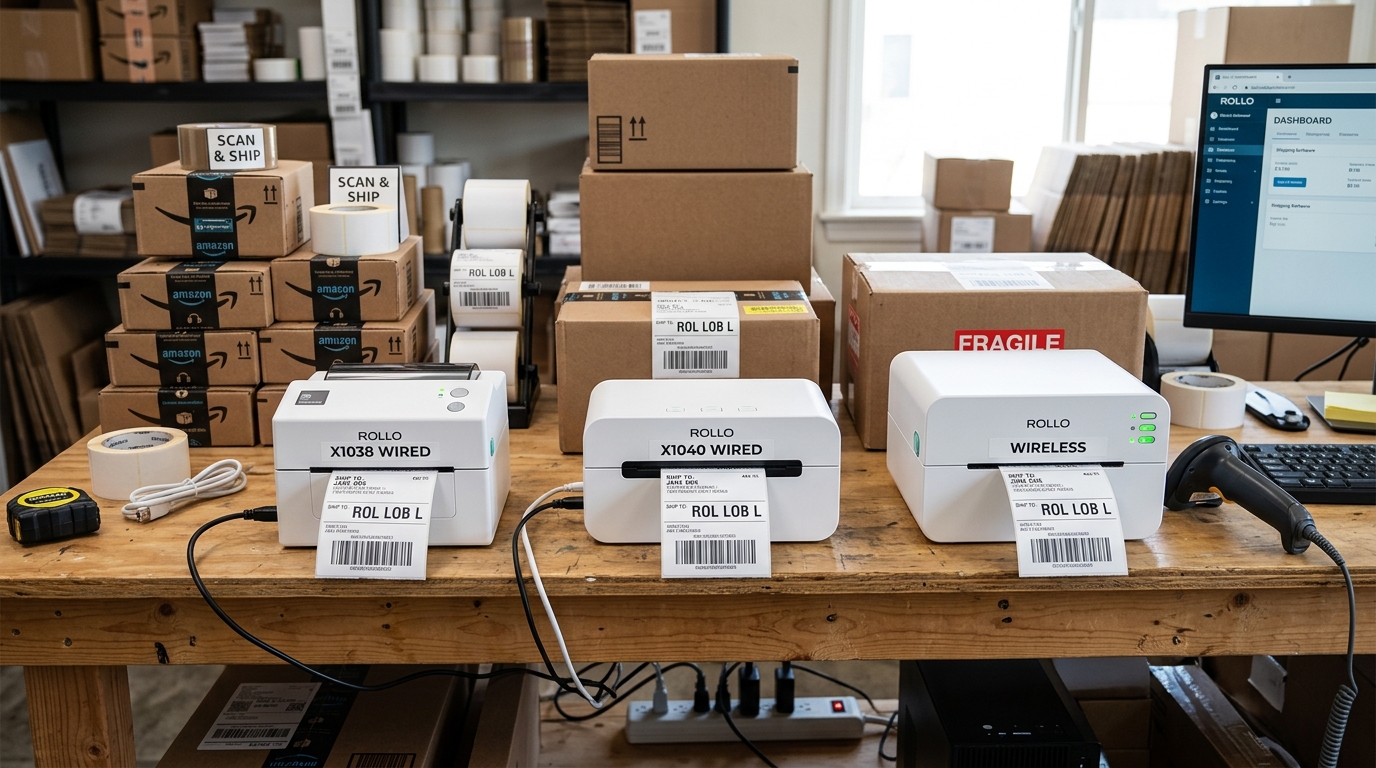
Introduction to Rollo Wireless Printers
Welcome to the definitive comparison between the Rollo X1038 and the Rollo X1040 wireless thermal label printers.If you are running an e-commerce business, shipping logistics center. Or small home office, having a reliable thermal label printer is not just an option—it is a critical necessity.
Thermal printers operate without ink, utilizing heat-sensitive paper to create clear, durable, and professional-grade shipping labels.The Rollo brand has long been a staple in this industry, known for its high-speed performance, broad compatibility with major shipping platforms like UPS, FedEx, USPS. And ShipStation, and exceptional ease of use.
However, as technology evolves, so do the needs of business owners. This has led to the introduction of advanced wireless models, specifically the X1038 and the X1040.While both devices look remarkably similar at first glance—sharing the same sleek, minimalist design that fits seamlessly onto any modern desk—their internal components, connectivity protocols.
And targeted use cases differ significantly. Understanding these differences is paramount to making an informed purchasing decision that aligns with your operational requirements and budget.
In this comprehensive guide, we will dissect every aspect of these two powerhouse printers.We will explore their core specifications, analyze their wireless networking capabilities, compare their print speeds and resolutions. And explore the nuances of their software ecosystems.
Furthermore, we will address common troubleshooting scenarios and provide a detailed FAQ section to answer any lingering questions you might have.
Why This Happens: The Need for Different Wireless Models
You might wonder why a company would release two seemingly identical wireless thermal printers in such close succession. The answer lies in the rapidly changing landscape of wireless technology and the diverse networking environments found in modern businesses.
The X1038 was designed primarily as an accessible entry into wireless label printing. It relies on standard 2.4GHz Wi-Fi protocols, which offer excellent range and penetrate physical barriers like walls and doors effectively.
This makes the X1038 an ideal choice for home offices or small warehouses where the router might be located in a different room than the packing station.
Conversely, the X1040 was developed to address the specific challenges of high-density wireless environments. In bustling commercial spaces, coworking offices, or large fulfillment centers, the 2.4GHz spectrum is often congested with dozens of devices—from laptops and smartphones to security cameras and microwave ovens.
This congestion can lead to dropped connections, slow data transfer rates, and ultimately, delayed print jobs. To combat this, the X1040 incorporates dual-band Wi-Fi capabilities, supporting both 2.4GHz and 5GHz frequencies.The 5GHz band, while having a shorter range, provides significantly faster data transmission.
And is far less susceptible to interference, ensuring a stable connection even in crowded airspace.
Furthermore, the X1040 introduces enhanced Bluetooth connectivity options and improved processing power to handle larger, more complex print batches without buffering. Understanding why these differences exist helps clarify which model is best suited for your specific environment.
If you operate in a quiet suburban home, the X1038's robust 2.4GHz connection is more than sufficient. However, if you are situated in a densely populated apartment building or a busy industrial complex, the X1040's dual-band capability becomes a critical feature for maintaining seamless productivity.
Step-by-Step Fix: Setting Up and Optimizing Your Rollo Printer
Regardless of whether you choose the X1038 or the X1040, proper setup and settings are essential to achieving optimal performance.The following step-by-step guide will walk you through the process of unboxing, connecting. And fine-tuning your new wireless thermal label printer.
- Unbox and Inspect: Carefully remove the printer from its packaging.Ensure that all components are present, including the power adapter, power cable, USB cable (for initial setup or fallback use). And a sample stack of thermal labels. Inspect the device for any physical damage that may have occurred during shipping.
- Position the Printer: Place the printer on a stable, flat surface near your packing area.Ensure there is adequate space behind the printer for the label stack or roll holder. And enough clearance in front for the printed labels to emerge without obstruction.
- Connect to Power: Plug the power adapter into the back of the printer and connect the power cable to a grounded electrical outlet. Turn on the power switch located on the back or side of the unit. The status indicator light should illuminate.
- Install the Rollo App: Download the official Rollo application from the Apple App Store (for iOS devices) or the Google Play Store (for Android devices). Alternatively, download the desktop software from the official Rollo website for Windows or macOS.
- Initiate Network Setup: Open the Rollo app and select "Add New Printer." Follow the on-screen prompts. For the X1038, ensure your mobile device is connected to a 2.4GHz Wi-Fi network. For the X1040, you may connect to either a 2.4GHz or 5GHz network, but 5GHz is recommended for better performance in congested areas.
- Enter Network Credentials: When prompted, enter your Wi-Fi network password. The app will securely transmit this information to the printer.The status light on the printer will likely flash during this process. And turn solid once a successful connection is established.
- Load Thermal Labels: Adjust the label guides to match the width of your thermal labels (standard shipping labels are typically 4x6 inches). Insert the labels into the feed slot at the back of the printer until the roller catches the paper.
- Perform Automatic Calibration: Press and hold the feed button on the top of the printer until you hear a single beep. Release the button immediately.The printer will feed a few labels back and forth to automatically detect the size, gap. And characteristics of the loaded label media. This step is crucial for preventing misalignment and skipping blank labels.
- Print a Test Label: From the Rollo app or your computer's printing settings, initiate a test print. Verify that the label prints clearly, is properly aligned, and the barcode is sharp and scannable.
- Configure Platform Integration: Finally, navigate to the settings of your preferred shipping platform (e.g., Shopify, Etsy, ShipStation) and select the newly installed Rollo printer as your default shipping label destination. Ensure the page size is set to 4x6 inches.
Advanced Troubleshooting: Connectivity and Print Quality
Even with careful setup, you may occasionally encounter issues with your wireless thermal printer. This section covers advanced troubleshooting techniques for both the X1038 and X1040 models.
Addressing Wi-Fi Disconnections: If your printer frequently loses its wireless connection, first verify the signal strength in your packing area. If the signal is weak, consider installing a Wi-Fi extender or moving the router closer.
For X1038 users, ensure your router is configured to support legacy 2.4GHz devices (802.11 b/g/n). Some modern mesh routers default to 5GHz-only or use "band steering," which can confuse single-band devices.
If possible, separate your 2.4GHz and 5GHz networks into distinct SSIDs and connect the printer specifically to the 2.4GHz network. For X1040 users experiencing drops on a 5GHz network, ensure there are no physical obstructions (like metal shelving) blocking the signal, as 5GHz waves have poor penetration capabilities compared to 2.4GHz.
Resolving Poor Print Quality: If labels are printing faded, streaky, or with missing segments, the thermal print head likely requires cleaning. Over time, dust, adhesive residue, and paper lint can accumulate on the heating elements.
To clean the print head, turn off the printer and allow it to cool completely (at least 5 minutes after the last print job). Open the top cover and locate the black, rectangular print head mechanism.
Using an isopropyl alcohol wipe (70% or higher concentration) or a lint-free cloth lightly dampened with alcohol, gently wipe the surface of the print head from side to side. Allow the alcohol to evaporate entirely before closing the cover and turning the printer back on.
Additionally, check the print density settings in the driver software; increasing the darkness setting can often compensate for minor fading.
FAQ
What is the primary difference between the X1038 and X1040?
The core difference lies in their wireless connectivity capabilities. 4GHz Wi-Fi networks, which is sufficient for most home environments.
Can I use these printers with my smartphone or tablet?
Yes, both models are fully compatible with iOS and Android devices.You can use the official Rollo mobile app to set up the printer, configure settings. And print labels directly from your smartphone or tablet, entirely bypassing the need for a desktop computer.
Do these printers require built-in Rollo labels?
No, neither the X1038 nor the X1040 requires built-in labels. 16 inches wide).
How do I reset the printer to factory default settings?
To perform a hard factory reset on either model, ensure the printer is powered on. Locate the small reset pinhole on the back of the device.
Is Bluetooth supported on these wireless models?
While their primary functionality relies on Wi-Fi for broader network access and multiple-user compatibility, the newer X1040 model includes enhanced Bluetooth capabilities specifically designed to simplify the initial mobile setup process. And provide a fallback connection option when Wi-Fi is temporarily unavailable.
Furthermore, maintaining a consistent environment can significantly reduce these issues. Avoid placing your printer in direct sunlight, near strong heat sources, or in areas with excessive dust and debris.
Ensuring proper ventilation around the printer helps keep internal components cool during long print runs, preventing overheating and potential damage.Regularly inspecting the power cables and USB connections for any signs of wear. And tear can also prevent unexpected connectivity drops or power failures during critical operations.
In addition to hardware maintenance, always keep your software drivers and firmware (internal software) up to date. Manufacturers frequently release updates that address known bugs, improve compatibility with the latest operating systems, and enhance overall performance.
Subscribe to newsletters or check the manufacturer's support website periodically for any crucial updates related to your specific model. Implementing these best practices will not only resolve immediate errors but also provide a stable, long-term printing solution for your business needs.
When dealing with technical support, always have your exact model number, serial number. And a detailed description of the error code or issue ready.
This information allows support technicians to quickly identify potential causes and provide accurate solutions.Keeping a log of when errors occur, any changes made to the system prior to the issue. And the exact steps taken during troubleshooting can also be immensely helpful in diagnosing complex, intermittent problems that may require advanced intervention.
