


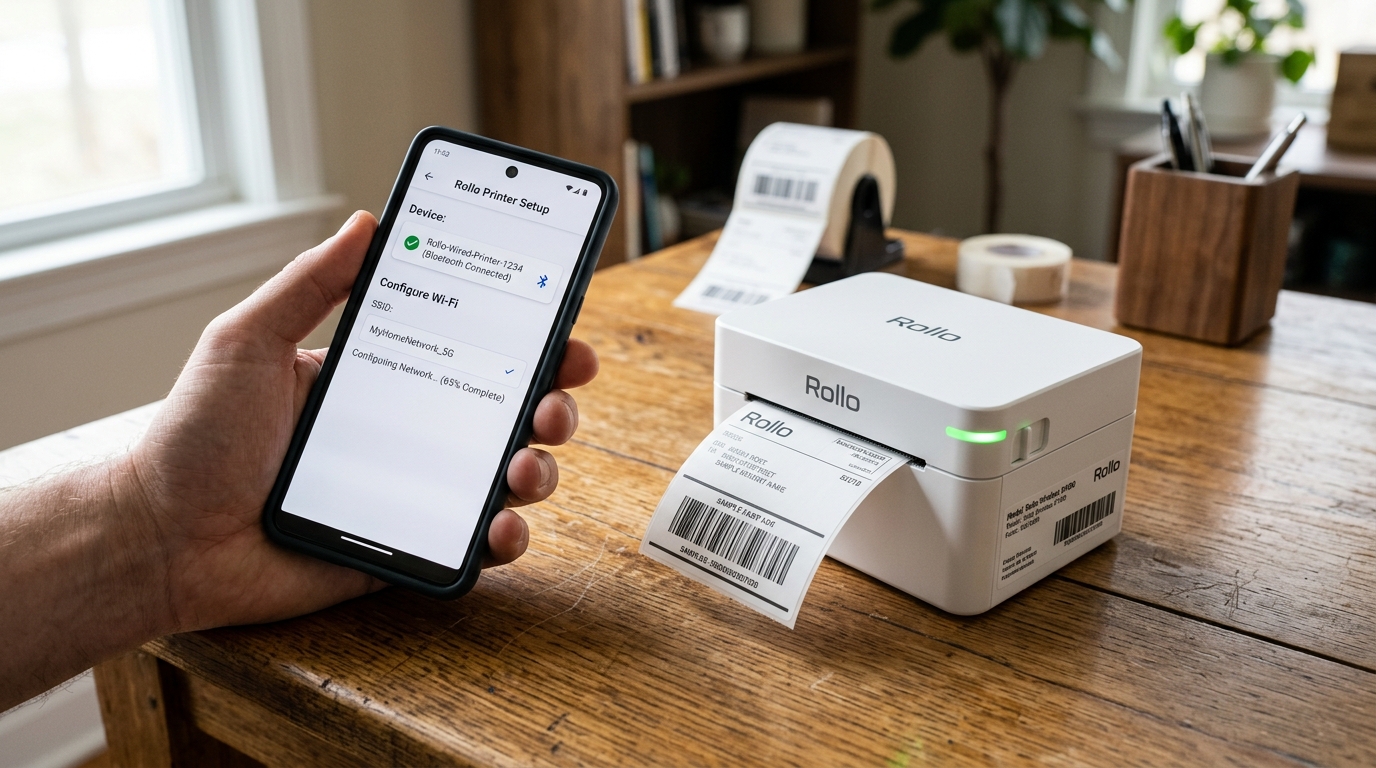
Setting up a Rollo Wireless printer represents a significant upgrade in convenience over the traditional USB-only models. Allowing seamless printing from iPhones, iPads, Android devices, and multiple computers across your home.
Office network without being physically tethered. However, transitioning from a wired setup to a wireless one introduces new variables like network bands.
Router security settings, and Bluetooth pairing protocols. Can sometimes present challenges during the initial installation.
The Rollo Wireless is designed to be a workhorse for e-commerce sellers. Handling 4x6 shipping labels at blazing speeds. but it requires a stable and properly configured 2.4GHz Wi-Fi connection to function reliably.
Many users struggle because modern mesh routers automatically blend 2.4GHz and 5GHz bands into a single network name (SSID), confusing IoT devices like the Rollo. Only possess a 2.4GHz radio antenna.
In this comprehensive, step-by-step guide, we will walk you through the precise sequence of actions required to successfully connect your Rollo Wireless printer to your Wi-Fi network using Bluetooth for the initial handshake. How to troubleshoot common connectivity failures.
And how to optimize your network settings to ensure the printer never drops offline in the middle of a massive batch-printing session.
Why This Happens
The vast majority of wireless setup failures with the Rollo printer boil down to network band incompatibility and router isolation features. The Rollo Wireless printer is equipped with a 2.4GHz Wi-Fi module.
It physically cannot see or connect to 5GHz Wi-Fi networks. In the past, routers broadcasted two separate networks (e.g., "HomeNetwork_2G" and "HomeNetwork_5G").
Today, smart routers and mesh systems (like Eero. Google Nest, or Orbi) use a feature called "Band Steering," broadcasting one SSID.
Trying to force devices onto the faster 5GHz band. When you use your smartphone (which is likely on the 5GHz band) to tell the Rollo printer to join the network.
The router often refuses the 2.4GHz connection request from the printer, resulting in a timeout error. Additionally, Bluetooth plays a crucial, yet temporary, role in the setup.
The Rollo uses a Bluetooth Low Energy (BLE) connection to talk to your phone just long enough to receive the Wi-Fi password. If your phone's Bluetooth is glitchy, or if the Rollo app doesn't have the proper location permissions (which Android.
IOS require to scan for BLE devices), the initial handshake fails before the Wi-Fi setup even begins. Finally, security features like AP (Access Point) Isolation, commonly found on guest networks.
Strict office firewalls, prevent devices on the same Wi-Fi network from talking to each other. If AP isolation is enabled, your computer will not be able to find the Rollo printer over the network even if both are successfully connected to the router.
Step-by-Step Fix
- Prepare the Printer and Environment: Ensure your Rollo Wireless printer is plugged in, turned on, and loaded with thermal labels. Place the printer within 10-15 feet of your Wi-Fi router for the initial setup to ensure a strong signal. Ensure the top LED light is flashing green or blue, indicating it is in pairing mode.
- Configure Your Smartphone: Download the official Rollo app on your iOS or Android device. Before opening the app, go into your phone's settings and ensure that Bluetooth is turned ON. Crucially, go to the app permissions for the Rollo app. Verify that "Local Network" (iOS) or "Location/Nearby Devices" (Android) is granted. The app cannot find the printer without these permissions.
- Temporarily Force a 2.4GHz Connection (If necessary): If you have a modern mesh router. The easiest way to ensure success is to temporarily disable the 5GHz band in your router's admin app (e.g., the Eero app has a "Troubleshooting -> My device is 2.4GHz only" feature that pauses 5GHz for 15 minutes). Alternatively, walk far away from your router until your phone's signal drops to 1-2 bars; this often forces the phone to switch to the longer-range 2.4GHz band.
- Execute the App Setup: Open the Rollo app, create an account if needed, and tap "Add Printer". Select "Wireless Printer". The app will use Bluetooth to detect the printer. Once found, select it. The app will then prompt you to select your Wi-Fi network and enter the password. Type the password carefully, as incorrect passwords are the number one cause of failure here.
- Verify and Print a Test Page: After submitting the Wi-Fi credentials, the printer's LED should transition to a solid white. Solid green light (depending on firmware (internal software) (internal software) (internal software)), indicating a successful network connection. In the app, complete the setup wizard. Tap "Print Test Page" to confirm the data is flowing correctly over the Wi-Fi network.
Advanced Troubleshooting
If the printer refuses to connect despite following the standard steps, we must perform a factory reset. Investigate network deeper network settingss.
To factory reset the Rollo Wireless. Locate the small reset pinhole on the back of the device near the power switch.
While the printer is powered on, insert a paperclip. Hold the button down for about 10 seconds until you hear a beep and the light flashes.
This clears all previous Wi-Fi data and Bluetooth pairings. Next, log into your home router's administrative interface via a web browser (usually an IP like 192.168.1.1).
Navigate to the Wireless or WLAN settings. Ensure that the 2.4GHz network is operating on a standard channel (1, 6, or 11 are best to avoid interference) and.
The security protocol is set to WPA2-PSK (AES). Some newer routers default to WPA3, which the Rollo printer may not fully support, causing authentication loops.
Furthermore, check the DHCP client list in your router to see if the Rollo is actually getting an IP address. If it shows up in the router.
Your computer can't see it, you are likely dealing with a firewall issue on your PC. AP Isolation on the router.
For Windows users, ensure your network profile is set to "Private" rather than "Public," as Windows blocks local printer discovery on Public networks. You can also try adding the printer manually in Windows by going to "Printers &
Scanners," clicking "Add manually," selecting "Add a printer using an IP address," and typing in the IP address assigned to the Rollo by your router.
FAQ
Can I print via Bluetooth instead of Wi-Fi?
The Rollo Wireless printer primarily uses Bluetooth for the initial setup process to pass Wi-Fi credentials from your phone to the printer. While some basic printing functions might work over Bluetooth directly from a mobile device.
Why does the printer keep dropping off the network?
Frequent network drops are usually caused by weak Wi-Fi signal strength or interference. 4GHz interference (like microwaves or cordless phones).
How do I change the Wi-Fi network if I get a new router?
If you change your router or Wi-Fi password, the printer will go offline. You will need to perform a factory reset on the printer (using the pinhole button on the back) to clear the old network credentials.
Does the Rollo Wireless work with 5GHz Wi-Fi networks?
4GHz radio receiver. It physically cannot detect or connect to 5GHz networks.
