


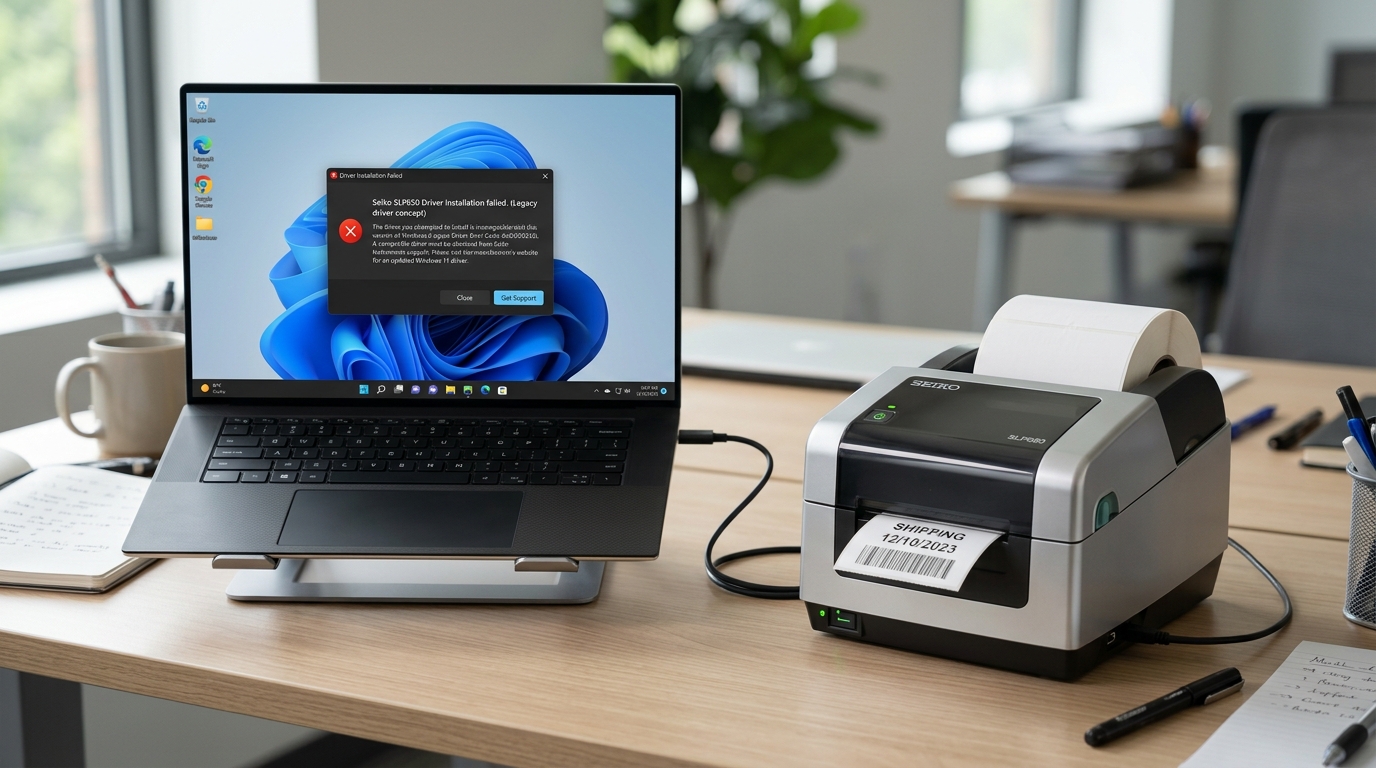
Introduction to Seiko Smart Label Printer Driver Issues
The Seiko Smart Label Printer (SLP) series has long been a staple in offices, warehouses, and small businesses for its reliability and efficiency in generating high-quality thermal labels. Whether you are printing shipping labels, barcodes, nametags, or file folder labels, the convenience of a dedicated thermal printer is unmatched.
However, as operating systems evolve, particularly with the transition to Windows 10 and Windows 11, many users experience significant challenges with driver compatibility and system recognition. It is not uncommon to find that a perfectly functional Seiko printer suddenly stops working after a Windows update, or refuses to install correctly on a brand-new computer.
Dealing with driver issues can be an incredibly frustrating experience. You might encounter error messages stating "Driver Unavailable," "Device Not Recognized," or the printer might appear in the "Unspecified" category within the Windows "Devices and Printers" menu.
Sometimes, the printer may seem correctly installed, but print jobs simply hang in the queue without any physical output. This comprehensive guide is designed to walk you through the intricacies of Seiko Smart Label Printer driver problems on modern Windows environments, explaining exactly why these issues occur and providing a meticulously detailed, step-by-step resolution path to get your printer back online and functioning optimally.
Understanding the root cause is the first step toward a permanent solution. Windows 11 and Windows 10 utilize advanced driver signature enforcement and automatic driver fetching mechanisms through Windows Update, which often conflict with legacy drivers provided by Seiko for older printer models like the SLP 440, 450, or even some newer SLP 620 and 650 models.
By following the detailed troubleshooting steps below, you will learn how to bypass these conflicts, cleanly remove problematic installations, and manually force Windows to accept the correct driver software.
Why This Happens: The Anatomy of Driver Conflicts
The primary reason your Seiko Smart Label Printer is experiencing issues on Windows 11 or Windows 10 is the shift in how Microsoft handles legacy hardware and USB enumeration. When you connect a USB device, Windows attempts to identify it using a hardware ID.
It then checks its local driver store and the Windows Update catalog for a matching driver. If Seiko has not provided an updated, digitally signed driver directly to Microsoft for your specific printer model, Windows may attempt to install a generic USB printer driver, which lacks the specific command set required to communicate with the Seiko print engine.
Another major contributing factor is driver remnants. If you have previously attempted to install the printer, or if an older version of the Seiko Smart Label Creator software was installed, orphaned registry keys and driver files can remain on your system even after a standard uninstall.
When you try to install the newest driver, these remnants cause conflicts, leading the installer to fail silently or Windows to default back to a non-working state. Furthermore, aggressive power management settings on modern USB root hubs can cause the printer to disconnect intermittently, making it appear as a driver issue when it is actually a power state problem.
Finally, there is the issue of software compatibility. The Seiko Smart Label Creator application relies on the underlying print spooler service and specific port configurations.
If the driver is installed but mapped to the wrong Virtual USB Port (e.g., USB002 instead of USB001), the software will send data into a void. Understanding these underlying mechanisms empowers you to troubleshoot effectively, moving beyond simple plug-and-play attempts into administrative-level system configuration.
Step-by-Step Fix: Resolving Seiko Driver Issues
- Disconnect the Printer and Prepare the System: Start by completely disconnecting the Seiko Smart Label Printer from your computer's USB port. It is crucial that the printer is not plugged in during the initial software and driver removal phase. Open the 'Services' app in Windows (type 'services.msc' in the Start menu), locate the 'Print Spooler' service, right-click it, and select 'Stop'. This unlocks any driver files currently in use.
- Completely Uninstall Existing Software: Navigate to 'Settings' > 'Apps' > 'Installed apps'. Find any software related to Seiko, such as 'Smart Label Creator' or Seiko printer drivers. Uninstall them completely. Next, open 'Device Manager' (right-click the Start button), go to 'View' and select 'Show hidden devices'. Expand the 'Printers' and 'Universal Serial Bus controllers' sections. If you see any grayed-out Seiko printers or 'USB Printing Support' devices with warning triangles, right-click and uninstall them, ensuring you check the box to 'Attempt to remove the driver for this device' if prompted.
- Clear the Print Spooler and Registry (Optional but Recommended): Navigate to
C:\Windows\System32\spool\PRINTERS and delete any files inside this folder (these are stuck print jobs). Restart the Print Spooler service from the 'Services' app. For advanced users, opening the Registry Editor (regedit) and carefully checkingHKEY_LOCAL_MACHINE\SYSTEM\CurrentControlSet\Control\Print\Printersfor remaining Seiko entries and deleting them can prevent future conflicts. - Download the Correct Drivers: Go to the official Seiko Instruments website. Do not rely on third-party driver download sites. Navigate to the support section for your specific model (e.g., SLP 650). Download the latest version of the Smart Label Creator software, which typically includes the necessary Windows 10/11 drivers. Save the executable file to your Desktop.
- Install the Software and Drivers: Right-click the downloaded installer and select 'Run as administrator'. Follow the on-screen prompts. The installer will typically install the software suite first and then preload the driver files into the Windows Driver Store. Wait until the installer explicitly prompts you to connect the printer before plugging it in.
- Connect and Initialize the Printer: Plug the USB cable directly into a USB port on the motherboard (avoid USB hubs or front panel ports if possible). Turn the printer on. Windows should now detect the device and automatically bind it to the preloaded Seiko drivers. You will see a notification confirming the device is ready.
- Verify Port Configuration: Open 'Control Panel' > 'Devices and Printers'. Right-click your newly installed Seiko printer and select 'Printer properties'. Go to the 'Ports' tab. Ensure that a 'USB Virtual printer port for USB' (like USB001 or USB002) is checked. If it is mapped to LPT1 or COM1, the printer will not print. Click 'Print Test Page' on the General tab to confirm functionality.
Advanced Troubleshooting: Manual INF Installation
If the standard installation procedure fails, you may need to force install the driver using the raw INF file. First, extract the downloaded Seiko installer using a tool like 7-Zip, or locate the temporary folder it creates during installation (usually in your AppData/Local/Temp directory).
Look for a folder containing a file with an '.inf' extension (e.g., slp.inf).
Open Device Manager, plug in your printer. It will likely appear under 'Other devices' as an 'Unknown device' or 'Seiko SLP'.
Right-click it and choose 'Update driver'. Select 'Browse my computer for drivers', then 'Let me pick from a list of available drivers on my computer'.
Choose 'Printers' from the category list, click 'Next', and then click the 'Have Disk...' button. Browse to the location of the extracted .inf file and select it.
Windows will read the file and display a list of compatible Seiko models. Choose your specific model and force the installation, ignoring any warnings about driver signature verification if you are absolutely certain you downloaded the file from the official Seiko website.
This method bypasses the installer logic and directly maps the hardware ID to the driver files.
Additionally, check your USB power management settings. In Device Manager, expand 'Universal Serial Bus controllers', double-click the 'USB Root Hub', go to the 'Power Management' tab, and uncheck 'Allow the computer to turn off this device to save power'.
Repeat this for all USB Root Hubs. This prevents Windows from cutting power to the printer during periods of inactivity, which often causes the driver to crash or the printer to go offline.
FAQ
Does the Seiko Smart Label Printer work on Windows 11 ARM devices?
Compatibility with Windows 11 on ARM (such as Surface Pro X or devices using Snapdragon processors) is limited. Most Seiko drivers are compiled for x86/x64 architectures.
Why does Windows say "Driver Unavailable" even after installation?
, trying to install a 32-bit driver on a 64-bit system), or that the driver signature is invalid or revoked. It can also happen if the hardware ID of your specific printer revision is not explicitly listed in the driver's INF file.
Can I use generic text/only drivers for my Seiko printer?
Yes, you can install the printer using the 'Generic / Text Only' driver built into Windows. However, you will lose the ability to print graphics, barcodes, and utilize the specific formatting features of the Smart Label Creator software.
Why does the Smart Label Creator software crash on startup?
Software crashes are typically related to corrupted installation files, missing visual C++ redistributable packages, or permission issues. Try running the application as an administrator.
