


Why This Happens
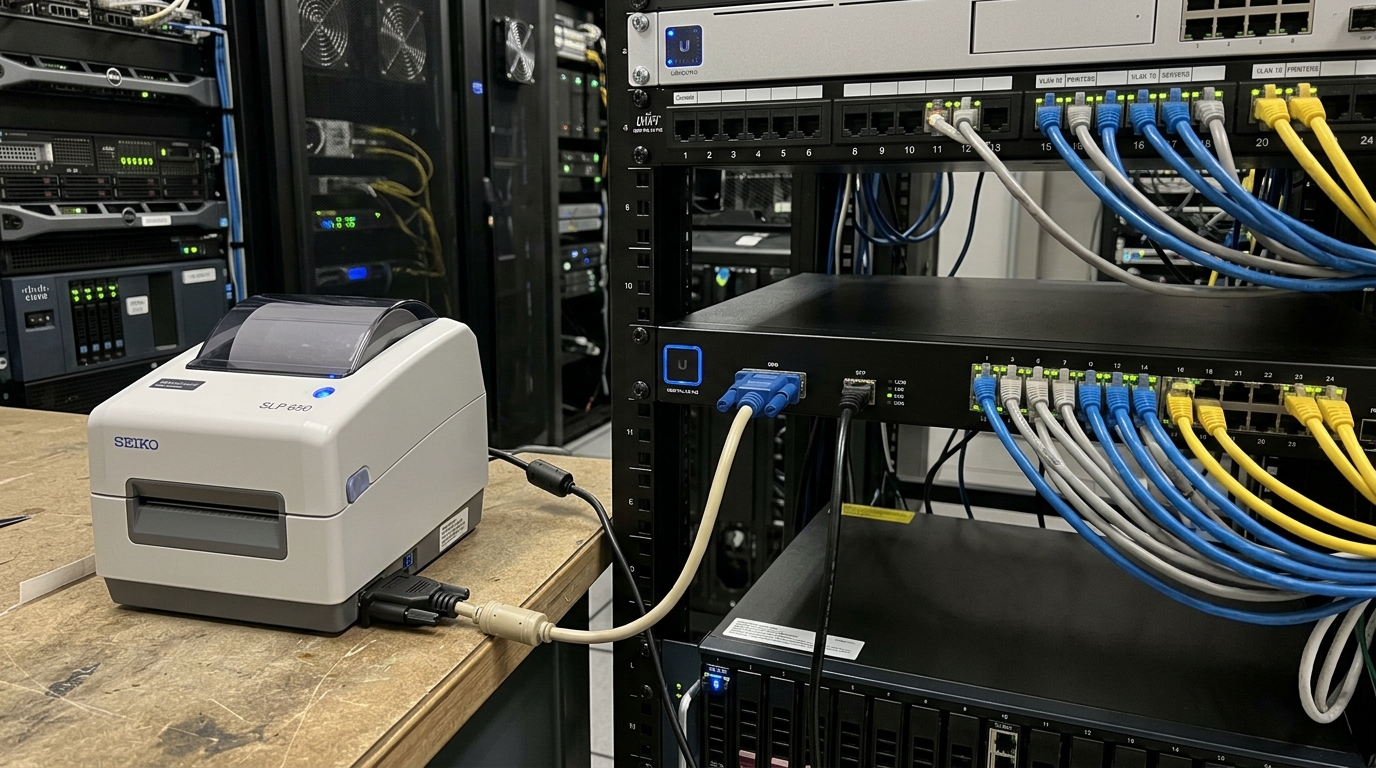
Serial communication is fundamentally different from USB. USB is plug-and-play, automatically negotiating speeds and protocols. Serial communication (RS-232) is manual and rigid. The computer (or host device) and the printer must be configured to speak at exactly the same speed (baud rate), use the same data packet structure (data bits). And Use the same error checking (parity). If a Seiko SLP is set to receive data at 9600 baud. But The computer sends it at 19200 baud, the printer will misinterpret the electronic pulses, resulting in endless printing of random characters or completely blank labels. When using Serial-to-USB adapters, the problem is compounded by the adapter's chipset. Cheap adapters with clone Prolific chipsets often suffer from driver instability and buffer overruns. Dropping data packets during the transmission to the printer. Genuine FTDI chipsets are generally required for reliable continuous printing. The adapter creates a virtual COM port on the computer. This Must be perfectly mapped within the Seiko printer driver properties. Networking an SLP introduces a different set of challenges related to the Windows Print Spooler and network discovery protocols. When you share a USB-connected SLP over a network, the host computer acts as a print server. If the host computer goes to sleep, changes its IP address. Or Blocks incoming print requests via a firewall, the client computers will see the printer as "Offline." Furthermore, thermal printers handle print jobs differently than standard laser printers; if multiple large jobs are sent simultaneously over a network, the small internal buffer of the SLP can easily become overwhelmed, causing jobs to drop or freeze. Managing multiple SLPs on one PC causes conflicts if the drivers are not uniquely instanced. Windows relies on device IDs to assign drivers. If you plug in two identical SLP 650s. Windows may try to map them to the same driver instance, causing spooler collisions. Each printer must be mapped to a distinct USB or COM port and given a unique. Easily identifiable name to prevent routing errors within the Smart Label Creator software.Step-by-Step Fix
- Configuring a Serial Connection:First, ensure you are using a high-quality serial cable (null modem or straight-through. Depending on the specific SLP model's manual). Connect the serial cable to the printer and the COM port (or USB-to-Serial adapter) on the PC. Open Windows Device Manager, locate the COM port under 'Ports (COM & LPT)', right-click, and select 'Properties'. Go to 'Port Settings'. Set the Bits per second (Baud Rate) to match the printer's default (usually 9600 or 19200 for Seiko). Set Data bits to 8, Parity to None, Stop bits to 1, and Flow control to Hardware (RTS/CTS).
- Aligning the Printer Driver: Open 'Devices and Printers', right-click the Seiko SLP, and select 'Printer properties'. Go to the 'Ports' tab and check the box next to the correct COM port. Then, click 'Configure Port' and ensure these settings exactly mirror the settings you just applied in the Device Manager. Apply the changes and attempt a test print.
- Sharing the Printer over a Network: On the host computer (where the printer is physically connected), go to 'Printer properties' and select the 'Sharing' tab. Check 'Share this printer' and give it a short, simple share name (e.g., "ShippingSLP"). Next, open the Windows Defender Firewall settings, navigate to 'Allow an app or feature through Windows Defender Firewall'. And Ensure 'File and Printer Sharing' is checked for your current network profile (Private/Domain).
- Connecting Client Computers: On the client computer needing access to the shared printer, open 'Devices and Printers' and click 'Add a printer'. Choose 'The printer that I want isn't listed', then 'Select a shared printer by name'. Enter the network path in the format \\HostComputerName\ShippingSLP (replace with your actual names). Windows will attempt to download the driver from the host. If it fails, you must manually install the Seiko drivers on the client PC first. Then map the port to the network path.
- Setting Up Multiple Printers on One PC:Connect the first printer via USB, allow it to install. And Immediately rename it in 'Devices and Printers' to something specific (e.g., "SLP-Address"). Disconnect it. Connect the second printer, let it install, and rename it (e.g., "SLP-NameBadge"). Now reconnect the first printer. You should see two distinct printers. In the Smart Label software, you must manually select the correct printer from the drop-down menu before hitting print. As the software will default to the last used device.
Advanced Troubleshooting
If you are struggling with serial communication, a loopback test on your serial adapter is invaluable. Connect pins 2 (RX) and 3 (TX) on the serial adapter using a paperclip or wire. Open a terminal program like PuTTY, connect to the COM port, and type. If you see what you type, the adapter is working, and the issue lies with the cable or the printer. If you don't see the text, the adapter or its driver is faulty. For persistent network printing issues, assign a static IP address to the host computer. DHCP IP changes will break network printer paths that rely on IP addresses instead of hostnames. Additionally, you can bypass standard Windows sharing by using a dedicated USB hardware print server device. These small boxes connect the USB printer directly to your Ethernet switch. You then install the print server's software on client PCs. This Creates a robust Standard TCP/IP Port for the printer, completely removing the reliance on a host PC. When dealing with multiple printers and custom label sizes, you might encounter issues where the label size resets. This is because Windows associates default paper sizes with the driver, not the specific printer instance. To fix this, you must go into the 'Printing preferences' of each individual printer instance in the Windows Control Panel. Set the default label size for that specific printer, and apply it. This ensures that the "SLP-NameBadge" always defaults to the large badge stock. While the "SLP-Address" defaults to standard address labels.FAQ
Why is my serial printer printing miles of question marks?
This is a classic baud rate mismatch. The printer is receiving data at a different speed than it expects.
Can I use a USB hub to connect four Seiko SLPs to my laptop?
Yes, but it must be a powered USB hub. Thermal printers draw a significant amount of power when the print head heats up.
How do I find the IP address of my networked Seiko printer?
If the printer is shared via a Windows PC, it uses the PC's IP address. If you are using a hardware USB print server.
Does Smart Label Creator support printing to multiple printers at once?
No, the native software is designed to send a job to one selected printer at a time. To perform automated batch printing to multiple printers simultaneously, you would need to use enterprise software like BarTender.
