


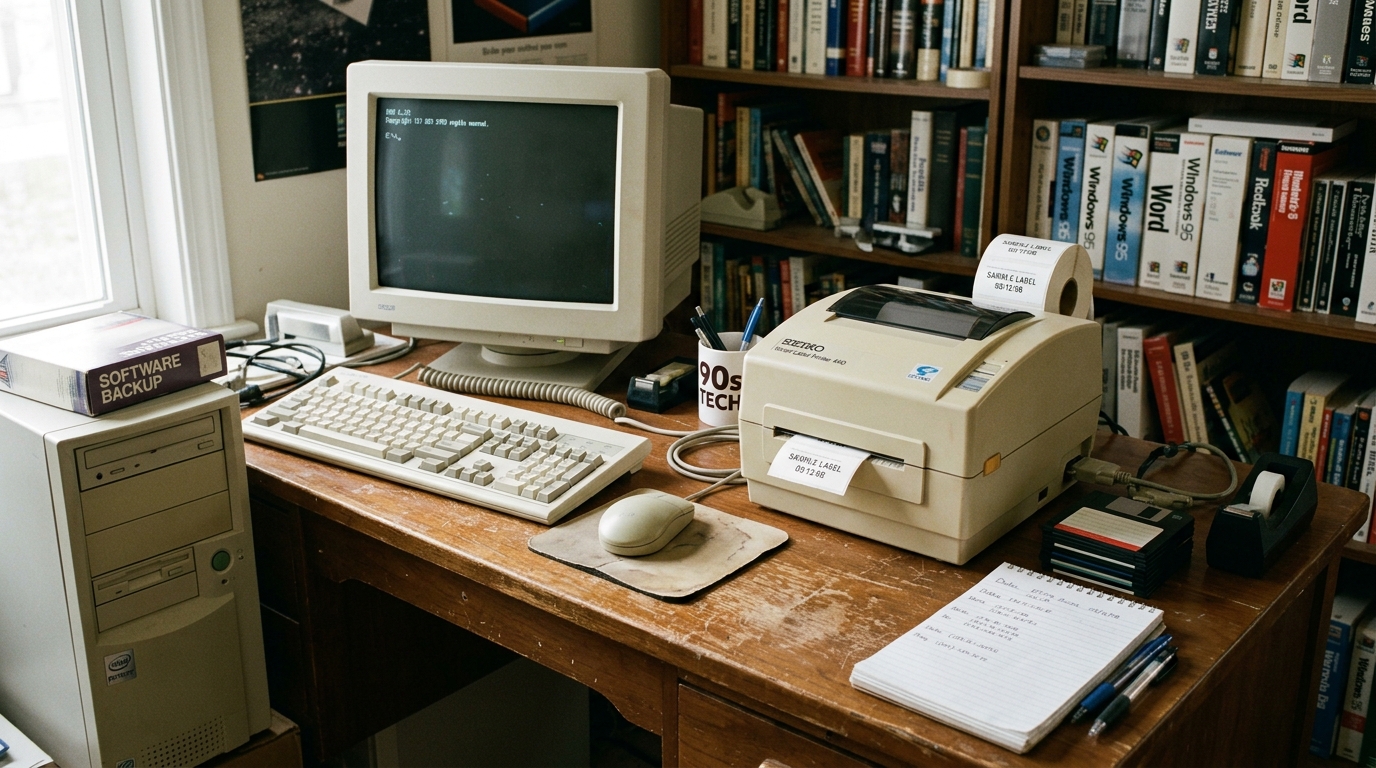
Introduction to Legacy Seiko SLP Troubleshooting
The Seiko Instruments Smart Label Printer (SLP) series—specifically legacy models like the SLP 100, 200, 240, 420. And 440—were pioneers in desktop label printing.
Despite their age, many of these durable machines are still in active service in offices, warehouses, and medical facilities today. However, keeping legacy hardware running on modern operating systems like Windows 10/11 or macOS presents unique challenges.
Users frequently encounter driver incompatibility, USB recognition failures, print spooler crashes. And mechanical degradation such as brittle rollers or failing sensors.
This guide is dedicated to breathing life back into your legacy Seiko SLP printers. We will explore how to navigate software hurdles, bypass obsolete manufacturer support.
And perform essential mechanical maintenance to resolve persistent paper jams and poor print quality. Because official support and software updates for these models have largely ceased, troubleshooting requires a mix of legacy software workarounds, emulation techniques.
And careful hardware preservation. By following this comprehensive guide, you can maximize the lifespan of your Seiko SLP, ensuring it continues to produce crisp address, shipping.
And file folder labels without needing a costly upgrade to a modern replacement.
Why This Happens
The primary reason for issues with legacy Seiko SLP printers is the rapid advancement of operating systems outpacing the hardware's driver support. For instance, the SLP 100 and 200 series were designed in the era of Windows XP and earlier macOS versions.
When connecting these to a modern 64-bit Windows 11 machine, the OS often lacks the native architecture to understand the legacy 32-bit driver instructions, resulting in "USB Device Not Recognized" errors or print jobs vanishing from the queue. On the hardware side, age takes a toll.
The rubber platen rollers that grip and feed the labels dry out, harden. And become smooth over a decade of use.
This loss of friction leads to slippage, misaligned prints, and frustrating paper jams. Thermal print heads also degrade; dead pixels manifest as vertical white lines running through your labels.
And accumulated adhesive residue acts as an insulator, resulting in faded or light text. Furthermore, the optical sensors that detect the label gaps gather dust over the years, causing the printer to feed continuously or flash error lights.
Because it cannot find the top of the form. Combining these hardware aging factors with software obsolescence creates a perfect storm of operational failures.
Step-by-Step Fix
Follow these steps to revive and troubleshoot your legacy Seiko SLP 440, 420, 240, 100, or 200 printer:
- Clean the Hardware Thoroughly: Unplug the printer. Open the cover. And use a cotton swab soaked in 99% isopropyl alcohol to scrub the thermal print head (the thin ceramic line). Clean the rubber platen roller aggressively to remove slick residue and slightly roughen the surface to restore grip.
- Clear the Optical Sensor: Locate the label gap sensor in the feed path. Use a can of compressed air to blow out any dust, and wipe it gently with a dry swab. This fixes continuous feeding errors.
- Download Legacy Drivers/Software: Do not rely on Windows Update. Search the internet archive or Seiko's legacy support pages for the latest version of "Smart Label Creator" (usually version 6.x or 7.x). Download the specific package designated for Windows 8 or 10, as these often contain compatible 64-bit drivers.
- Install Drivers in Compatibility Mode: If the installer fails on Windows 11, right-click the setup file, select Properties > Compatibility. And check "Run this program in compatibility mode for Windows 8" (or Windows 7 for older SLP 100/200 models). Run the installer as Administrator.
- Manually Assign the USB Port: If the printer installs. But won't print, go to Windows Printers & Scanners > Printer Properties > Ports tab. Ensure the printer is assigned to a "USB Virtual Printer Port" and not LPT1 or COM1.
- Adjust Print Density. And Speed: In the Smart Label Creator software, go to the print settings and lower the print speed while increasing the print density (darkness). Older thermal heads need more time and heat to produce dark text compared to when they were new.
- Clear the Print Spooler: If jobs get stuck in the queue permanently, open the Windows Services app (services.msc), locate the "Print Spooler" service, right-click. And restart it. This flushes corrupted jobs that the legacy driver failed to process.
Advanced Troubleshooting
When basic compatibility tweaks fail, advanced measures are required. If a Windows 11 PC outright refuses to install the unsigned legacy driver for an SLP 240, you must temporarily disable Windows Driver Signature Enforcement.
Reboot your PC while holding the Shift key, go to Troubleshoot > Advanced Options > Startup Settings. And choose option 7 to disable enforcement, then install the driver.
For Mac users, modern macOS (Catalina. And newer) dropped support for 32-bit apps entirely, rendering the old Seiko Mac software useless.
The advanced workaround is to install a generic CUPS ZPL/EPL driver or run a lightweight Windows Virtual Machine (using Parallels or VirtualBox) specifically to bridge the hardware. And print labels using the Windows software.
Mechanically, if the platen roller is completely rock hard. And slipping, a temporary fix is to remove it and lightly sand it with fine-grit sandpaper to expose fresh, grippy rubber.
If you experience vertical white lines (voids) in your barcodes or text, this indicates permanently burned-out elements on the thermal print head. Unfortunately, print heads for the SLP 100/200 series are obsolete; the only workaround is to redesign your label template to avoid printing crucial information over the dead zones.
FAQ
Does the Seiko SLP 420 or 440 work on Windows 11?
Yes, but it requires manual intervention. 1 (or the latest available legacy version).
Why does my SLP print out three blank labels after every job?
This is a sensor calibration issue. The printer's optical sensor is either dirty.
Can I use Dymo labels in a Seiko SLP printer?
Generally, no. Seiko printers require labels with a specific index mark (a small black mark or specific hole punch) on the backing paper for the sensor to detect the top of the form.
How do I fix light or faded print on my SLP 200?
First, clean the thermal print head with isopropyl alcohol. If the print is still light, open the Smart Label Creator print settings and increase the 'Darkness' or 'Density' slider.
What should I do if the power light flashes continuously?
A flashing power light indicates a hardware error. Ensure the cover is completely closed and latched.
